How to verify your store with Zamn on the Business Platform using a freelance document
Here is how to verify your store on the Business Platform using a freelance document, in clear and easy steps, and then link the verification to your platform on Zamn.
To make online trade more trusted and its payments safer, the Ministry of Commerce asked online store owners to verify their stores through the "Business Platform" of the Saudi Business Center, instead of the "Maroof" platform.
This step comes in cooperation with the E-Commerce Council. It aims to improve verification steps and to make sure stores are linked to business bank accounts. This builds trust in online deals and reduces fraud.
The Ministry of Commerce said that online store verification is done easily on the Saudi Business Center website. To get verified, you need a valid freelance document and a business bank account in the name of the person doing the business (the store owner on Zamn).
It also said that the "Business Platform" will be the only official platform for verifying online stores in the Kingdom.
Verification requirements
- A valid freelance document.
- A business bank account.
- An active Absher account.
- Age 18 or older.
- Saudi nationality.
Steps to register on the Business Platform
-
Go to the Business Platform from here.
-
Click Business Platform.
-
Click the Start Service icon.
-
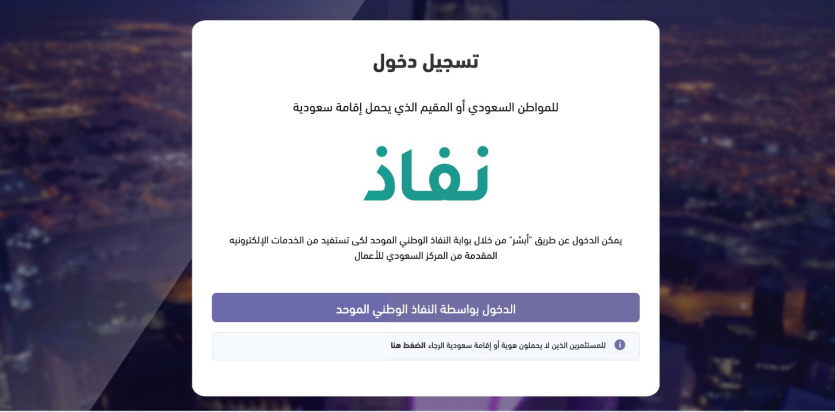
Sign in through National Single Sign-On (Nafath).
-
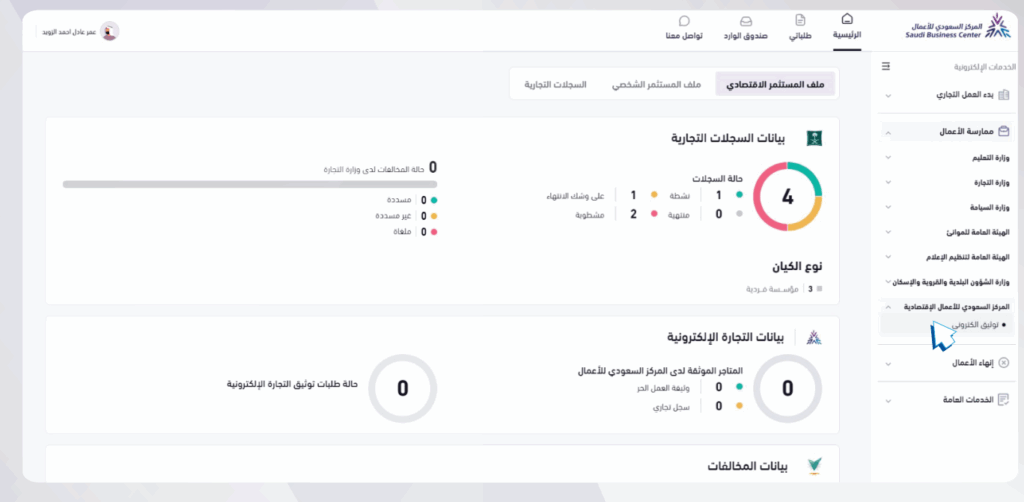
From the main menu, choose E-Services, then choose E-Store Verification.
-
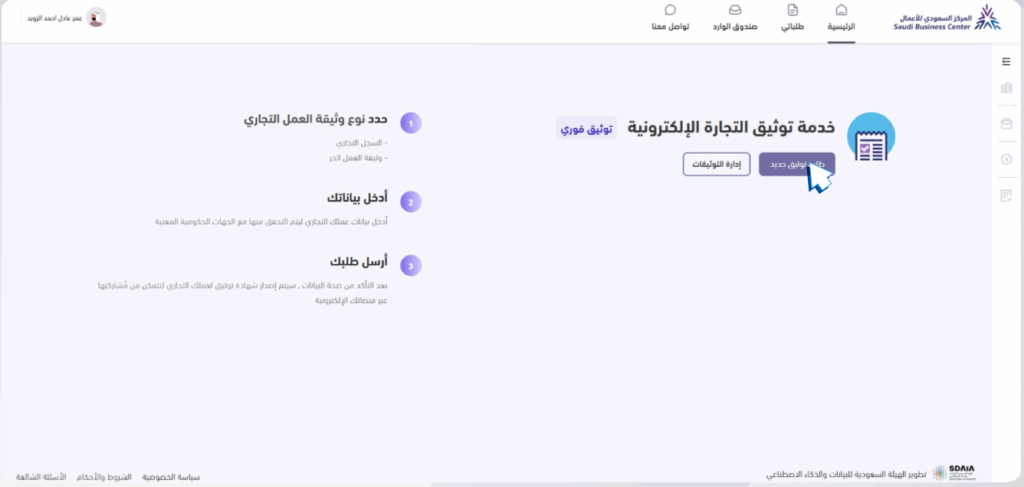
Choose New Verification Request.
-
Choose the document type Freelance Document.
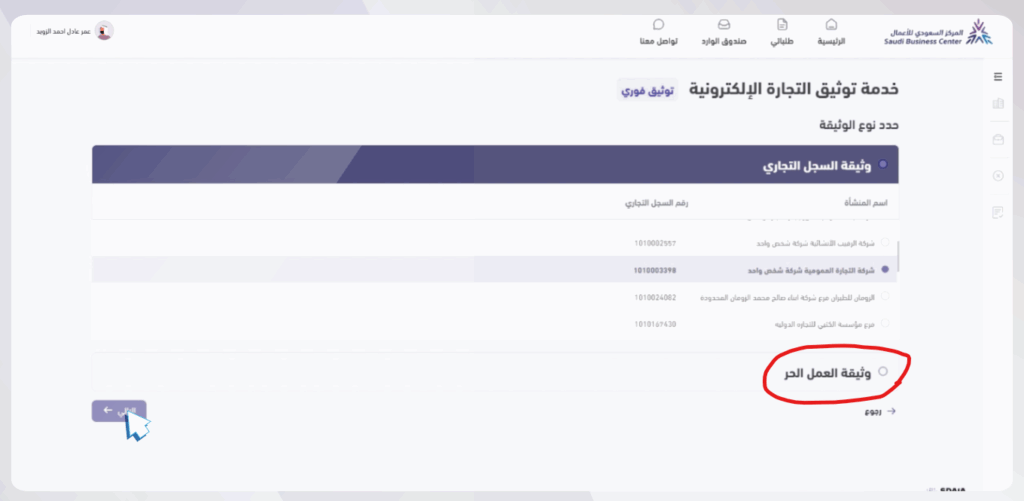
-
Make sure you meet all the requirements, then agree to the terms and click Next.
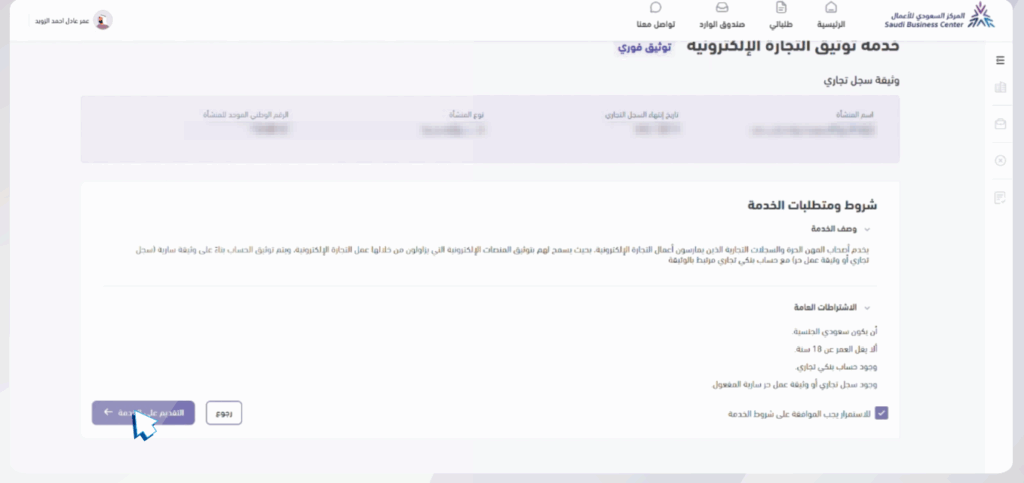
-
Add your business bank account number and your contact details and channels, then click Next.
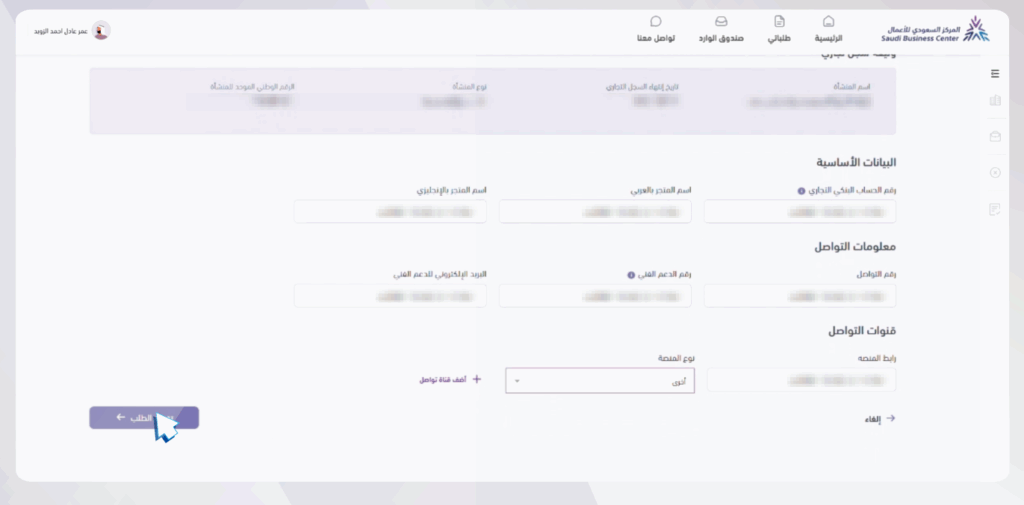
-
The confirmation message "Verification request submitted successfully" shows.
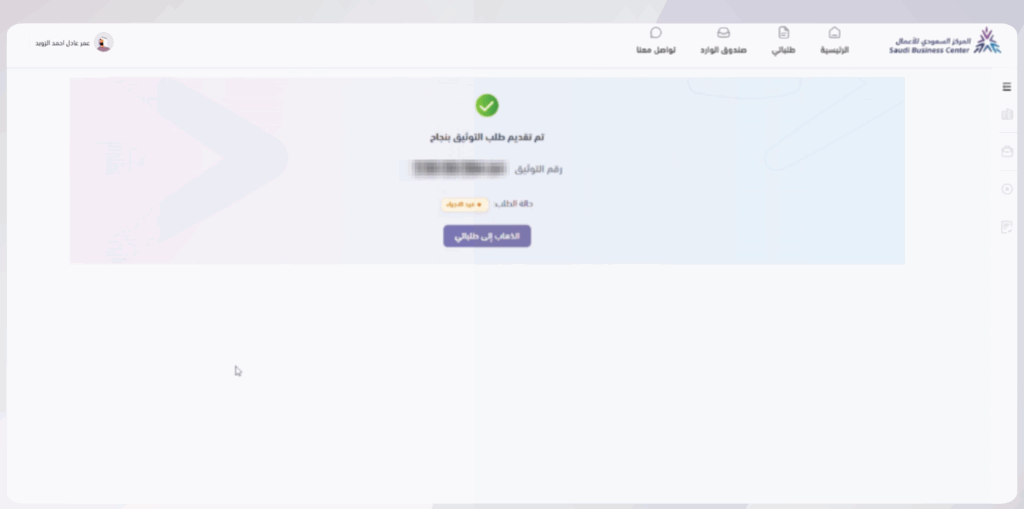
-
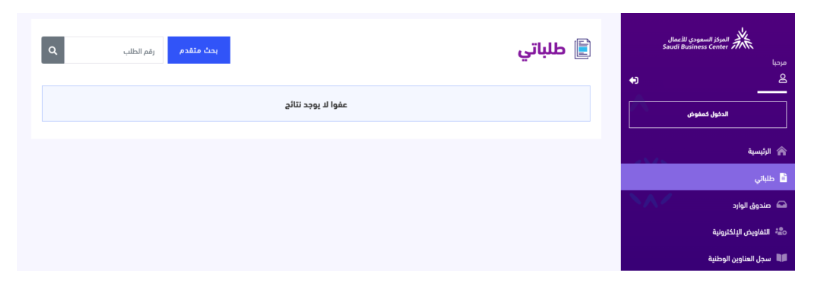
To follow your request, find it in the My Requests section.
-
Congratulations! Your Saudi Business Center certificate is issued.
To get the Business Platform user guide, click here.
Add your freelance document number to your platform on Zamn
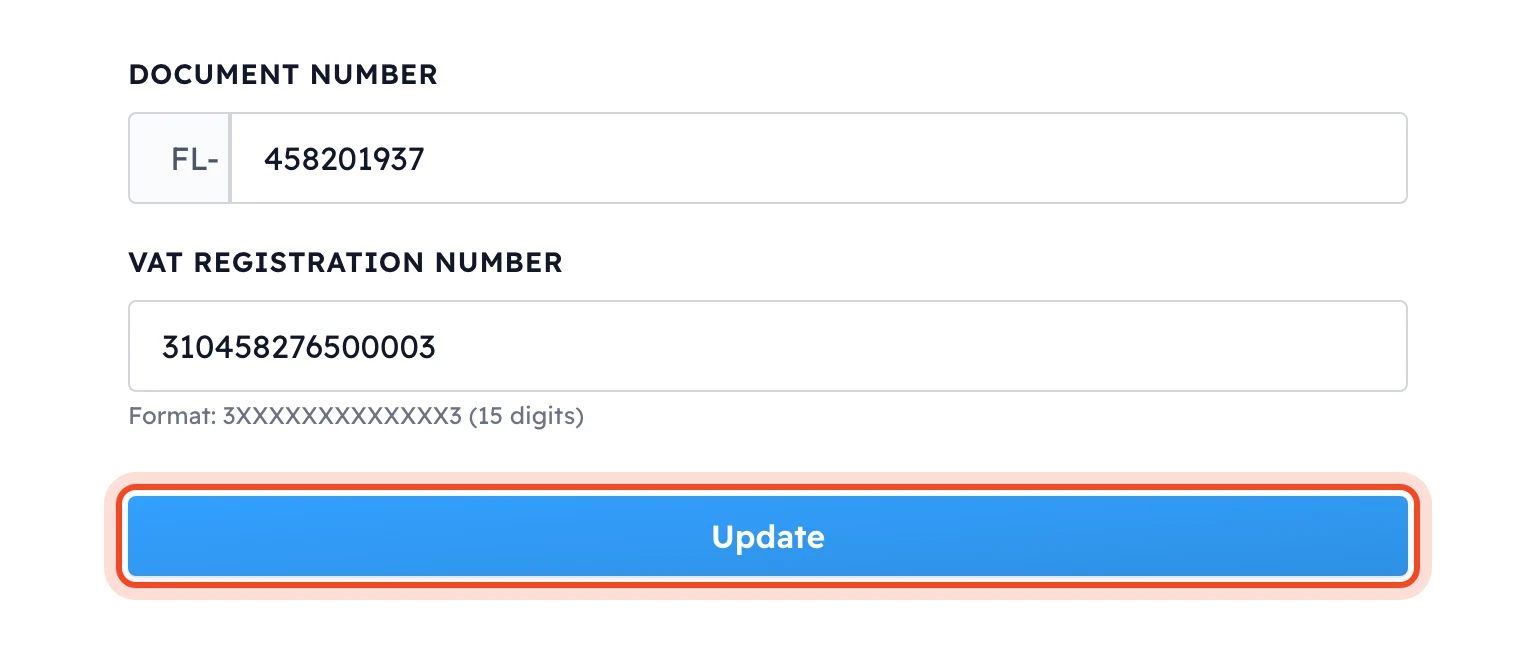
On Zamn, you add the number of your freelance document, not the number of the Saudi Business Center certificate. The freelance document number starts with FL-.
Adding the freelance document number is available on the Growth, Pro and Organizations plans, and during the free trial. On other plans, the Saudi Business Center window shows only the message You need to upgrade your plan.
-
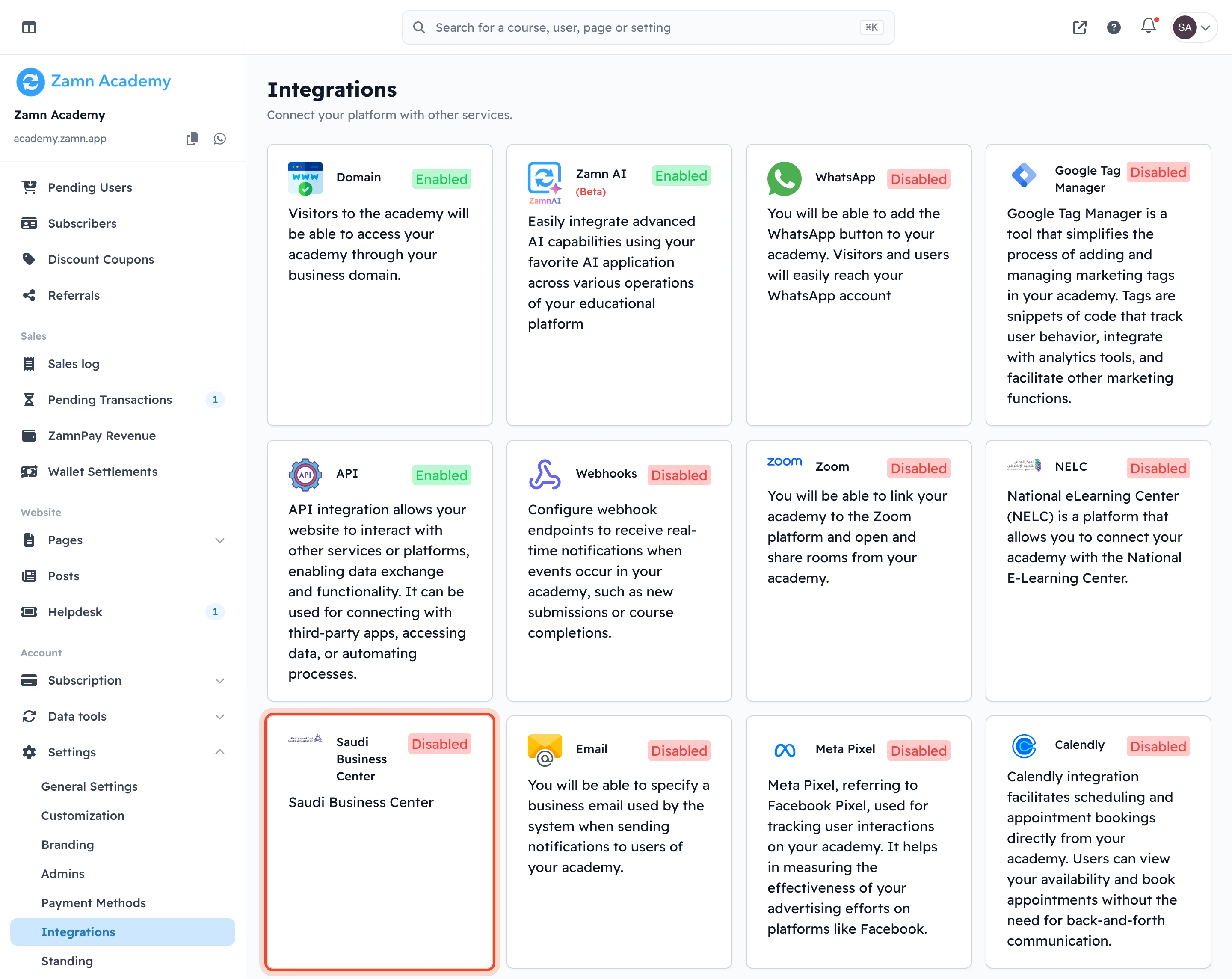
From your platform's dashboard, choose Settings.
-
Go to the Integrations page.
-
Choose Saudi Business Center.
-
In the Document number field, type the number of your freelance document without FL-. The FL- part shows in grey before the field, so type only the 9 digits after it.
-
If your platform is registered for VAT, type your number in the VAT Registration Number field: 15 digits that start and end with 3. This field is optional. When you fill it in, your students can download a receipt for each payment, with your VAT number on it.
-
Click Update to save.