Add a parent to your account
You can add your parent to your account, so they can sign in to the platform and follow your course reports and study calendar.
How to add a parent
-
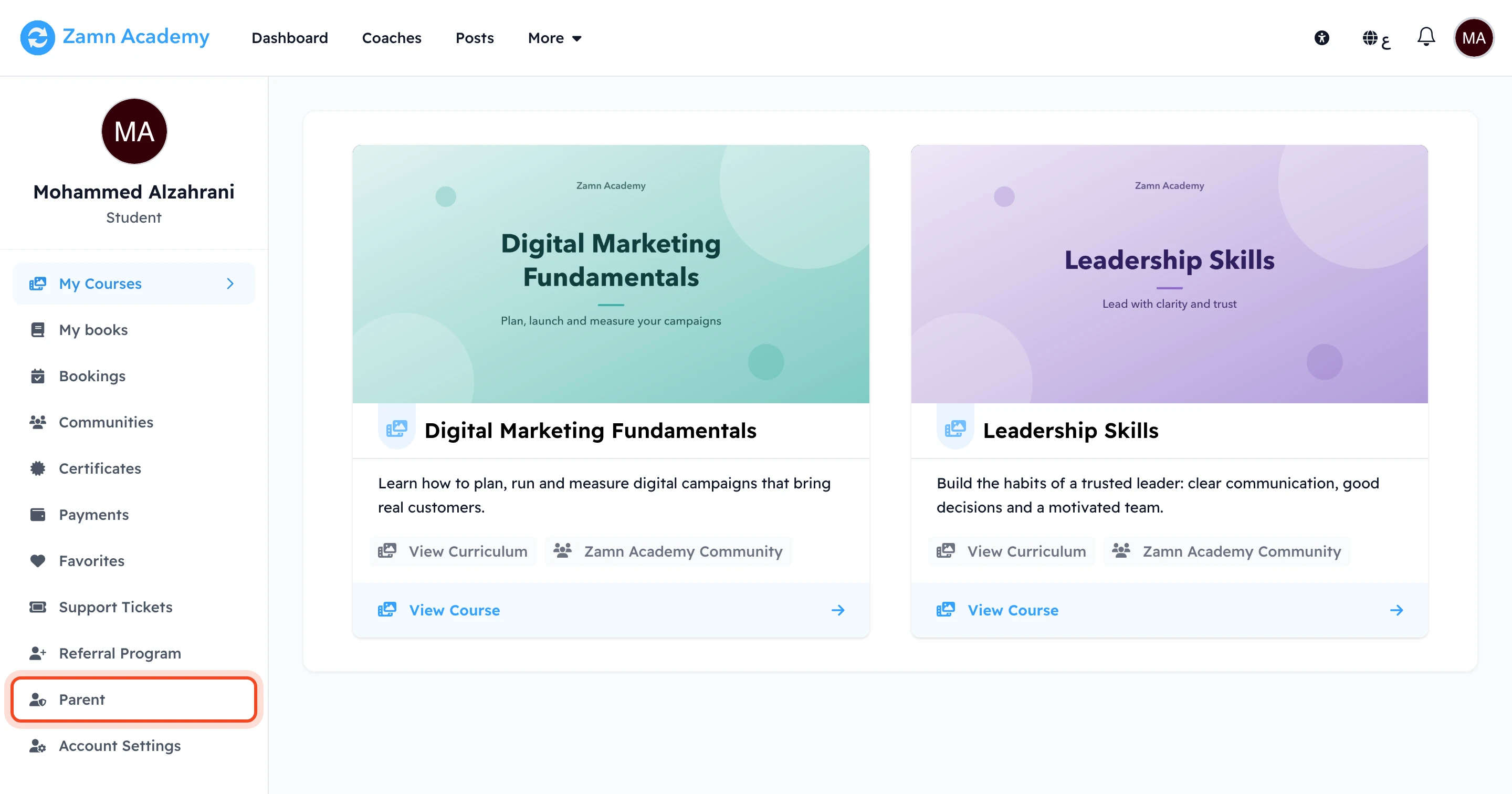
Go to the Dashboard page, then choose Parent from the side menu.
-
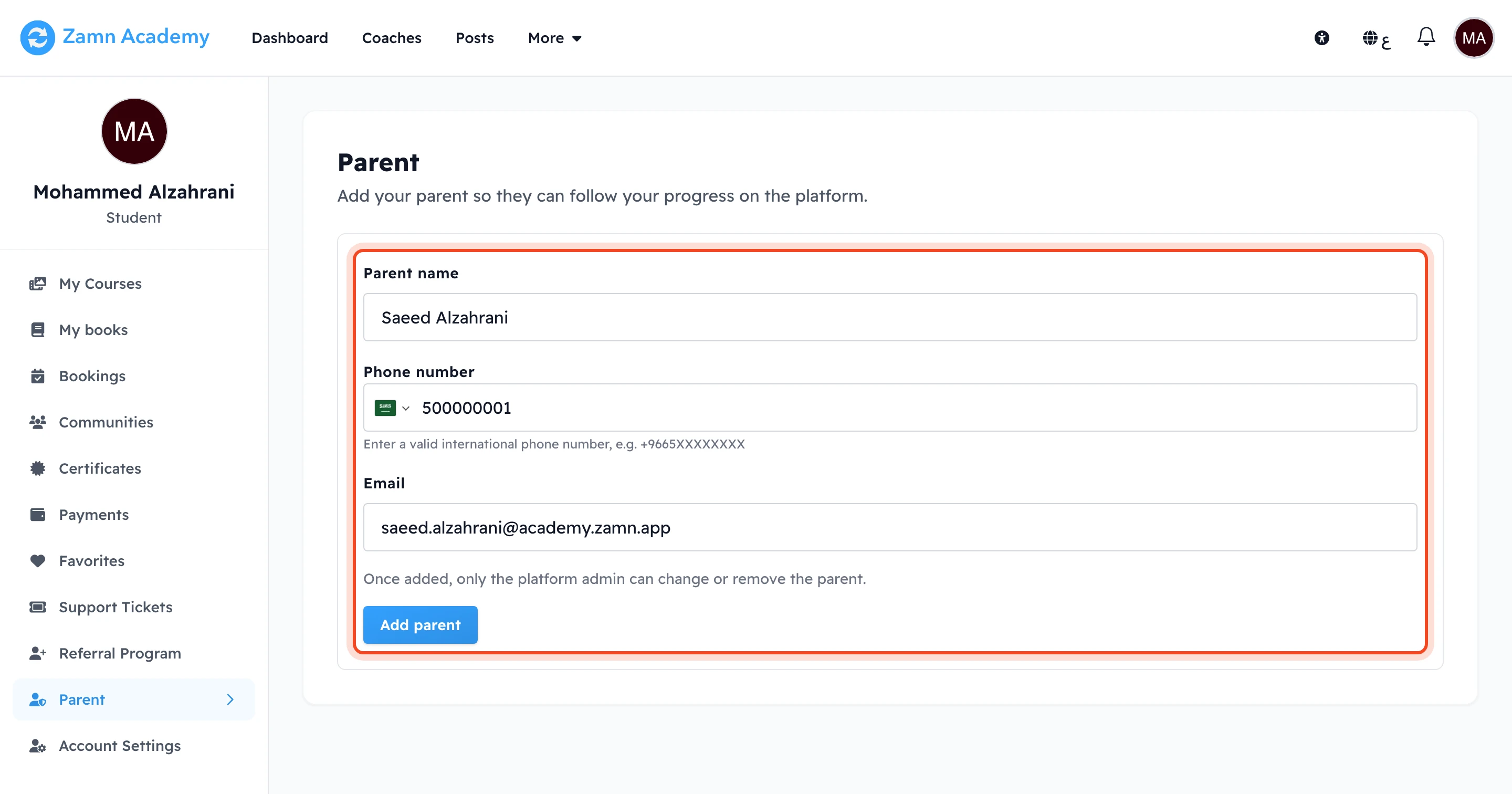
Enter your parent's details: Parent name, Phone number (choose the country, then type the number) and Email.
-
Click Add parent. The message Parent added successfully shows.
After that, the Parent page shows your parent's name, phone number and email.
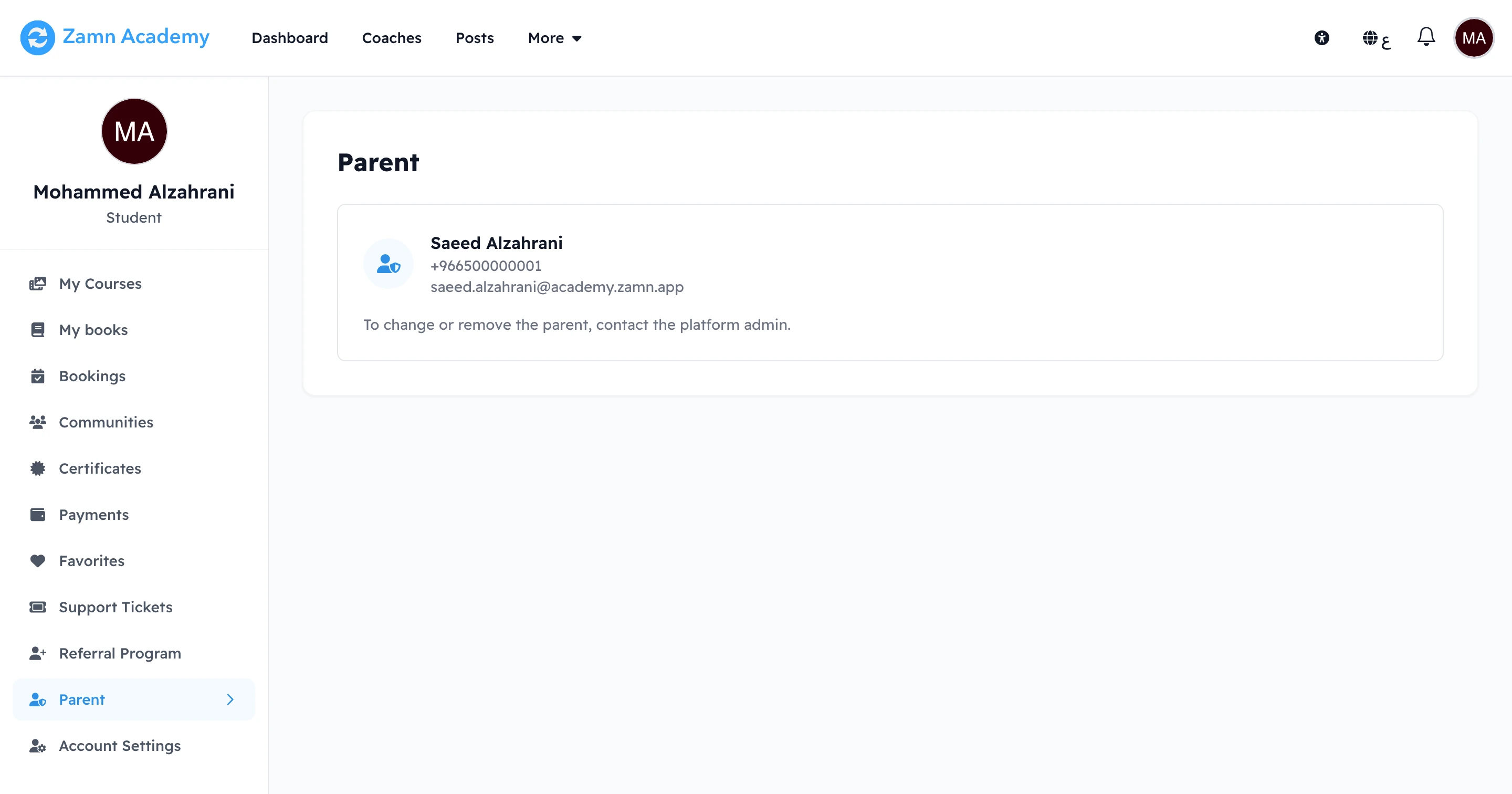
You can add a parent only once. After that, only the platform admin can change or remove the parent. To change or remove the parent, contact the platform admin.
- Your parent cannot be a student on the same platform.
- If your parent already has an account on the platform, enter the same phone number and email as in that account.
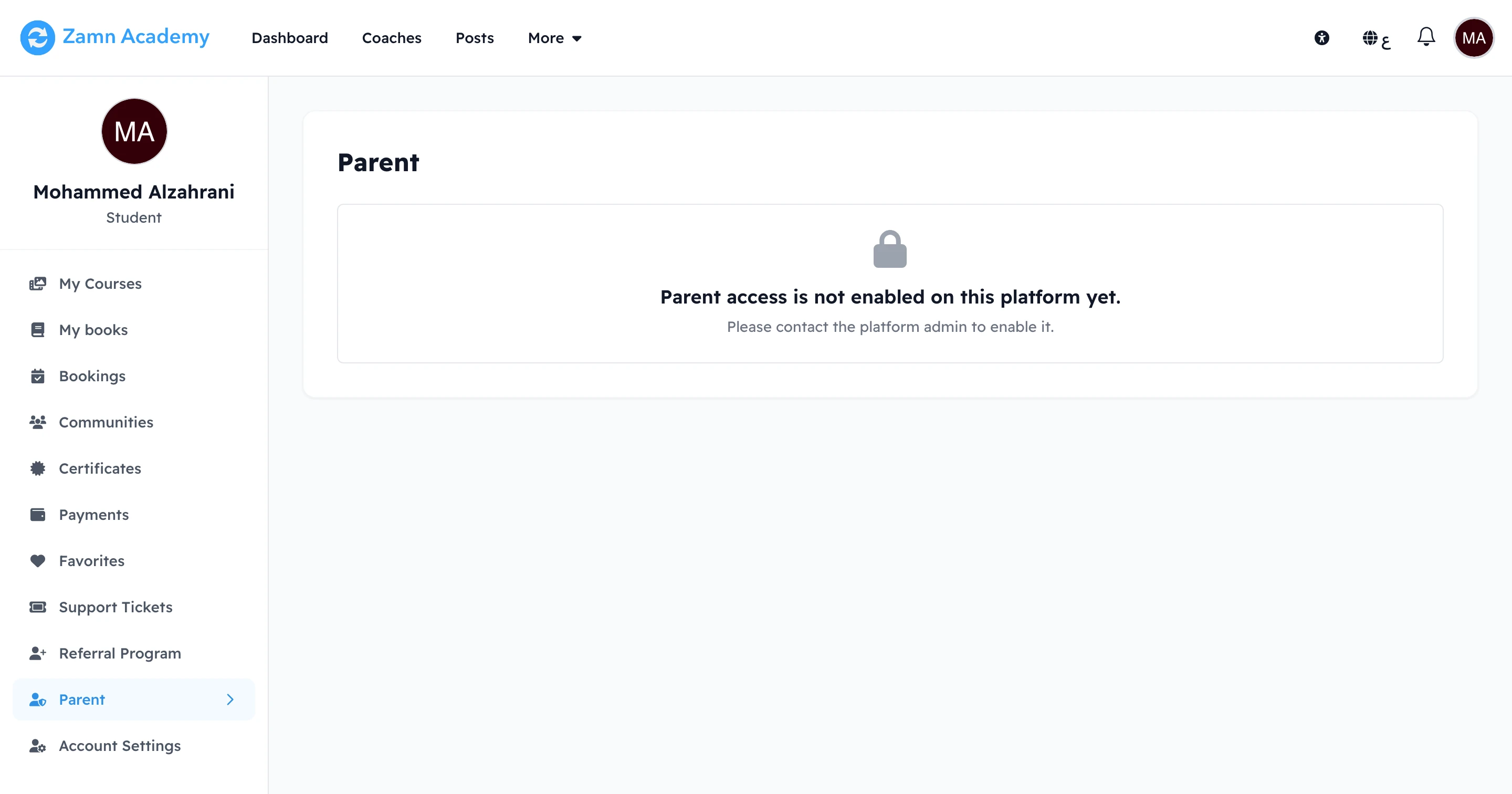
If the platform has not turned on parent access, the Parent page shows the message Parent access is not enabled on this platform yet. In this case, contact the platform admin.
What your parent sees
Your parent gets an email with a Sign in button, and signs in with the phone number or email you entered. In their Dashboard, under My Children, they choose your name and see your courses. For each course, they can open its Report and its Calendar. They can only look: they cannot open your lessons or send work.