Task alerts and notifications
When the trainer publishes a new task in your course, you get alerts in the following ways.
These alerts depend on the platform's subscription plan, so on some platforms you may not get all of them.
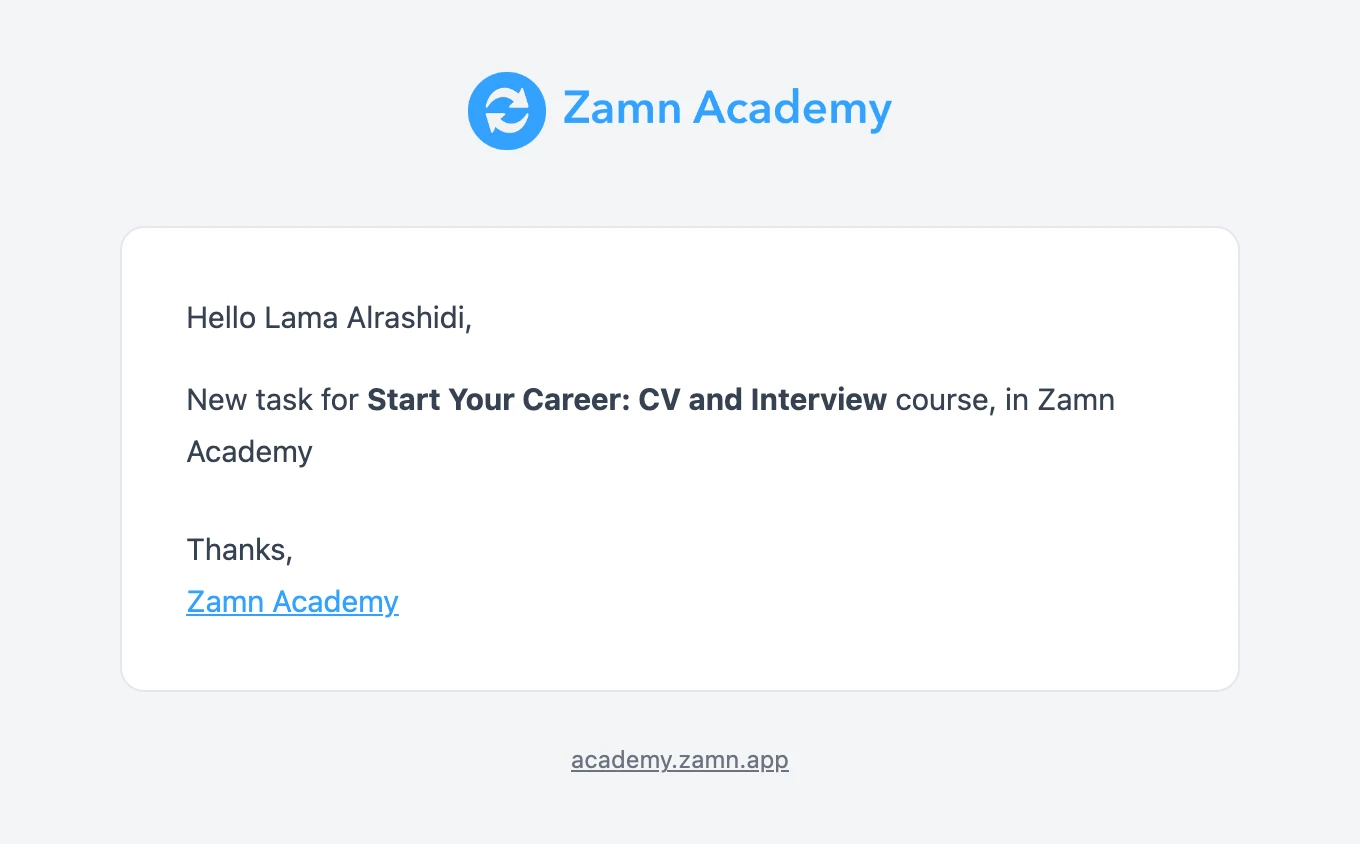
Email
You get a message at the email you used to sign up on the platform.
You can turn these emails off or on from the Account settings page (your profile icon, then Edit Profile): open the Email notifications tab, turn the New content notifications switch off or on, then click Save changes.
Alerts in your account (the bell button)
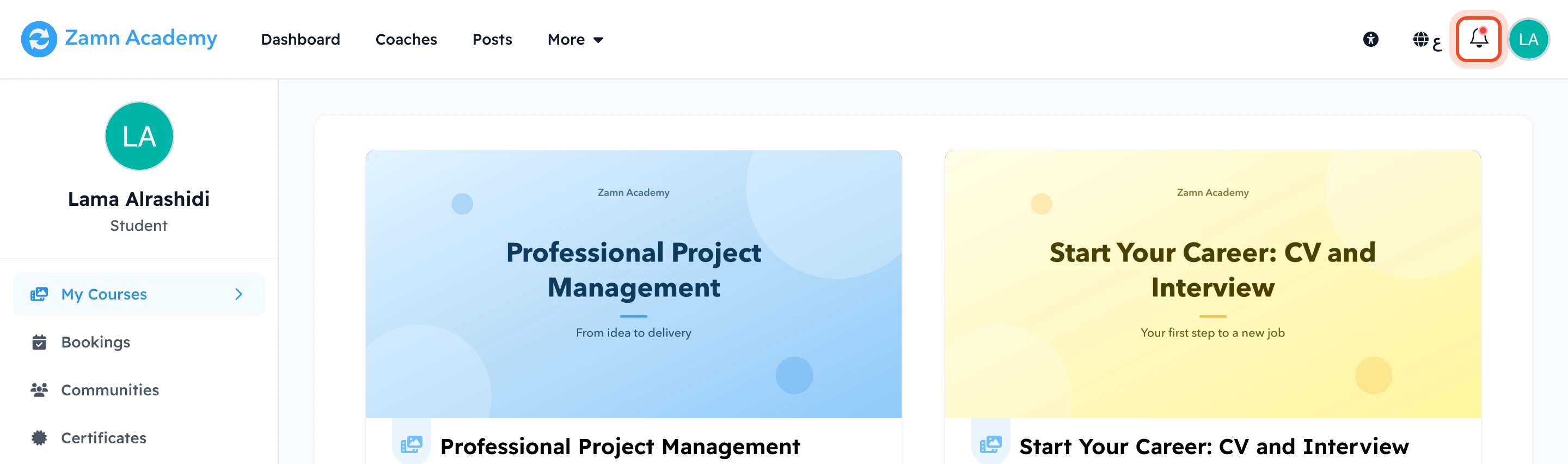
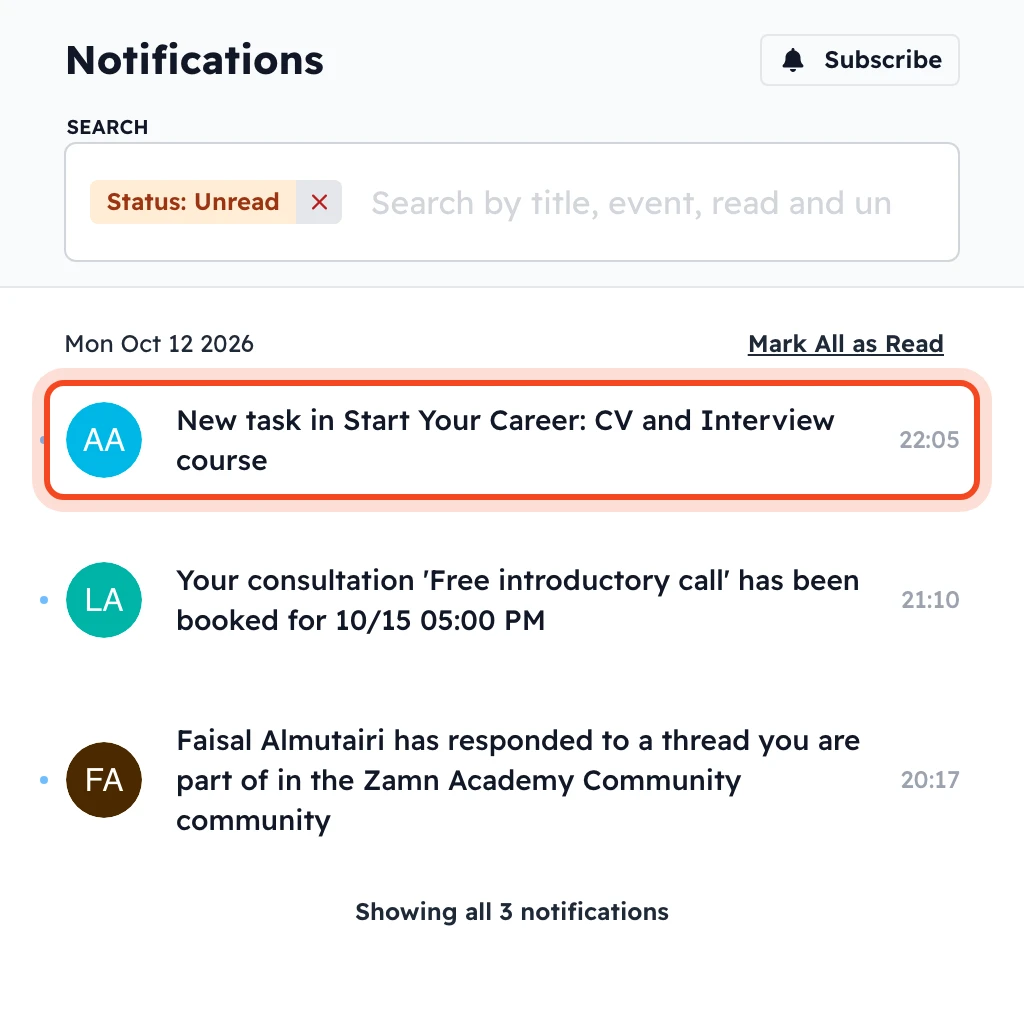
An alert reaches your account on the platform. To see your alerts, click the bell button in the top bar. A red dot shows on the bell button when you have new unread alerts.
Click an alert to go straight to the task.
Live session reminders
If the trainer turned on notifications for a live session lesson, you get a reminder before the session starts, at the time the trainer chose (30, 20, 10 or 5 minutes before). It reads like "Reminder: your session ... will start in 10 minutes".
- You get the reminder in the bell list, and on your device if you turned on bell notifications.
- You also get it by email if the trainer chose email and the platform has a business email.
Click the reminder to go to the session lesson.
Turn on bell notifications on your device
When you turn on bell notifications, task notifications reach your device directly.
-
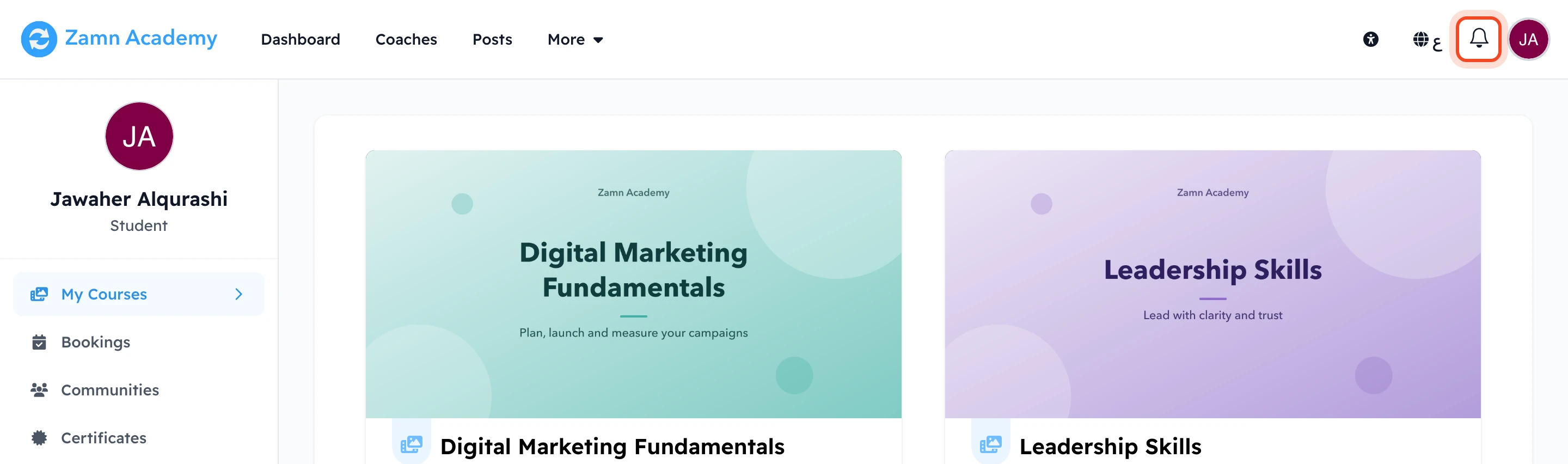
Click the bell button in the top bar of the platform.
-
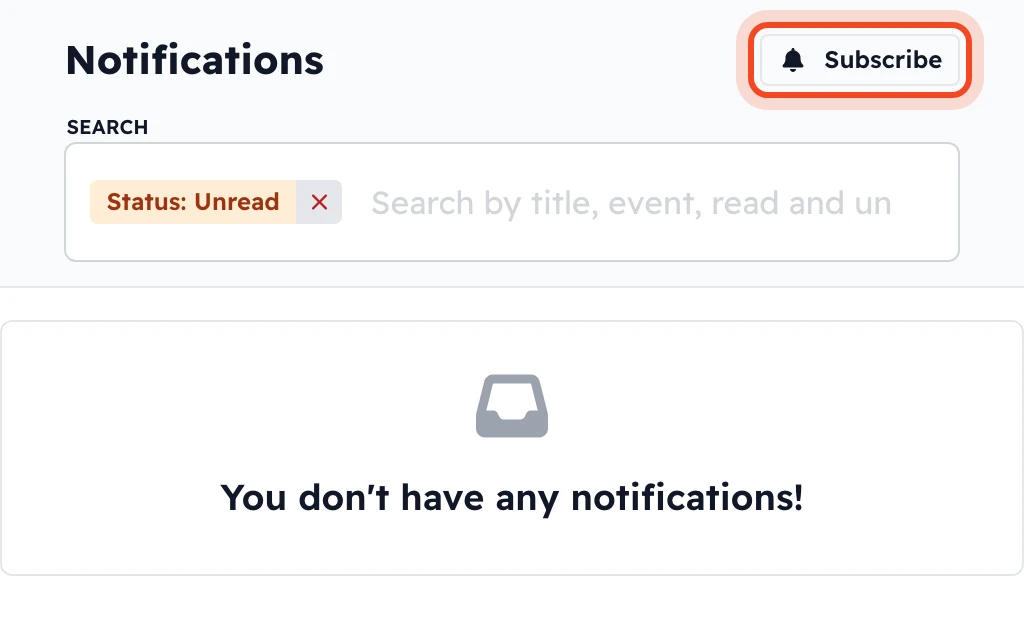
Click Subscribe. If you turned on notifications on another device, the button reads Subscribe on this Device.
-
If your browser does not allow notifications yet, a window asks you about it. Click Allow so the browser can receive notifications.
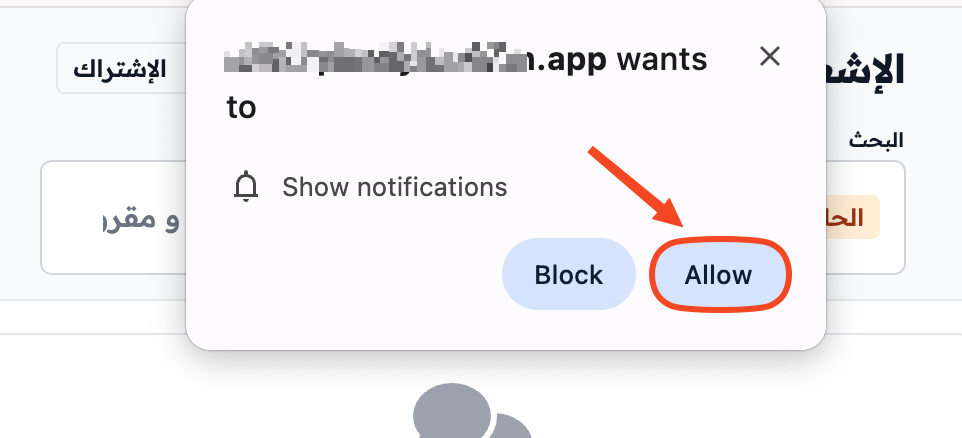
If you clicked Block by mistake, click the lock icon next to the site address in your browser and allow notifications.