Change the email of your account
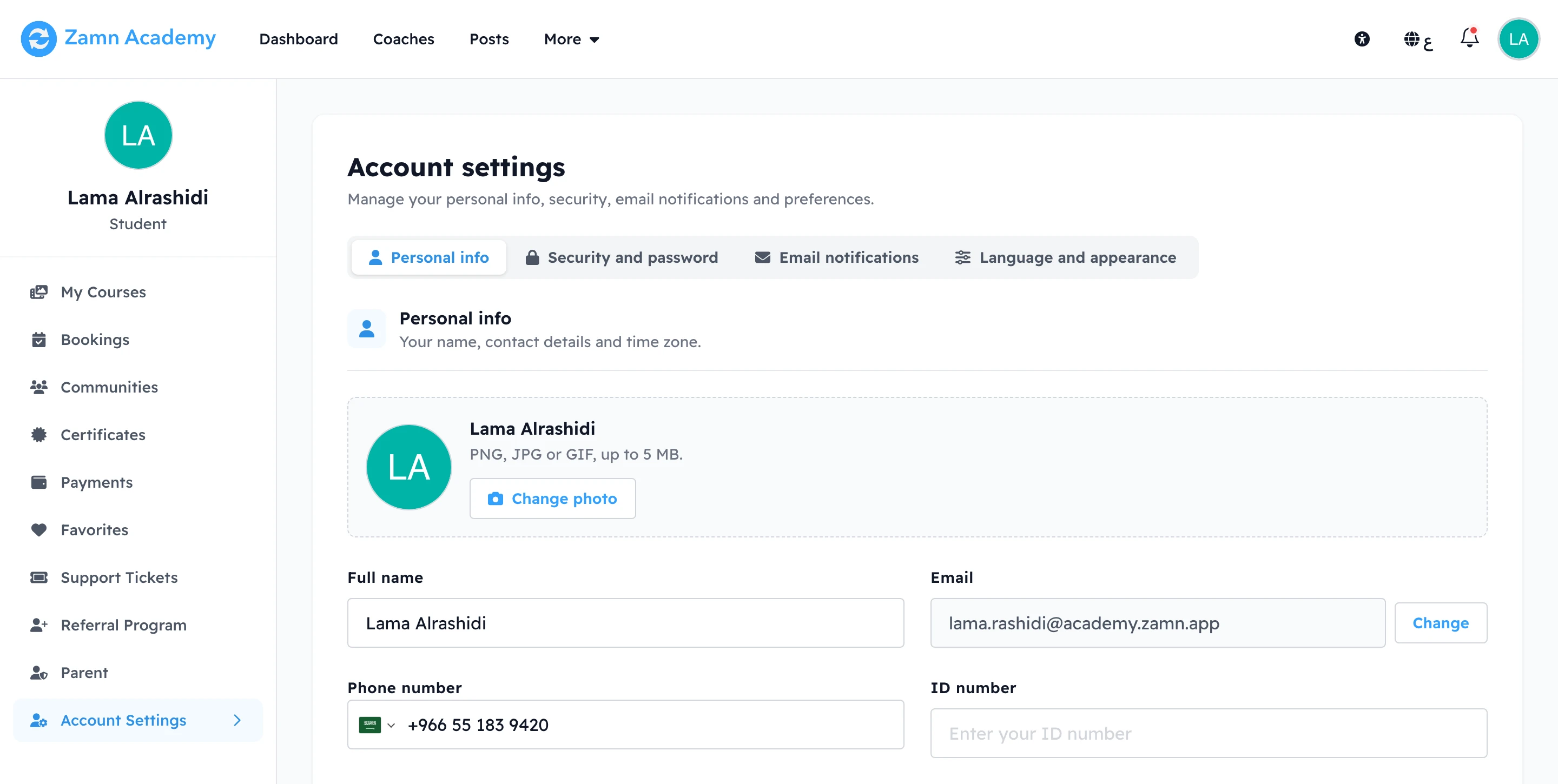
You can change the email linked to your account on the platform from the Account settings page.
How to change the email of your account
You must set a password for your account before you can change your email.
If you signed up on the platform with your phone number only, the Email field is empty. Click Add email, enter your email and click Send code, then enter the code you get by email and click Confirm your email. If this email is already used by another account, the platform asks What would you like to do?: choose Use a different email, or Delete the other account and then click Confirm.
Until you add your email, the course opens in preview only: you cannot complete lessons or take quizzes and exams, and the lesson page shows the message Please add your email to take the quizzes and exams.
-
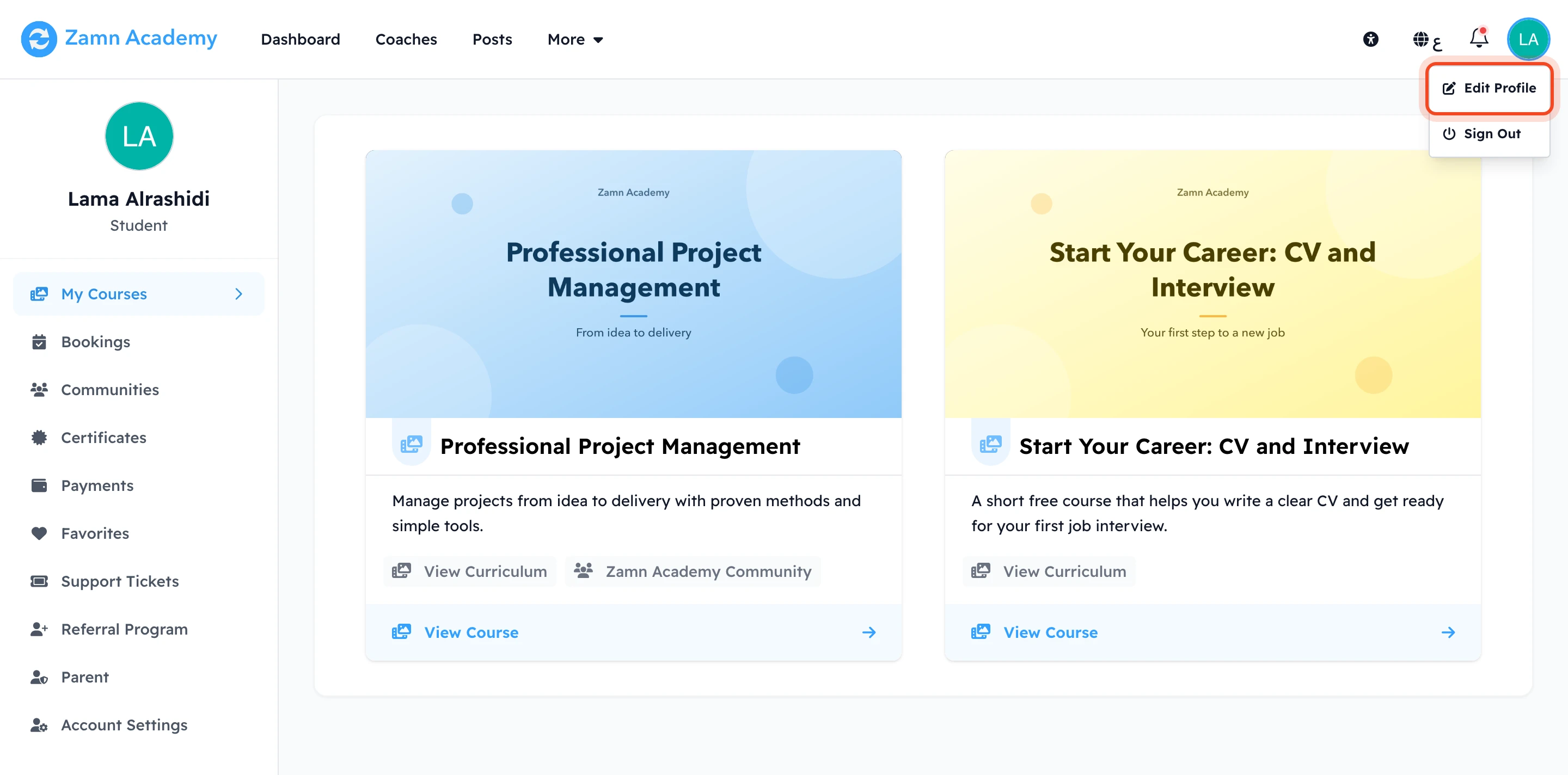
Click your profile icon, then choose Edit Profile. The Account settings page opens on the Personal info tab.
-
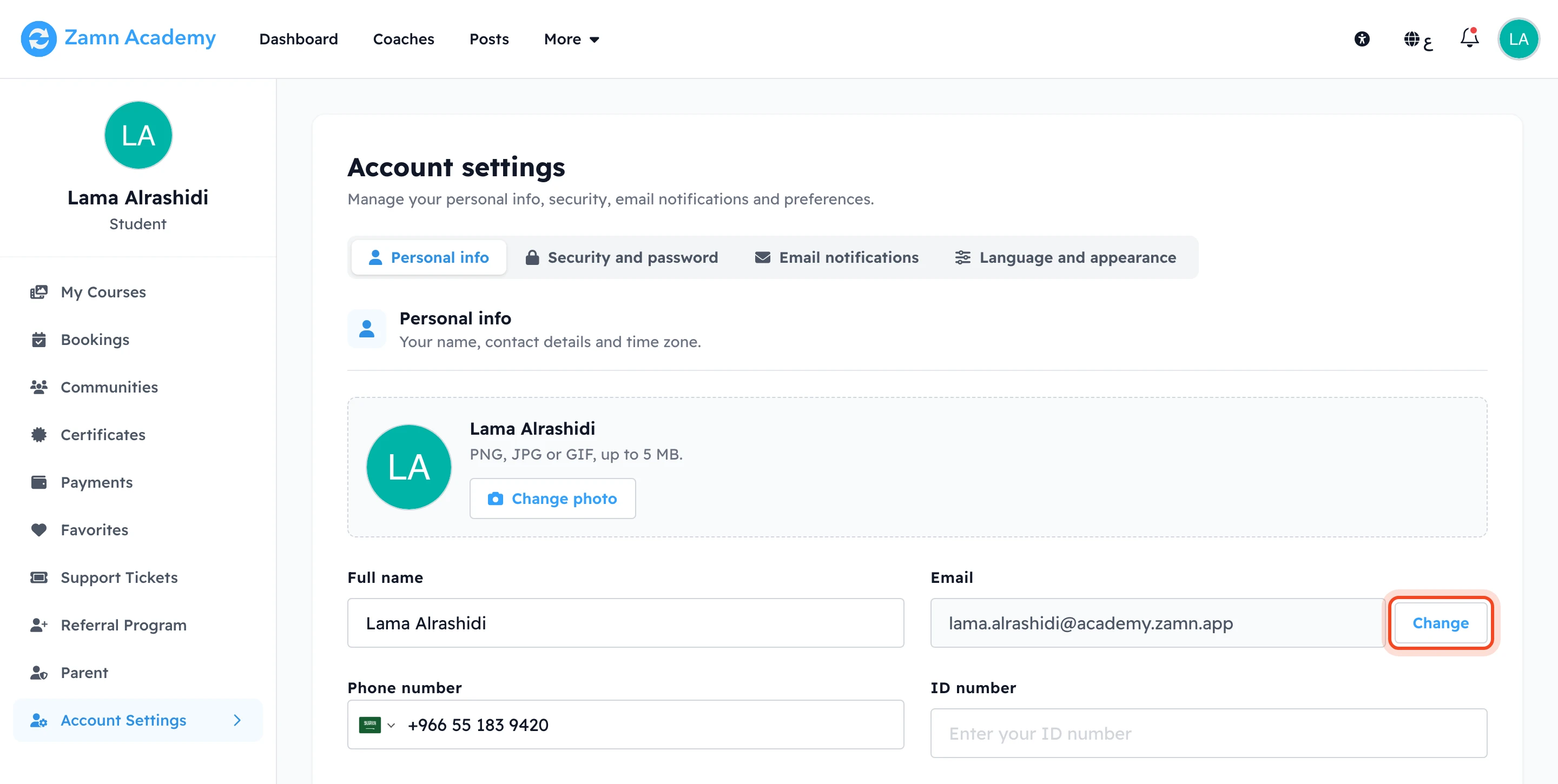
Click Change next to the Email field.
-
In the Change account email window, enter your new email in the New email field and your password in the Current password field, then click Send link.
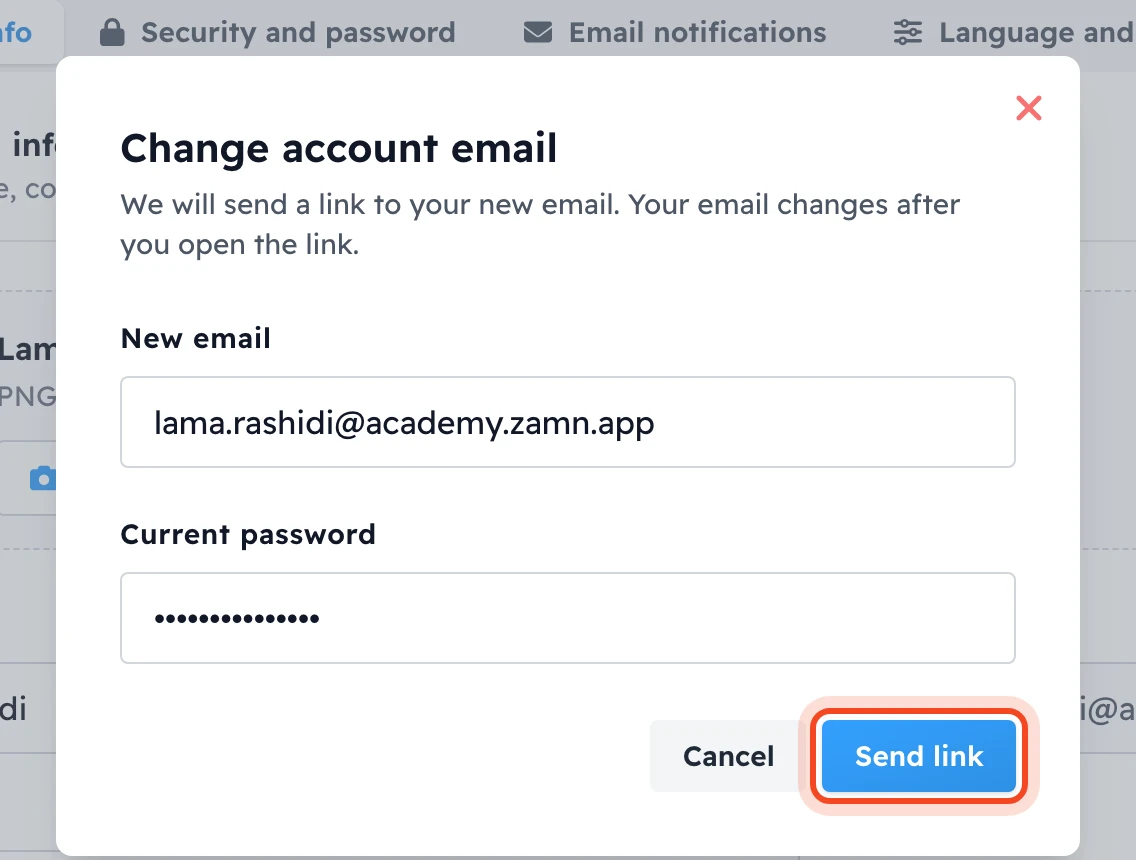
You will get a confirmation message at your new email.

-
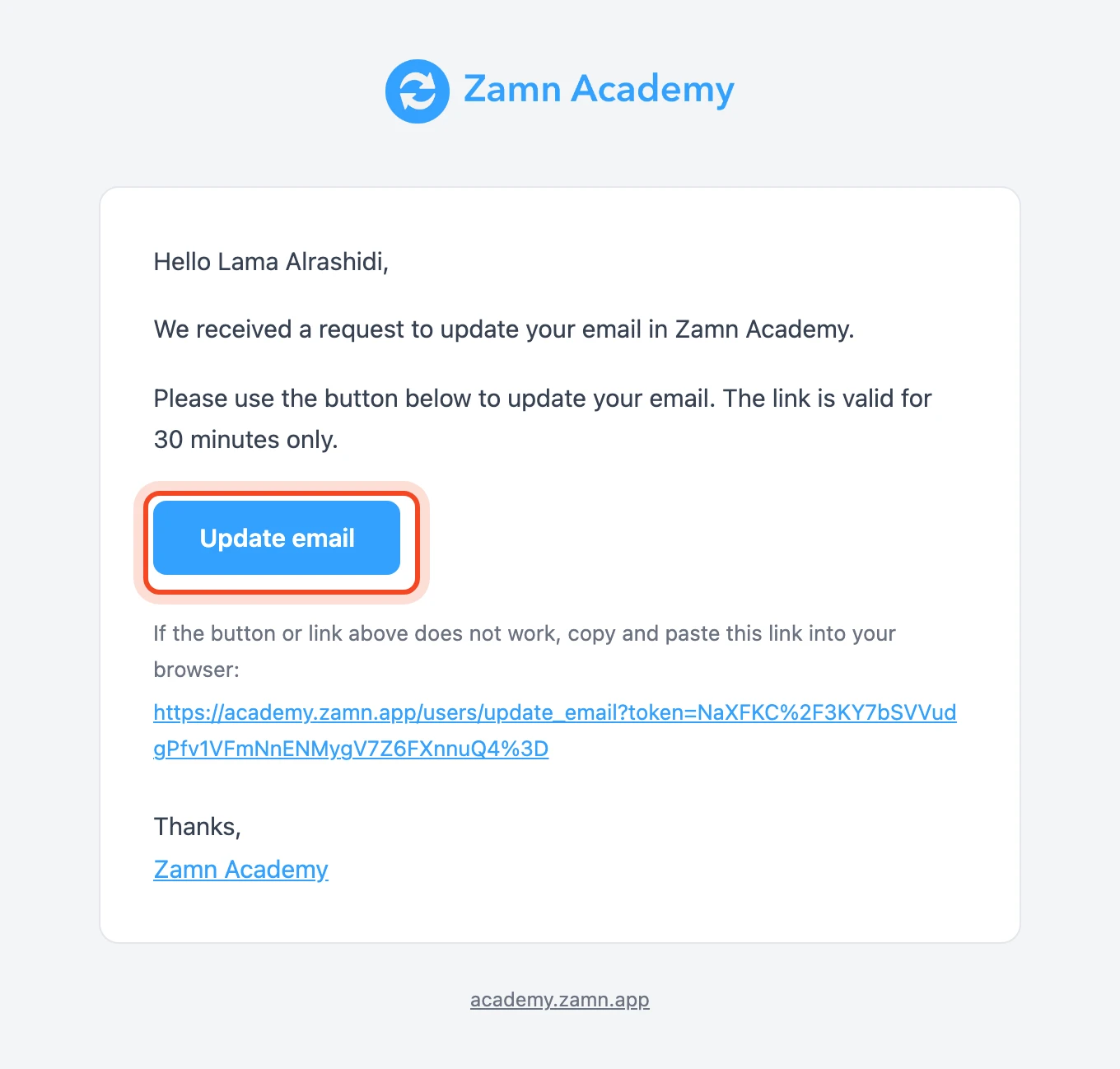
Open the message you got at your new email, and click the Update email button to confirm your new email. The link works for 30 minutes only.
-
The Account settings page opens, and your new email shows in the Email field. Your new email is saved as soon as you click the button, so you do not need to click Save changes.
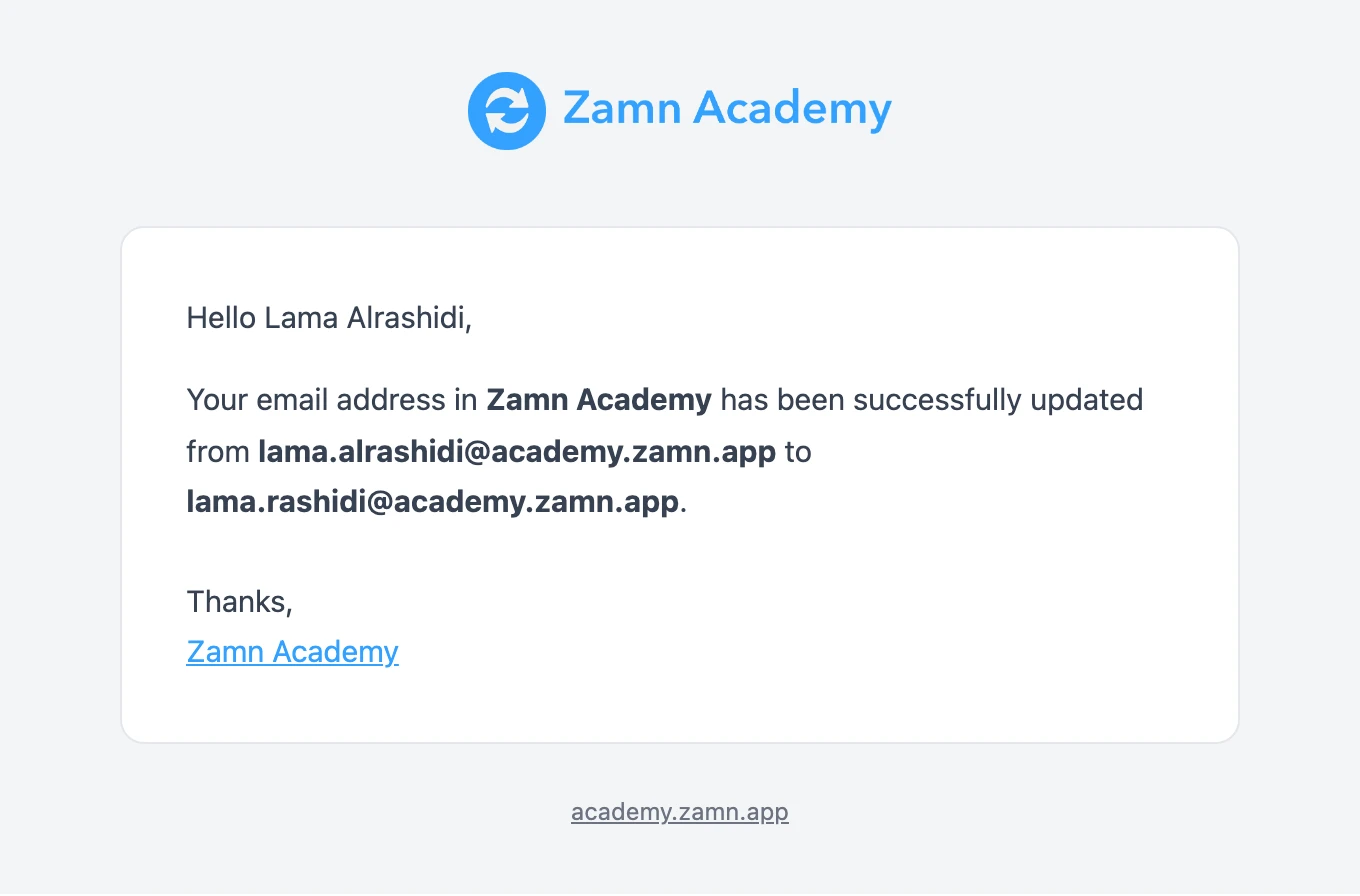
You will get a message at both your old and your new email. It confirms that your email changed from the old email to the new one.