Getting started with your training program
This guide is for students. It explains how to open your course for the first time and what you find in it.
You are enrolled in training courses in one of two ways: the platform admins add you to the course, or you enroll in the course yourself.
Open your course for the first time
When the platform admins add you to a course, you get an email. Click the Start learning button in the email.
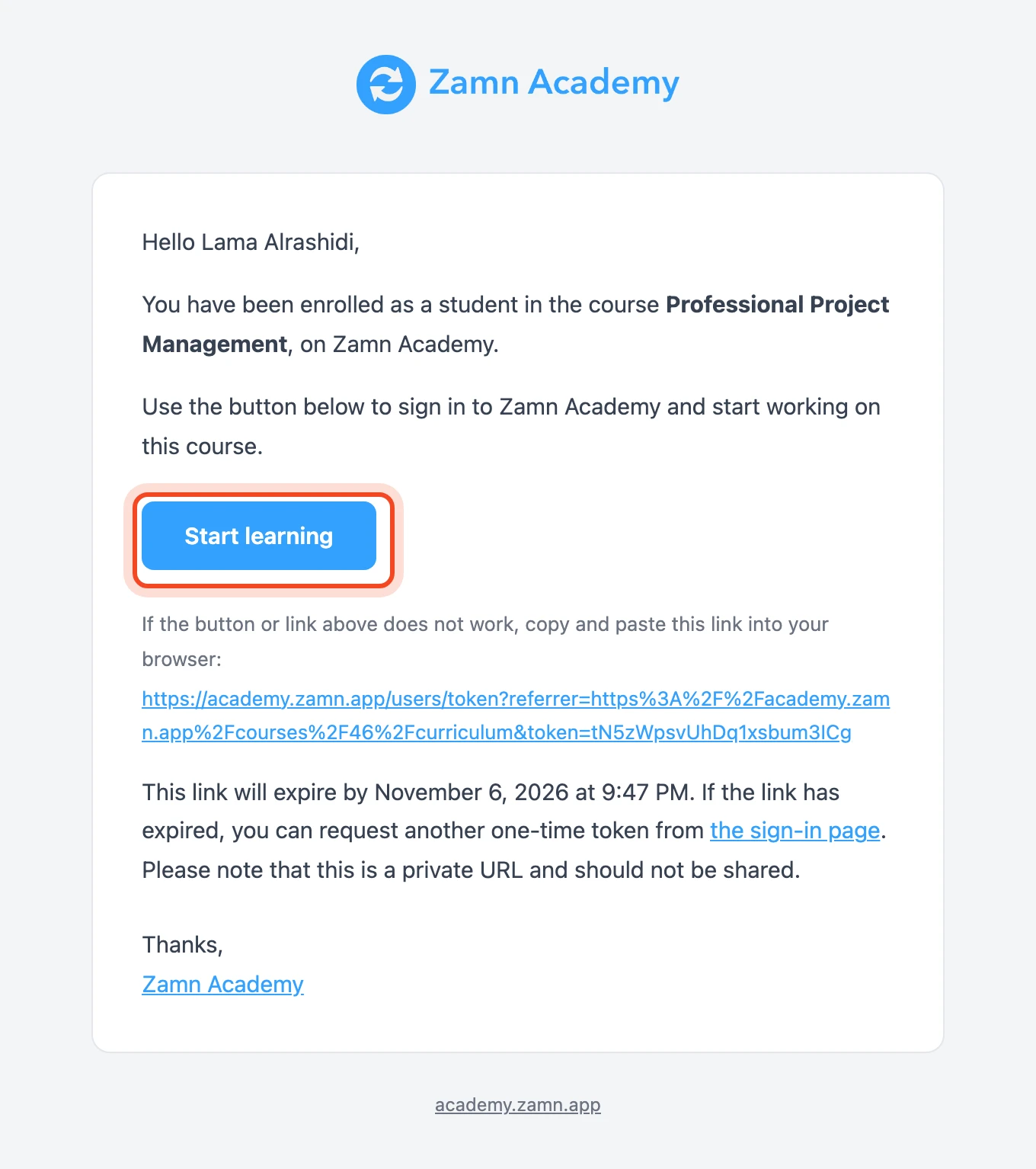
This button signs you in and opens the course page directly.
The sign-in link in the email works for a limited time. If it has expired, sign in from the sign-in page.
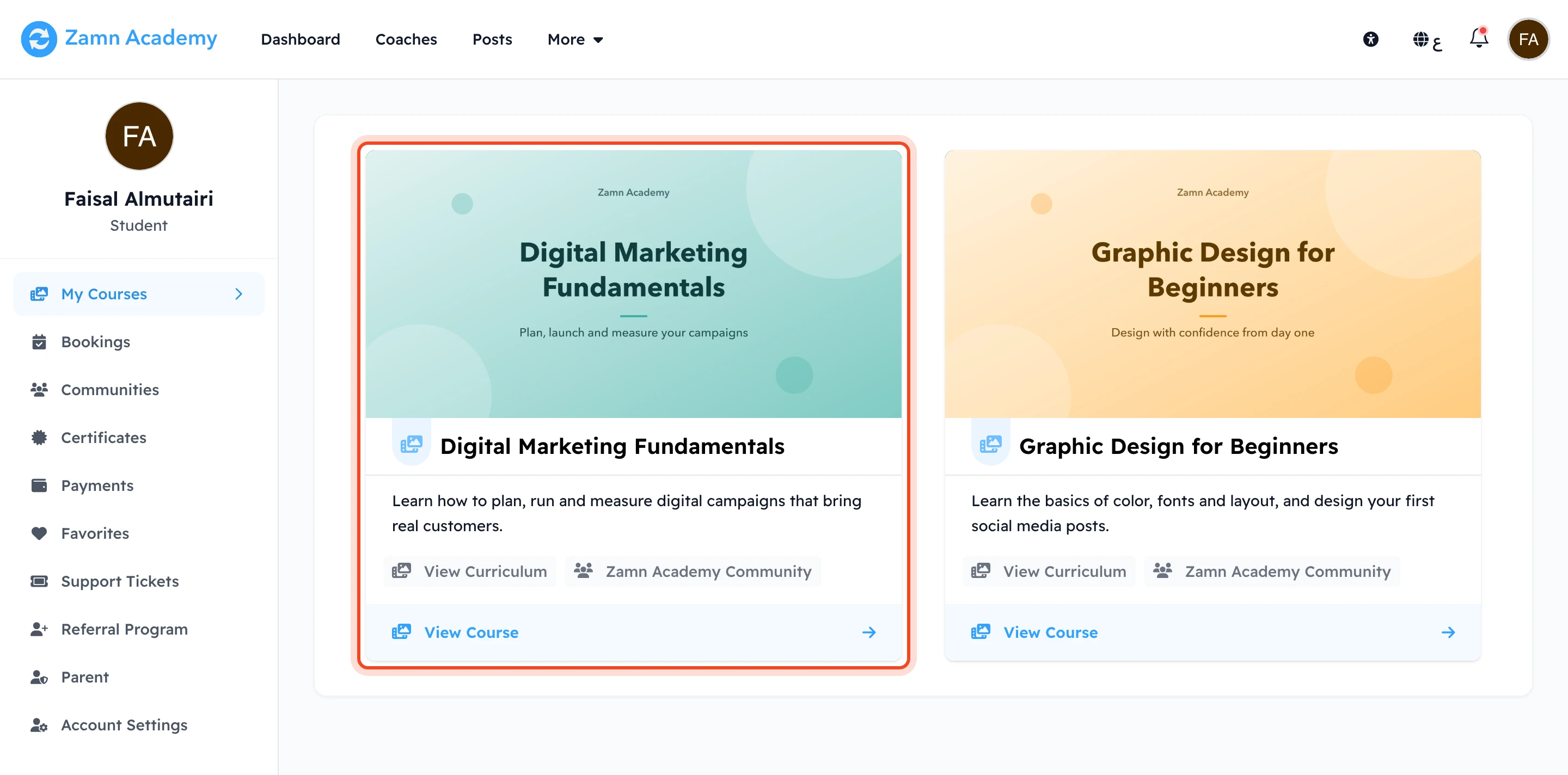
To reach your courses later from any page, such as the platform home page, click Dashboard at the top of the page. Your courses show under My Courses.
Parts of a course
Each course shows under My Courses with these parts:
- The course title.
- The course description.
- The View Curriculum link that opens the course content.
- The communities added to the course, such as a discussion forum.
- The View Course button that also opens the course content.
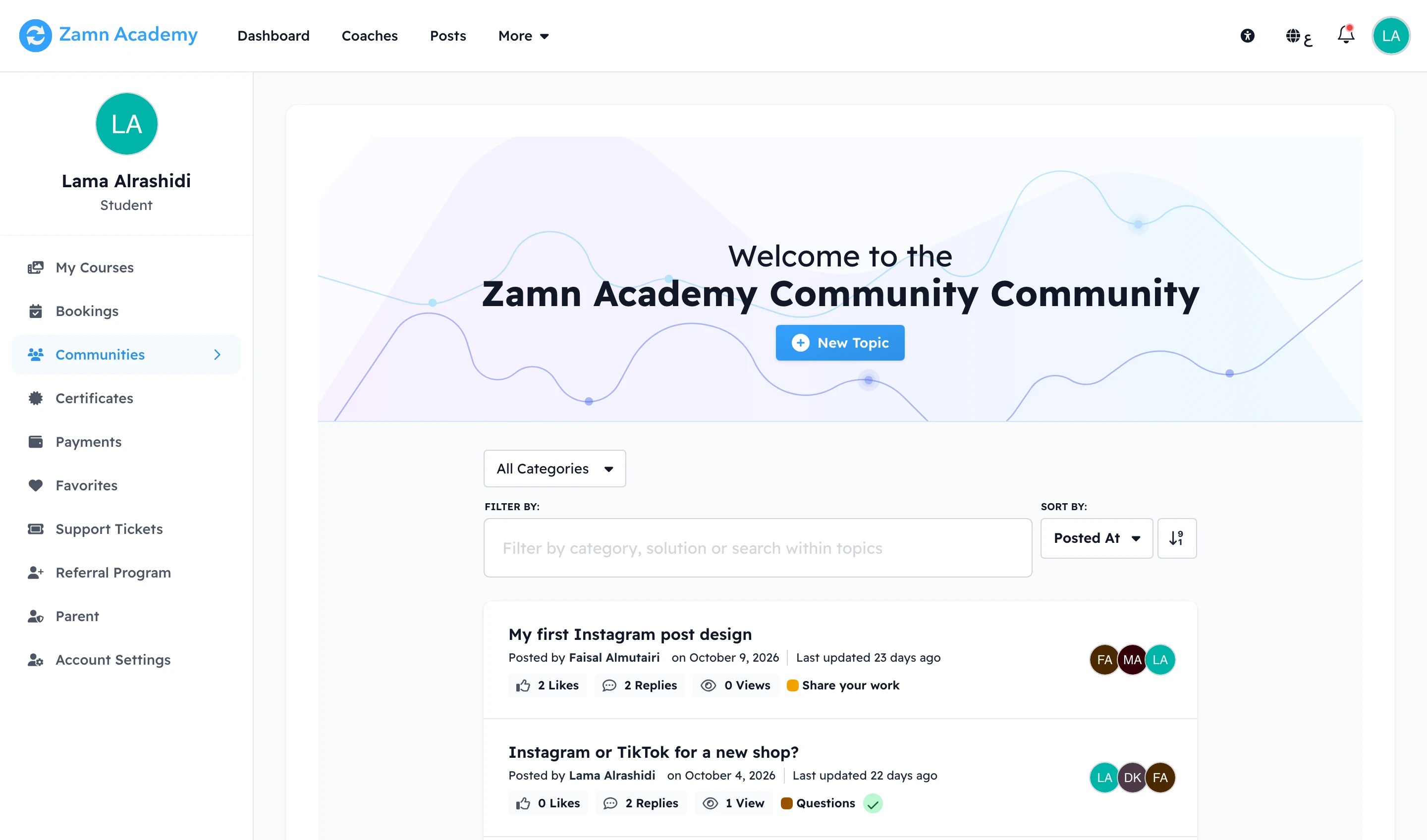
Community / forum
The community is a place to talk and discuss with your classmates. You can add topics for discussion and reply to the topics in the forum.
Course content
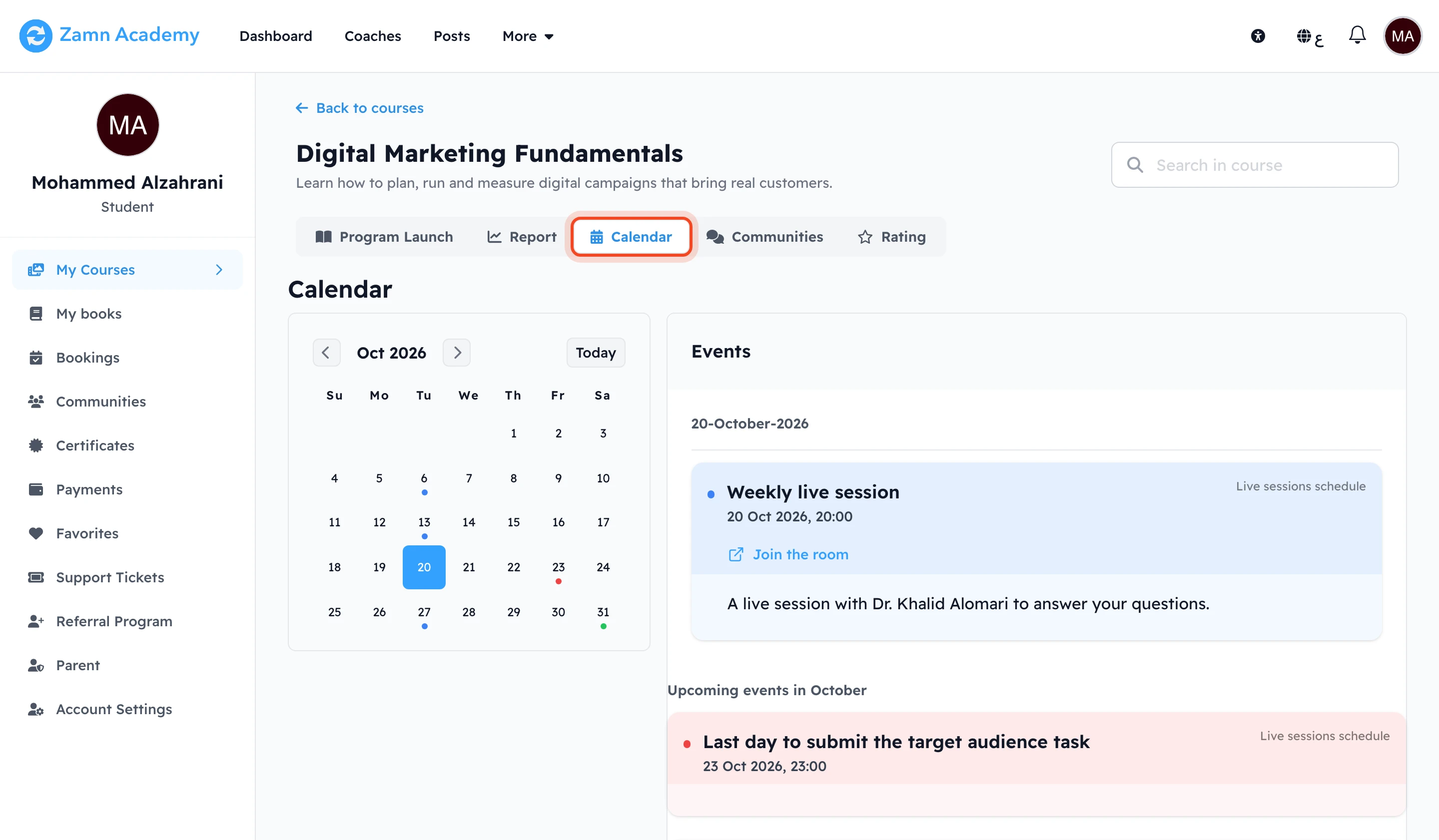
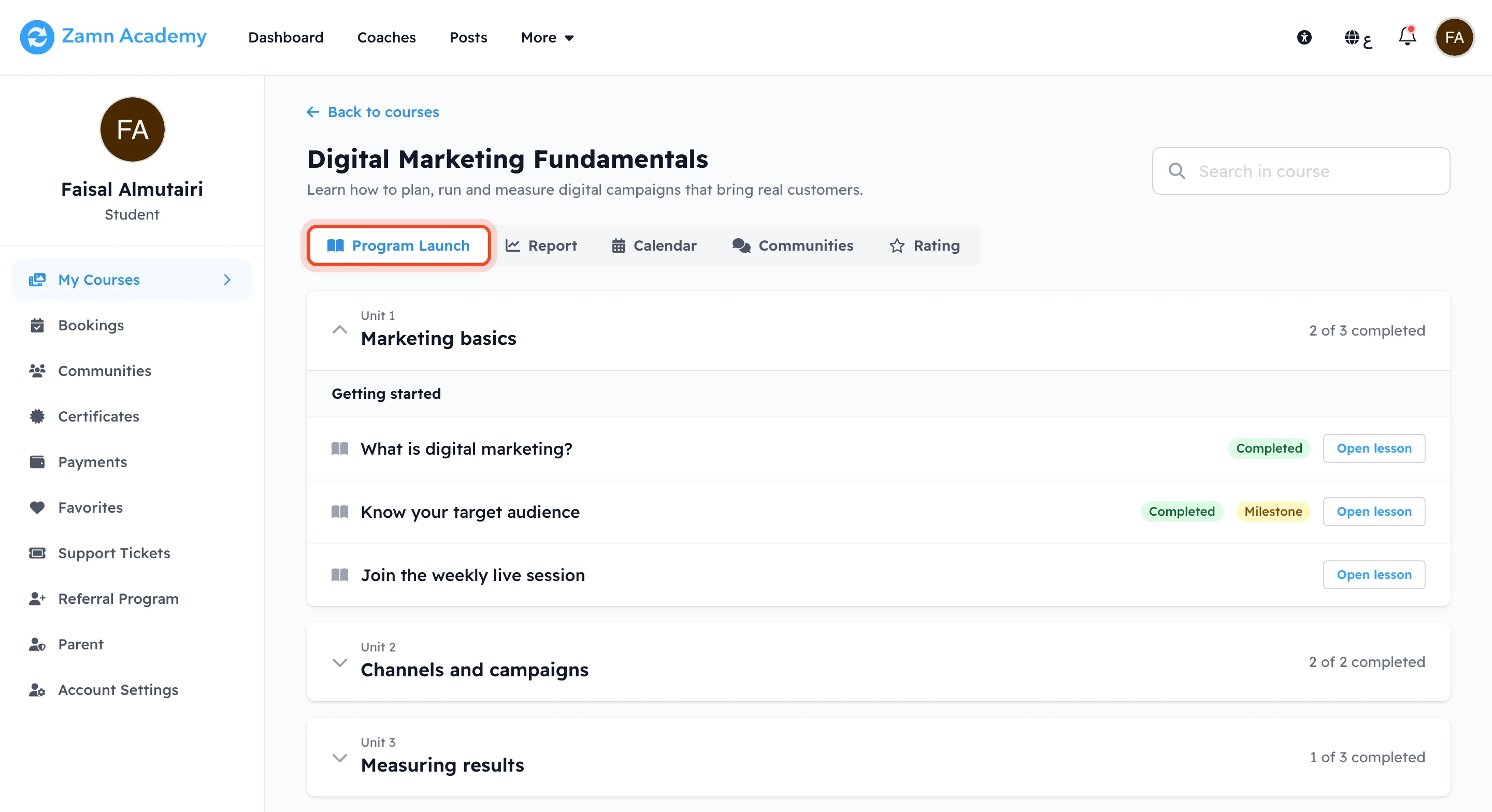
At the top of the course page you find these tabs: Program Launch (the content), Report, Calendar and Rating. If the course has a community, you also see Communities. To go back to your courses, click Back to courses above the course name.
Program Launch (the content)
In the Program Launch tab you can:
- Search in the course, from the Search in course box next to the course name.
- See the course units (levels). Click a unit to open it and see its targets, and how many of them you completed.
- Start studying and work with the content to complete the course targets.
Course targets
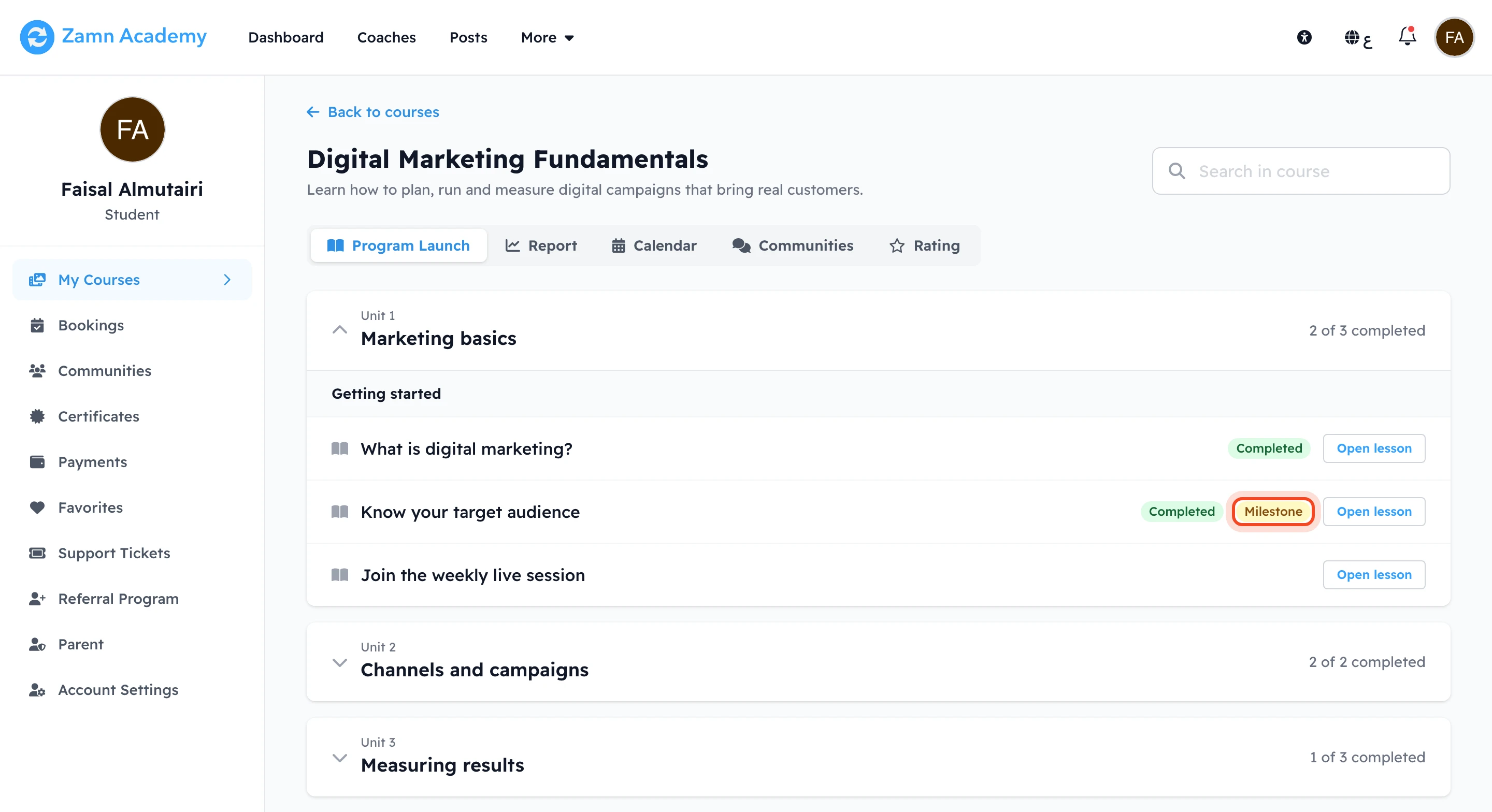
There are two kinds of course targets:
- Non-milestone target: it does not affect your progress. You can finish the course without completing it.
- Milestone target: it has a Milestone label next to it. It affects your progress, and you cannot finish the course until you complete all milestone targets.
Report
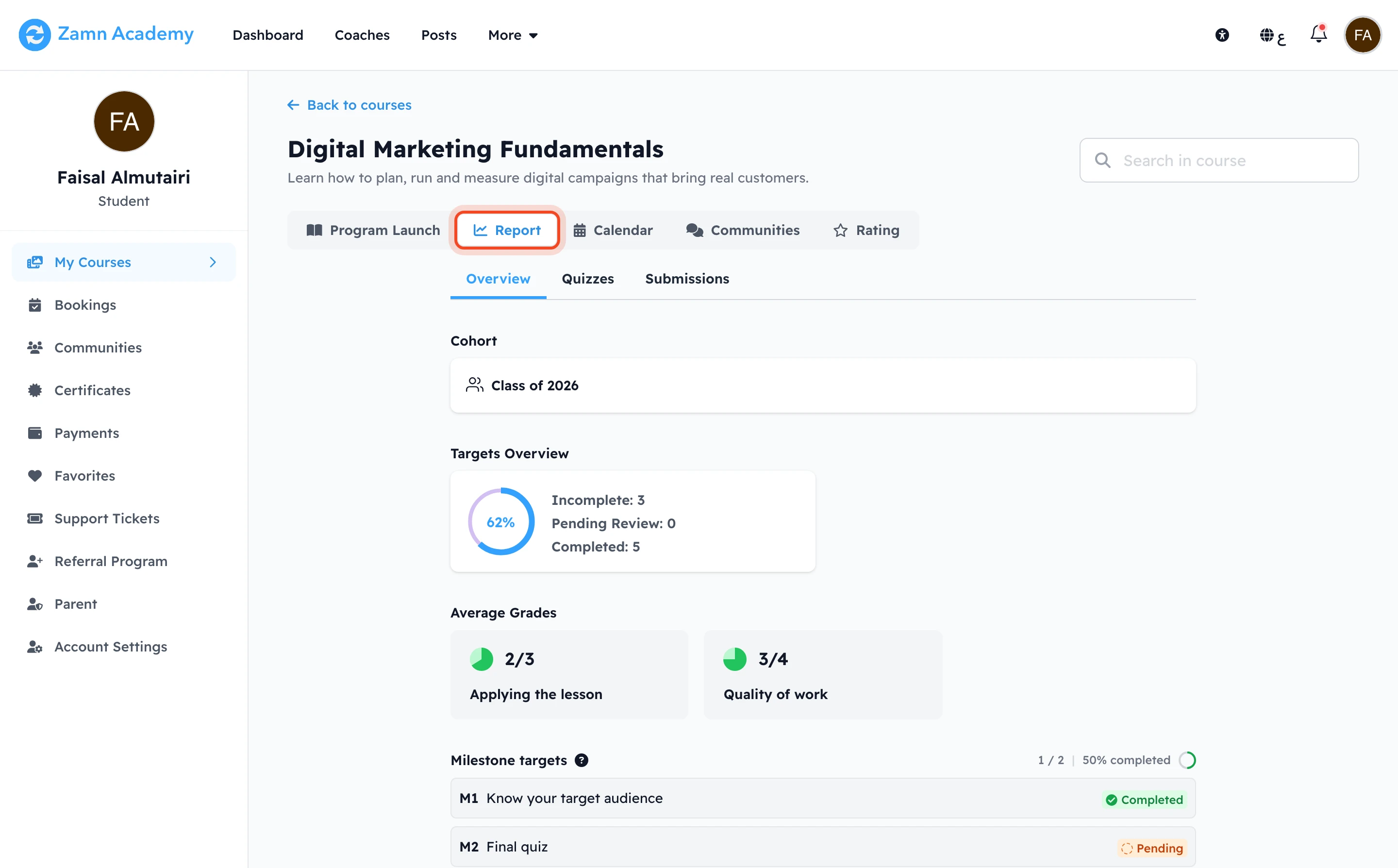
In the Report tab you can see the details of your progress in the course: a targets overview, your average grades in assignments, and all milestone targets in the course.
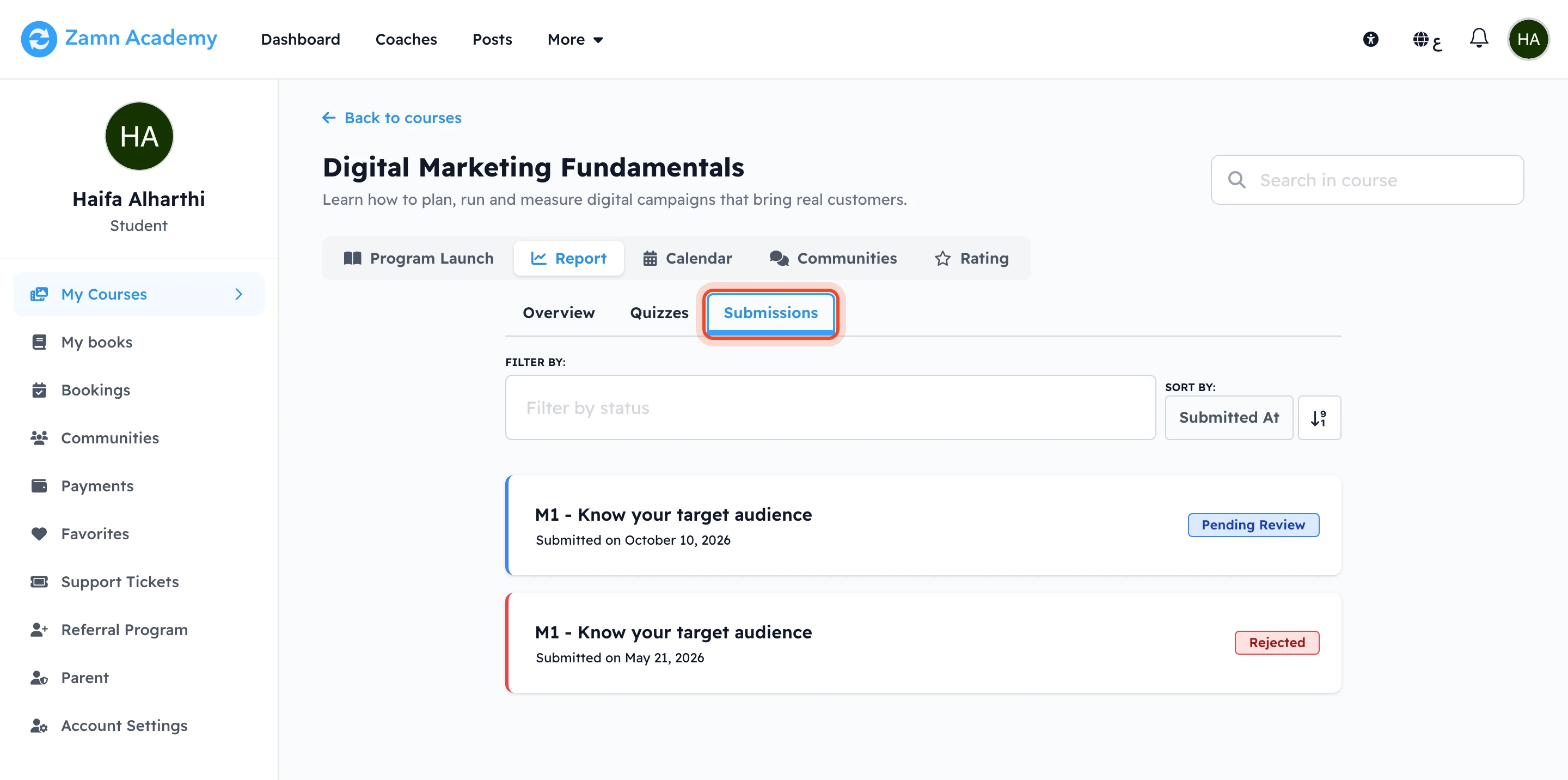
You can also see your quiz results in the Quizzes tab, and all your submissions in the Submissions tab.
Calendar
In the Calendar tab you can see the events added to the course calendar.
Each event has a date, a day and a time, and it may have its own link (such as a room link).