Start an assignment in the secure exam browser
Your trainer may ask you to do some assignments in Safe Exam Browser. When you open such an assignment, you see the Instructions before starting the exam page. Follow the steps below to start the assignment.
Download and install the browser on your device
-
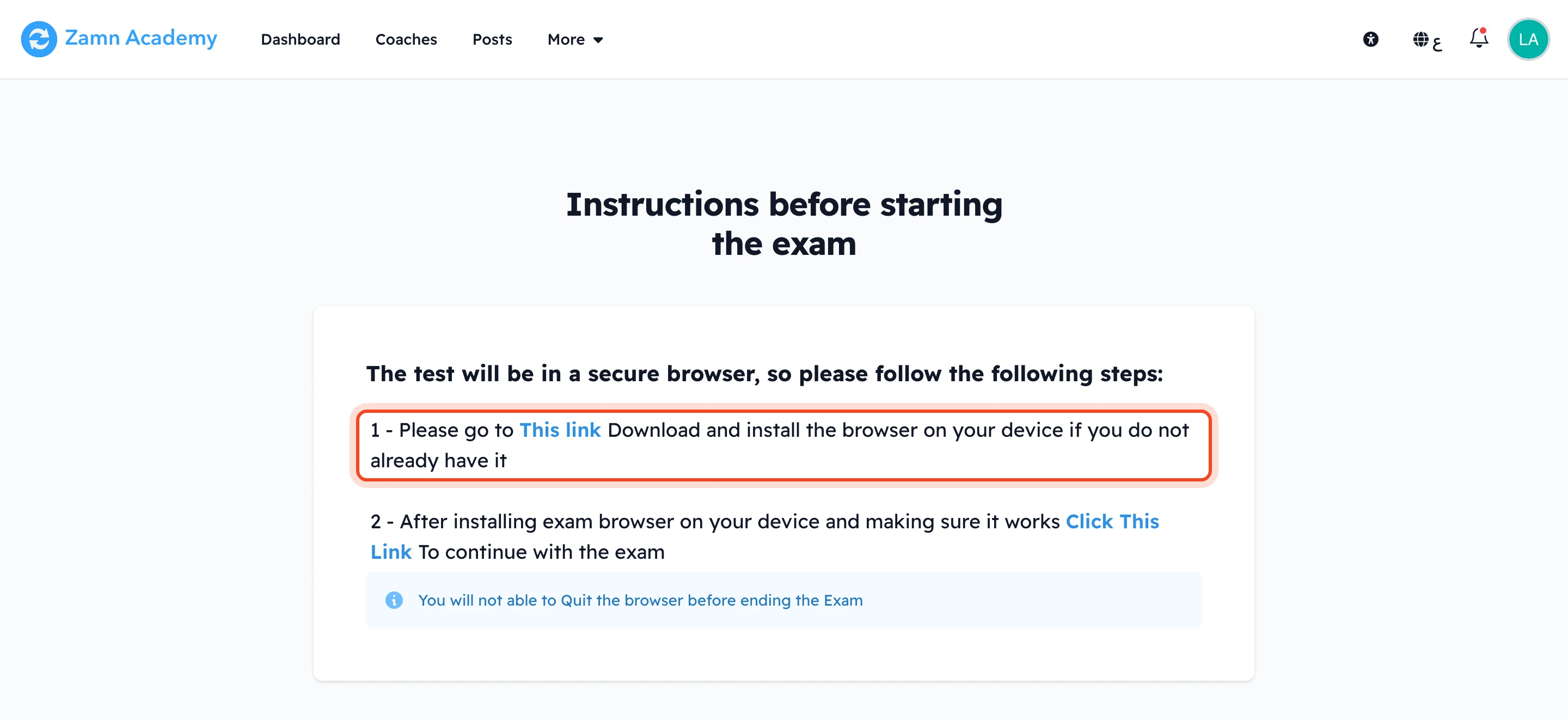
On the Instructions before starting the exam page, click This link to go to the browser download page.
-
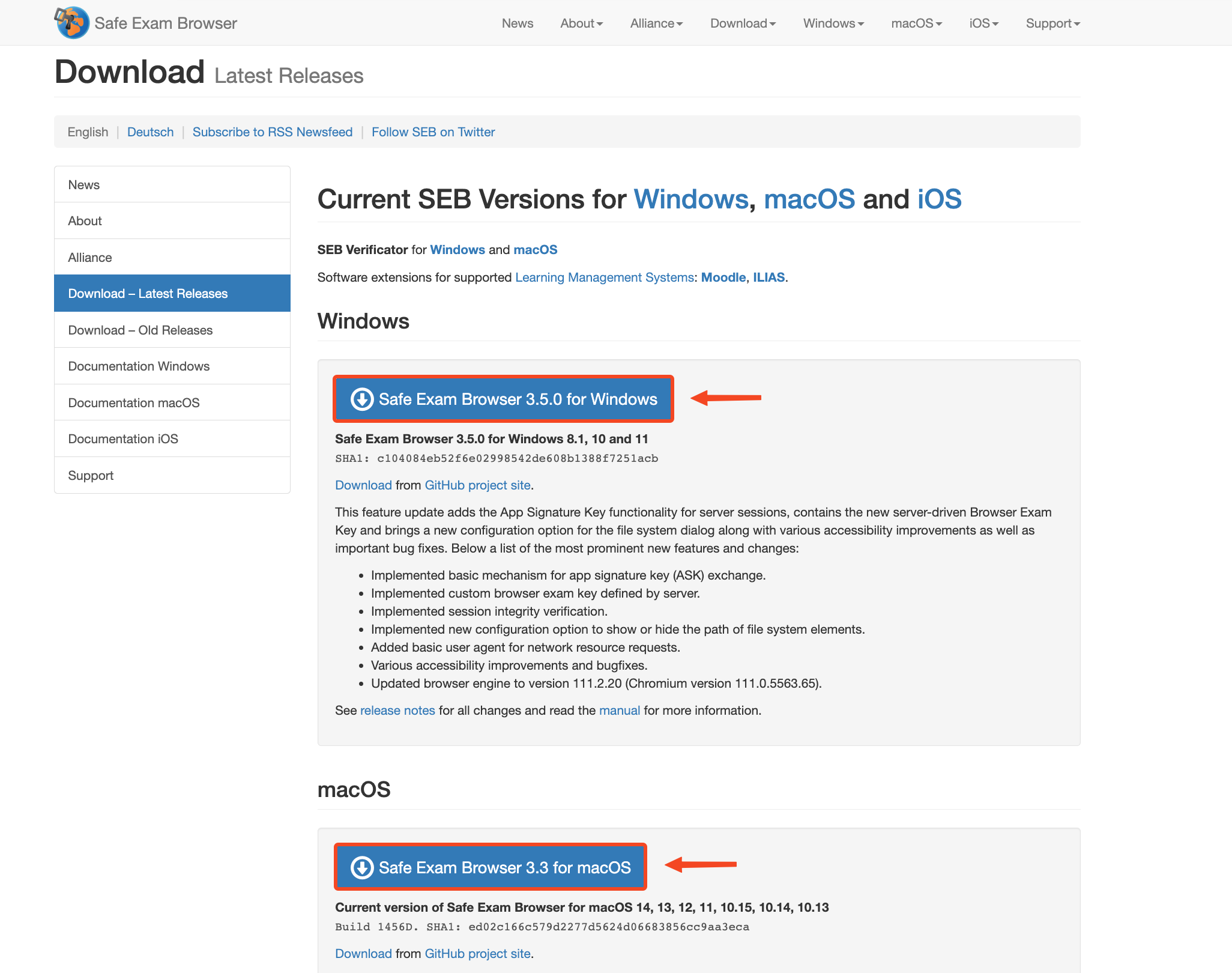
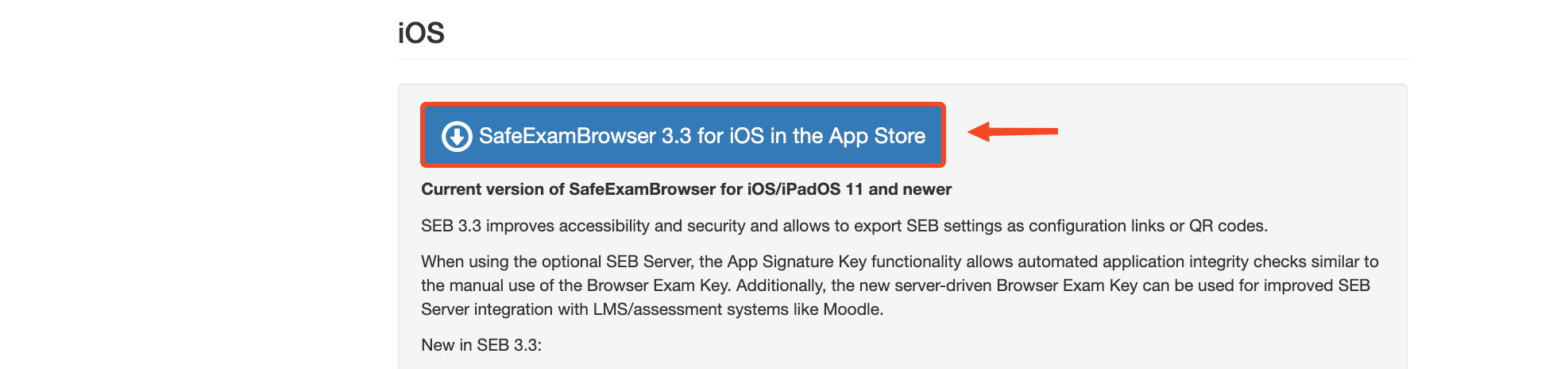
Choose the operating system of your device and click it to start the download.
NoteSafe Exam Browser is only available for Windows, macOS and iOS.
-
Install the browser on your device.
Start the assignment in the secure browser
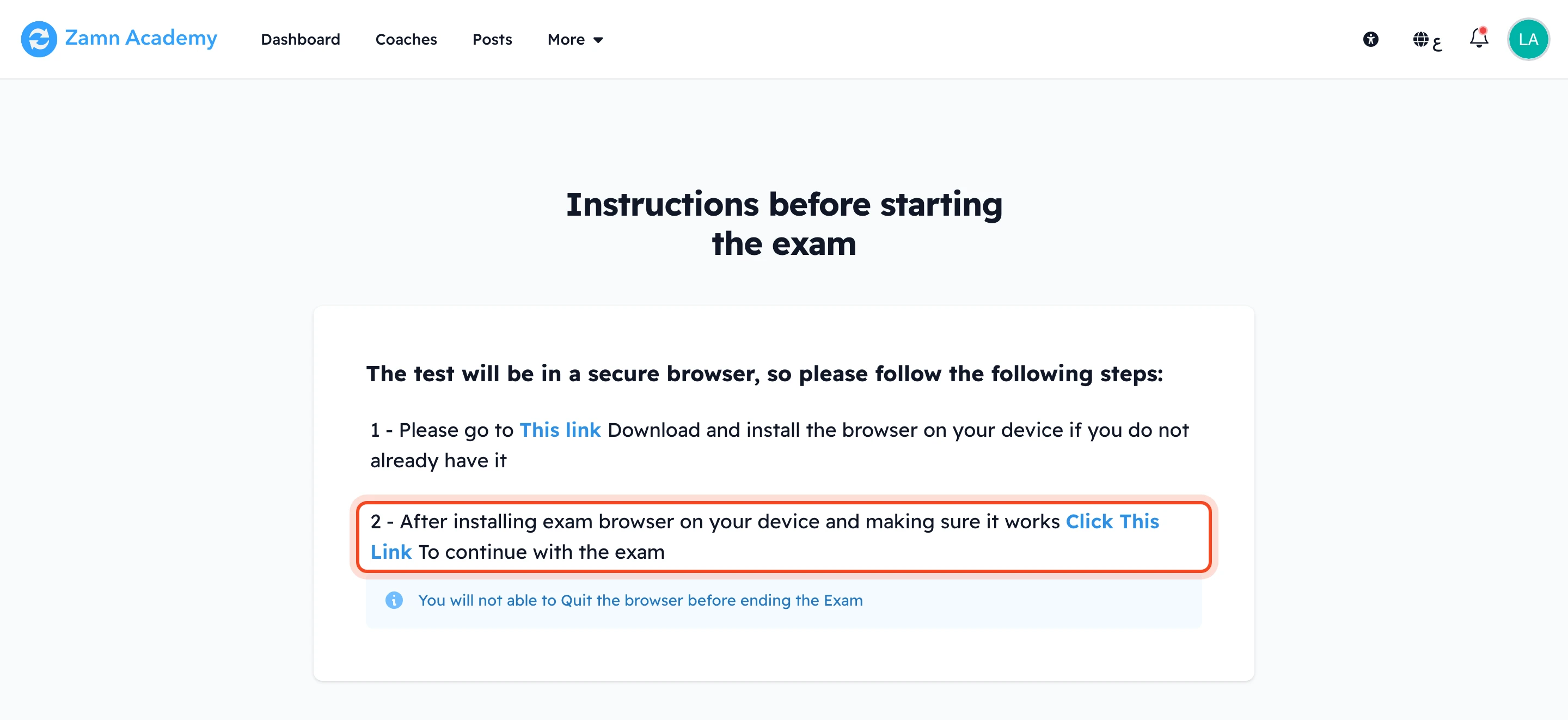
After you install the browser on your device, go back to the Instructions before starting the exam page and click Click This Link to open the assignment in the secure browser.
If the assignment asks you to record your answer with your voice, the secure browser lets you use the microphone. If you see Microphone access was denied, allow Safe Exam Browser to use the microphone in your device settings, then try again. On iPhone or iPad, open Settings > Privacy & Security > Microphone and turn on SEB.
You may not be able to leave the secure browser until you finish the exam. After you submit your answer, click Quit Exam Browser to leave it.
When the set time for the assignment ends, you cannot take it again until 24 hours have passed. The time for the assignment resets by itself after that.