Self-evaluations and quizzes: a guide for students
A self-evaluation is a quiz that gives you a result and feedback right away, with no need for the coach. You can take it again as many times as you want.
Steps to take a self-evaluation
-
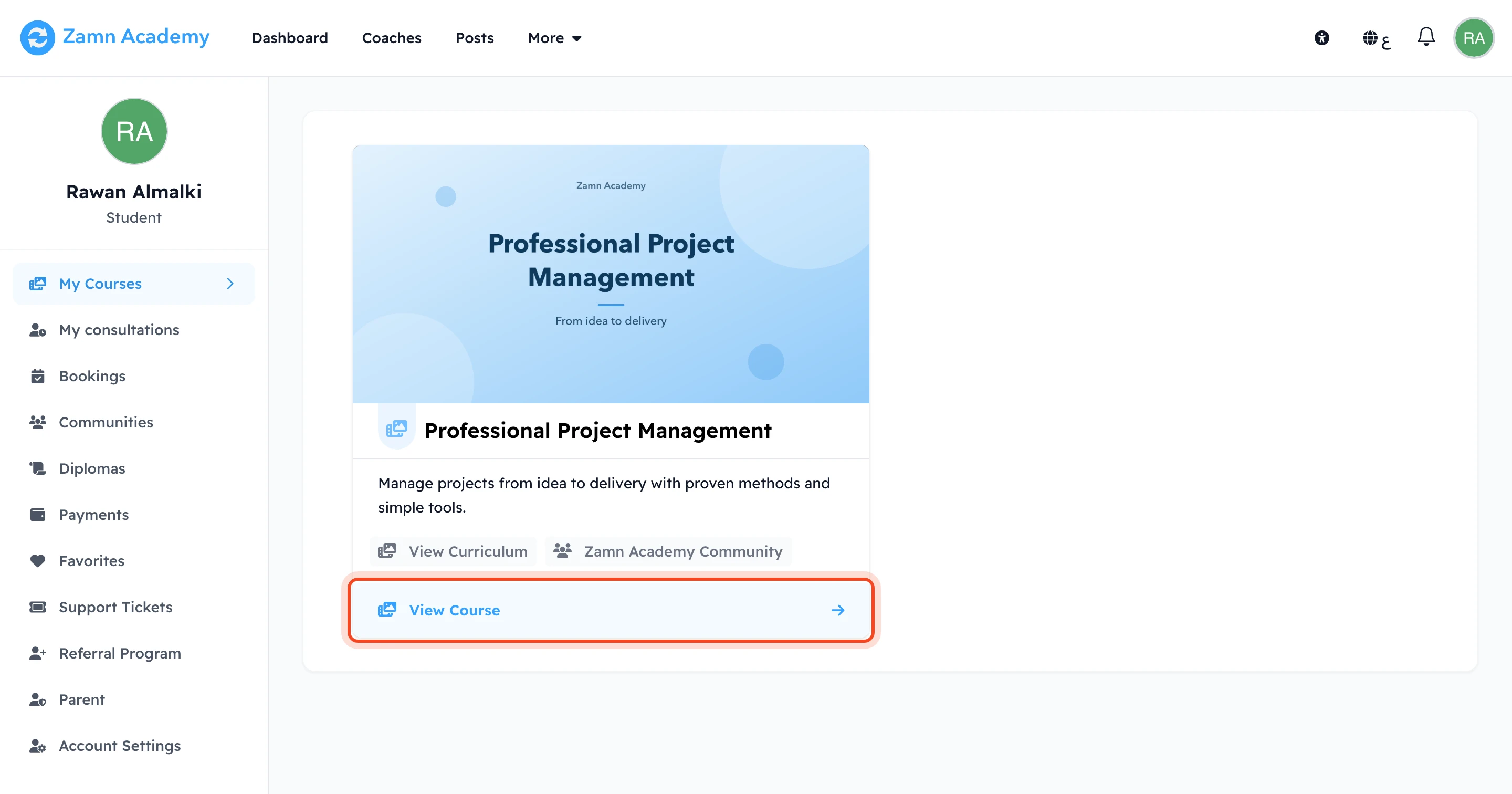
Click Dashboard in the top menu, then click View Course on the course card.
-
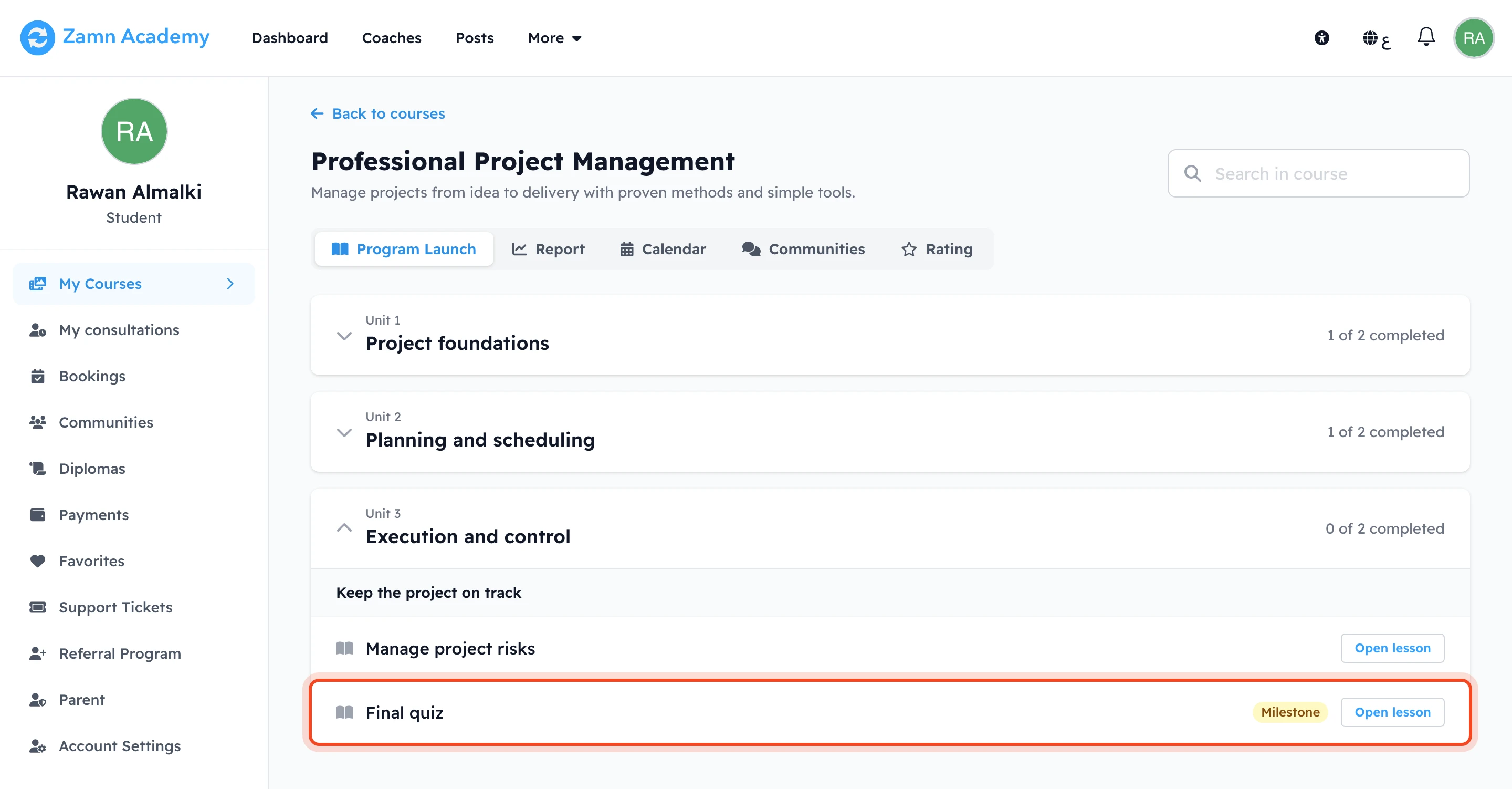
In the Program Launch tab, click the unit to open it, then click the self-evaluation target (or its Open lesson button).
-
Open the Take Quiz tab.
-
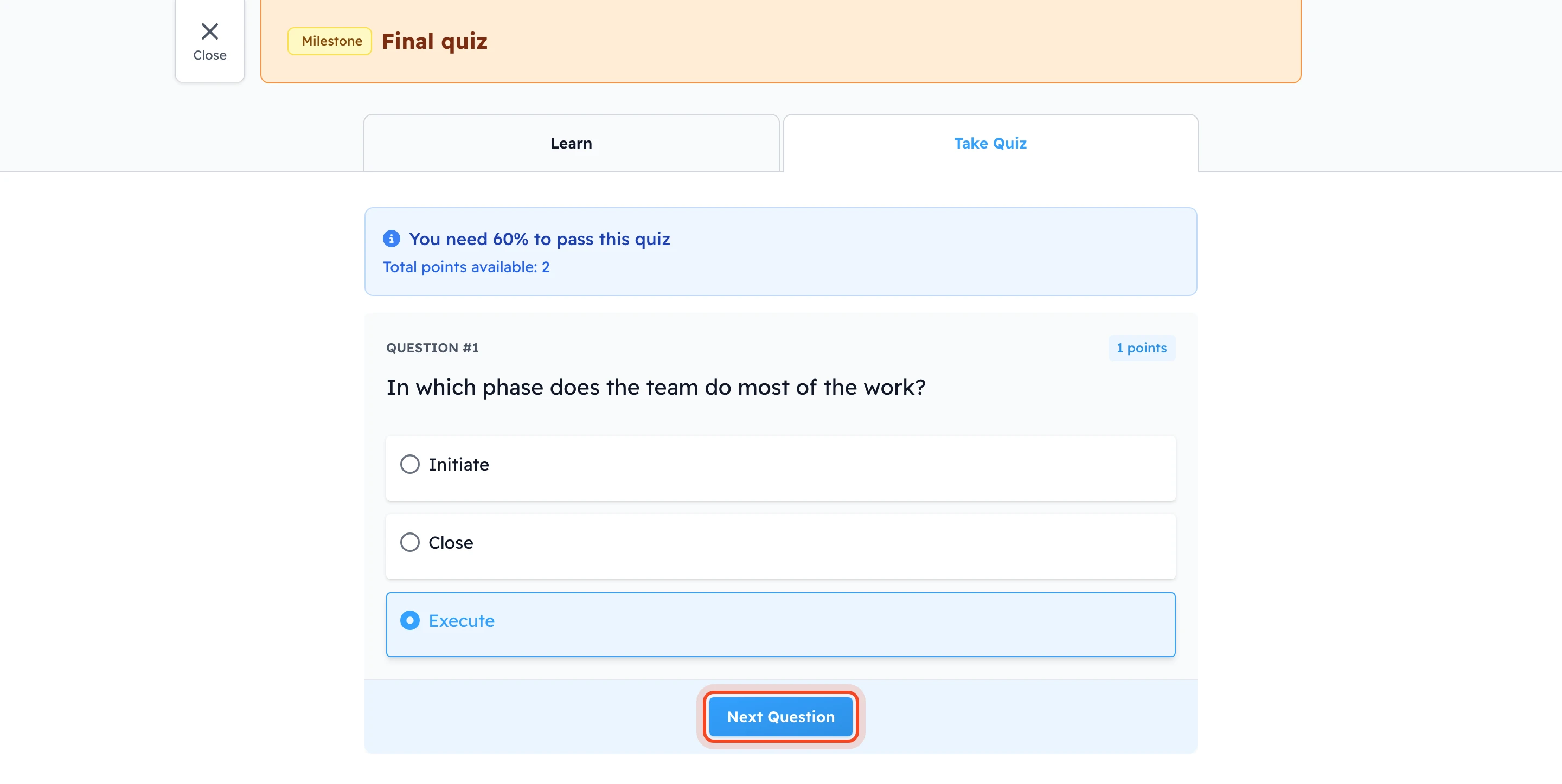
Choose an answer to the question, then click Next Question.
-
After you choose answers for all the questions, click Submit.
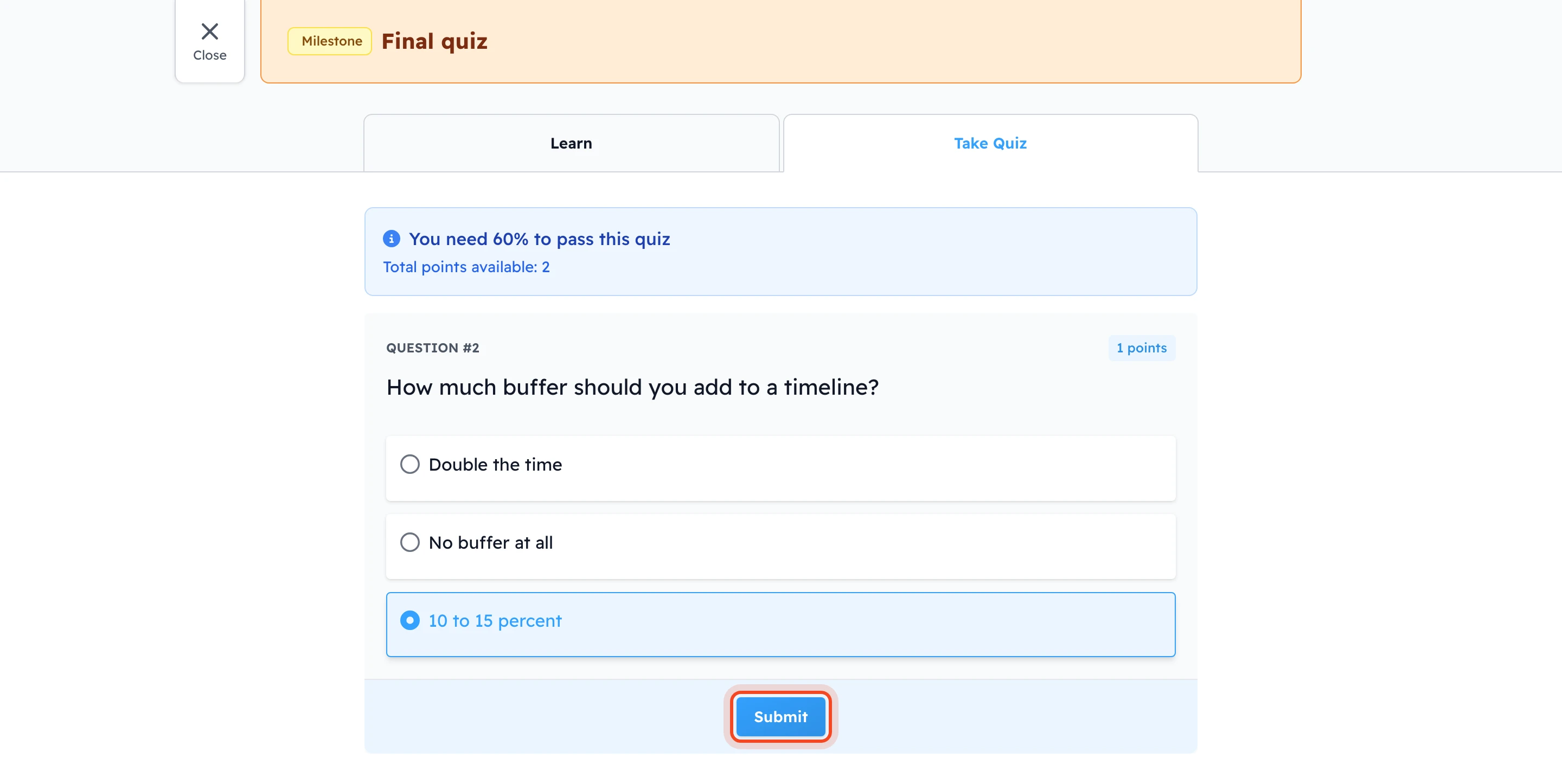
If your trainer set a pass mark, you see the percentage you need above the questions. The target is not complete until you reach it.
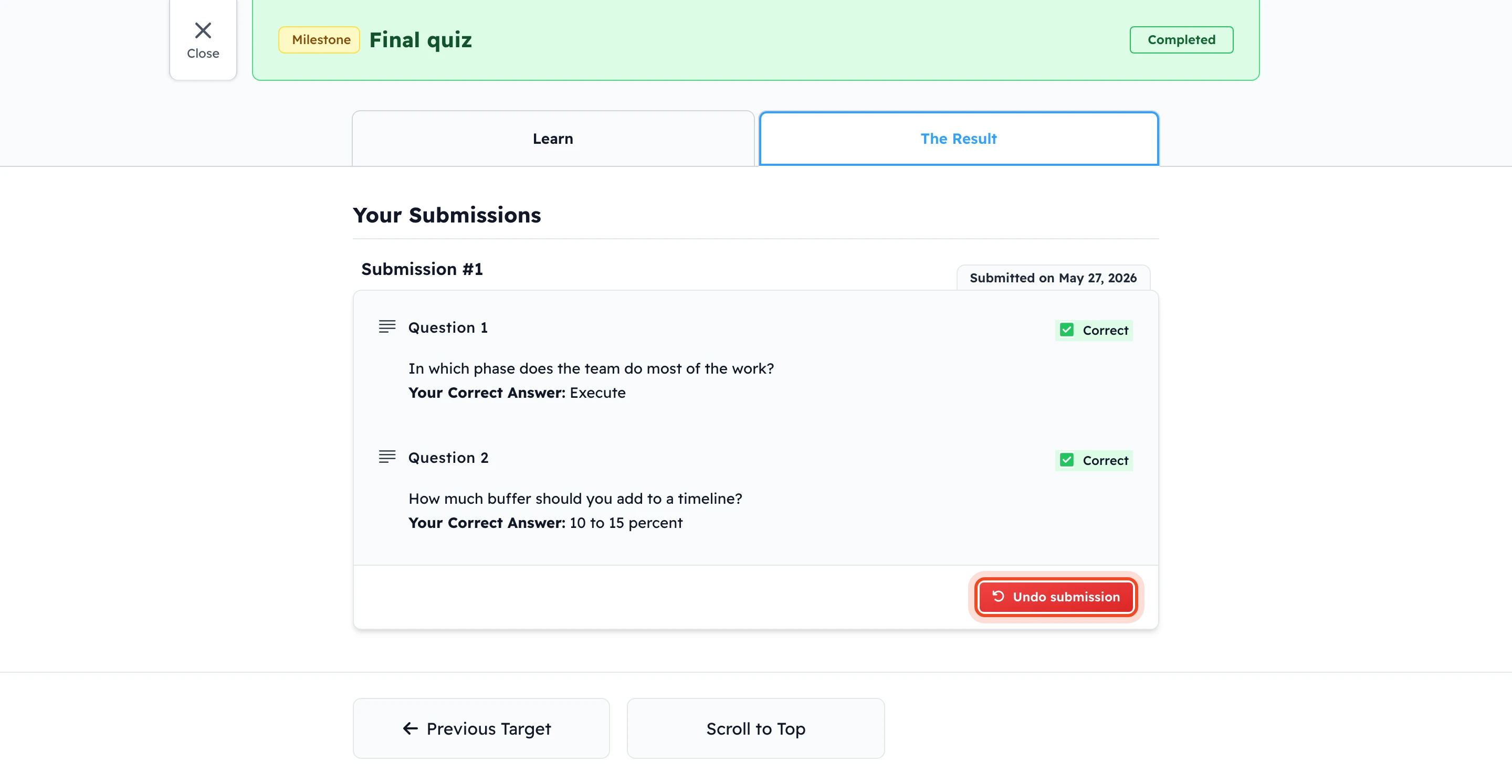
The result
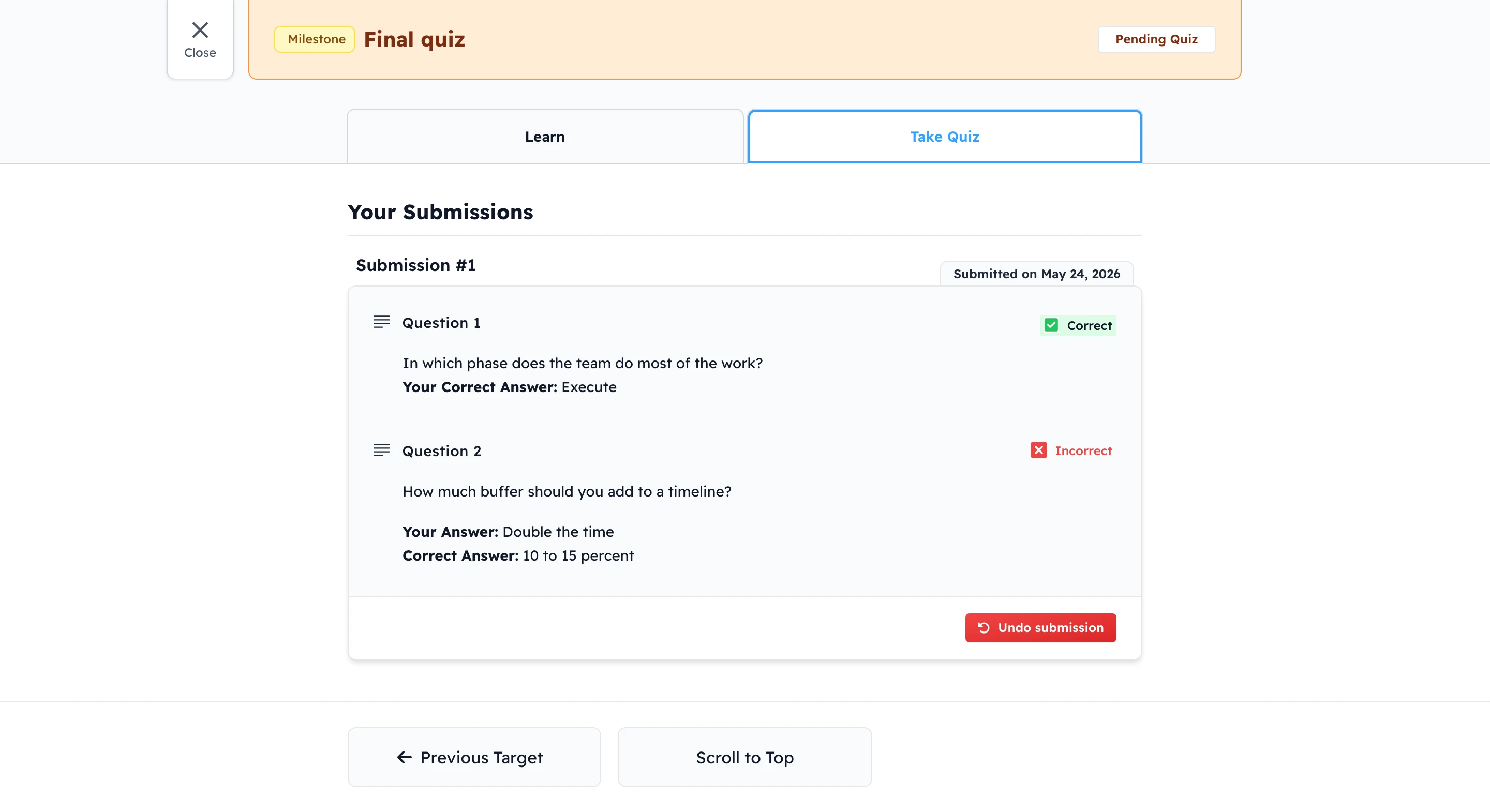
Your result shows right away in the same tab, with each question and its correct answer. If your answer is wrong, you see your answer and the correct answer. If your trainer added a hint to the answer you picked, you also see it as Hint. When you pass, the tab is named The Result.
Take the self-evaluation again
-
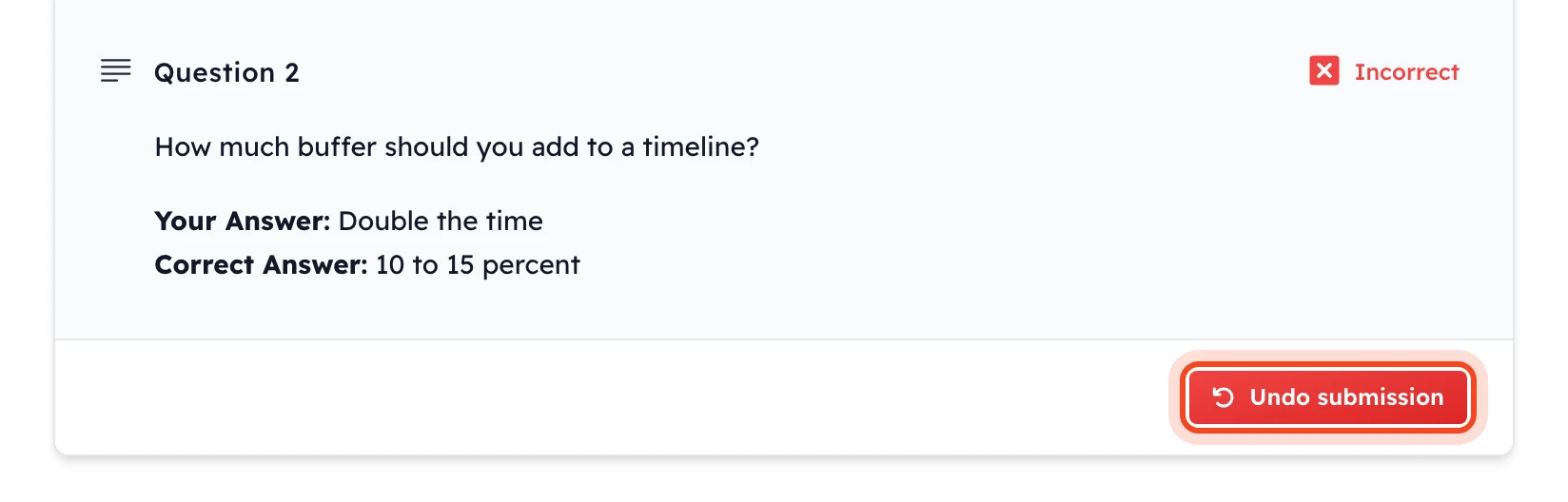
Click Undo submission.
-
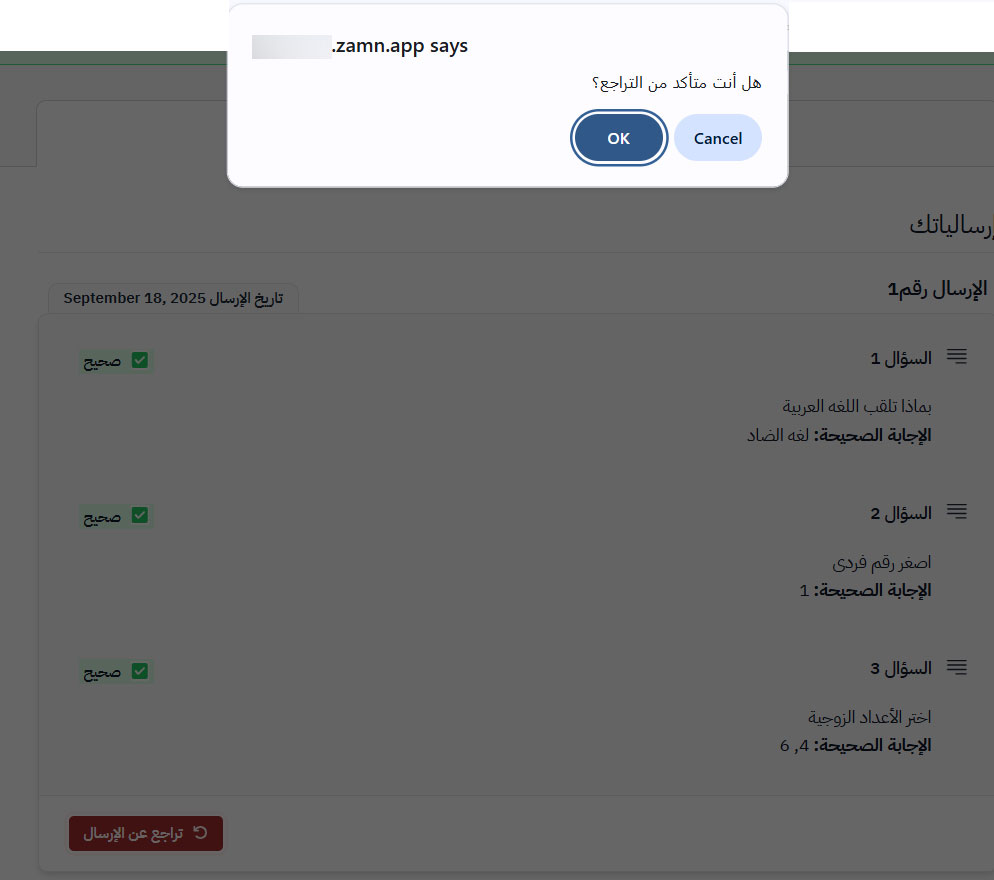
A message asks you to confirm. Click OK.
-
The quiz shows again. Choose your answers again and click Submit.
You can take the self-evaluation again as many times as you want, even if all your answers were correct.