Sign in to the platform from your phone
This guide shows students how to sign in to the platform from a phone, so they can start using their courses.
If you signed out of the platform and want to sign in again, or you want to open your account from a different device than the one you signed up on, follow these steps.
Steps to sign in from your phone
-
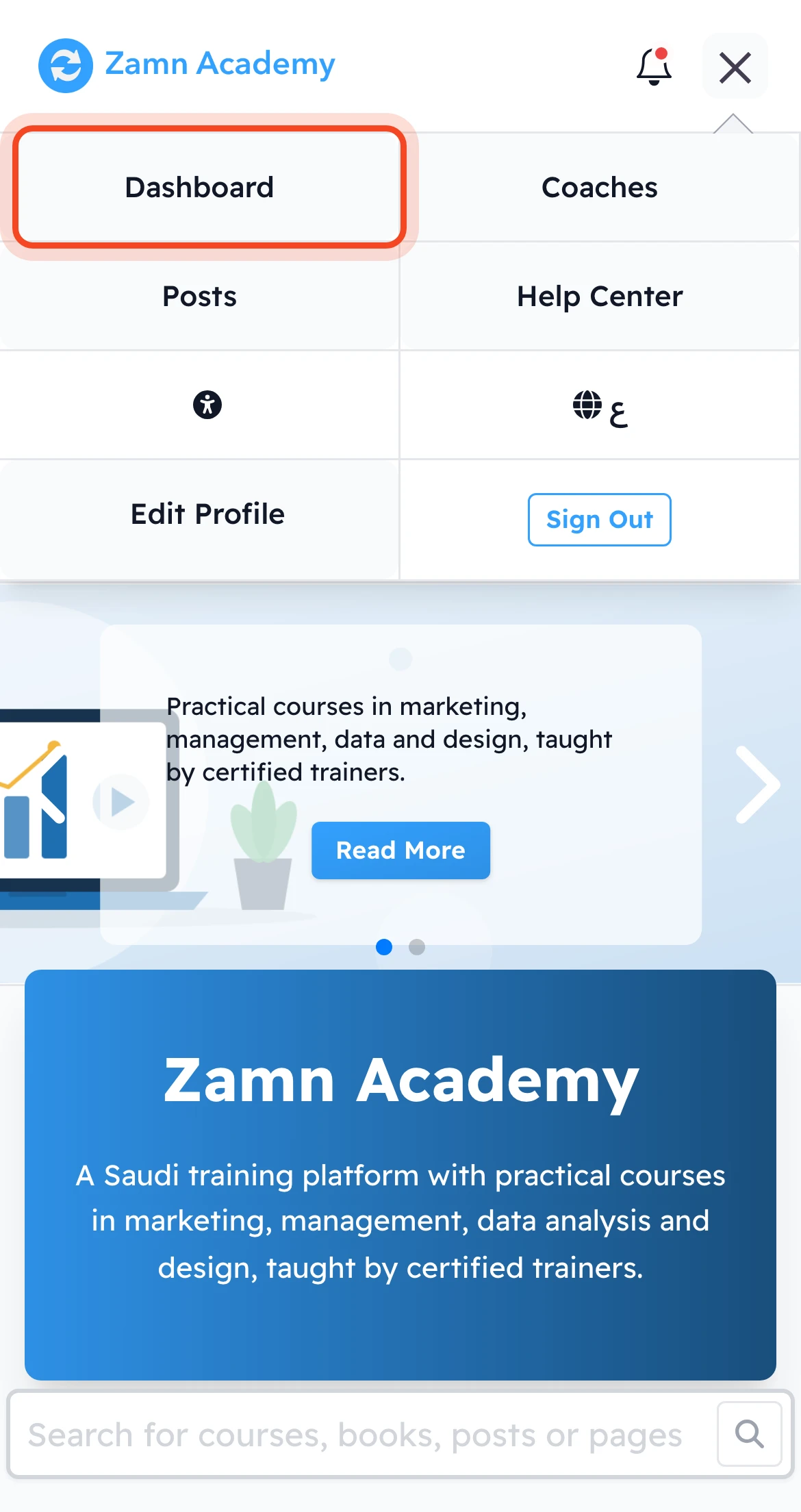
Open your platform, then tap the menu icon at the top of the page.

-
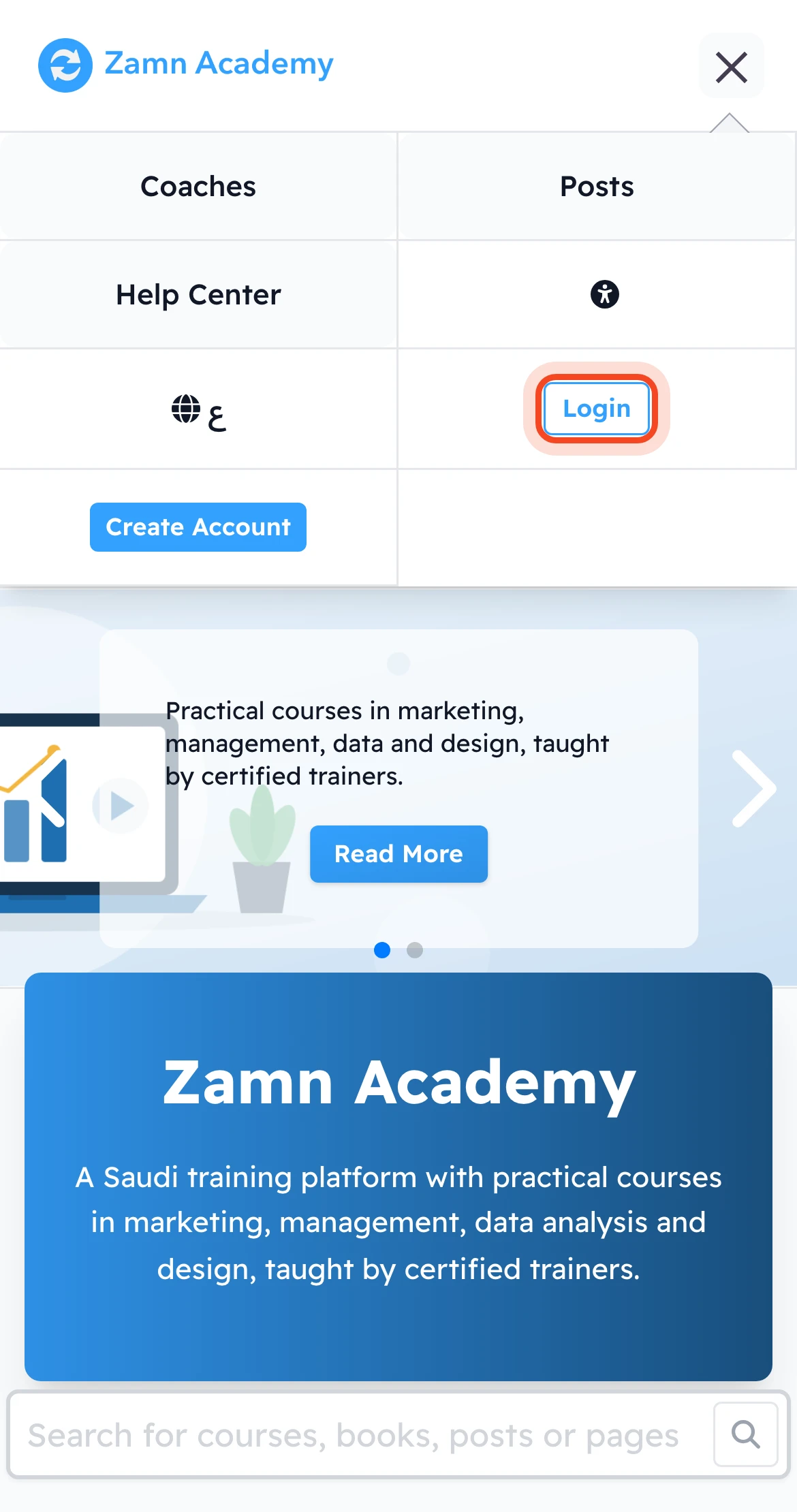
Tap Login.
-
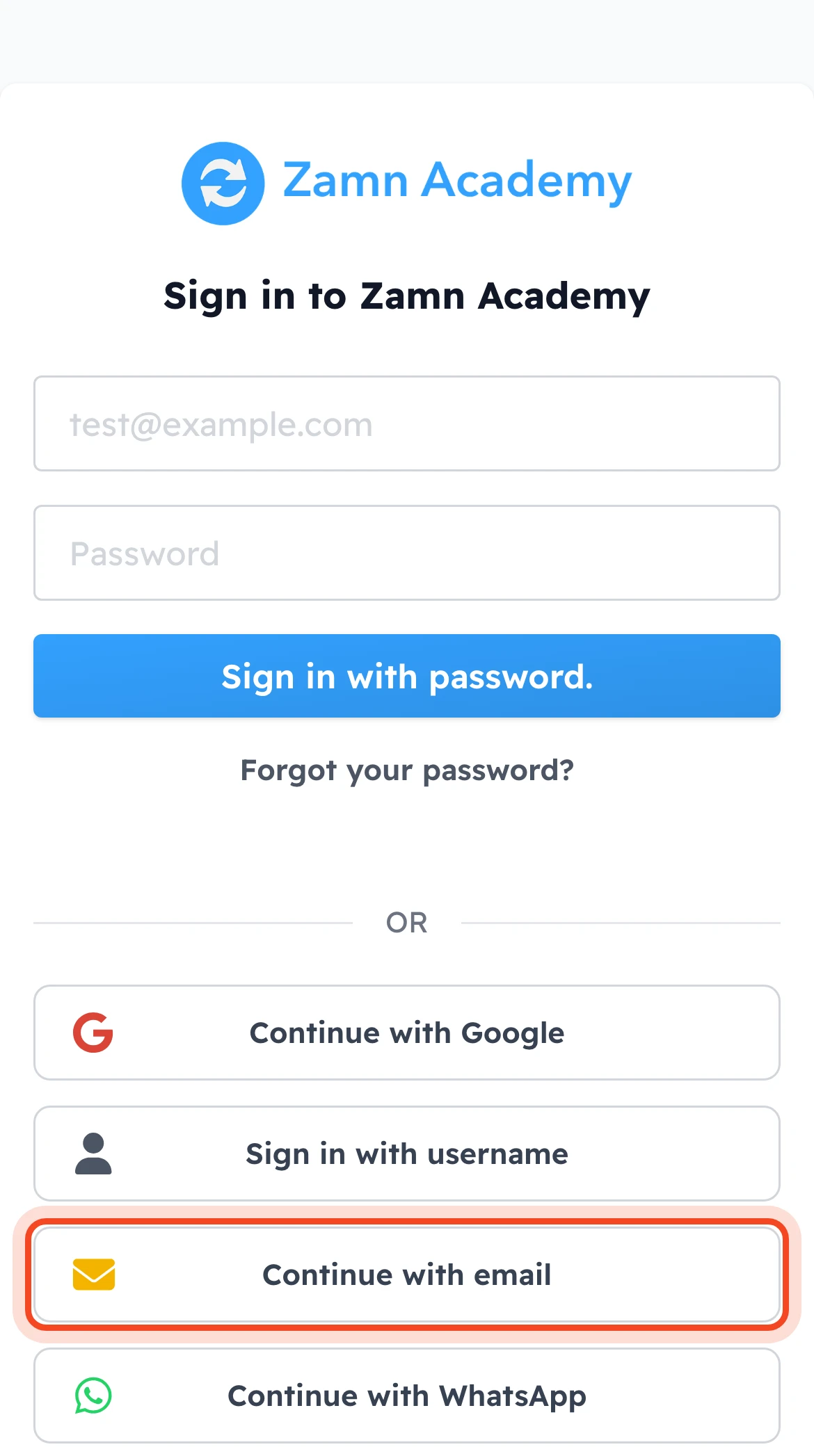
On the sign-in page, tap Continue with email under OR.
-
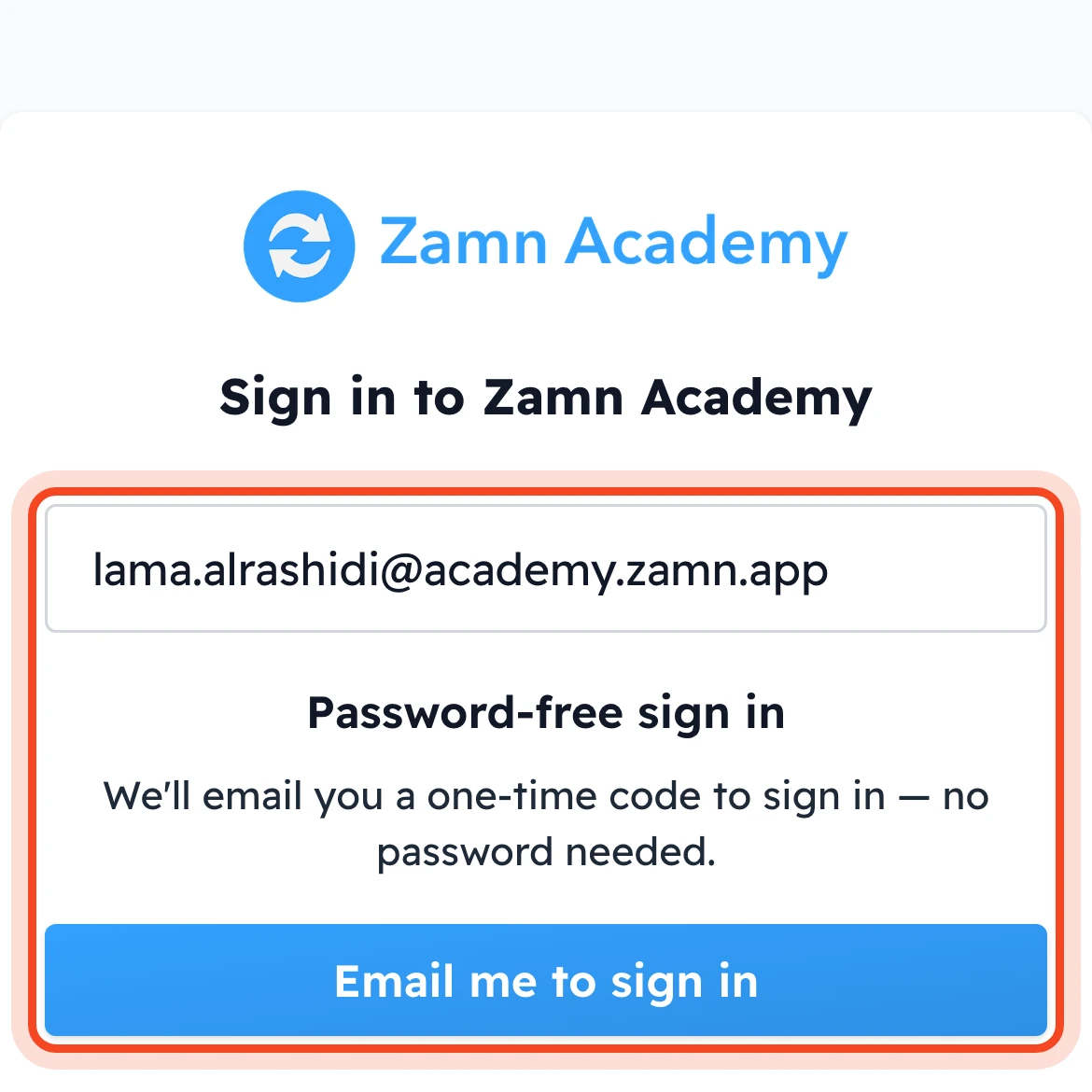
Enter your email address.
-
Tap Email me to sign in.
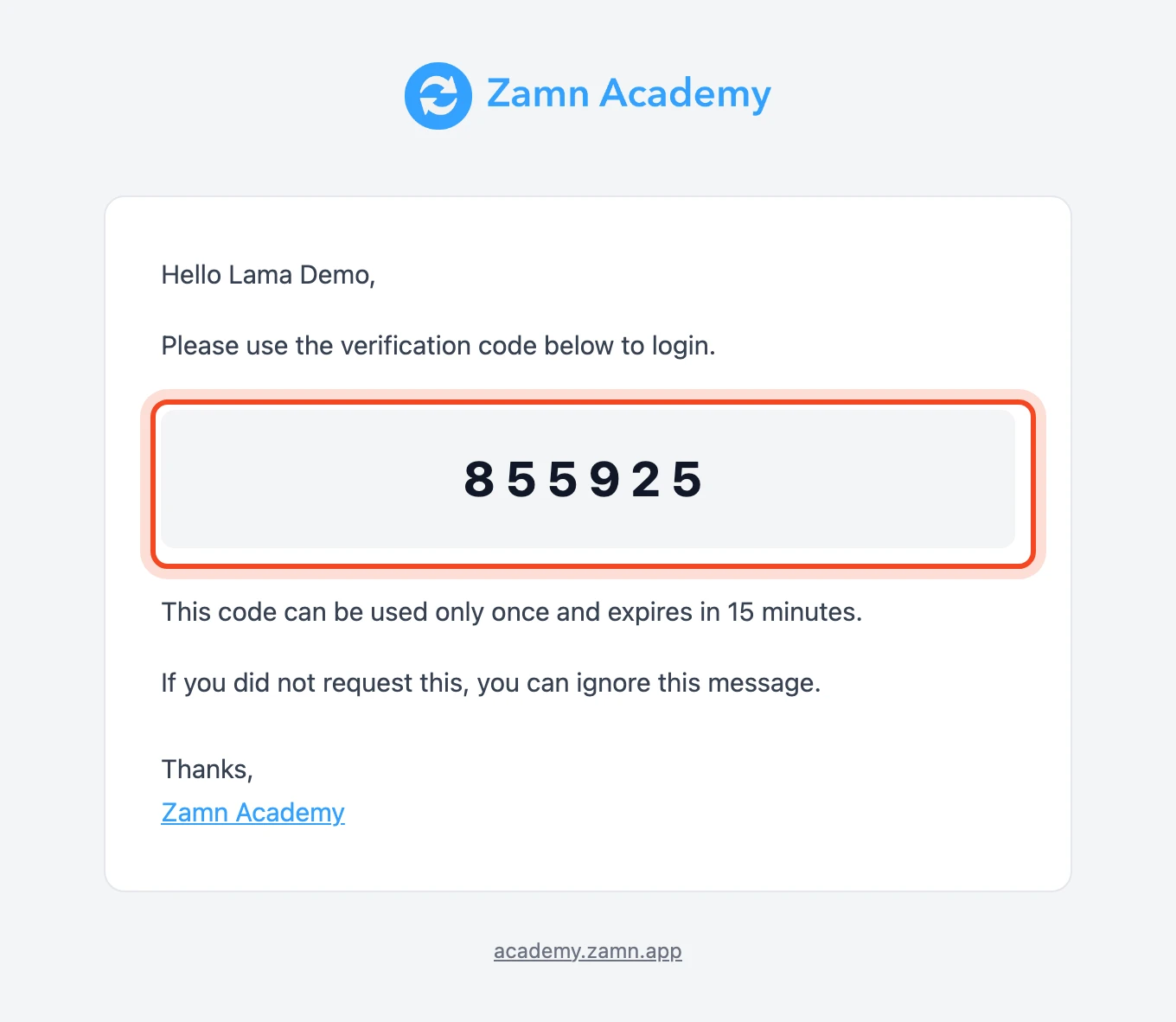
You get an email with the subject "Your verification code" and the platform name. It has your verification code. You can use the code only once, and it expires in 15 minutes.
-
Copy the verification code from the message.
-
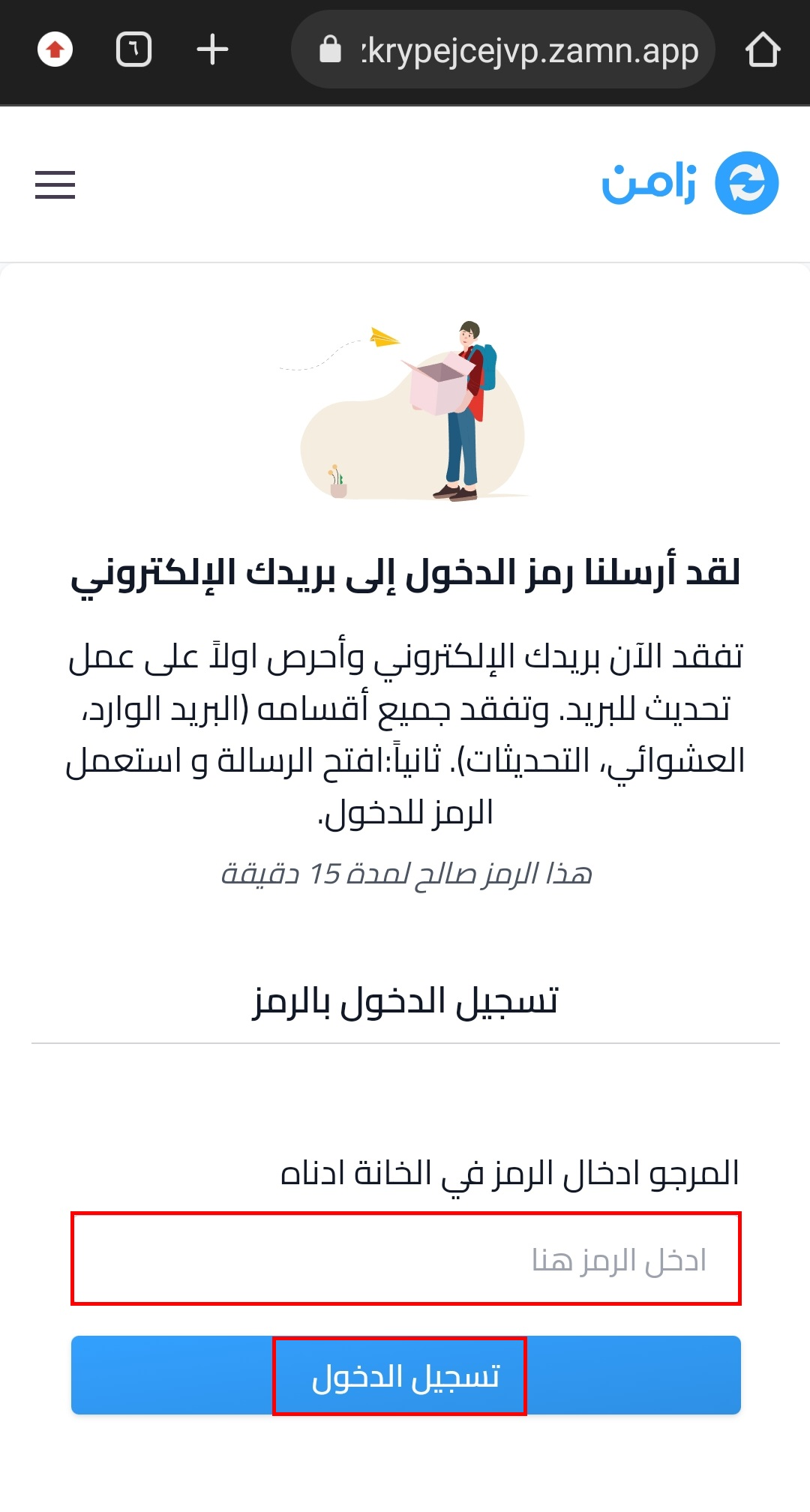
Go back to the platform and paste the code in the code field. The code is checked as soon as all 6 digits are entered, and you are signed in without tapping any button.
Open your courses
After you sign in, you can reach all your courses on the platform: tap the menu icon  , then Dashboard. Your courses are in the My Courses section.