Cancel a subscription and stop auto-renewal
If you bought a product with a subscription that renews by itself, you can cancel the subscription on the platform, so it does not renew and is not charged to your bank card again.
Steps to cancel a subscription
-
On the platform, choose Dashboard from the top menu.
-
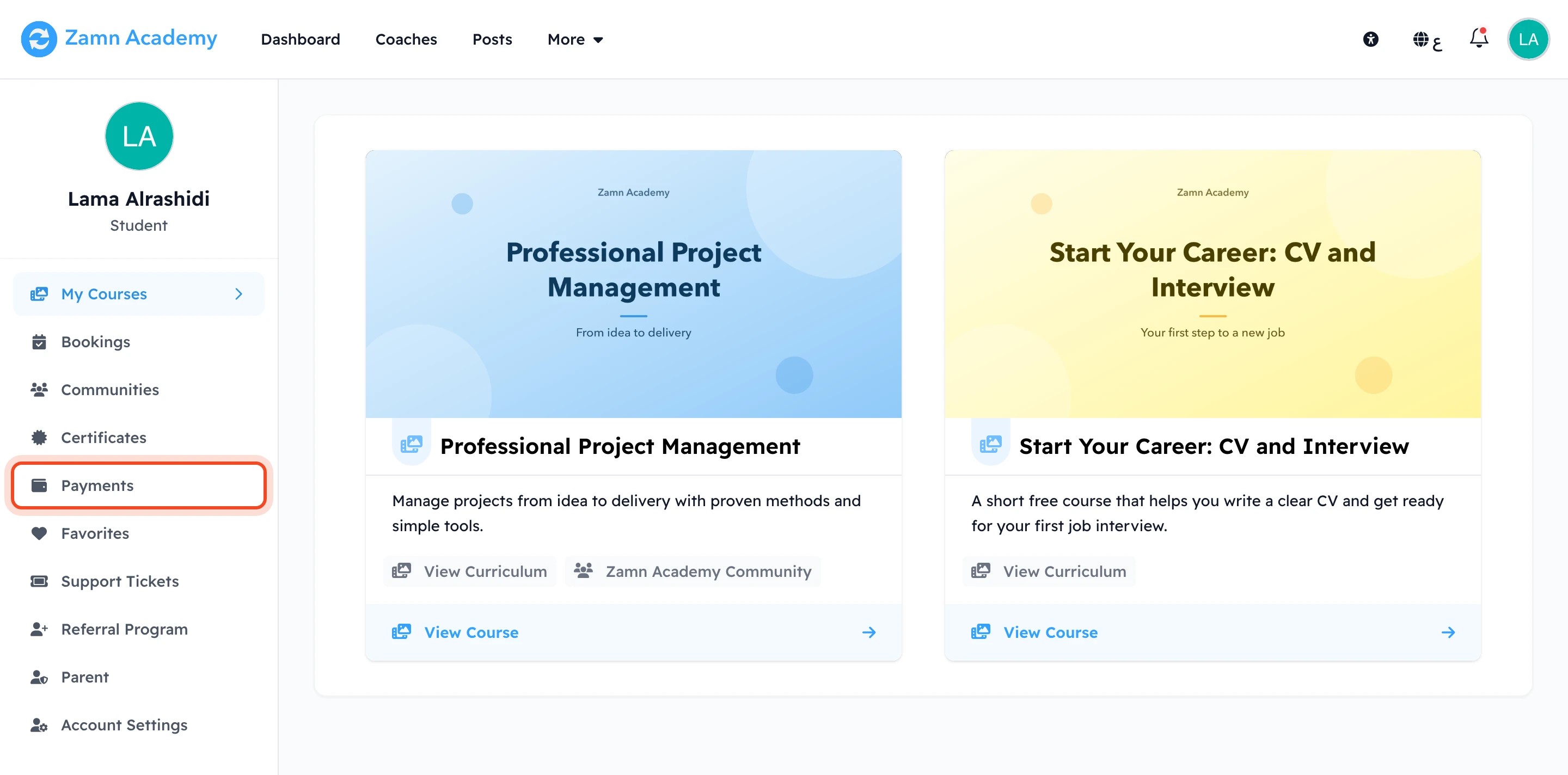
From the side menu, choose Payments. The My Payments page opens.
-
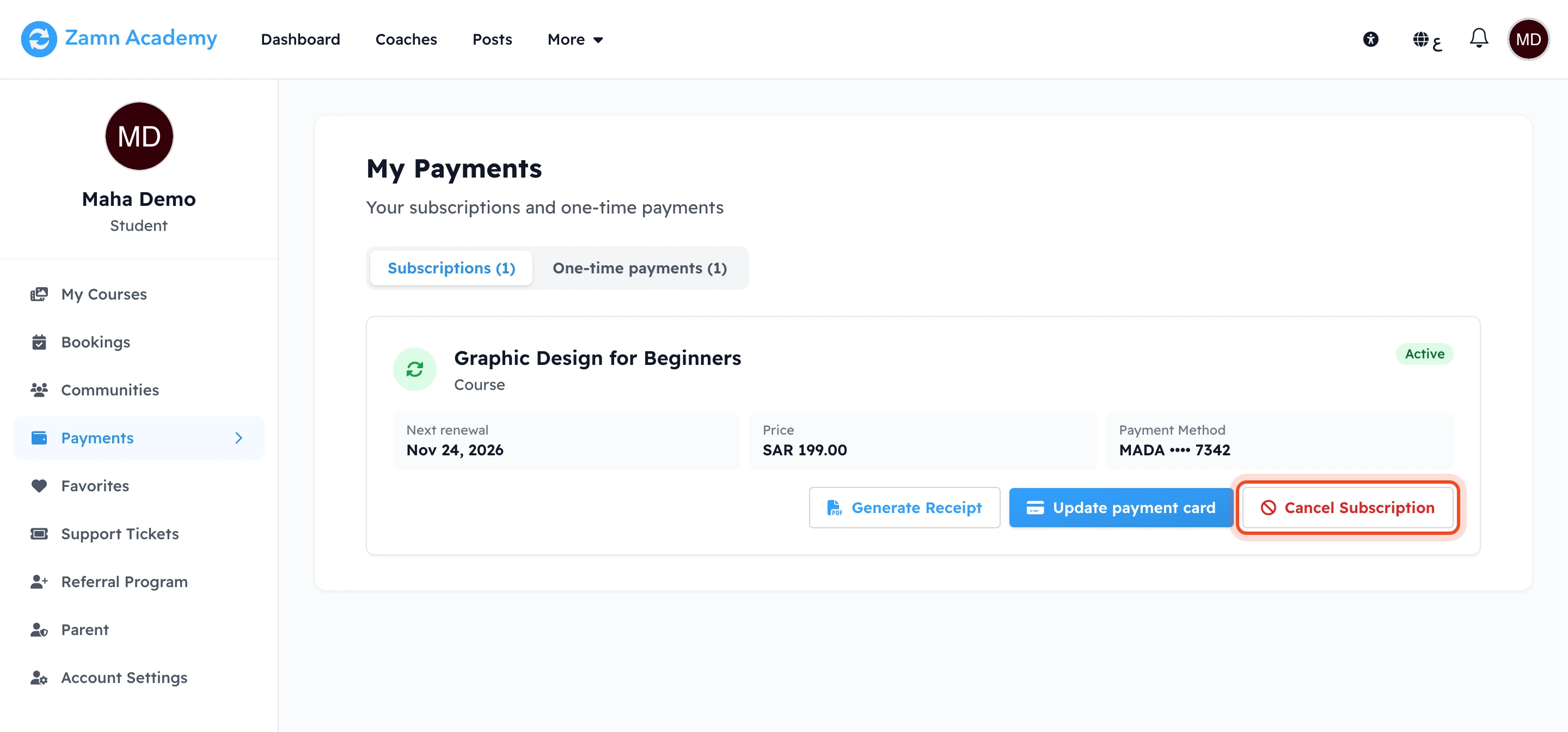
Open the Subscriptions tab and find the subscription that you want to cancel. Each subscription card shows its status (Active, Payment failed, Renewal stopped, Canceled, Ended or Pending), the price and the payment method. The card of an active subscription shows the Next renewal date, and the other cards show Access until instead.
-
Click the red Cancel Subscription button on the subscription card. This button shows only on active subscriptions, and not on diploma subscriptions.
-
Confirm the cancel in the Are you sure? message.
The cancel takes effect after the current subscription period ends. The subscription does not renew after that.
If the renewal payment fails
If the renewal payment fails several times, the platform stops trying to renew the subscription, and your card is not charged again. For subscriptions that let you update the payment card, the subscription card then shows the red Renewal stopped status, with a message under it.
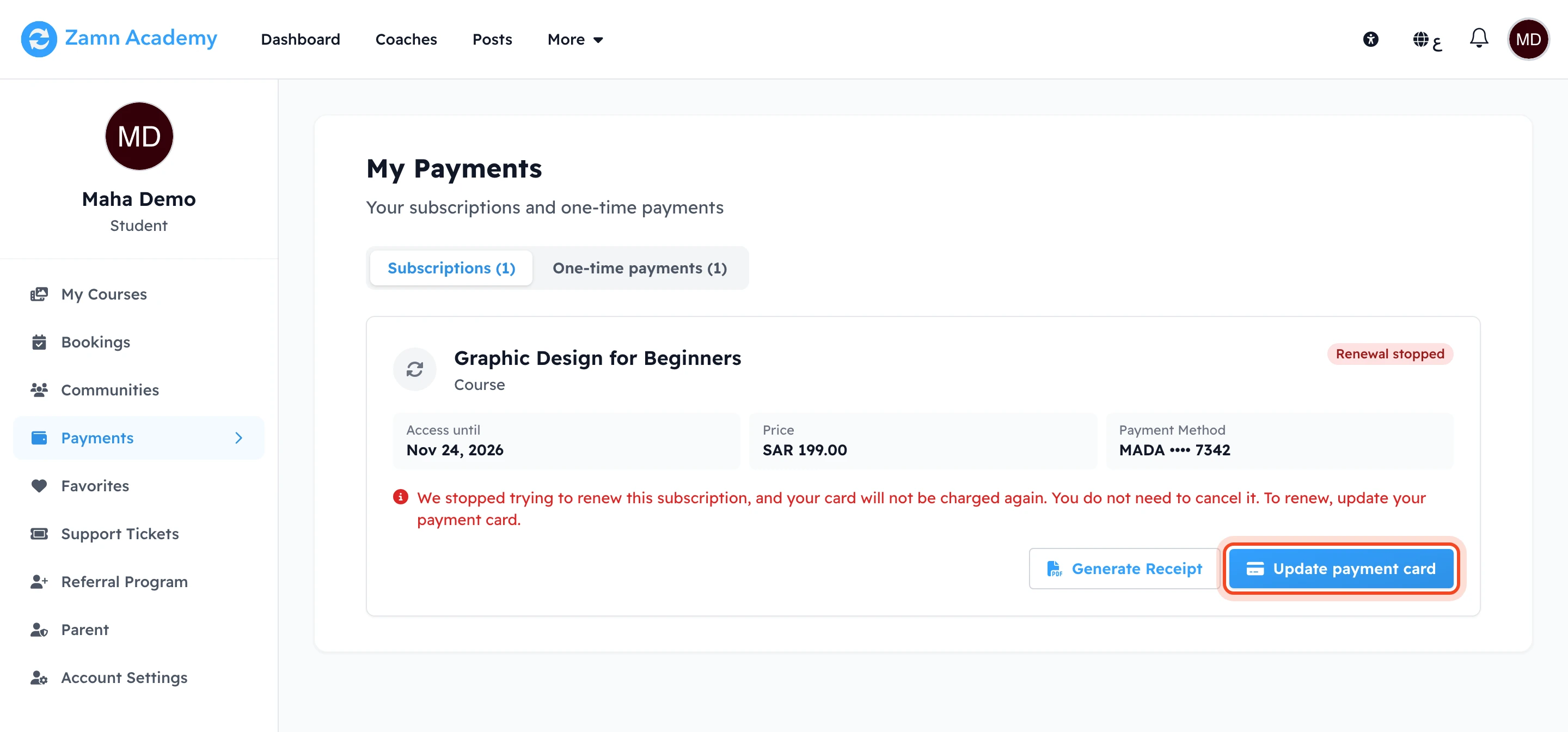
You do not need to cancel the subscription. To renew it, update your payment card as shown below.
Update your payment card
For some subscriptions, you can change the card that pays for the renewals:
- Follow steps 1 to 3 above.
- Click Update payment card on the subscription card. This button shows while the subscription is active, or after the renewal stopped.
- Enter the new card details, then click Save new card.
Your bank may ask you to confirm the card. After that, the new card is used for the next renewals.