How a trainer adds content to a course
This guide is for trainers. It shows how to open the course you were added to, and how to add its content.
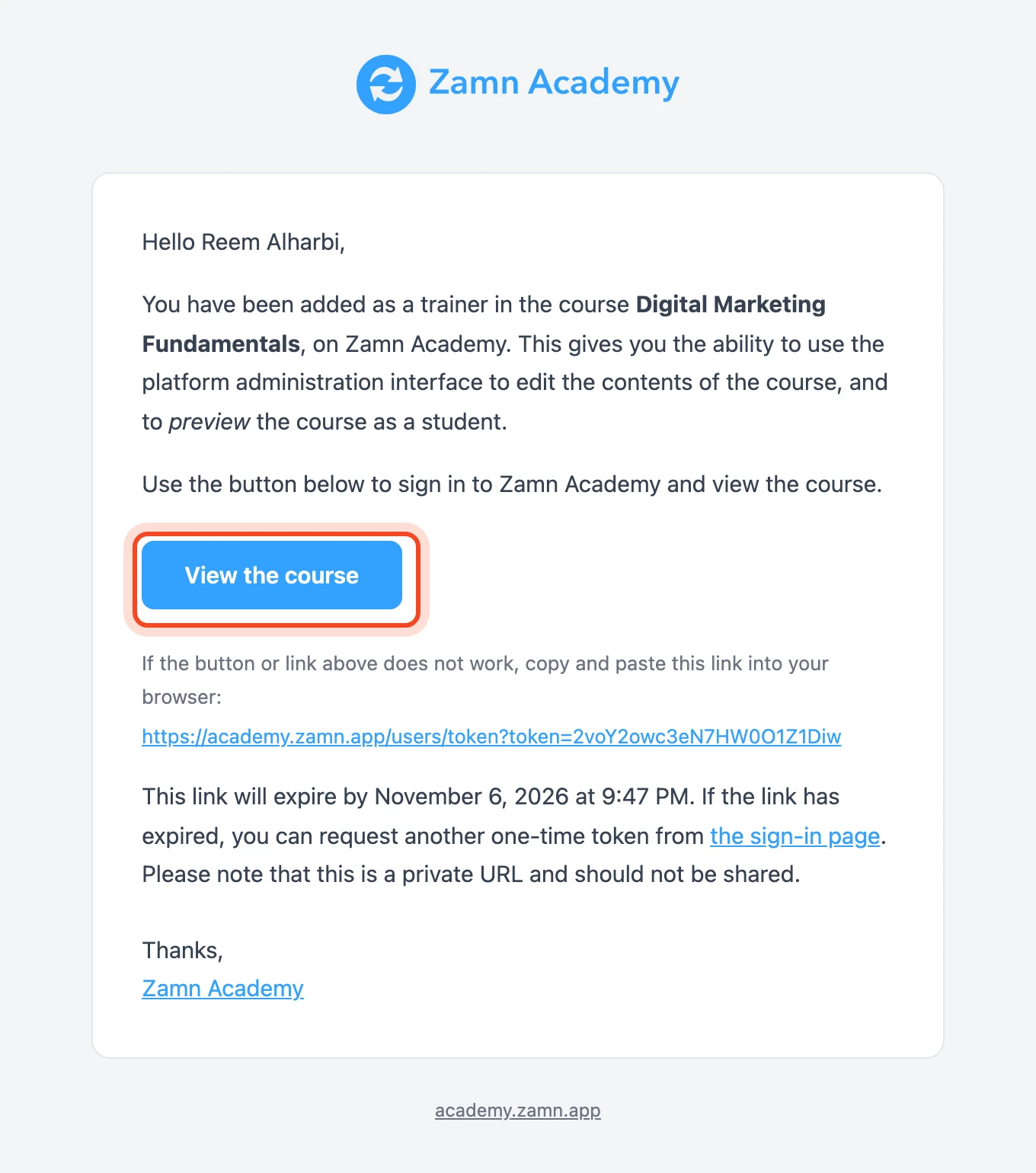
When a platform admin adds you as a trainer to a course, you get an email. This lets you add and edit the course content.
To sign in to the platform, click the View the course button in the email.
Steps to open the course content
-
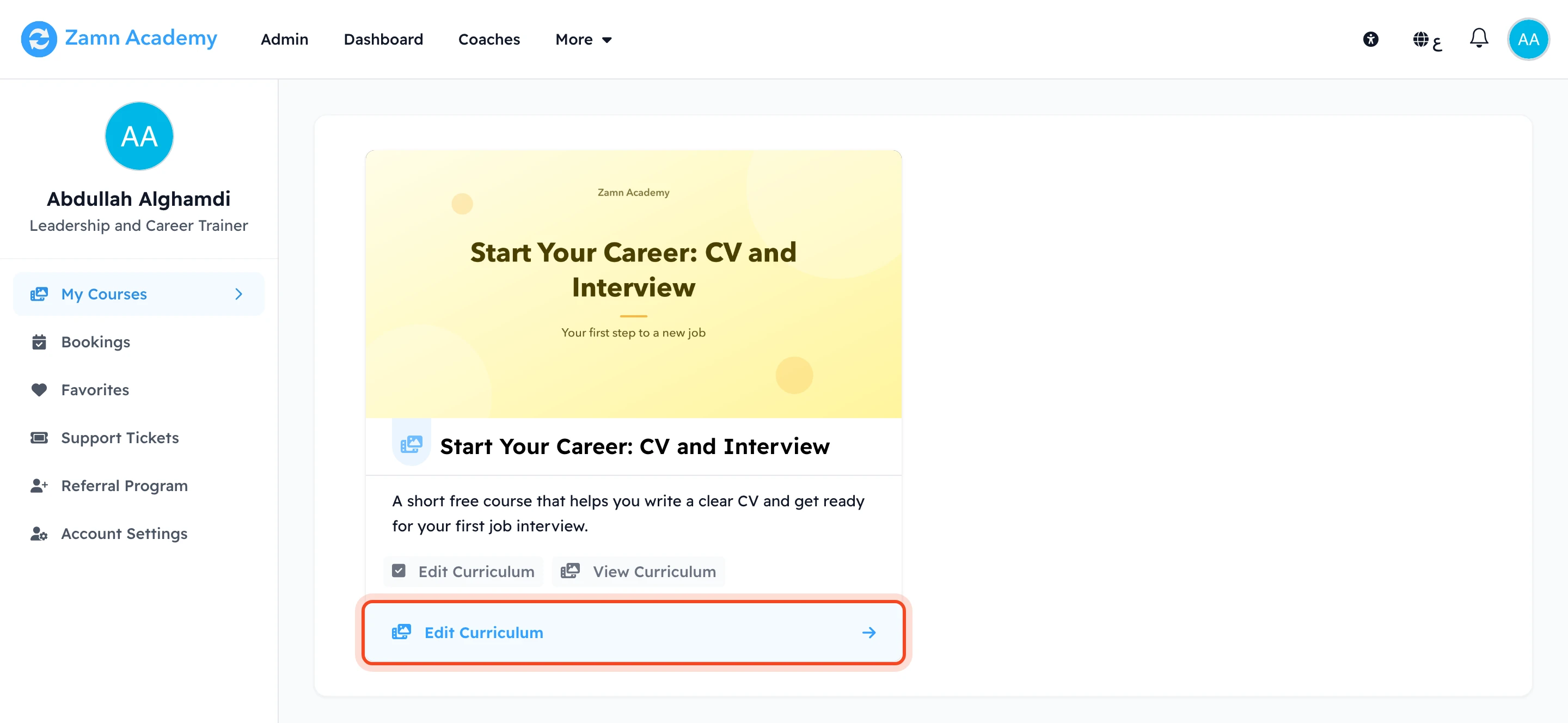
Click Dashboard at the top of the page. Under My Courses, you see all the courses you can access.
-
Click the Edit Curriculum button at the bottom of the course card to open the course dashboard.
What a trainer can do in a course
- View Curriculum: see the course as a student sees it.
- Edit Curriculum: add and edit the course content.
The course dashboard
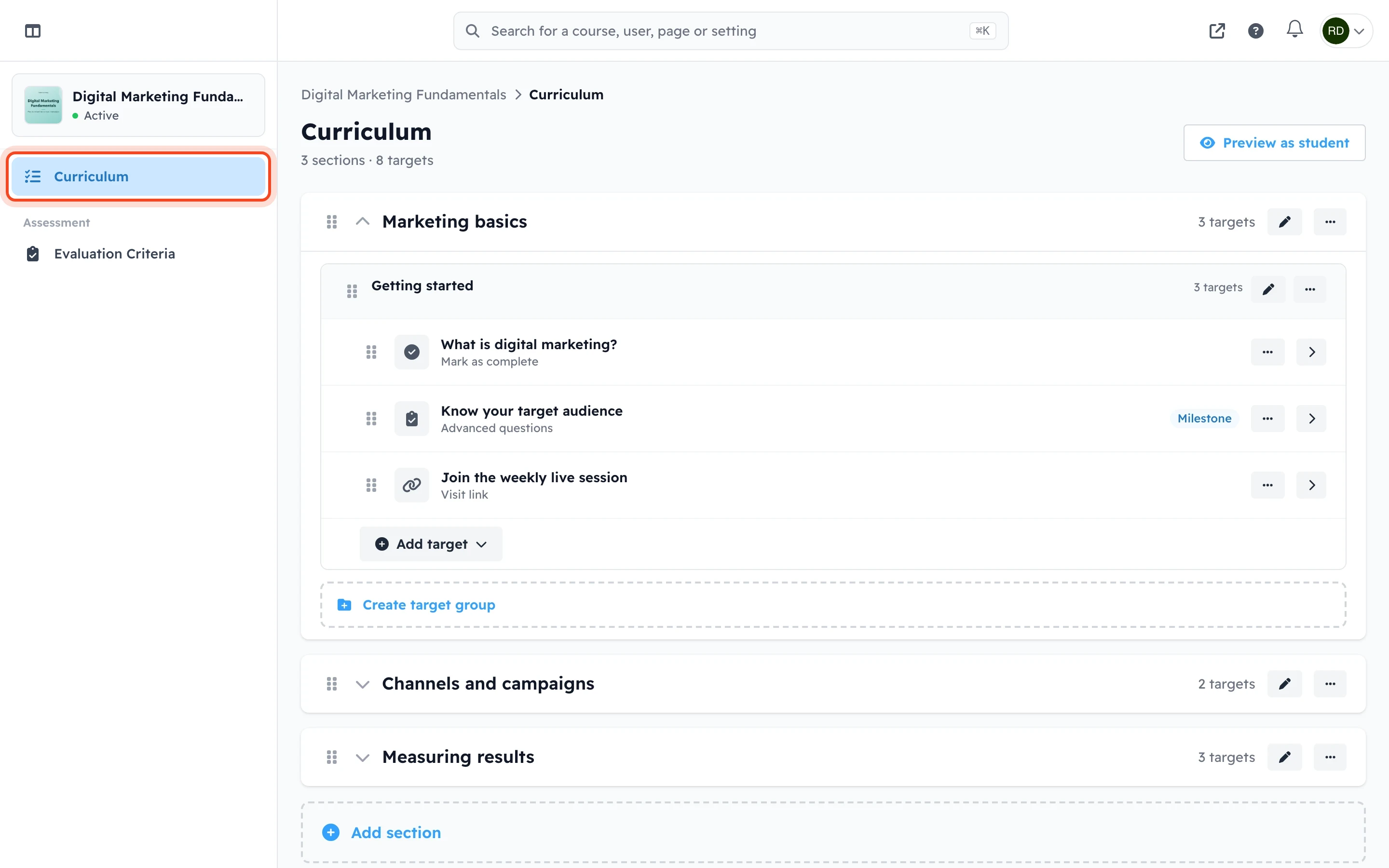
The side menu of the course dashboard has two pages: Curriculum and Evaluation Criteria.
Curriculum
On the Curriculum page, you can create new sections (levels) and targets, and edit the sections and targets that already exist.
If your platform is on the Basic plan, you can add only one section to each course. If you try to add a second section, you see the message "You need to upgrade your subscription to add more than one section to a course". To add more sections, the platform admin must upgrade to the Growth, Pro or Organizations plan. There is no such limit during the free trial.
Evaluation Criteria
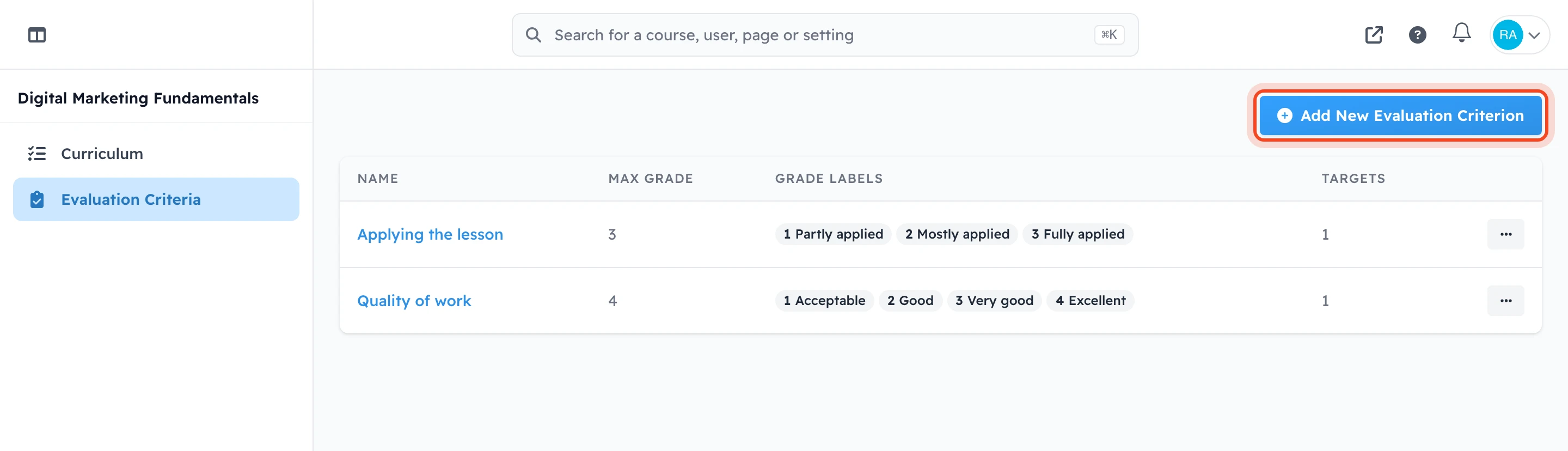
On the Evaluation Criteria page, you can create new evaluation criteria and edit the ones that already exist, to link them to the advanced questions in assignments.
To learn more about how to create evaluation criteria, click here.
Content types you can add
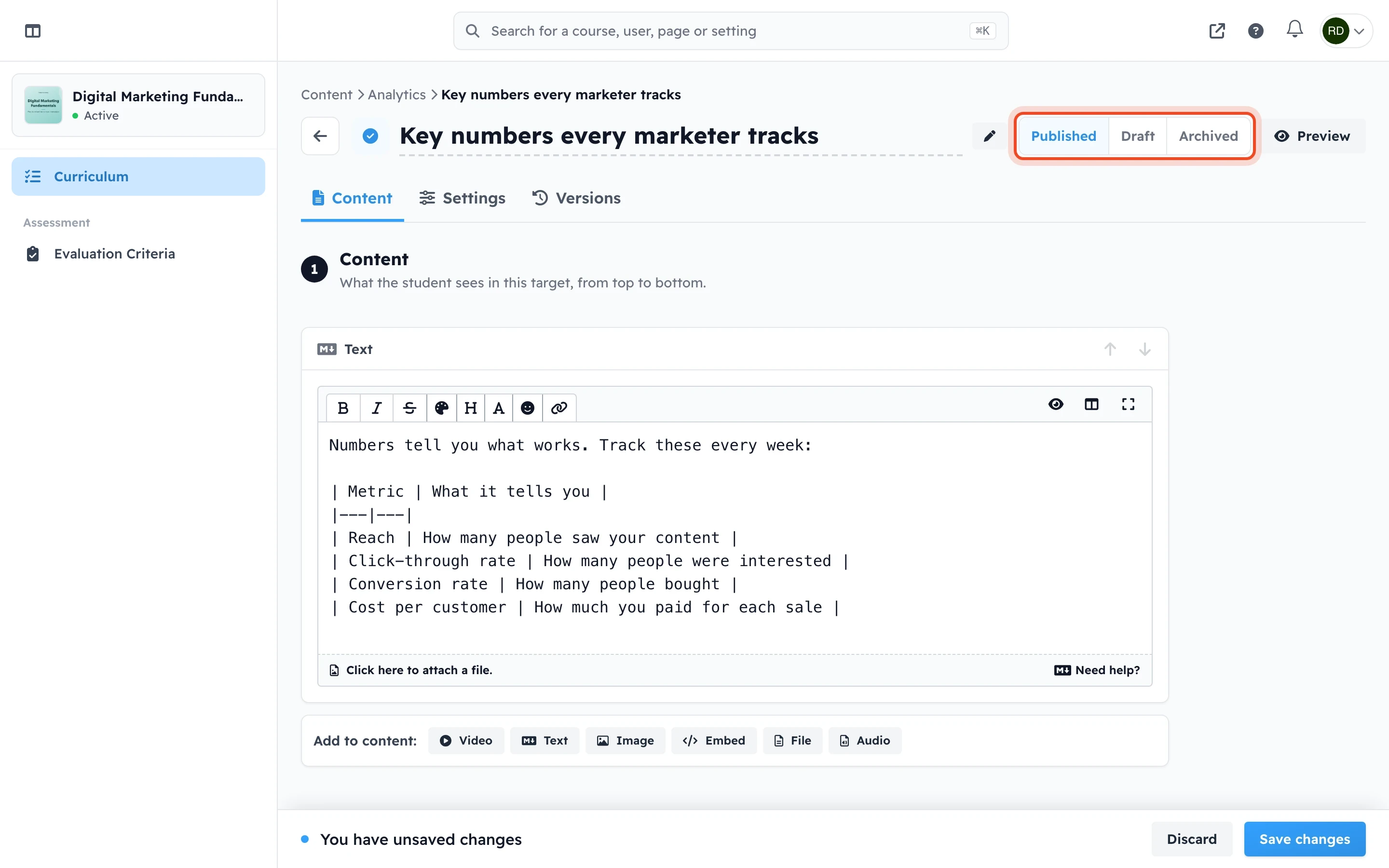
On the Content tab of a target, you see these content types next to Add to content::
- Text: add text in Markdown format.
- Image: add images.
- Embed: add links from YouTube, SlideShare, Google Drive and Microsoft 365.
- Video: upload a video with Zamn Stream. This button shows only on some platform plans.
- File: add different kinds of files.
- Audio: upload an audio clip.
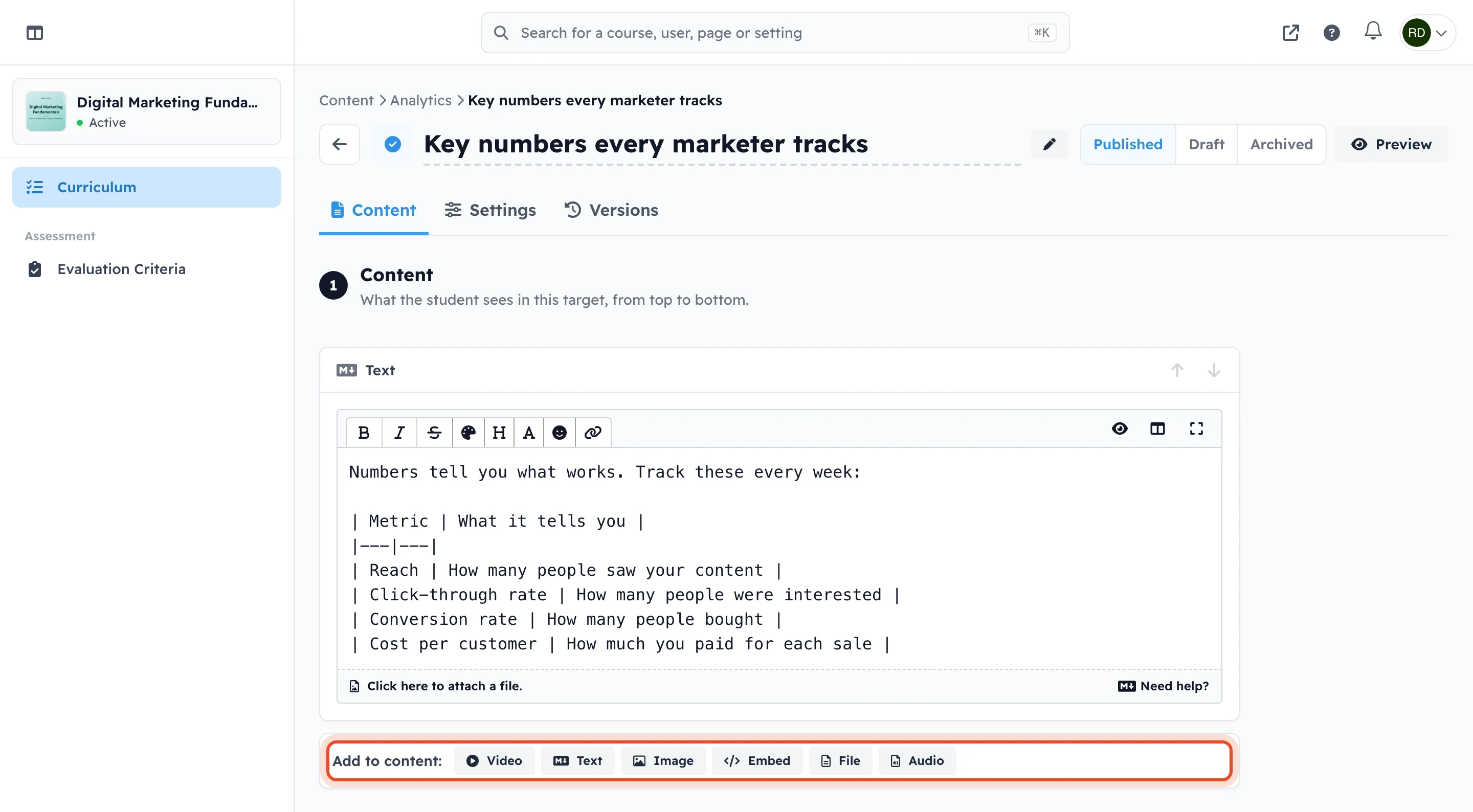
When you finish adding the content, click Published at the top of the target page, then click Save changes in the bar at the bottom of the page.