Trainer guide: create exercises
This guide shows how a trainer creates a self-evaluation exercise in a course. A self-evaluation is a self-test with instant feedback, with no review from a coach.
Steps to create a self-evaluation exercise
-
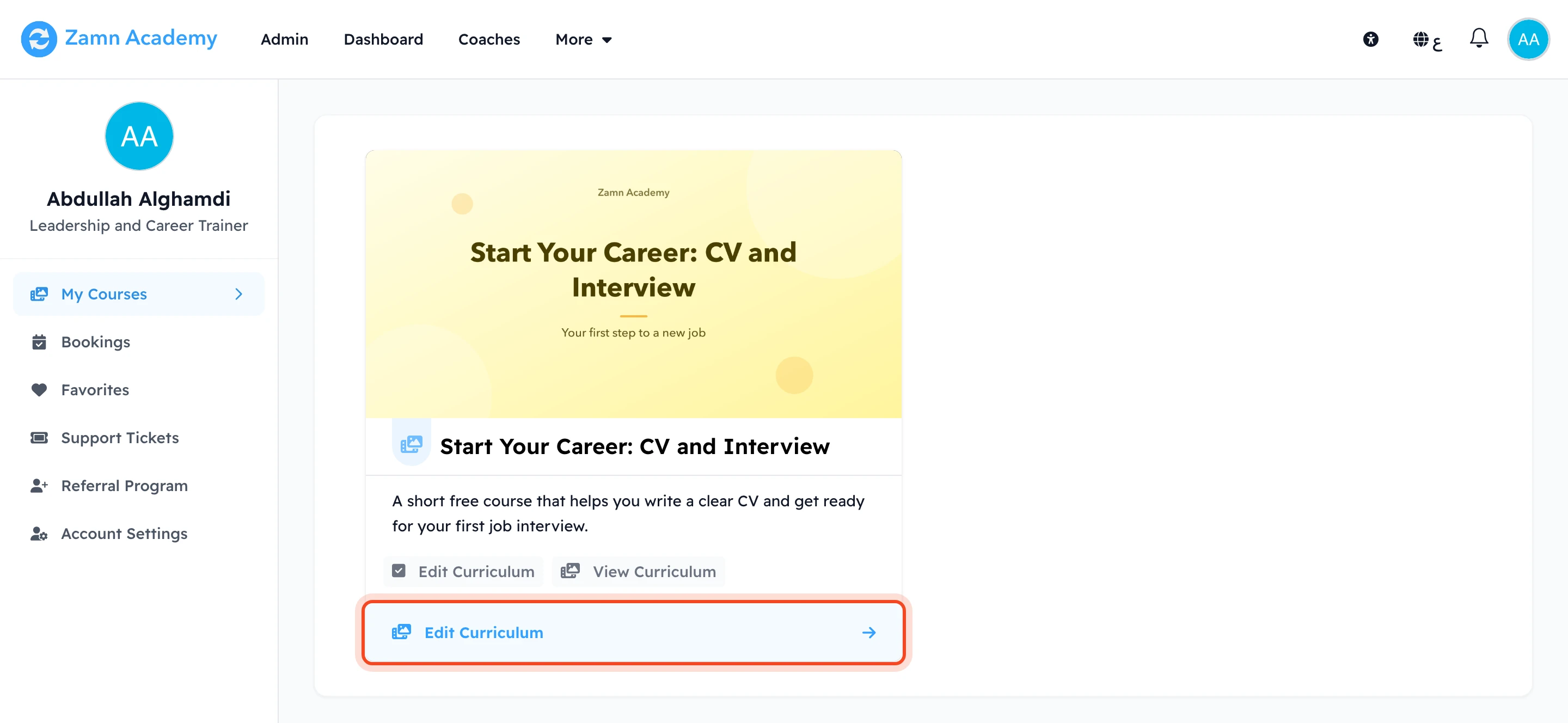
Click Dashboard at the top of the page, then click the Edit Curriculum button at the bottom of the course card under My Courses.
-
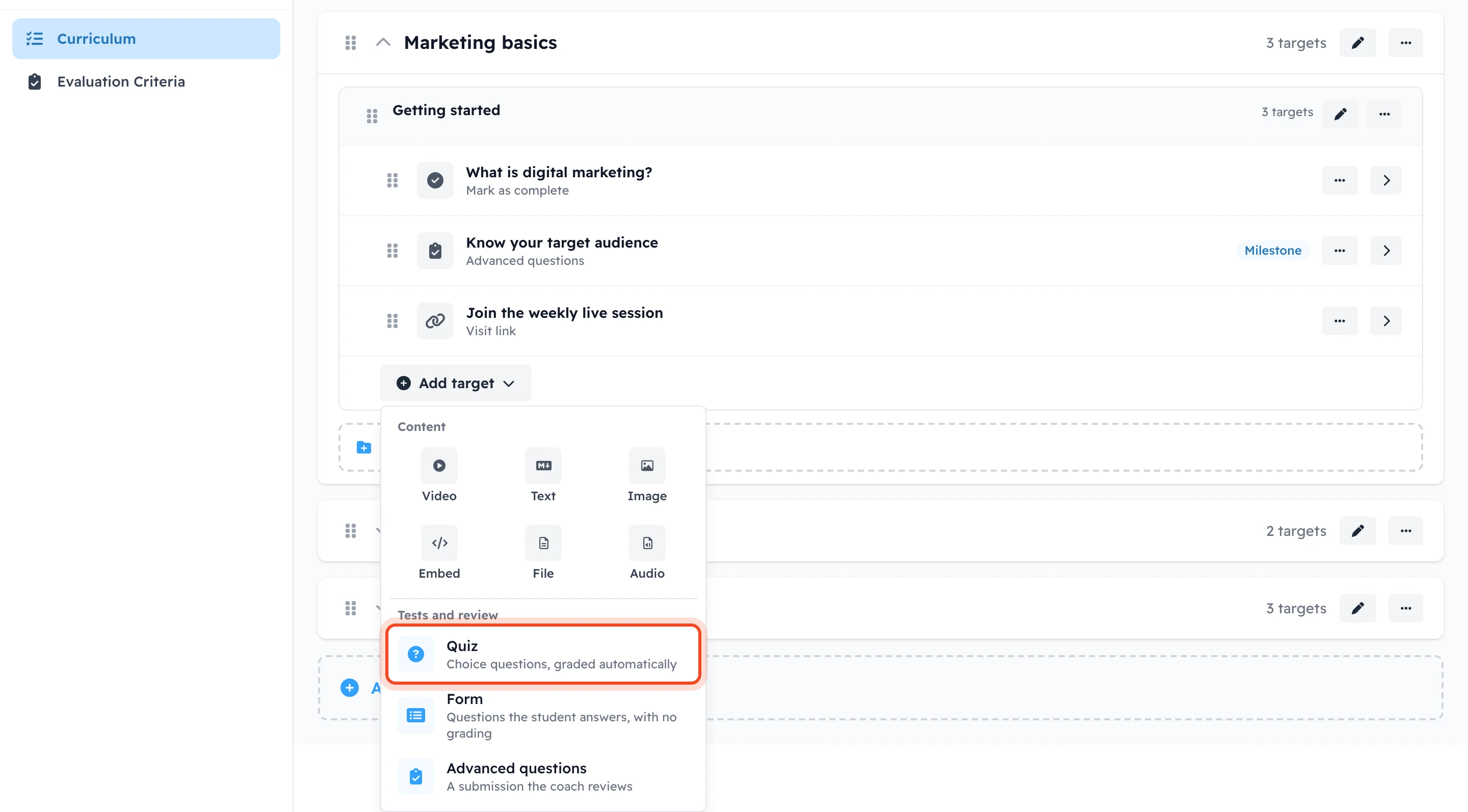
On the Curriculum page, click Add target at the end of a target group, then choose Quiz. Or open an existing target by clicking its name.
-
Click the pencil next to the title at the top of the page, and type the exercise name.
-
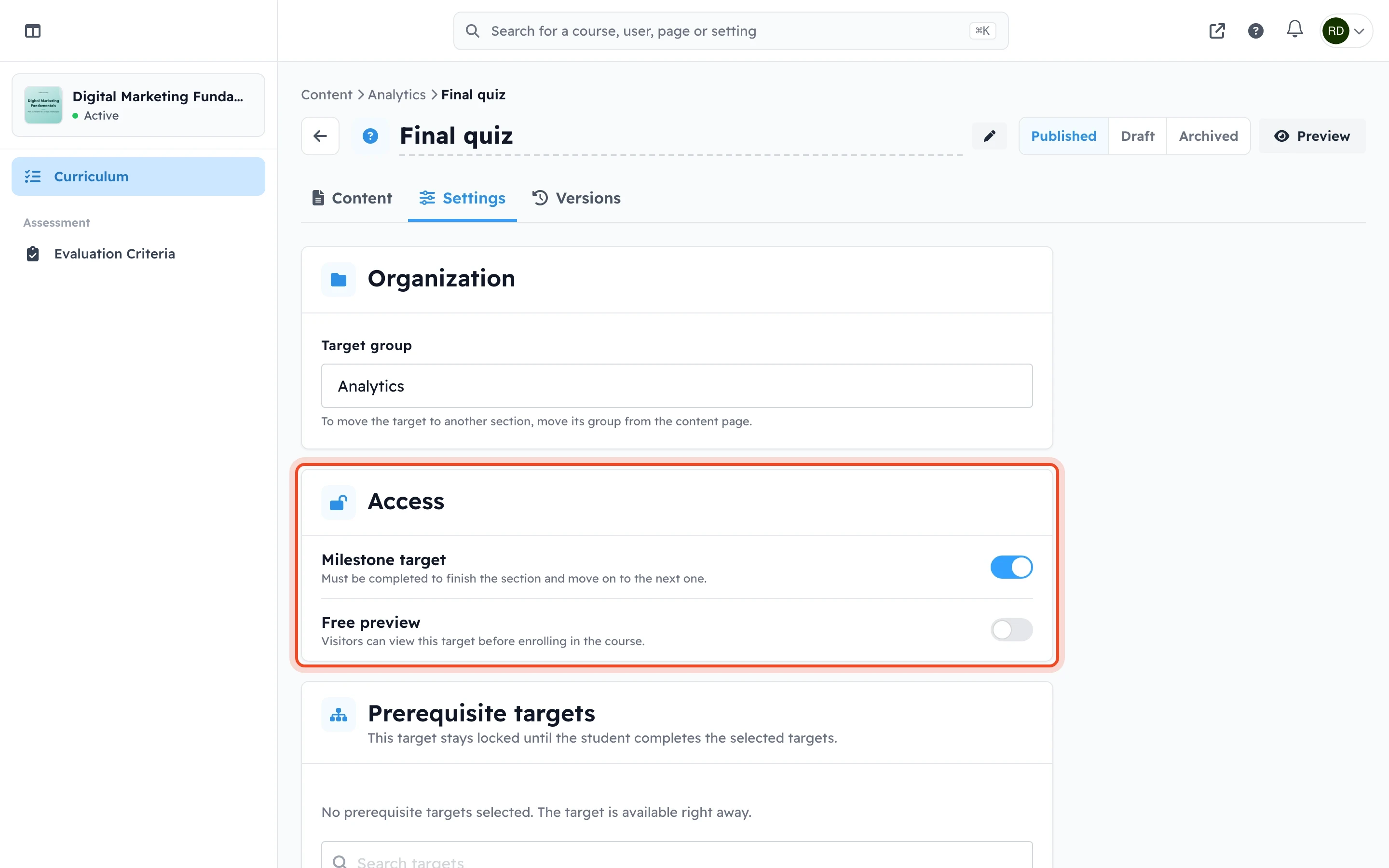
In the Settings tab, you can turn on Milestone target, and choose Prerequisite targets if there are any.
-
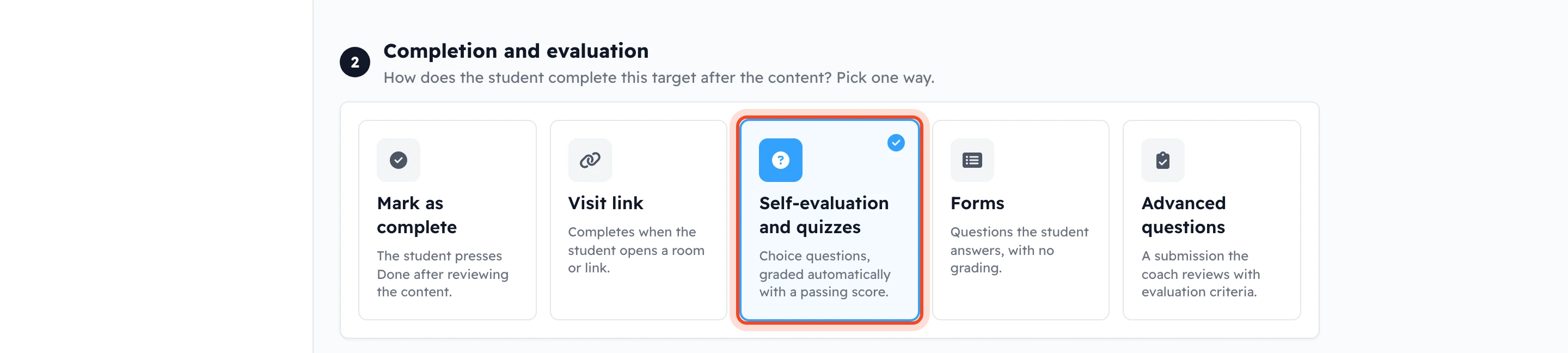
In the Content tab, under Completion and evaluation, make sure Self-evaluation and quizzes is chosen.
-
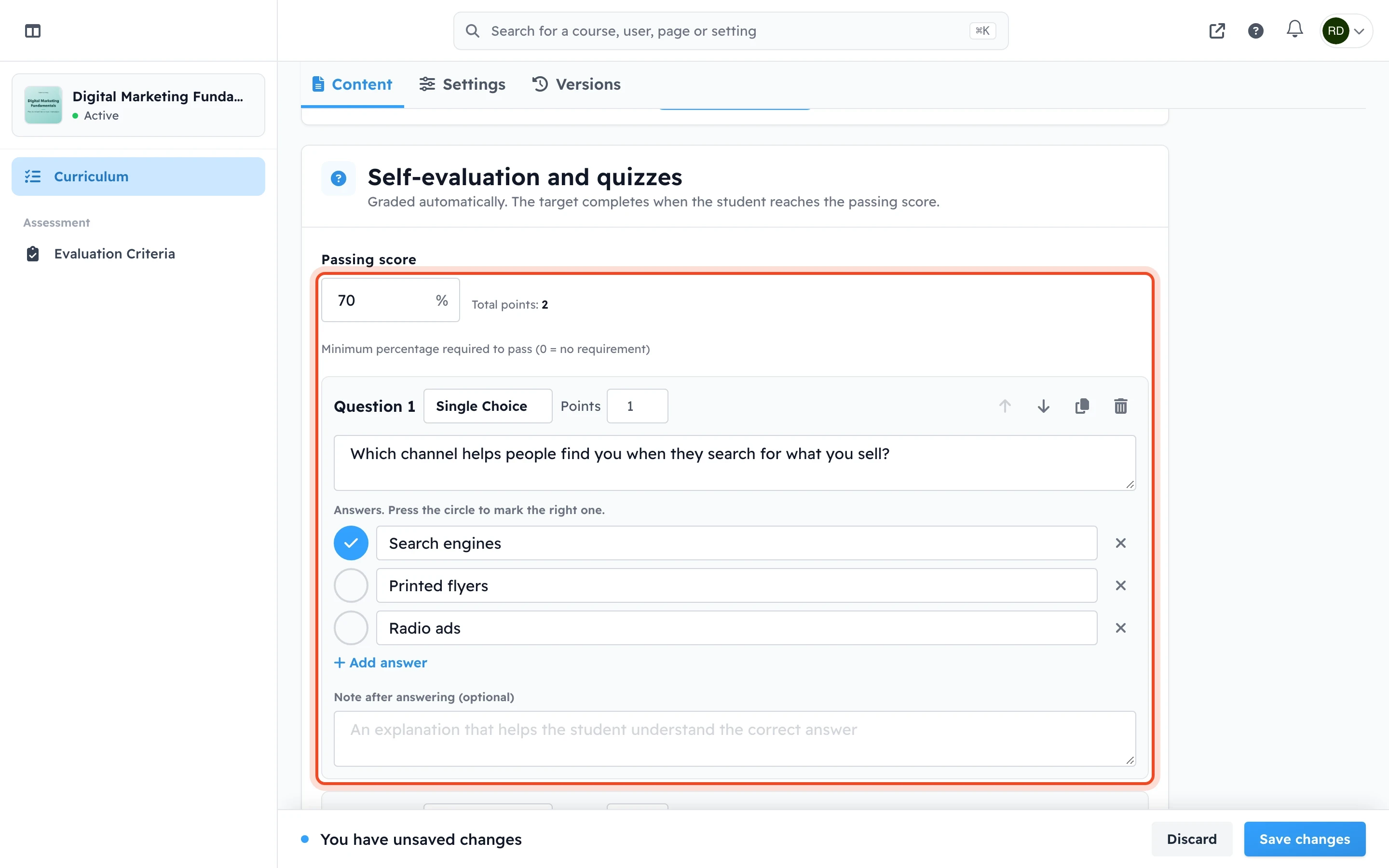
You can set the Passing score, which is the lowest score a student needs to pass. Leave it at 0 if no score is needed.
-
Type the question, and choose its type: Single Choice, Multiple Choice or Number. You can also set the question Points.
-
Type the answers, and press the circle next to the correct answer. A Single Choice question has only one correct answer. For a Number question, enter the correct number in Correct answer.
-
To add another answer, click Add answer.
-
You can write a Note after answering that explains the correct answer to students. This field is optional.
-
To add another question, click Add a new question.
-
At the top of the page, click Published.
-
Click Save changes in the bar at the bottom of the page.
How students see the exercise
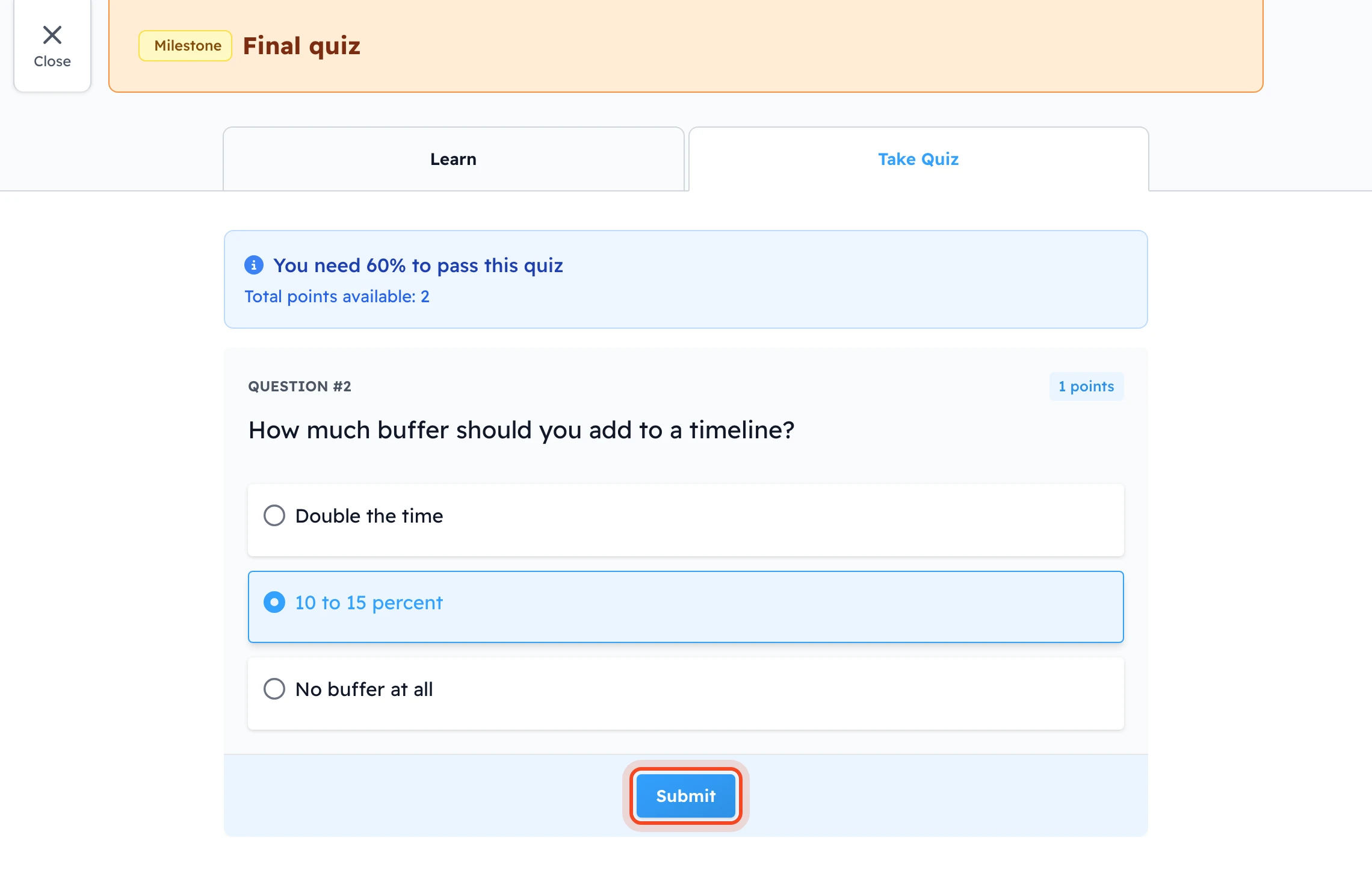
Students see the question like this:
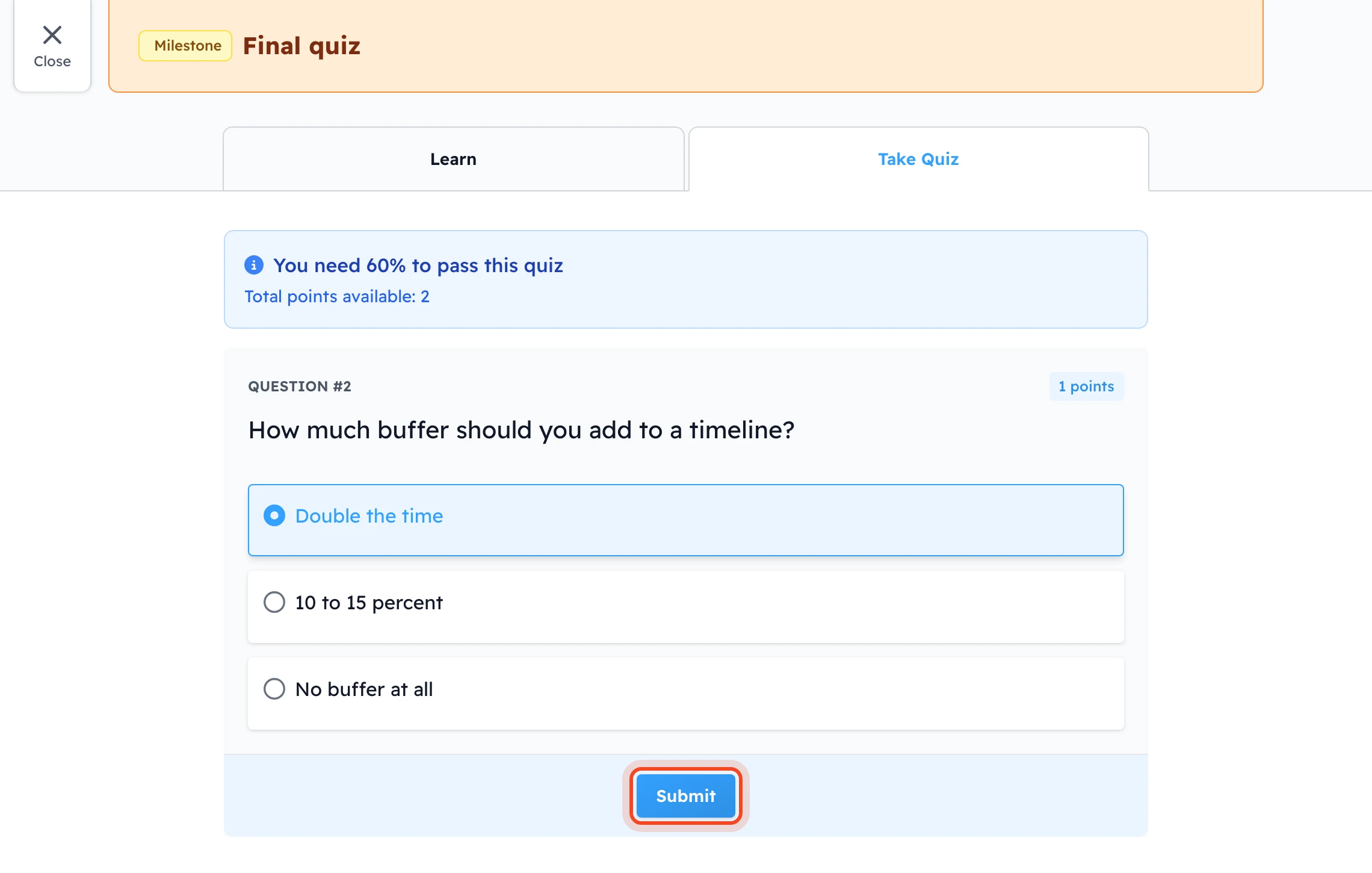
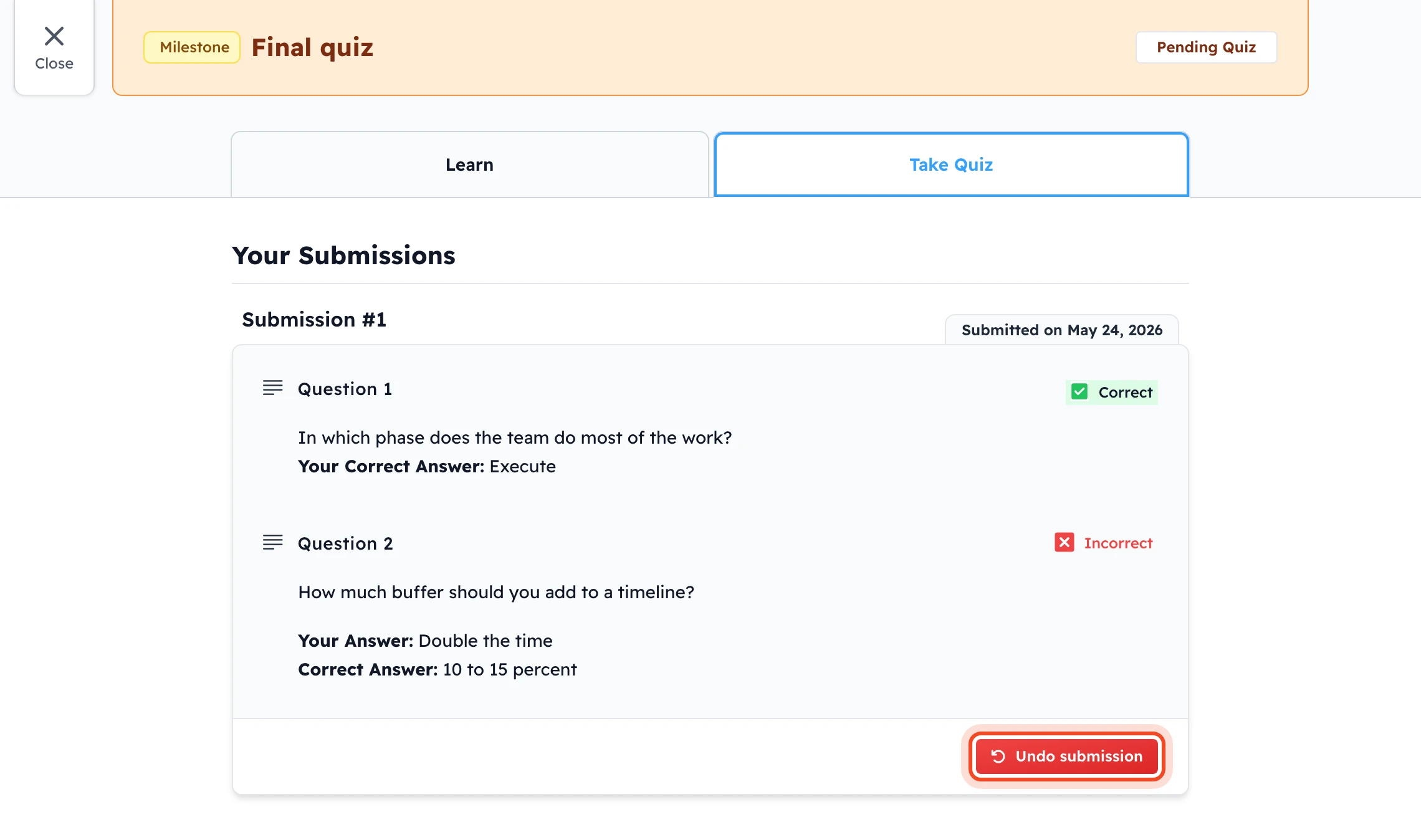
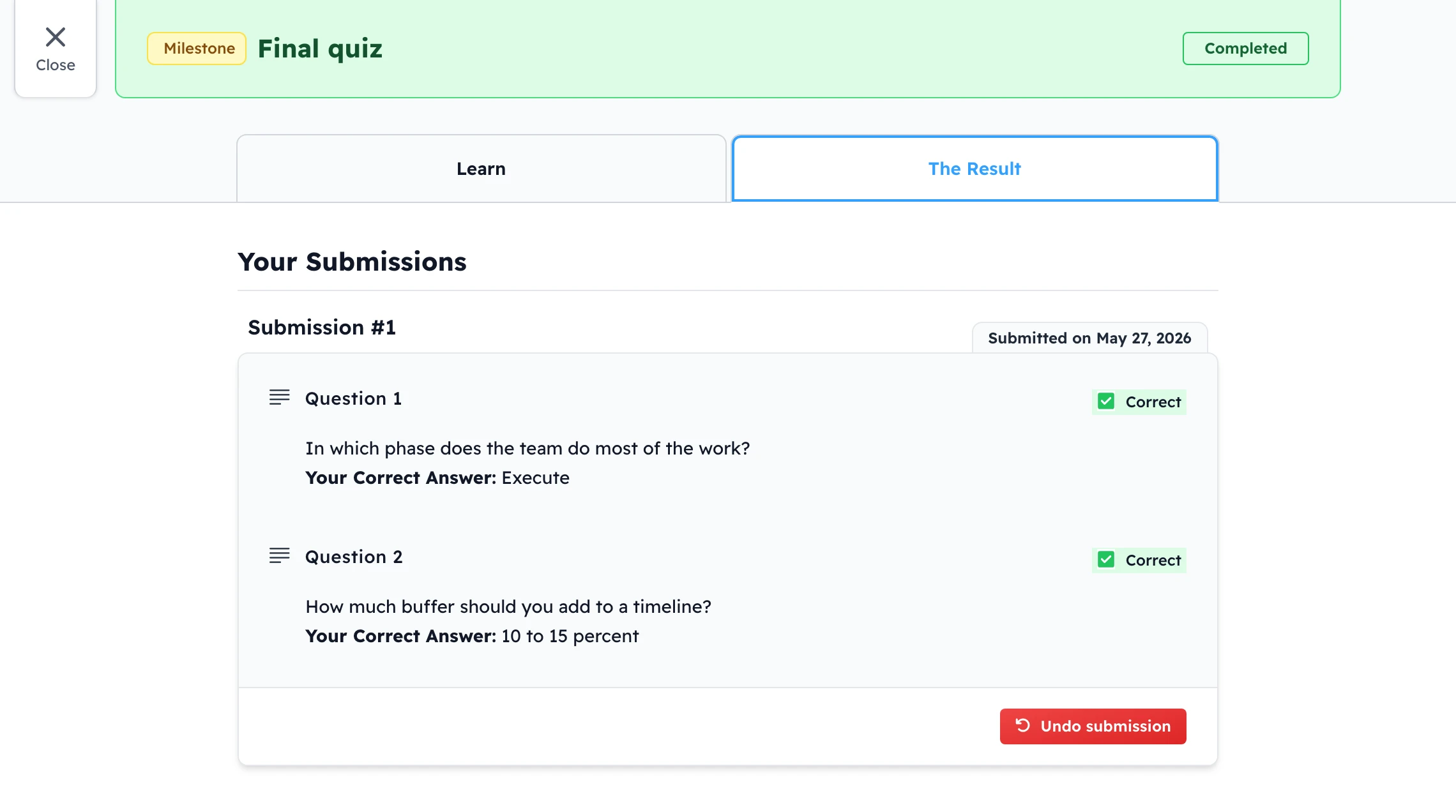
After submitting, the student sees their result right away. They can try again as many times as they want, by clicking Undo submission and then answering again.