Trainer guide: create an assignment
This guide shows how a trainer creates an assignment with advanced questions in a course. Students answer with text, a link, a file or an audio record, and then a coach reviews the answer.
Advanced questions are available on the Growth, Pro and Organizations plans, and during the free trial. If your platform is on another plan, such as Basic, a message asks to upgrade the plan when you save the target.
Steps to create an assignment with advanced questions
-
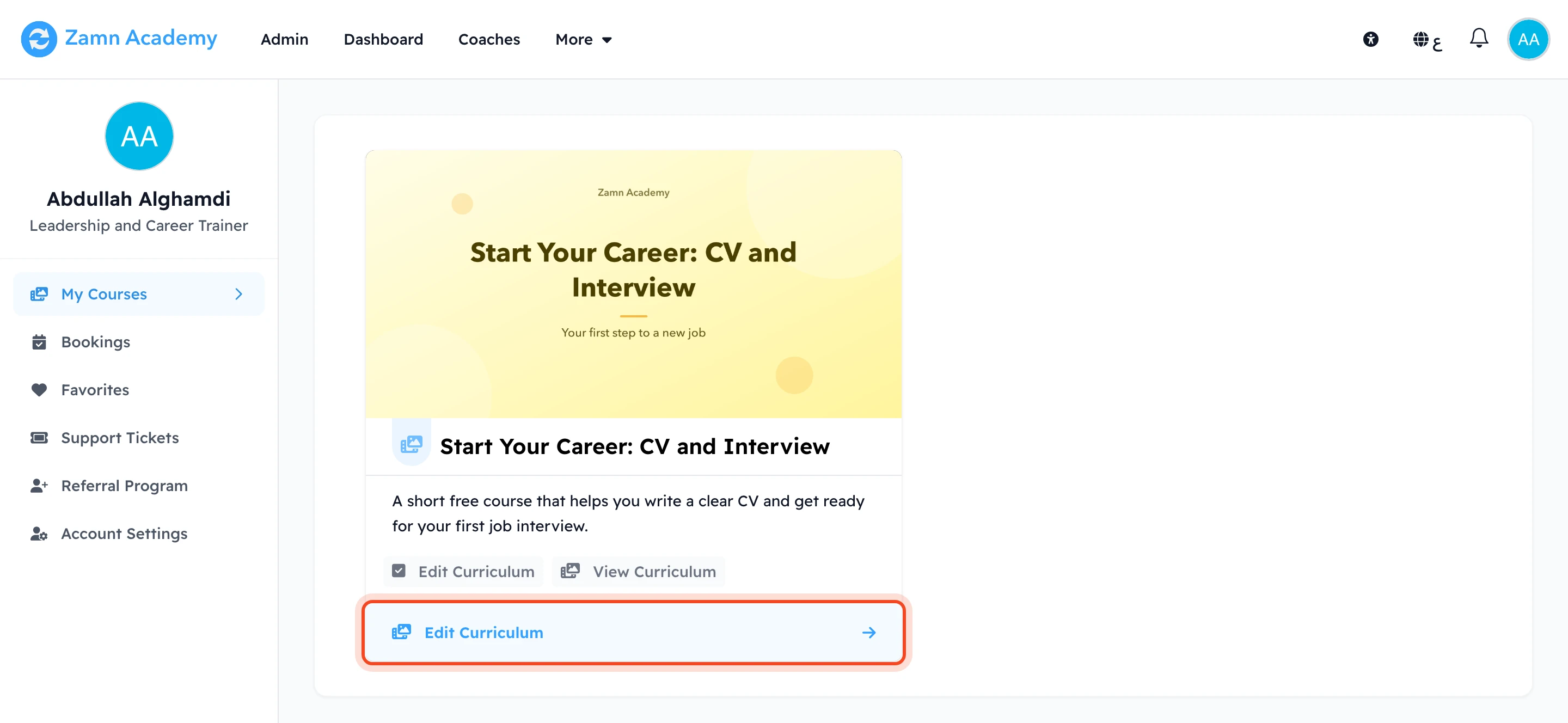
Click Dashboard at the top of the page, then click the Edit Curriculum button at the bottom of the card of the course you want to add an assignment to, under My Courses.
-
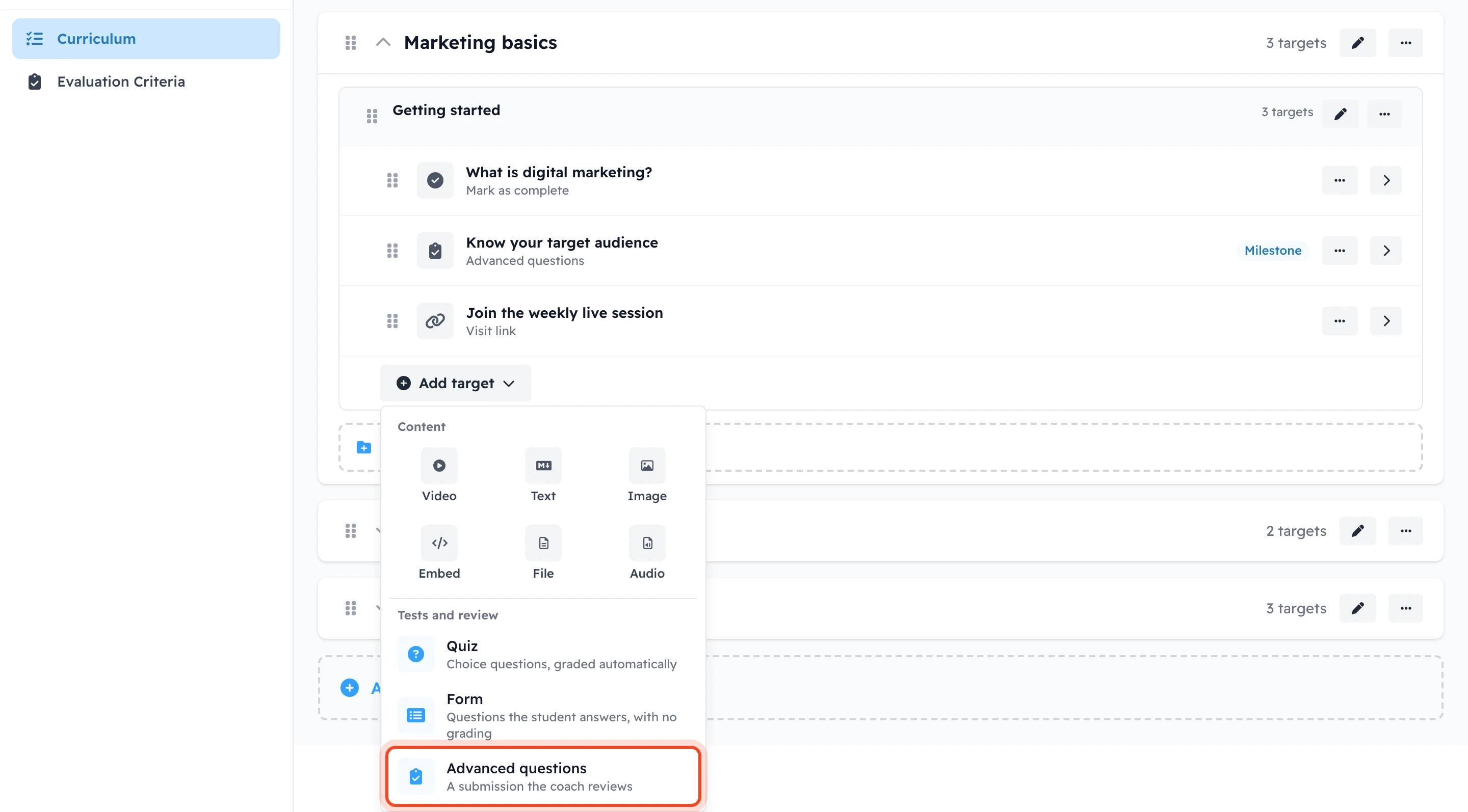
On the Curriculum page, click Add target at the end of a target group, then choose Advanced questions. Or open an existing target by clicking its name.
-
Click the pencil next to the title at the top of the page, and type the assignment name.
-
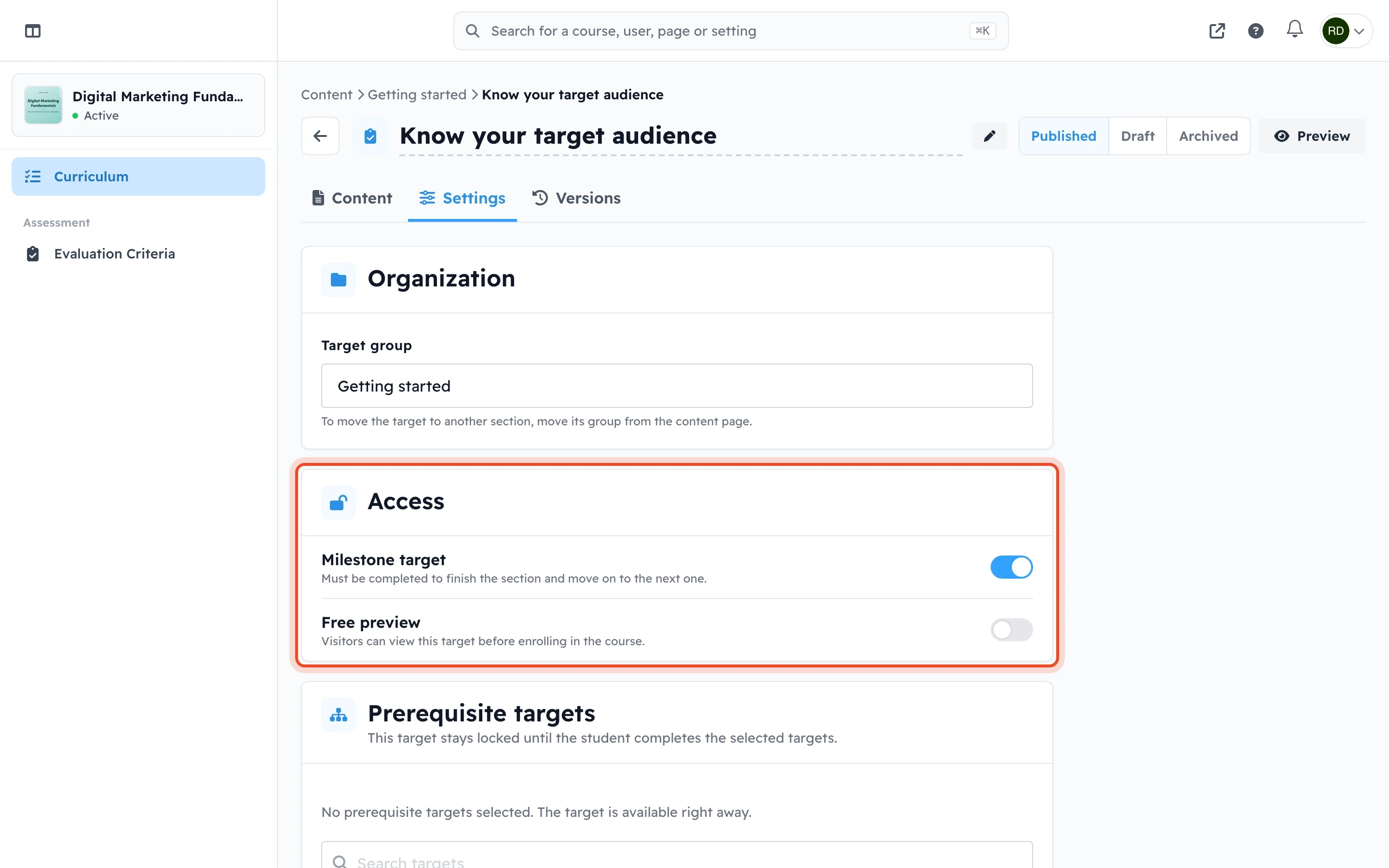
In the Settings tab, you can turn on Milestone target, and choose Prerequisite targets if there are any. You can also write instructions for the student in Completion instructions (optional).
-
In the Content tab, under Completion and evaluation, make sure Advanced questions is chosen.
-
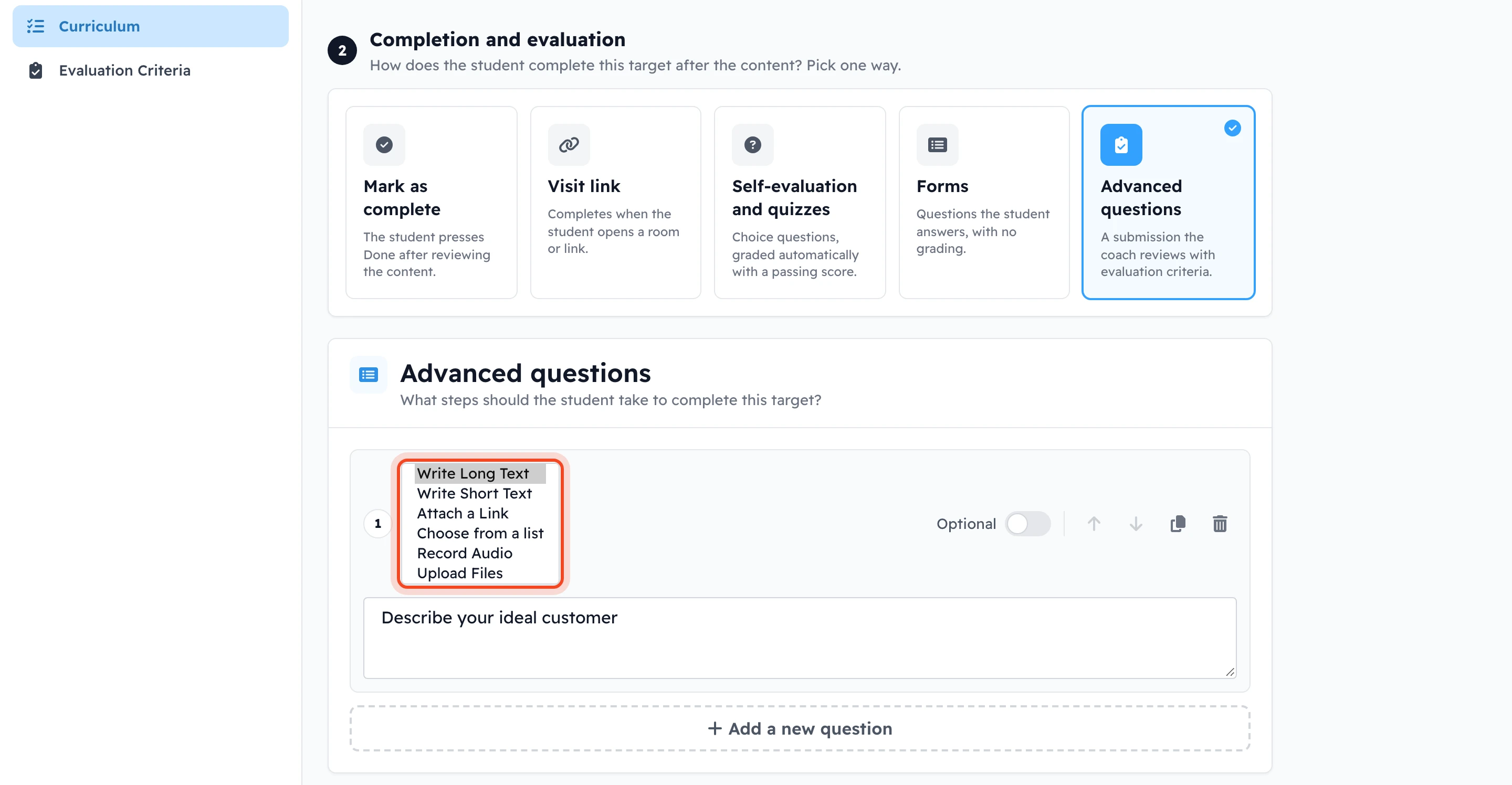
Under Advanced questions, choose how the student answers each question: Write Short Text, Write Long Text, Attach a Link, Choose from a list, Record Audio or Upload Files. Then type the question.
-
To add another question, click Add a new question.
-
Under Evaluation criteria, choose the evaluation criteria. You must choose at least one.

-
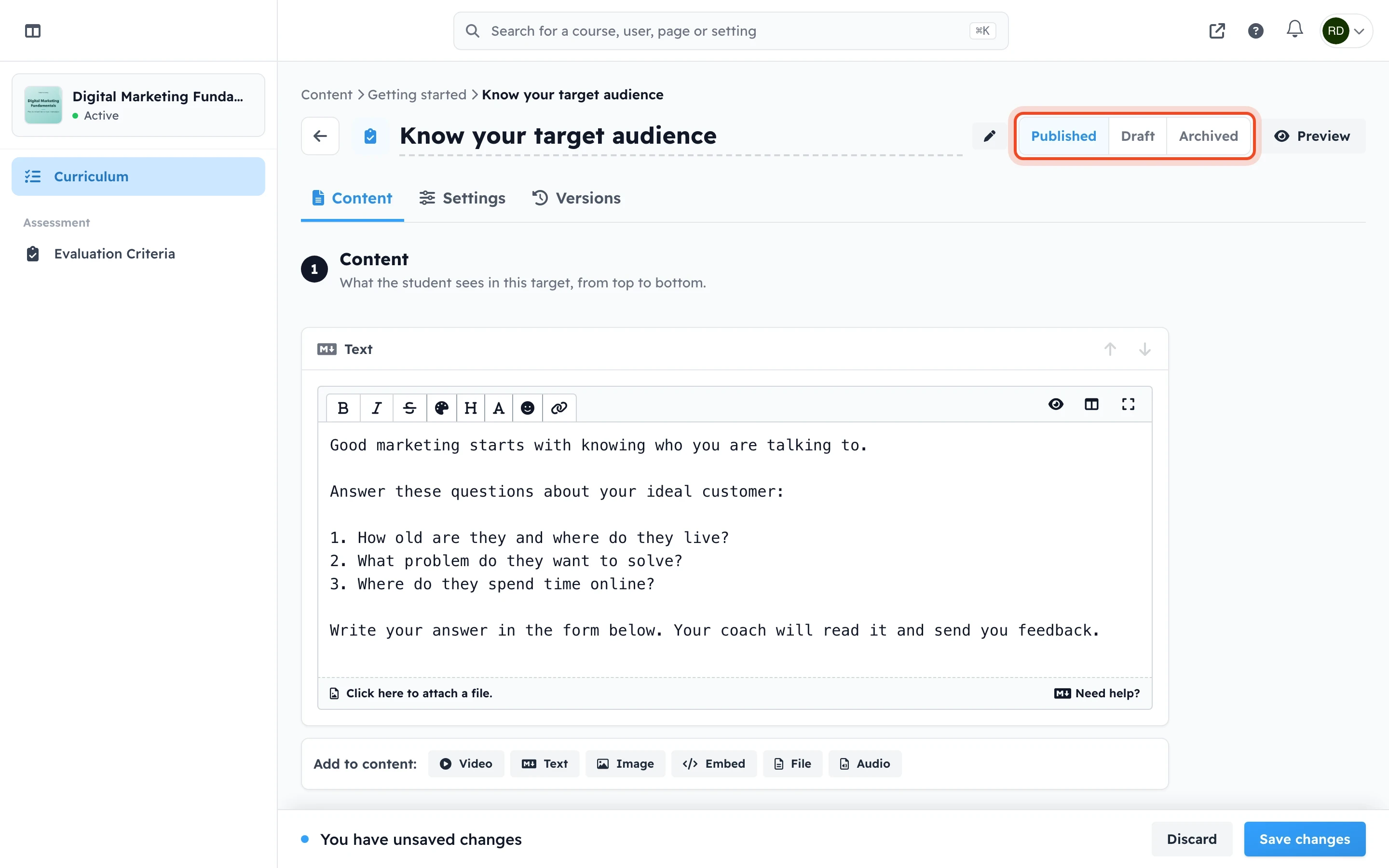
At the top of the page, click Published.
-
Click Save changes in the bar at the bottom of the page.
When students answer the assignment questions, a coach must review and grade their submissions. The target is complete for the student only when the coach accepts the submission.