Delete a target from a training course
There is no button to delete a target from a course for good. Instead, change the target status to Draft or Archived, and the target is hidden from students.
How to hide a target from a course
-
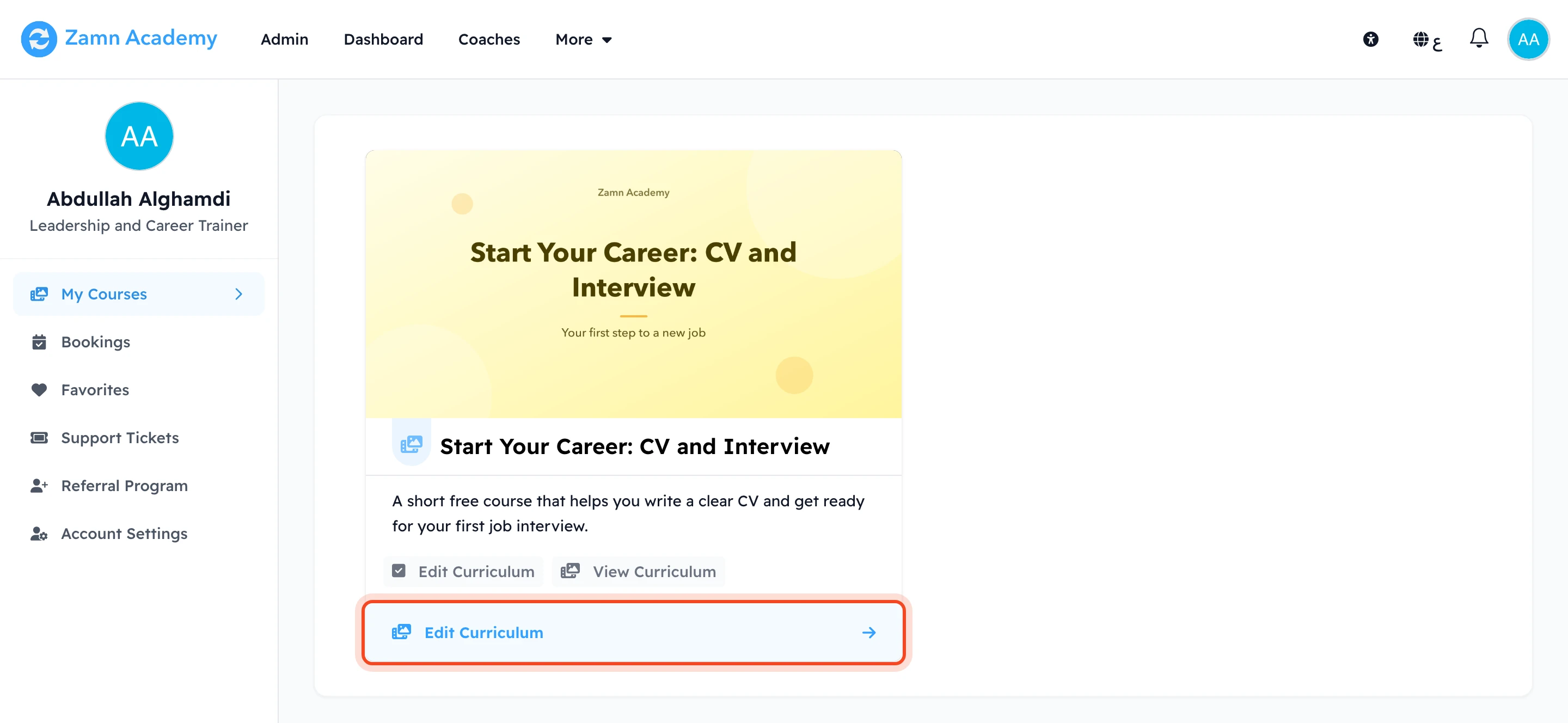
Click Dashboard at the top of the page, then click the Edit Curriculum button at the bottom of the card of the course you want, under My Courses.
-
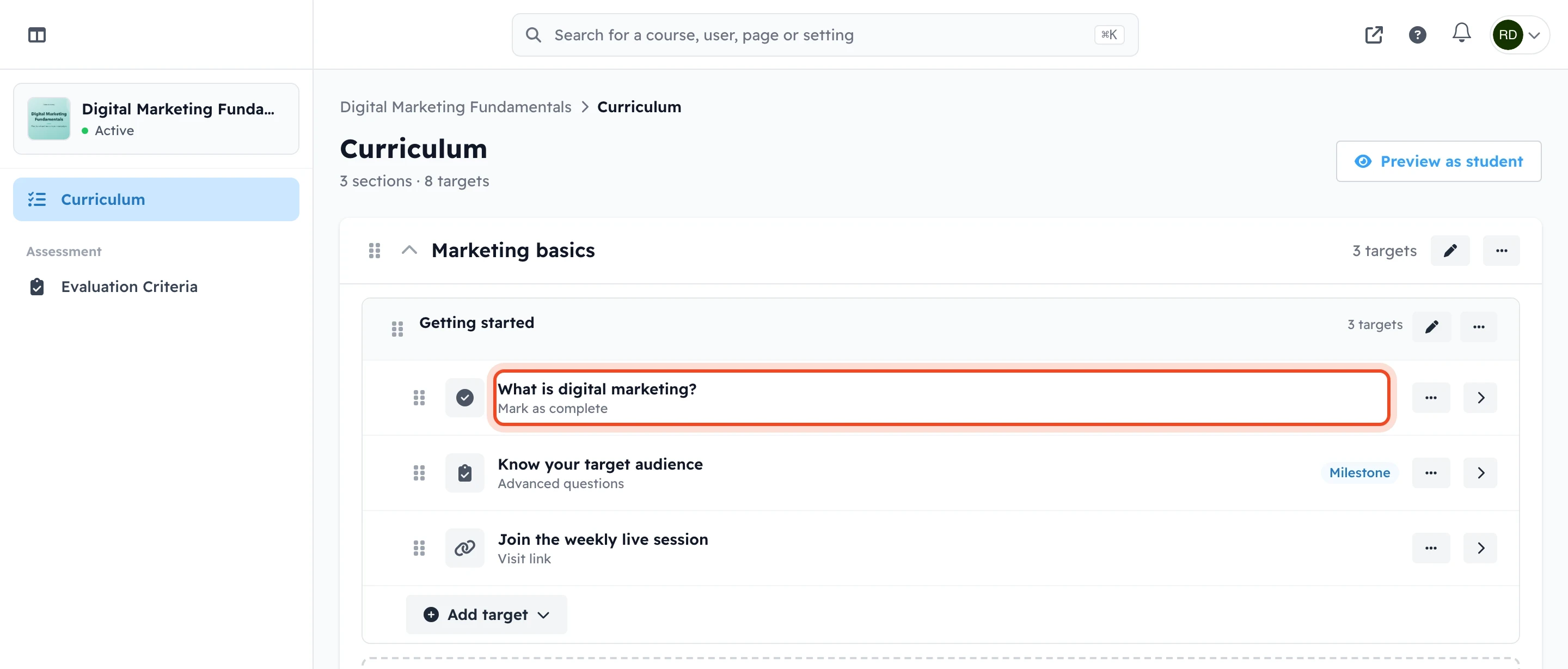
On the Curriculum page, click the name of the target to open it.
-
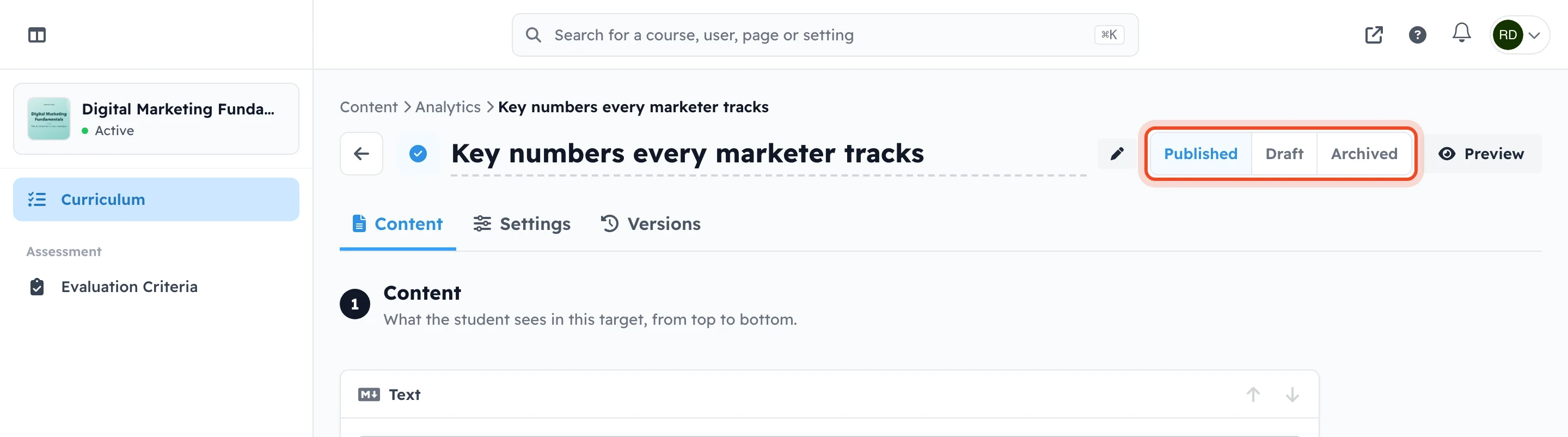
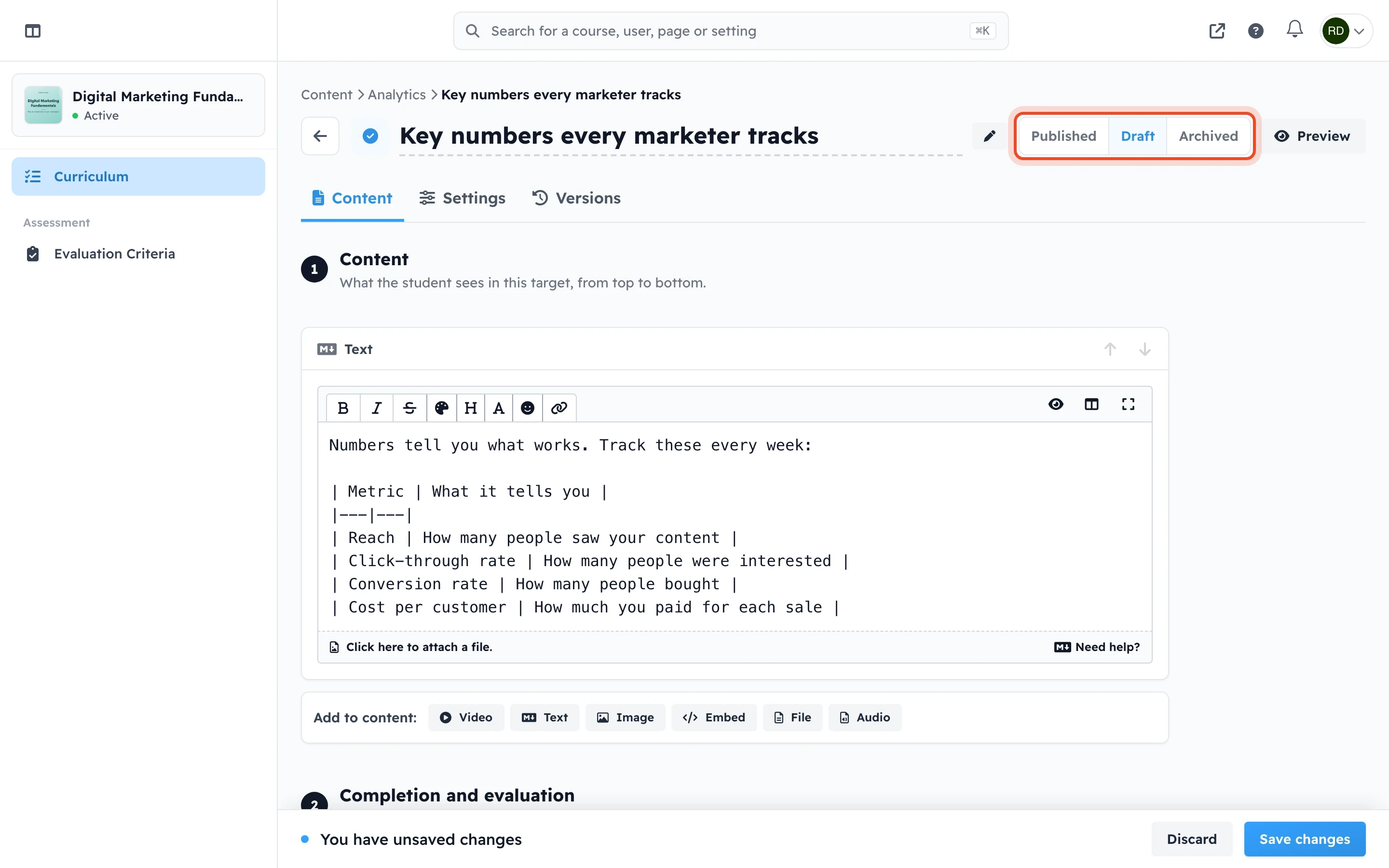
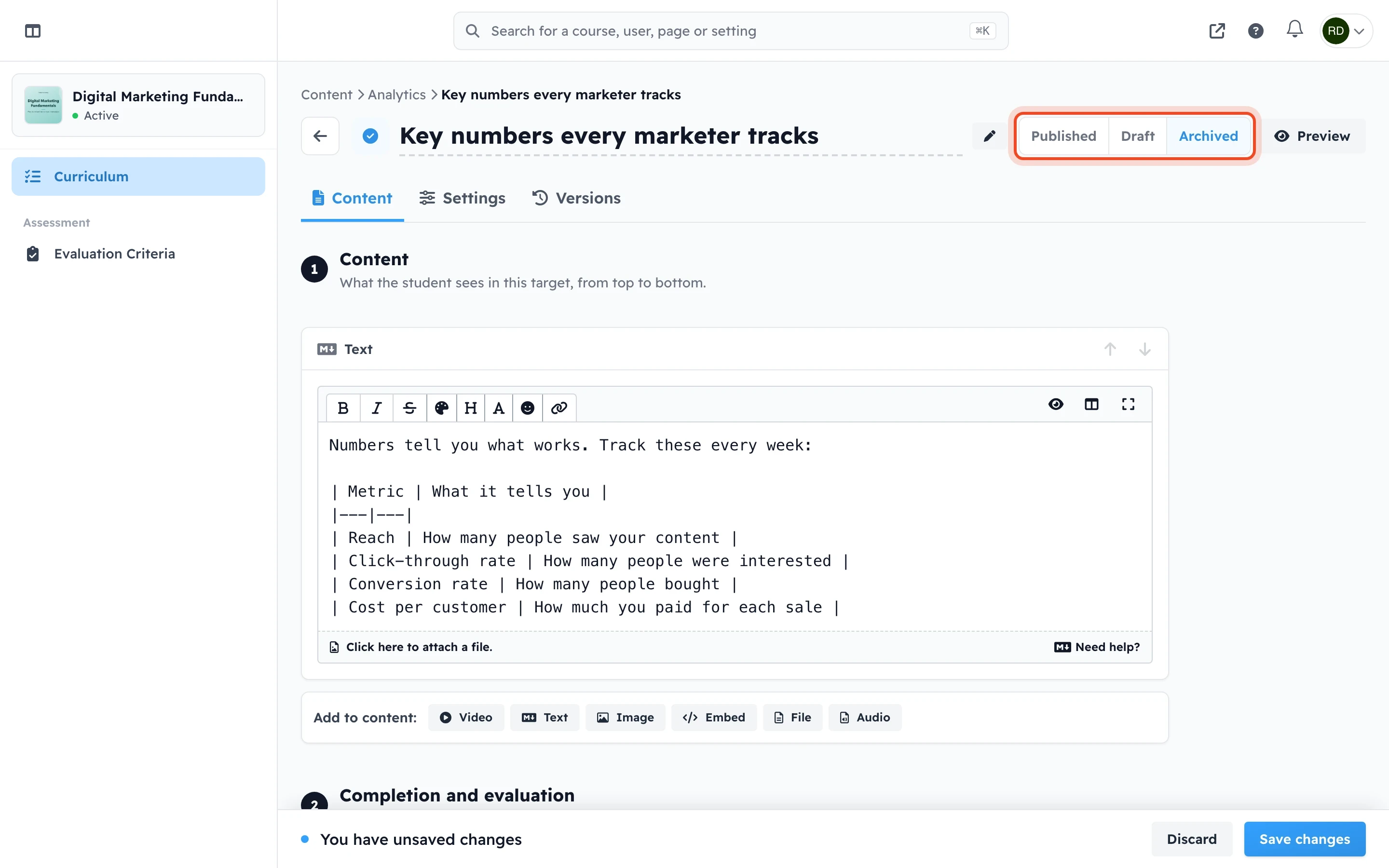
At the top of the target page, choose Draft or Archived.
-
Click Save changes in the bar at the bottom of the page.
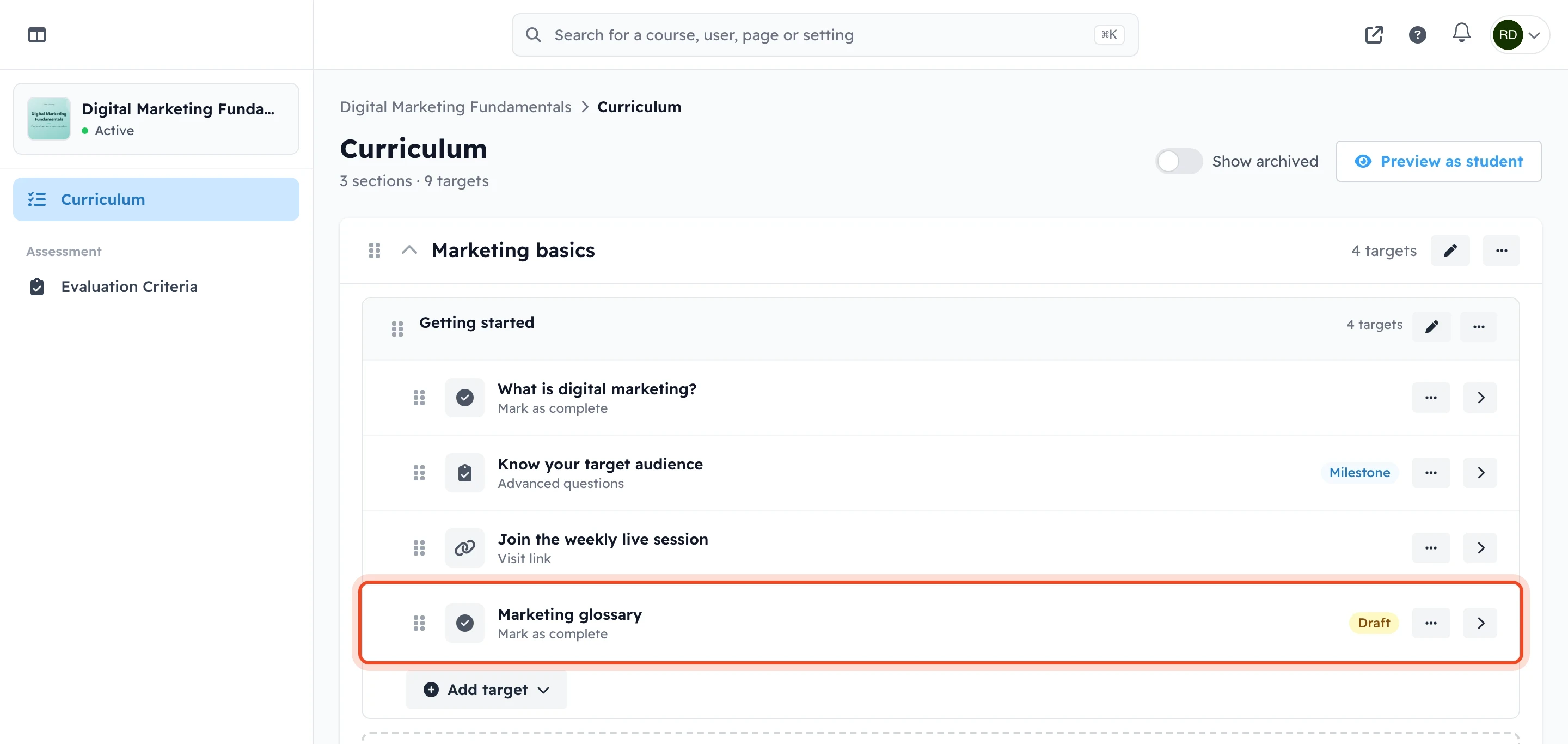
When you choose Draft
- Students do not see the target.
- Admins and trainers see the target on the Curriculum page, with a Draft label next to it.
When you choose Archived
- Students do not see the target.
- Admins and trainers do not see the target on the Curriculum page.
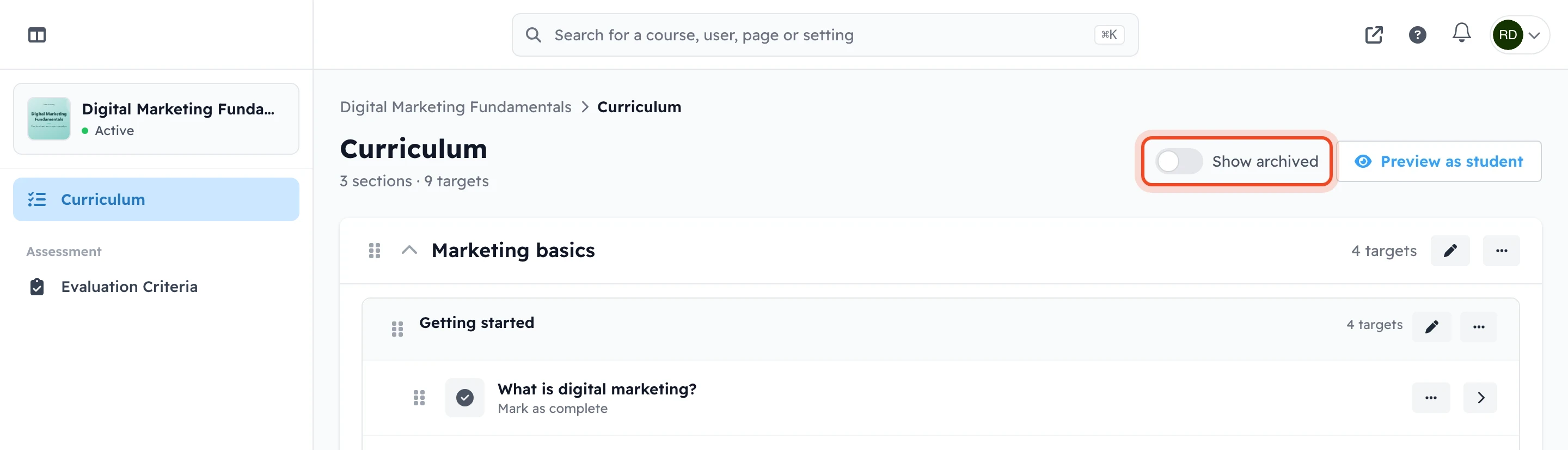
- The archived target shows on the Curriculum page when you turn on Show archived at the top of the page.
You can also archive a target from the Curriculum page: click ⋯ next to it, then click Archive target.
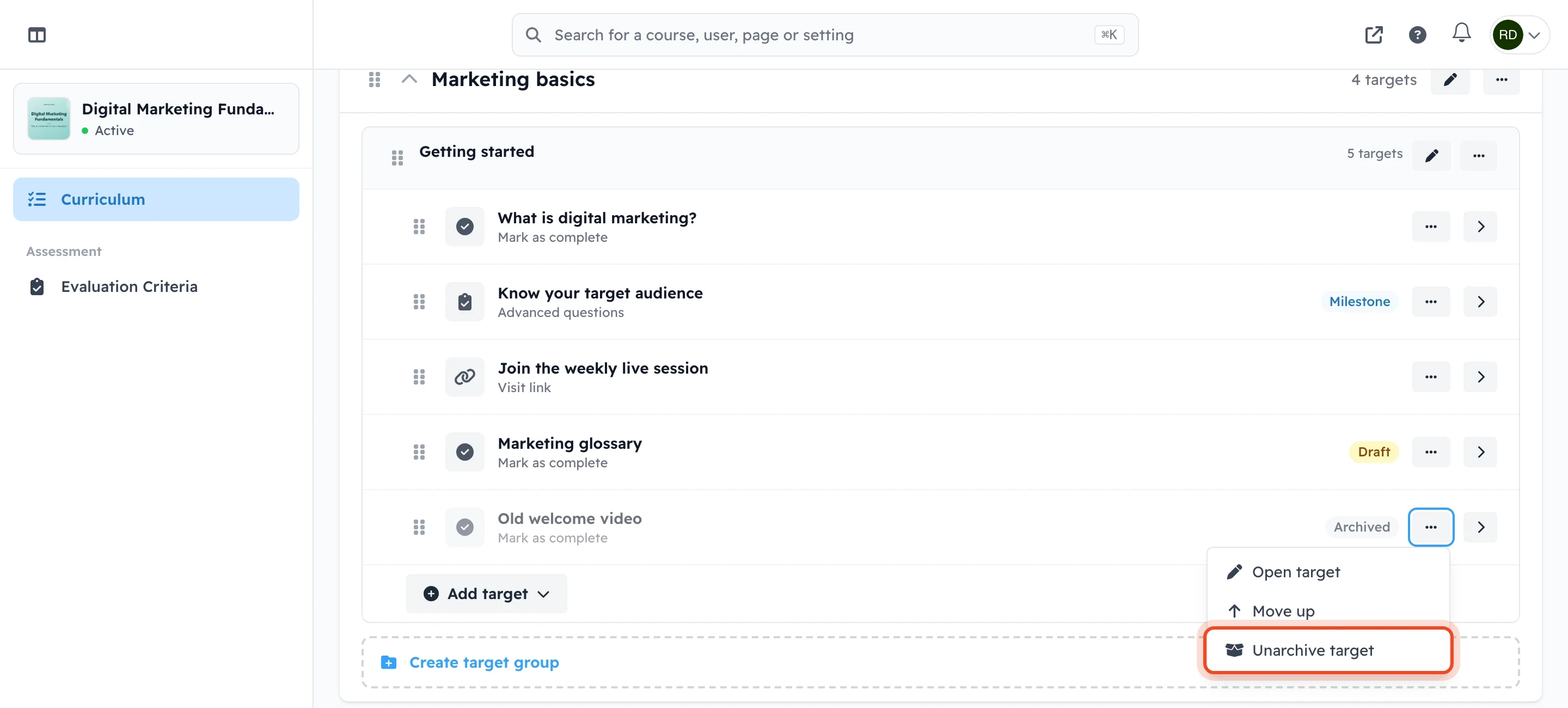
To bring an archived target back, show it with Show archived, click ⋯ next to it, then click Unarchive target. The target becomes a Draft. Open it and choose Published when you want students to see it again.