How a trainer deletes a section (level) from a course
This guide shows how a trainer deletes a section (level) from a course curriculum. When you delete it, all the target groups and targets in the section move to another section you choose, so the course needs at least two sections.
Steps to delete a section from a course
-
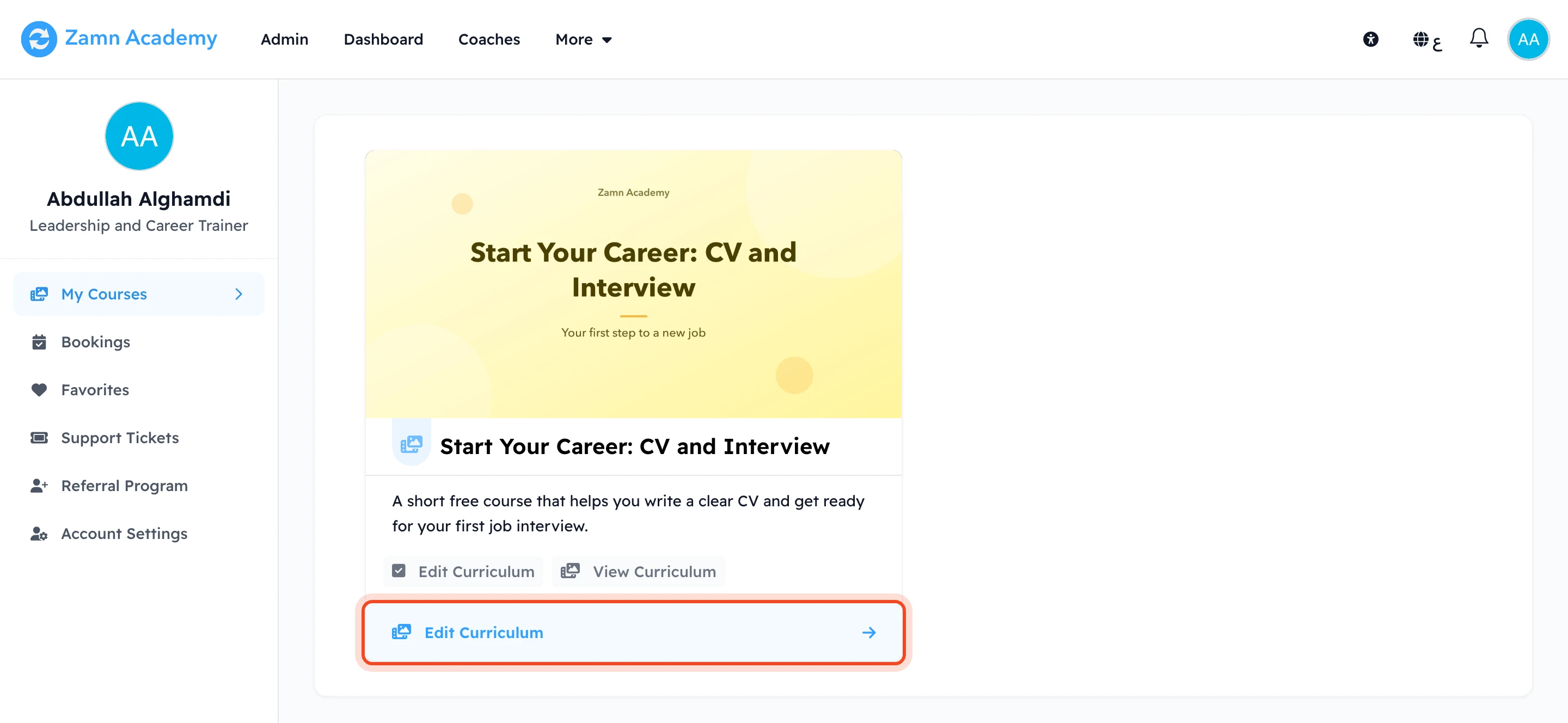
Click Dashboard at the top of the page, then click the Edit Curriculum button at the bottom of the course card under My Courses.
-
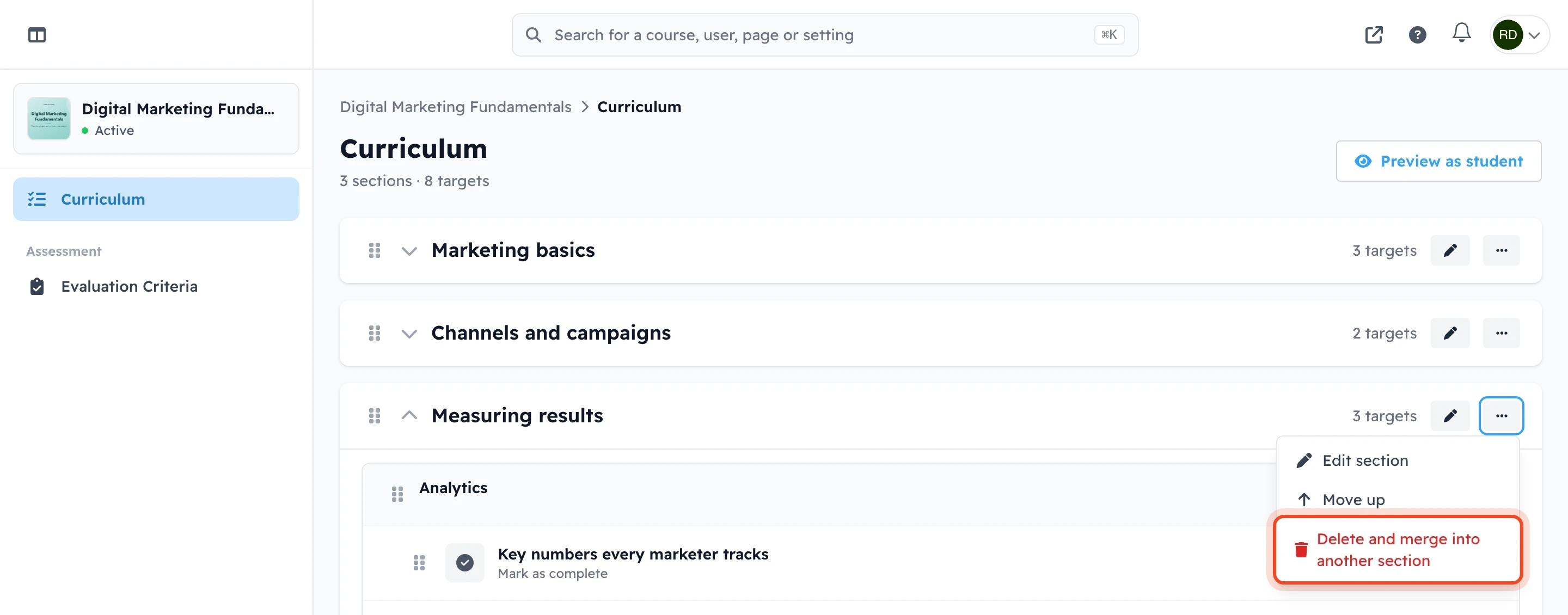
On the Curriculum page, click ⋯ next to the section you want to delete, then click Delete and merge into another section.
-
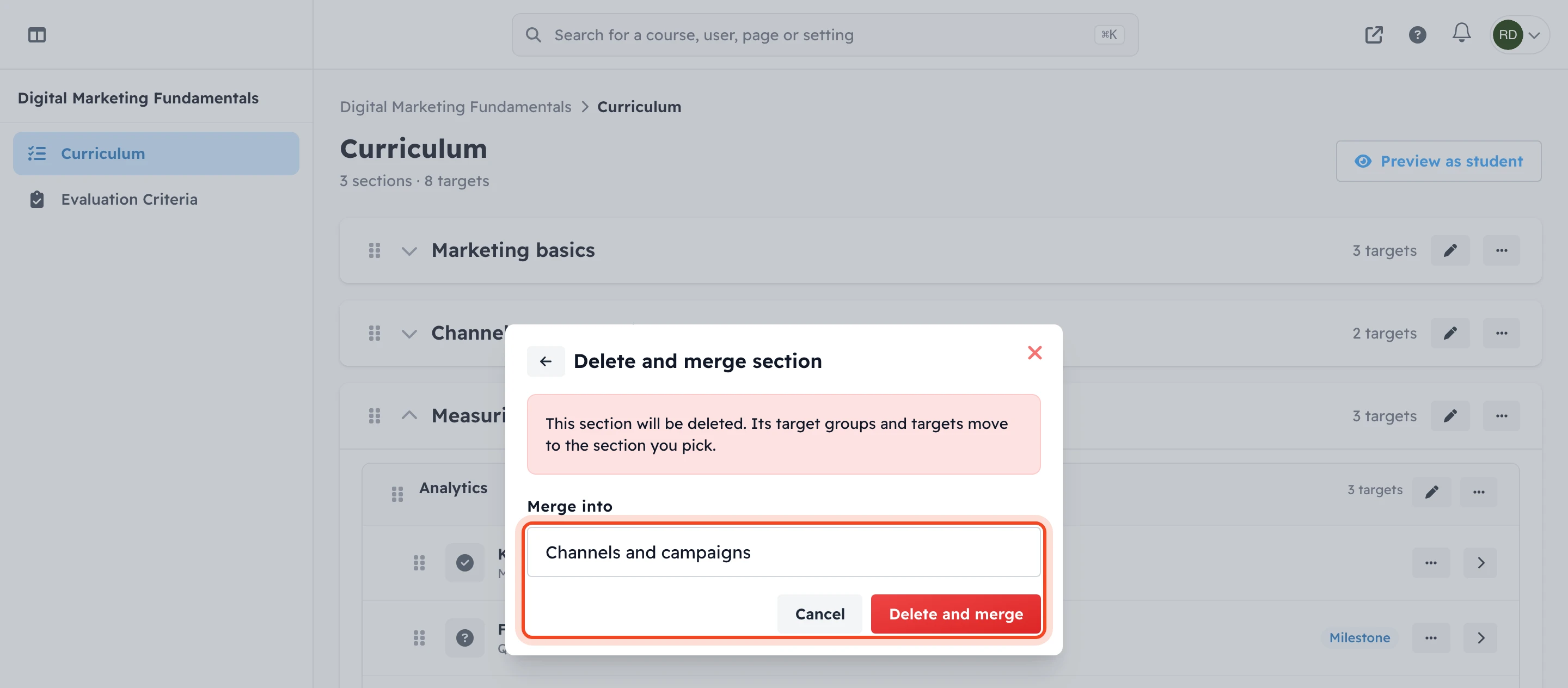
In Merge into, choose the section that the target groups and targets will move to.
-
Click Delete and merge. All the target groups and targets in this section move to the section you chose, and then the section is deleted.
warning
You cannot undo deleting a section.