Trainer guide: create evaluation criteria
An evaluation criterion is one or more standards that the coach uses as a reference to grade how well a student did in an assignment.
Evaluation criteria and assignments (advanced questions) work on the Growth, Pro and Organizations website plans, and during the free trial. If your platform is on another plan, such as Basic, the Add Evaluation Criterion panel does not show the form. It shows only the message You need to upgrade your plan to add a new evaluation criterion.
How to create an evaluation criterion
-
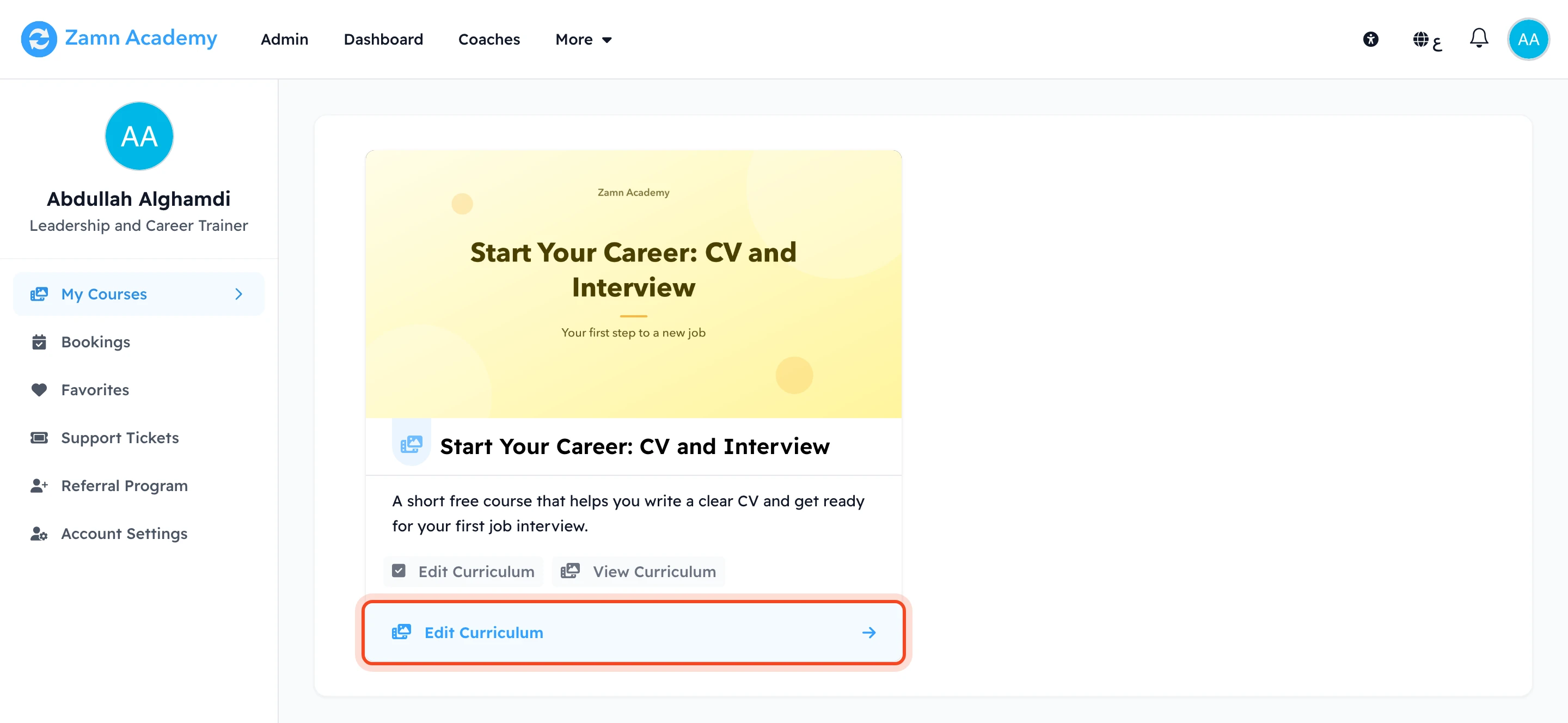
Click Dashboard at the top of the page, then click the Edit Curriculum button at the bottom of the course card under My Courses.
-
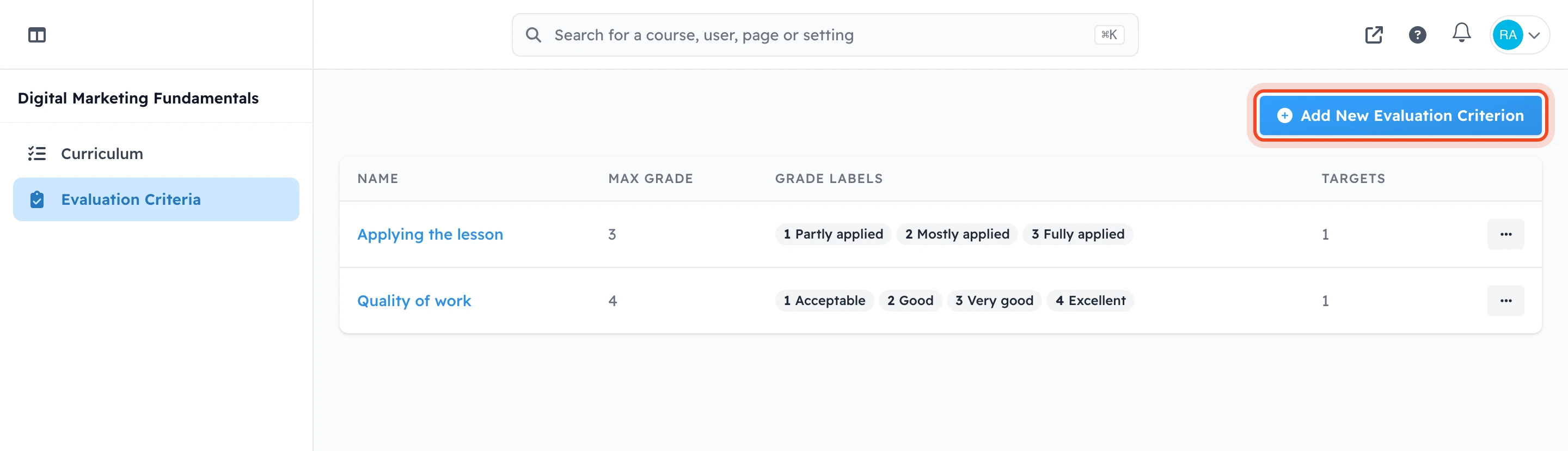
From the course side menu, choose Evaluation Criteria.
-
Click Add New Evaluation Criterion.
NoteNew courses have no evaluation criteria, so add them from this page. Only the demo course that is created with a new platform has two ready criteria.
-
Fill in the Add Evaluation Criterion form:
- Write the criterion name.
- Set the Maximum grade.
- Write a label for each grade under Grade labels. This label shows in the grade card.
-
Click Create Criterion to save.
NoteYou cannot change the maximum grade after you create the criterion. You can only edit the labels you gave to each grade.
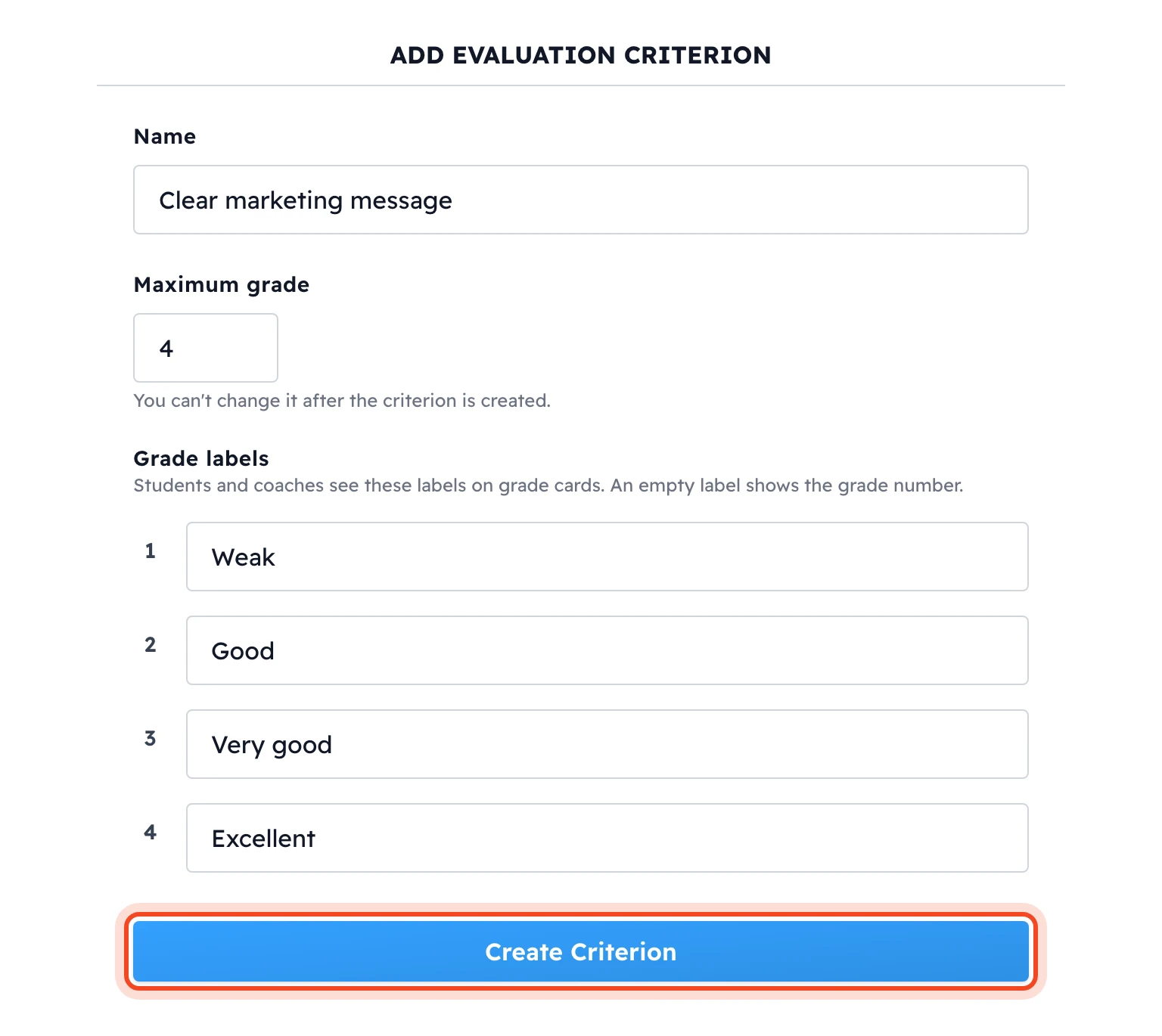
An example of how to choose grade labels:
- If less than 20% of the answer is correct, the grade is weak.
- If 20% to 75% of the answer is correct, the grade is good.
- If 75% to 99% of the answer is correct, the grade is very good.
- If 100% of the answer is correct, the grade is excellent.
The labels, percentages and grades depend on the view of the person who creates the criterion.
How to add an evaluation criterion to an assignment
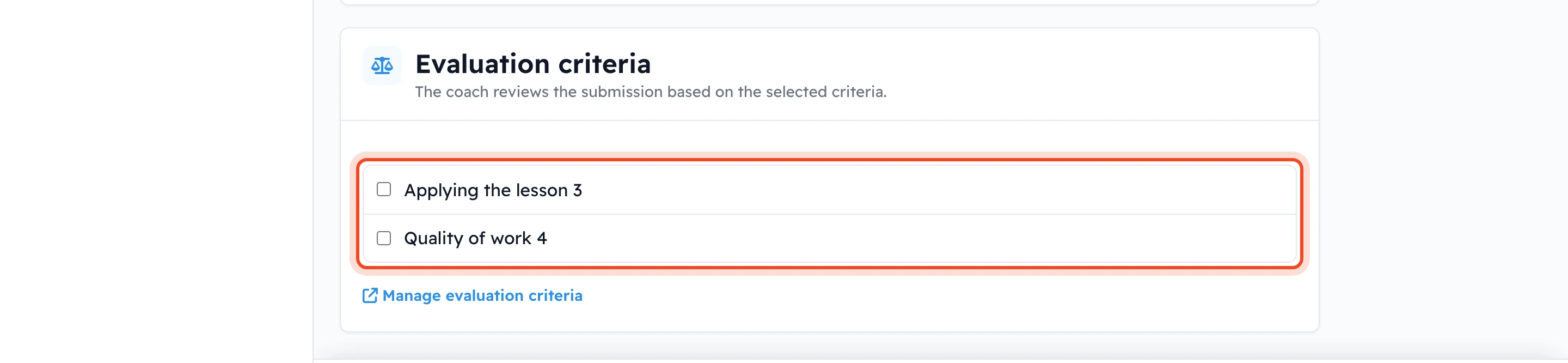
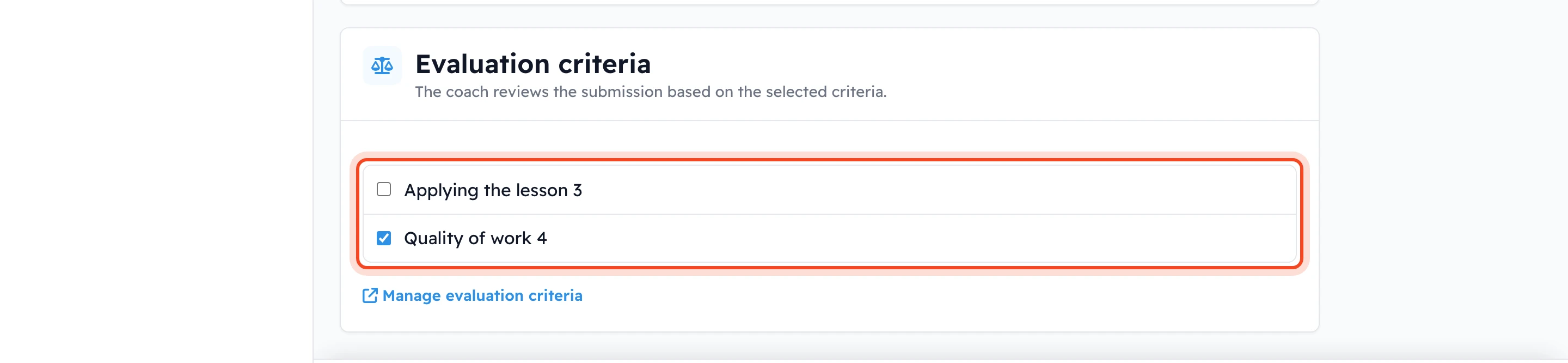
When you create an assignment, you must choose at least one evaluation criterion under Evaluation criteria, in the Content tab of the target. If you do not choose one, the target is not saved, and the message Choose at least one evaluation criterion shows.
How to use an evaluation criterion
After students send their answers to the assignment, the coach can start reviewing the submission by clicking Start Review.
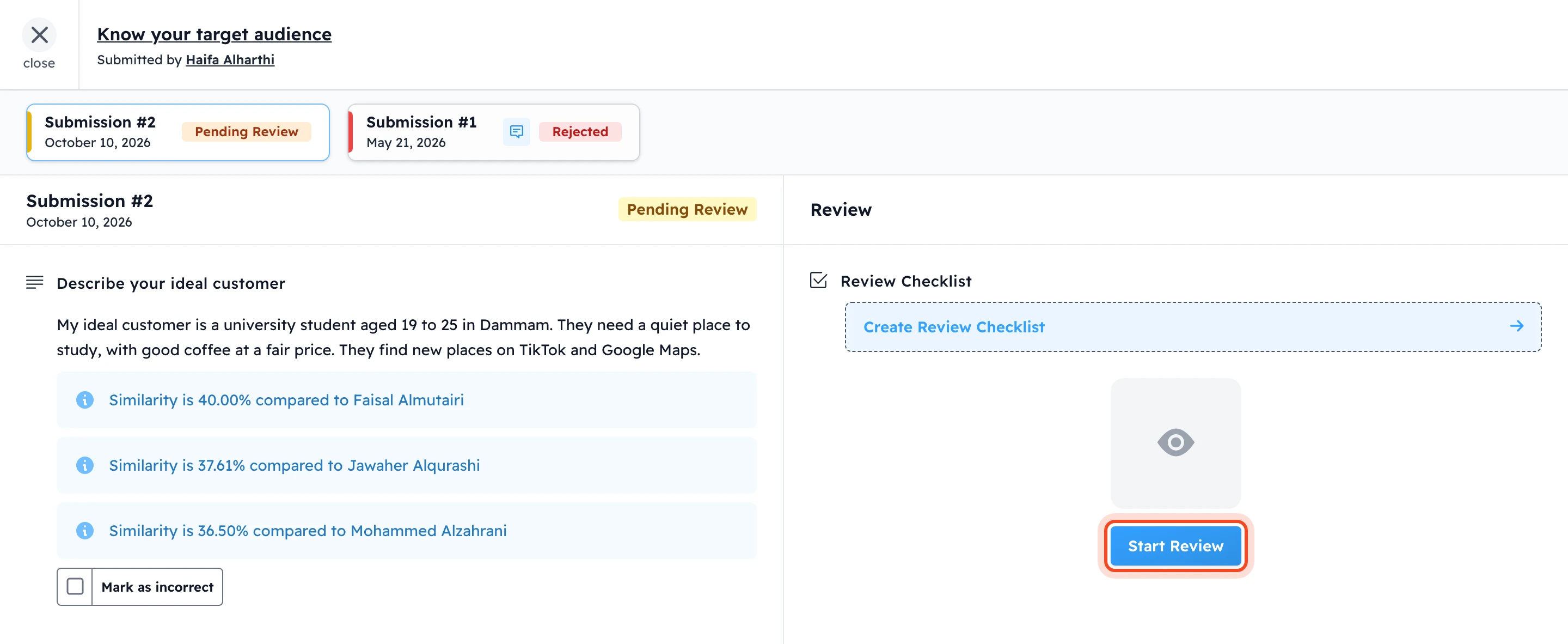
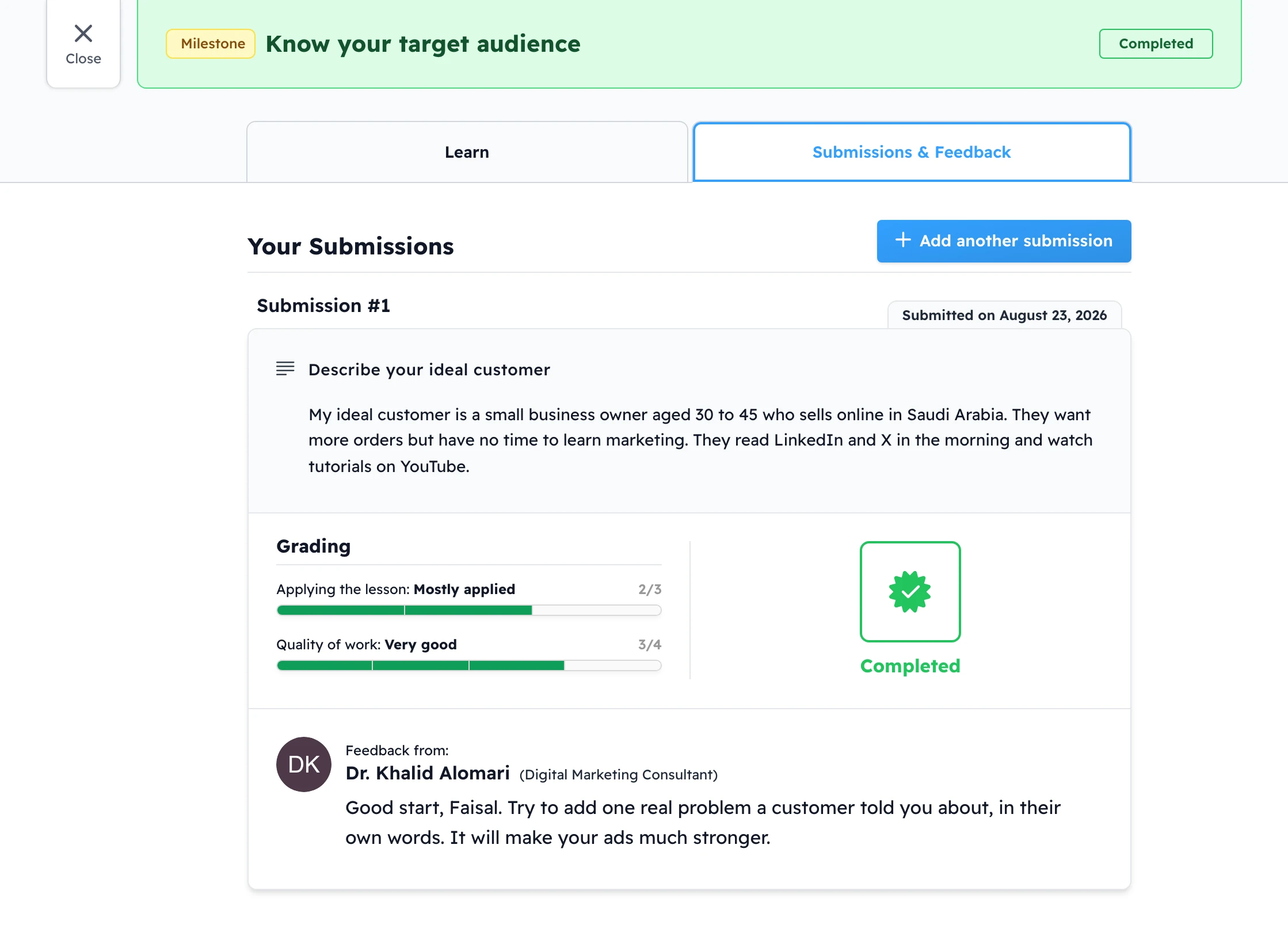
The evaluation criterion is one of the steps to finish the review. The coach grades the student based on the evaluation criteria added to the assignment:
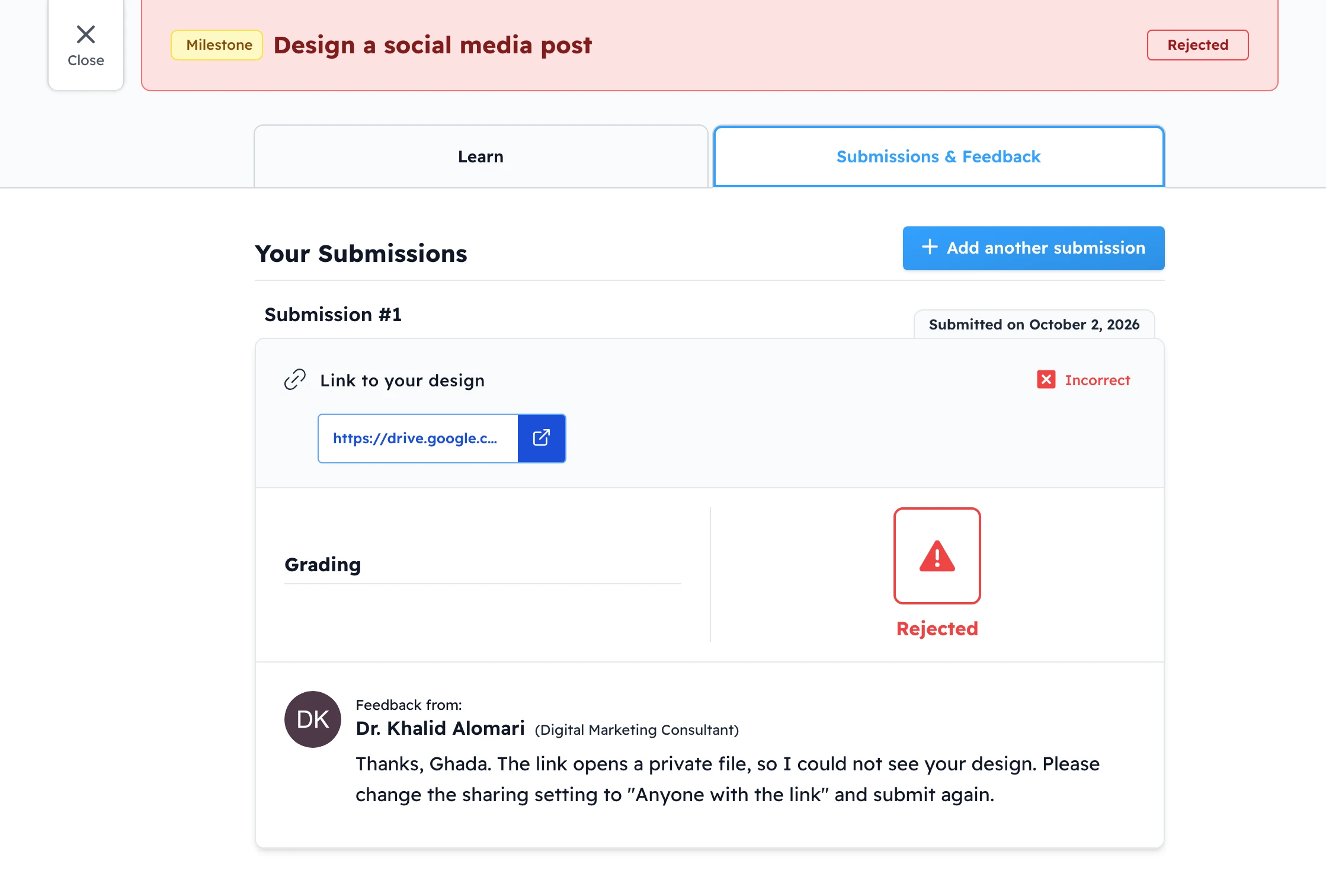
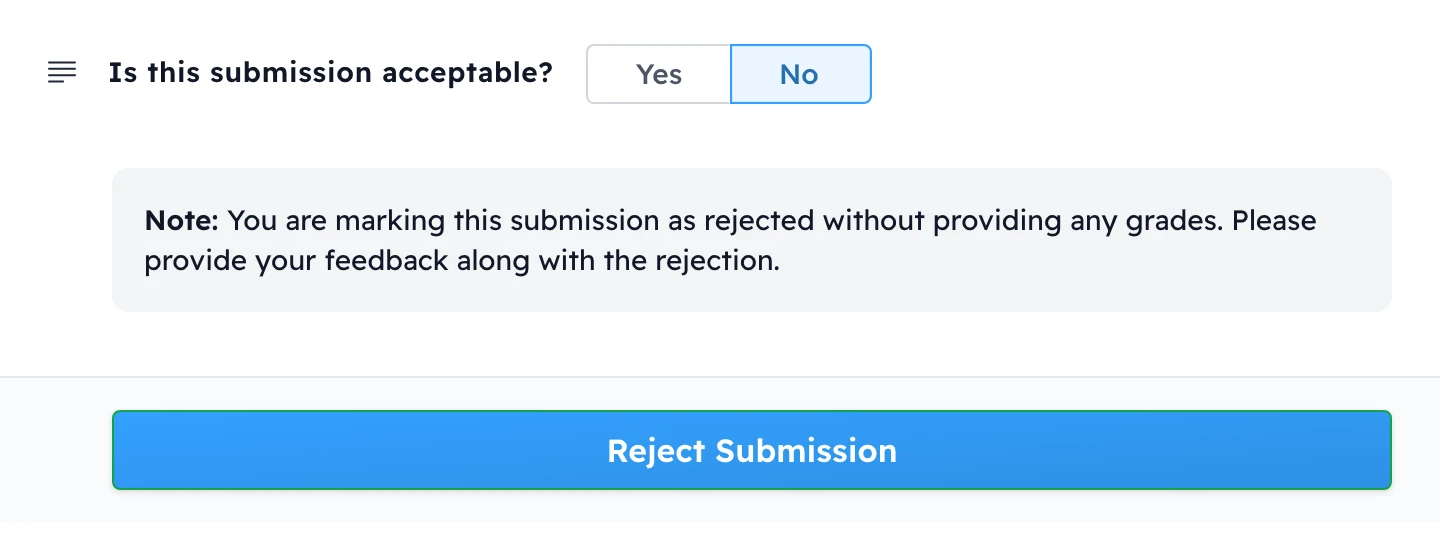
- If the coach chooses No for Is this submission acceptable?, they click Reject Submission.
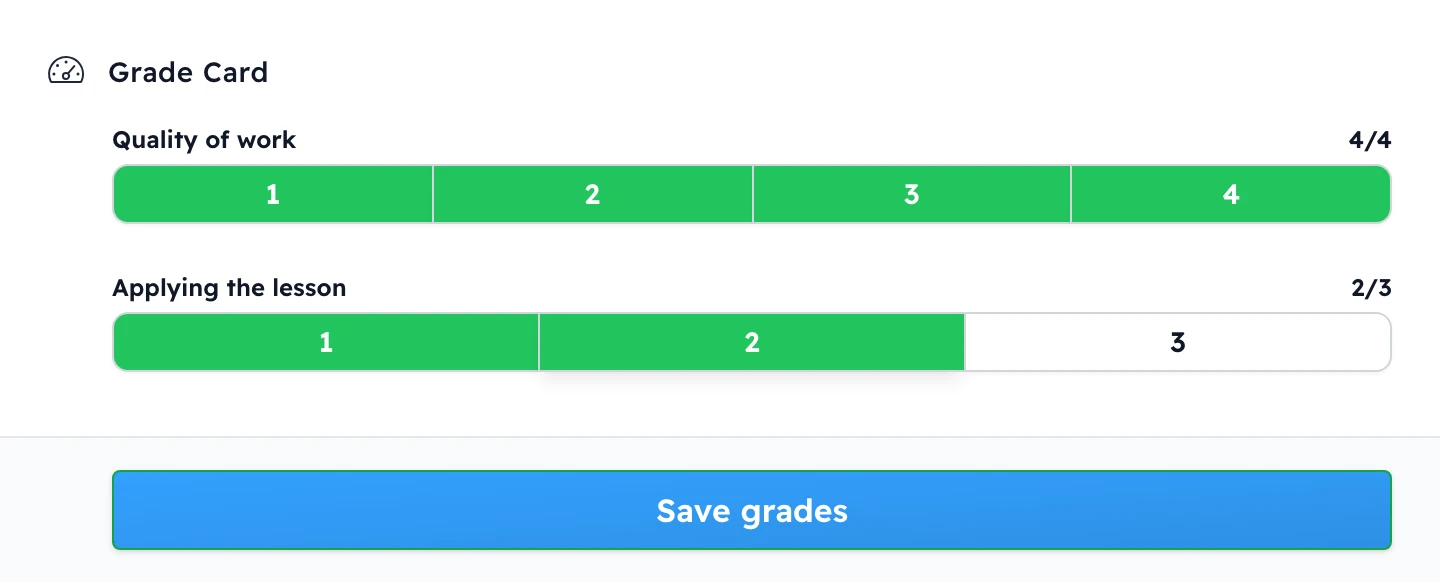
- If the coach chooses Yes, they pick the grade in the Grade Card, then click Save grades to send the result to the student.
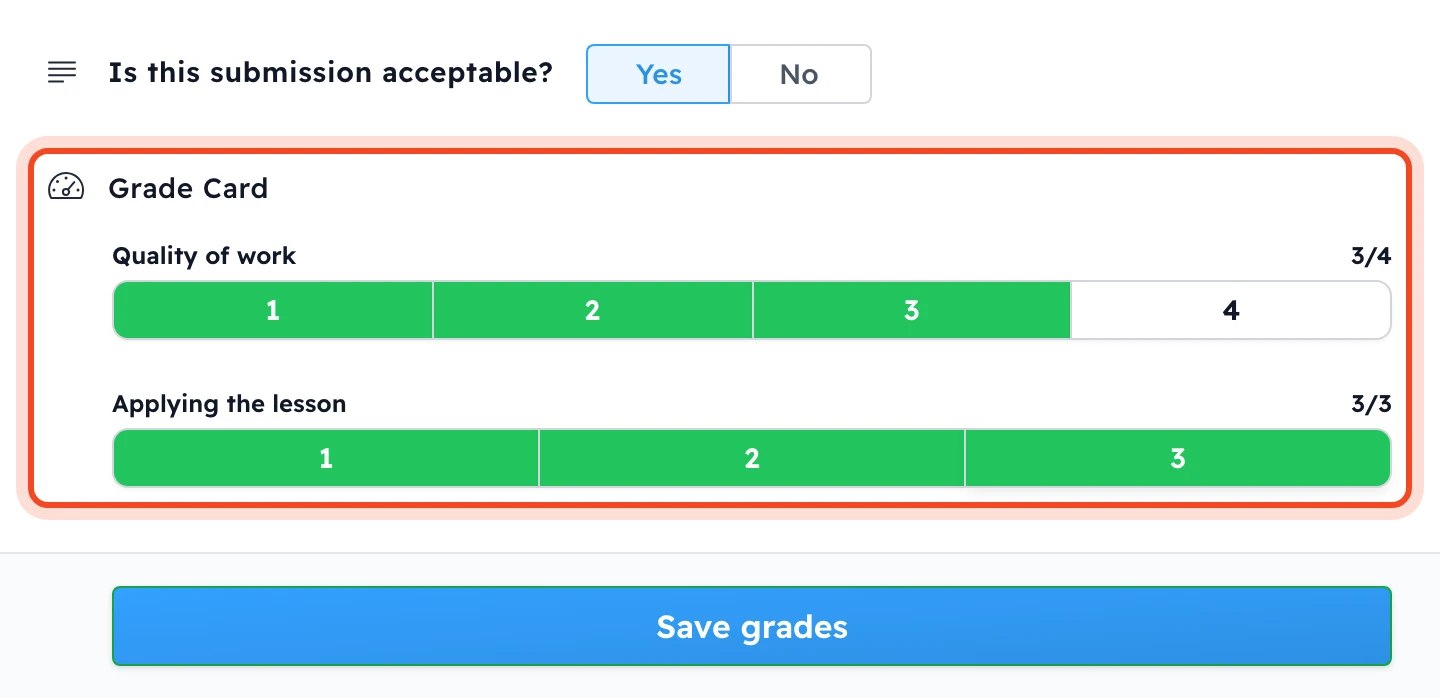
Examples of the result as the coach sees it:
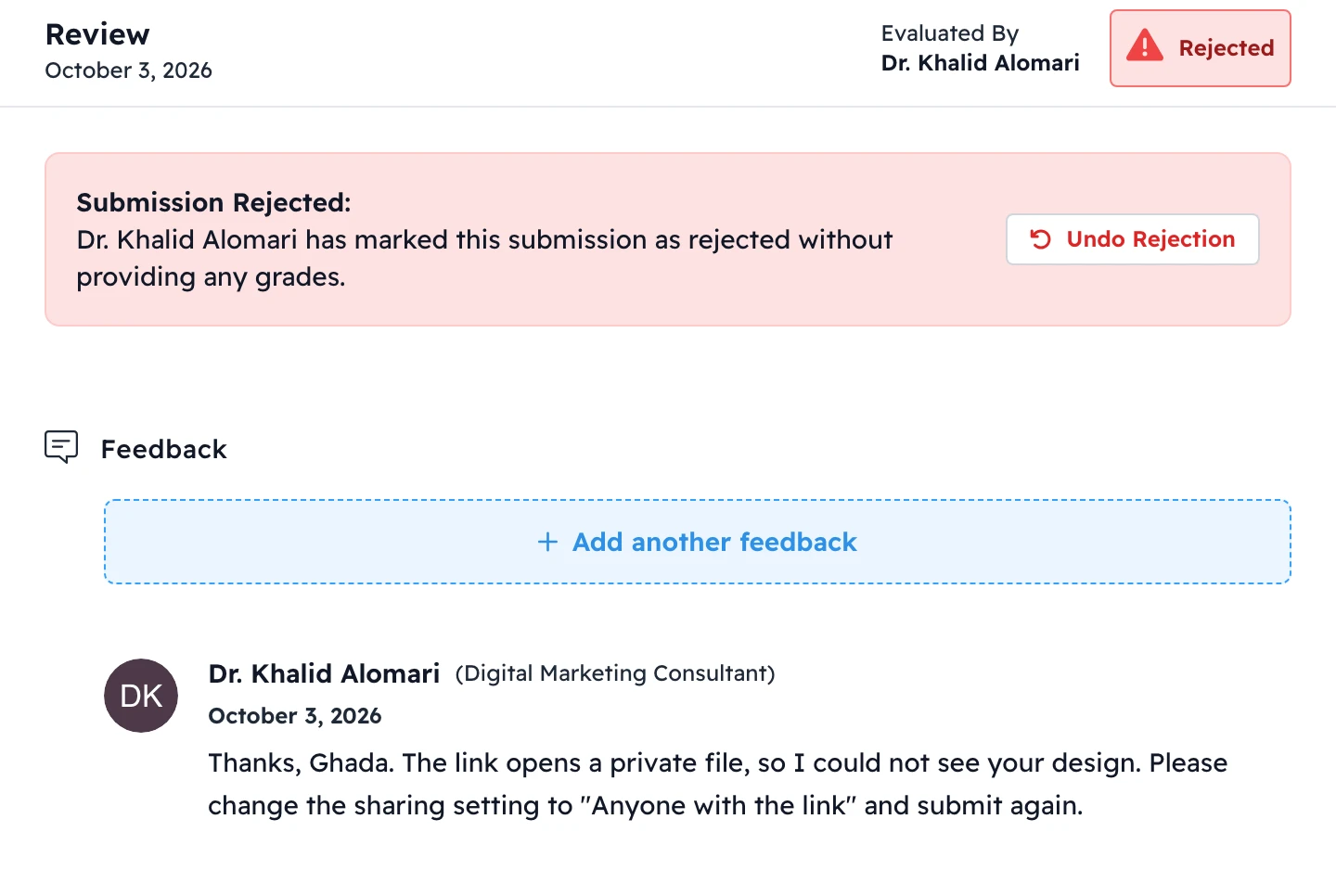
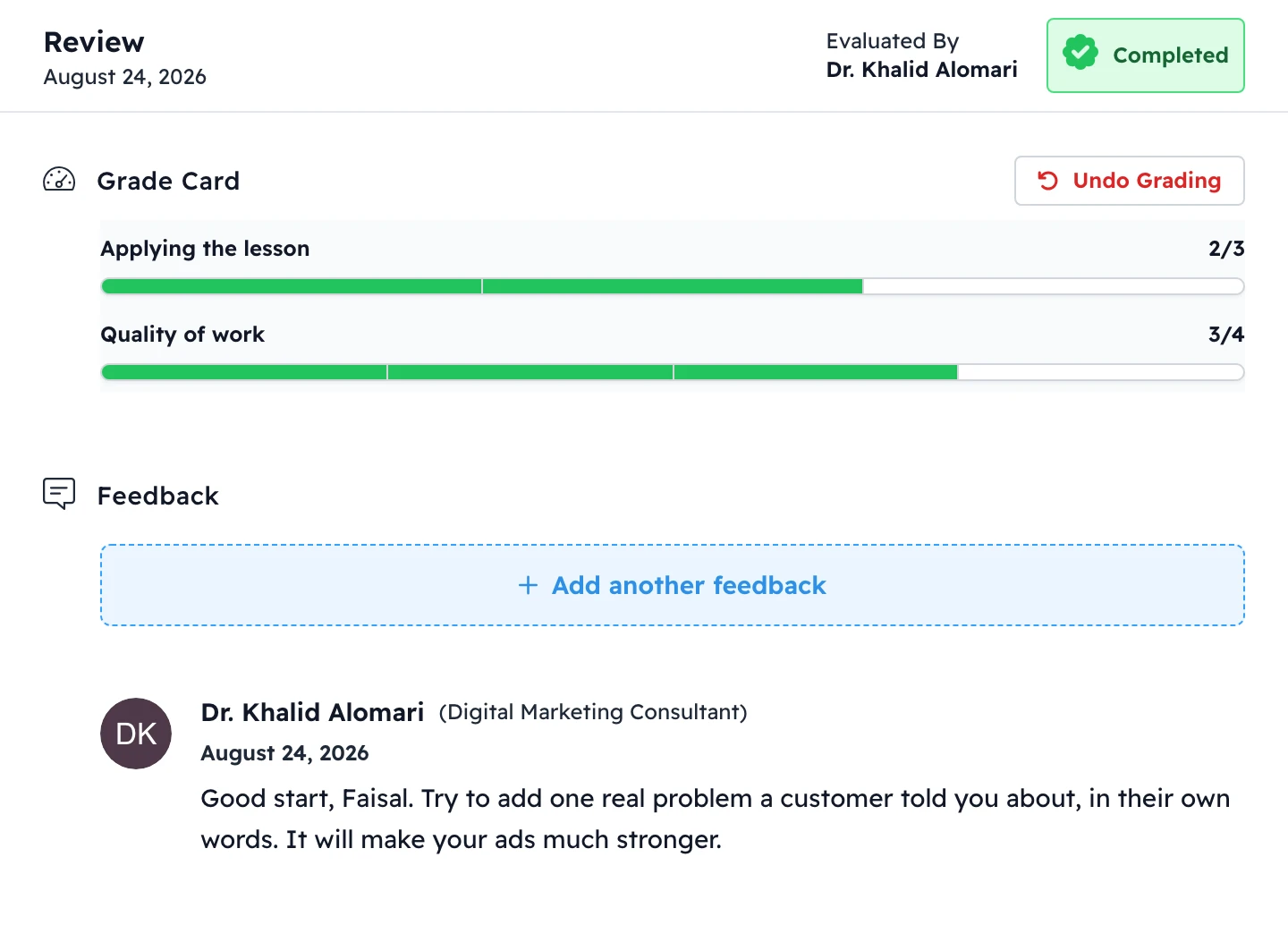
You can add more than one evaluation criterion to an assignment. In this case, the coach gives a grade for each criterion. The submission is accepted when the coach chooses Yes and saves the grades, and it is rejected when the coach chooses No.
Example:
An example of the submission result as the student sees it: