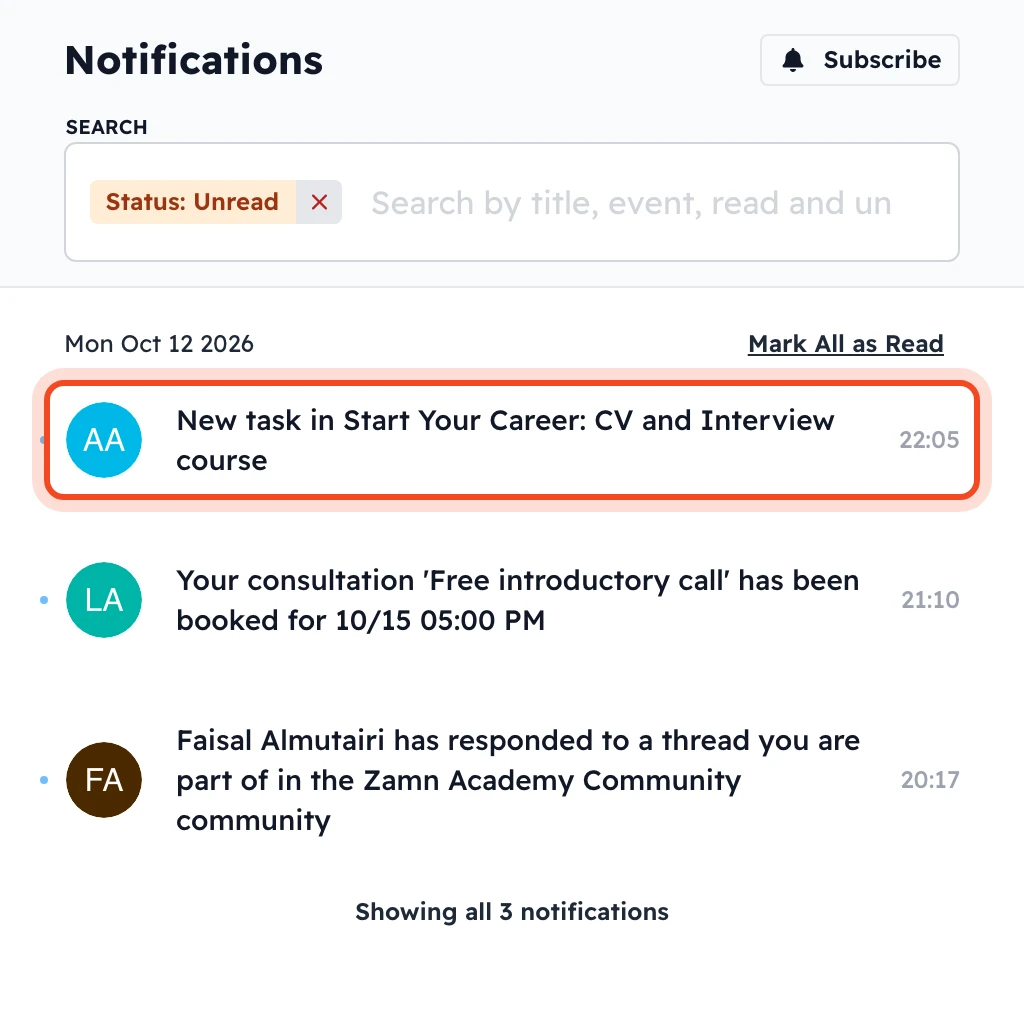
Student notifications for a new target
When you publish a new target (task) in a course, the students enrolled in it get a notification. This guide is for trainers.
When the notification is sent
The notification is sent when you click Published at the top of the target page and then click Save changes. A new target starts as a draft, so no notification is sent when you create it, only when you publish it.
These notifications depend on your platform's plan. The bell notification works on the Pro and Organizations plans, and during the free trial. The email is sent only on the Organizations plan and during the free trial.
How the notification reaches the student
The student gets the notification in two ways:
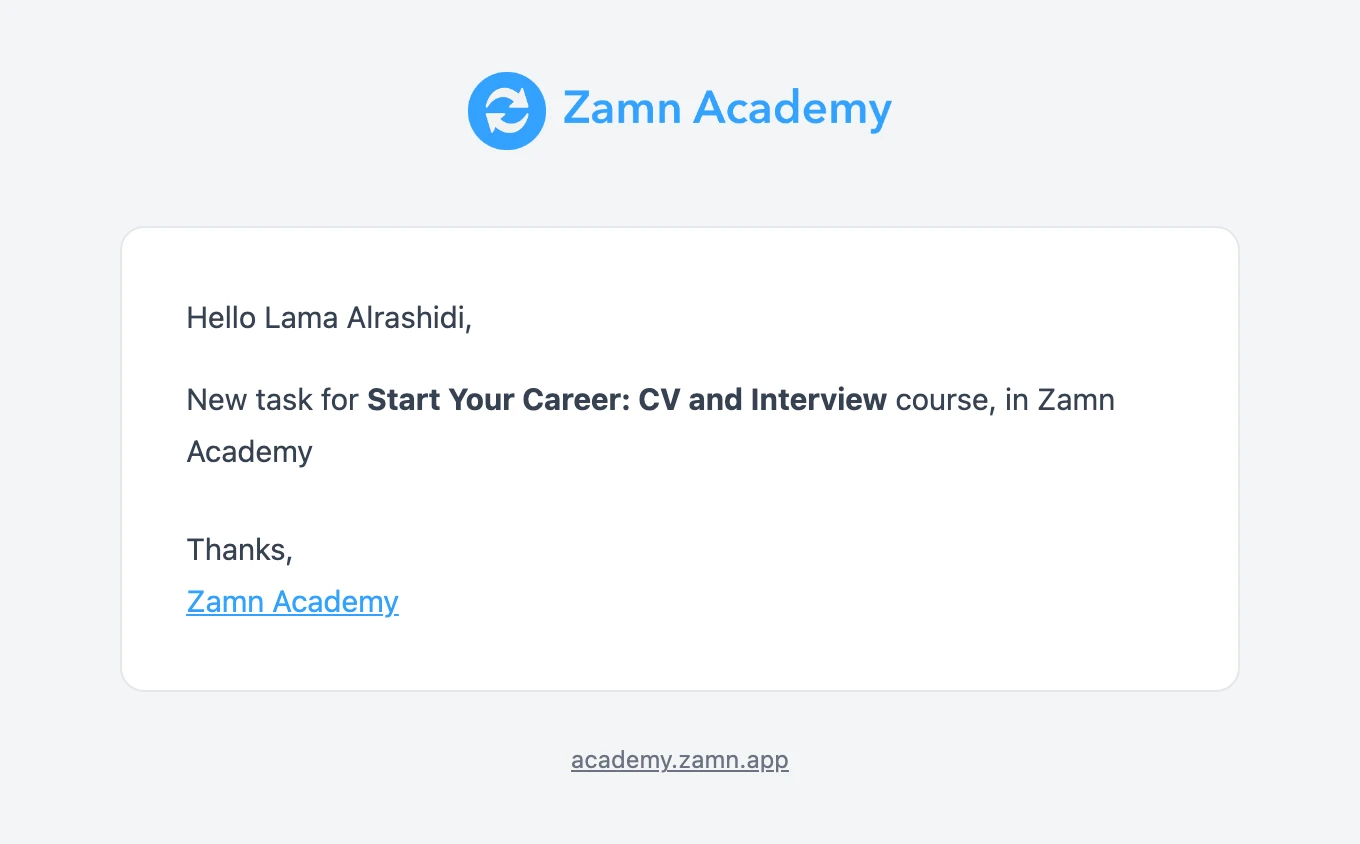
Email
An email is sent to the address the student signed up with. It tells them that a new task was added, with the platform name and the course name.
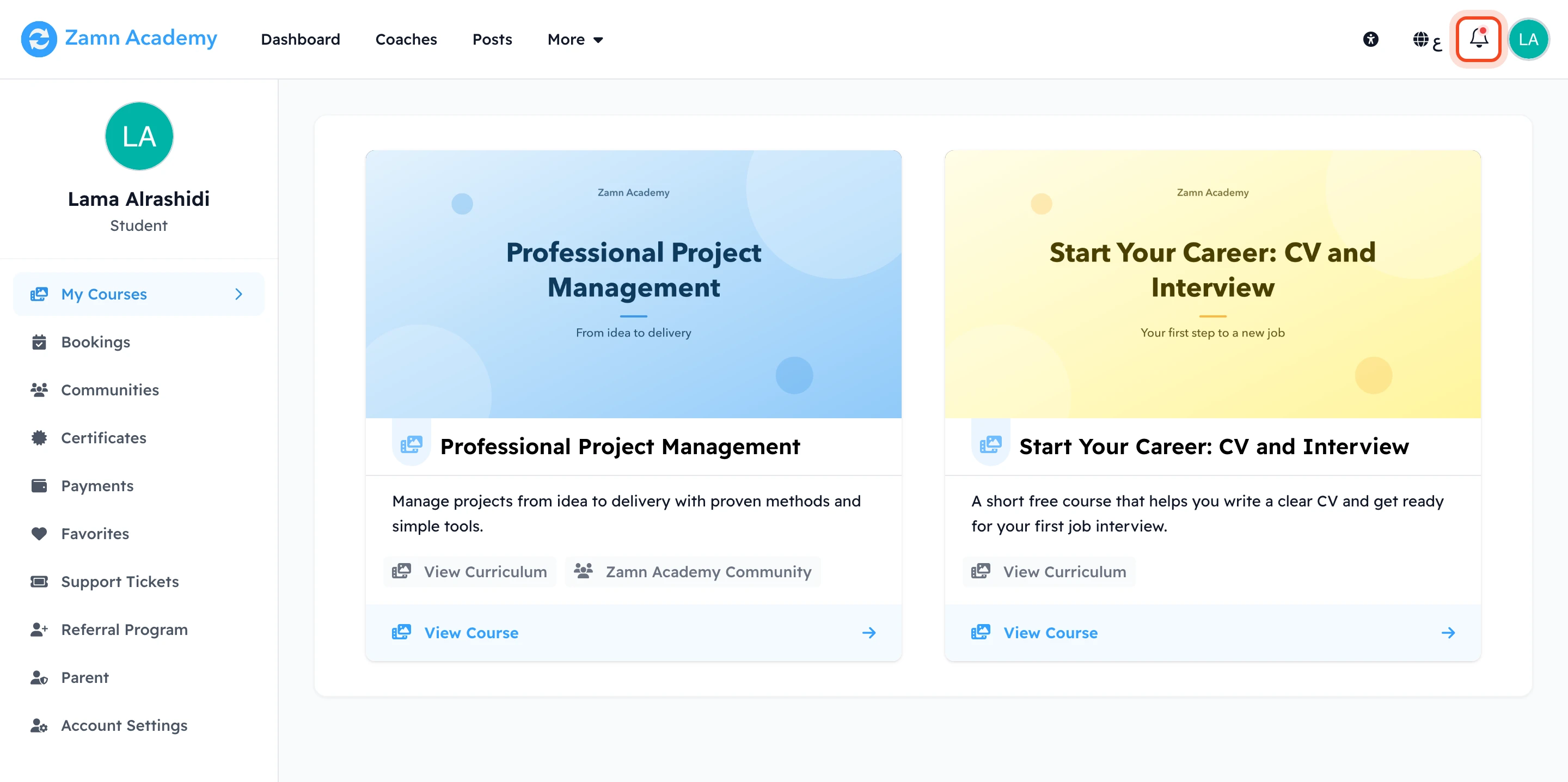
Notifications (the bell button) in the student's account
A notification is sent to the student's account. The student opens notifications from the bell button.
A red dot shows on the bell button when there are new or unread notifications.
The student clicks the notification to open the task.