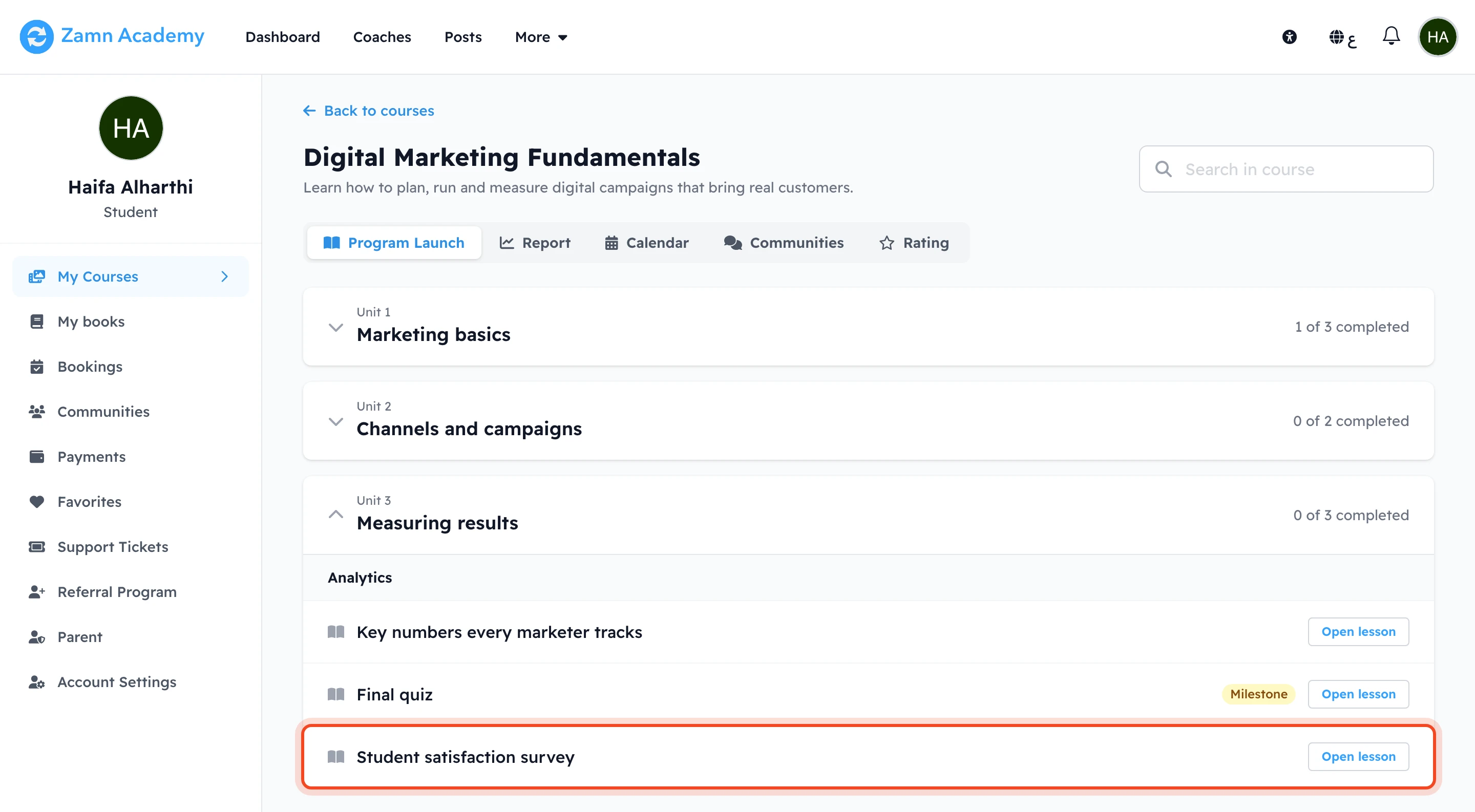
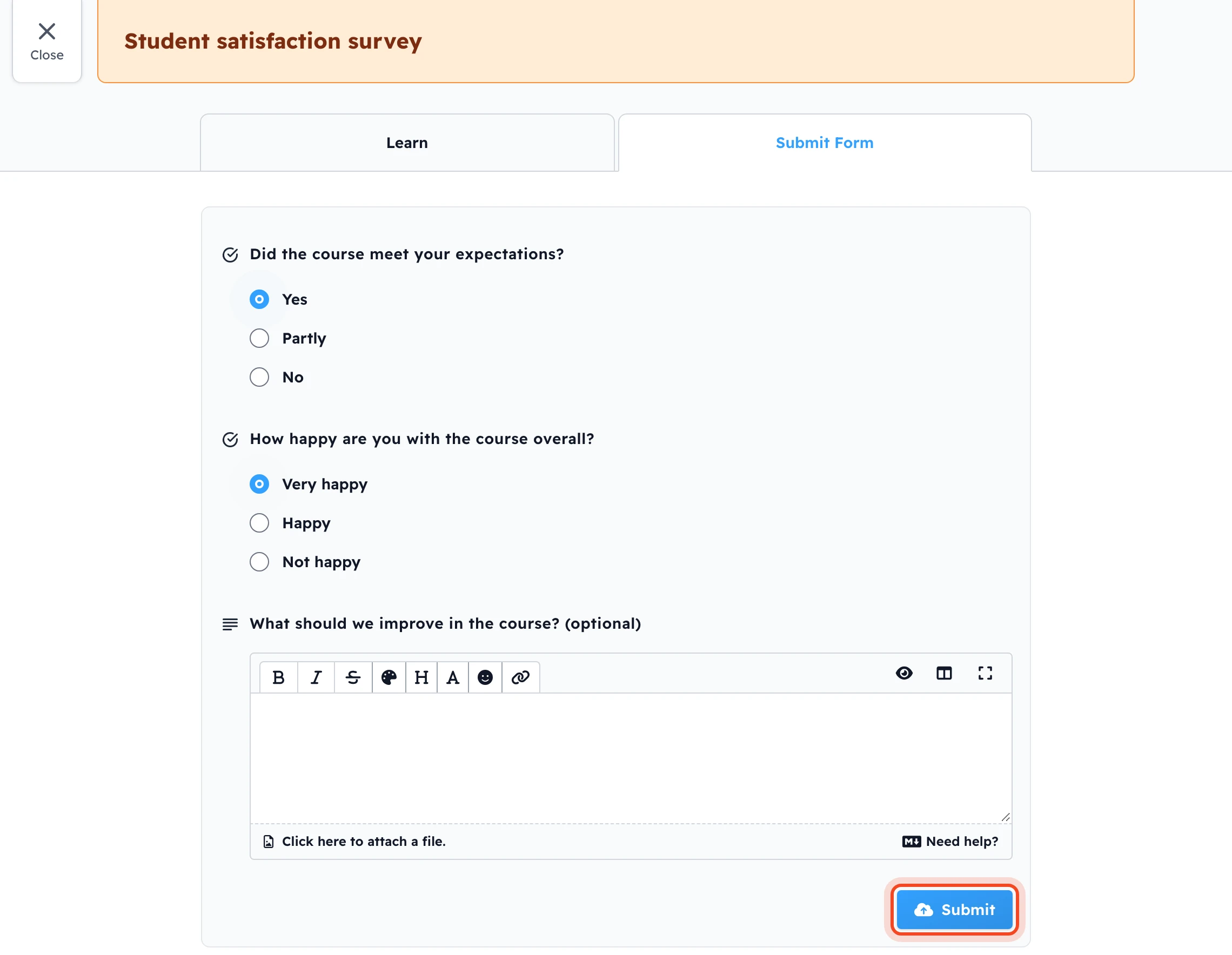
Create a survey (student satisfaction)
You can create a survey in the course to learn what students think and how happy they are with it. A survey is a target that the student completes by answering questions.
Platform admins and trainers can create surveys.
Steps to create a survey
-
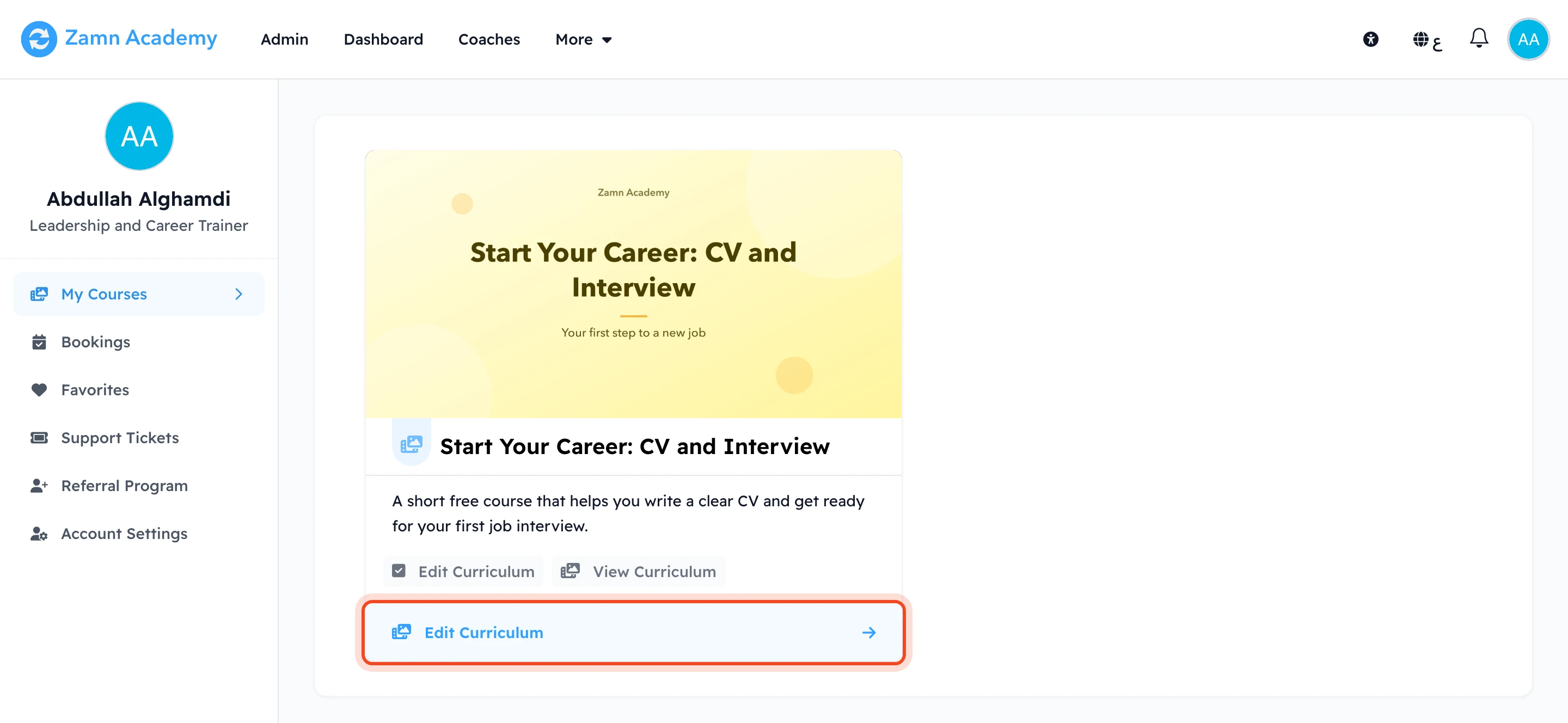
Click Dashboard at the top of the page. Then, under My Courses, click Edit Curriculum for the course.
-
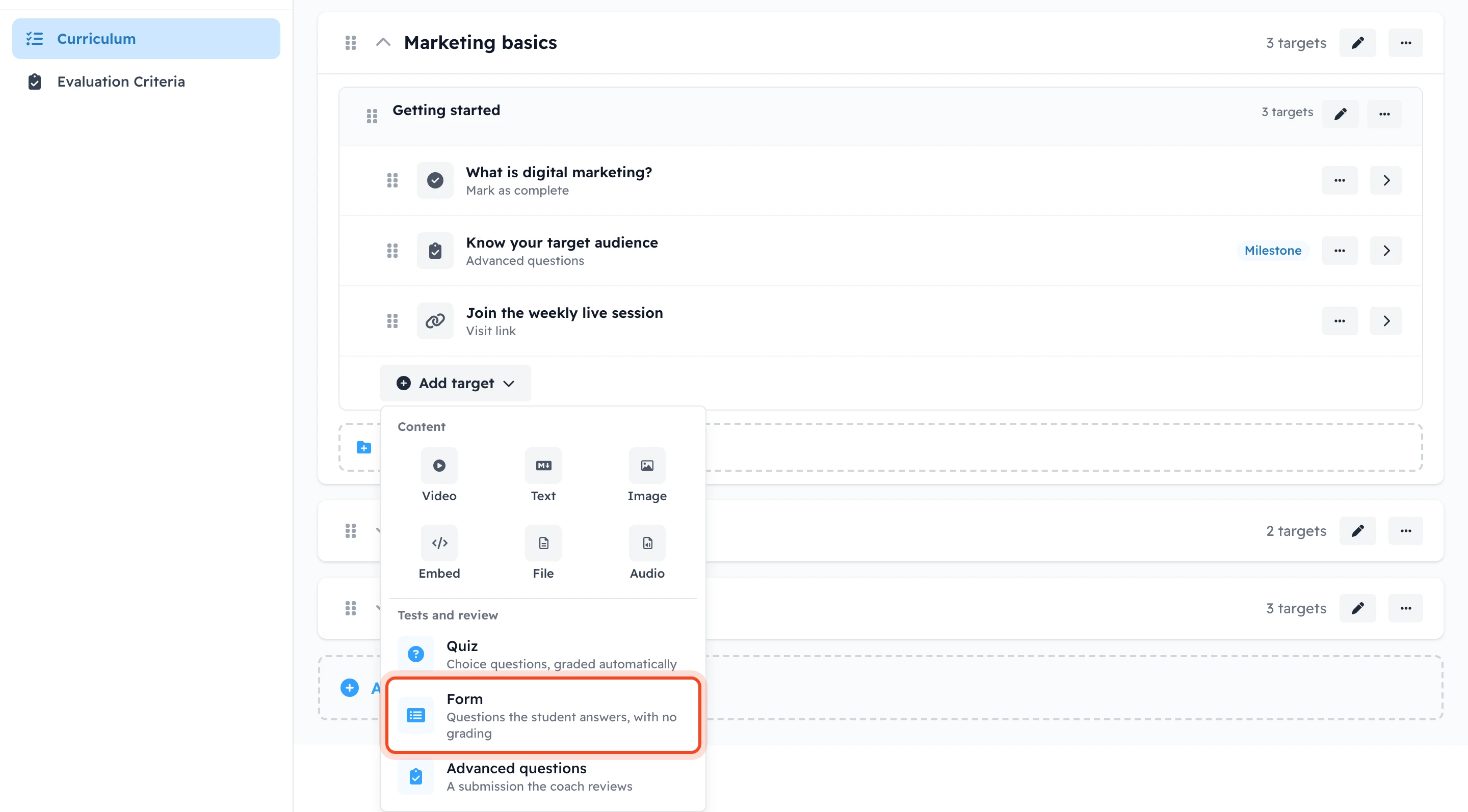
On the Curriculum page, click Add target at the end of a target group, then choose Form. The new target opens right away, and it is a Draft.
-
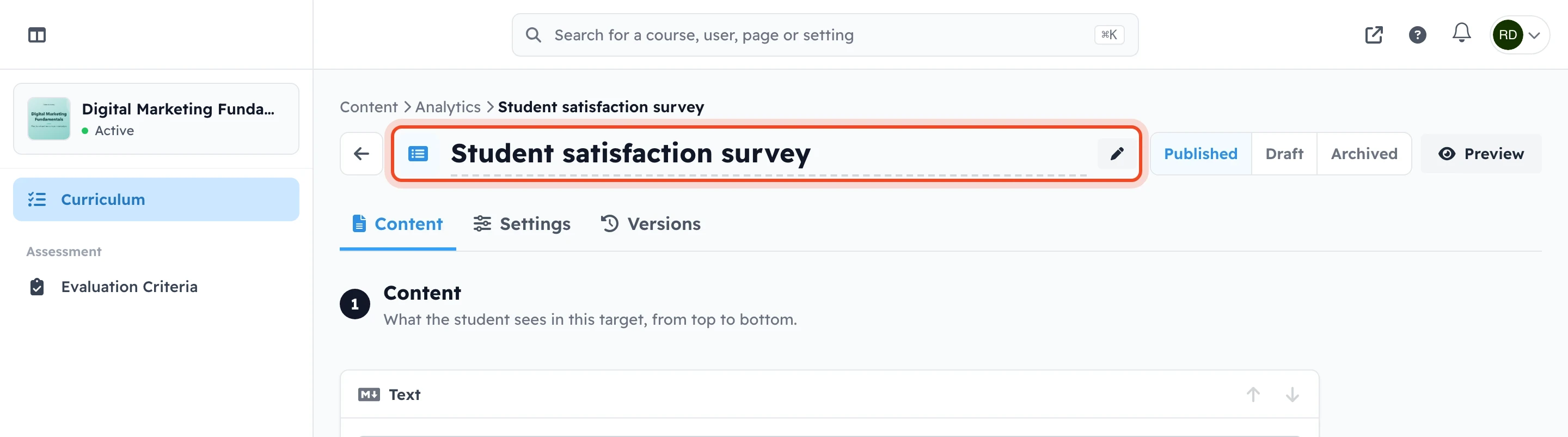
Click the pencil next to the title at the top of the page, and type the survey title.
-
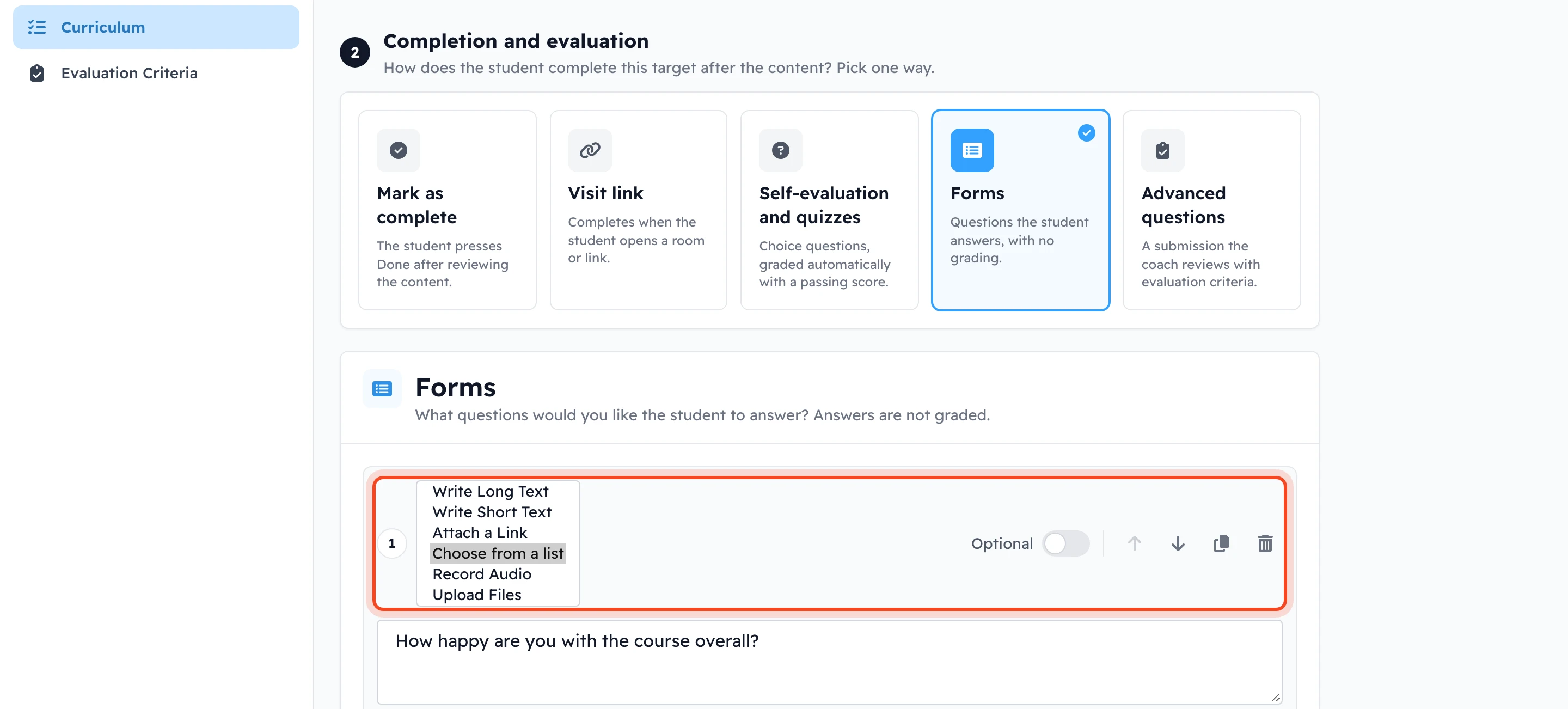
In the Content tab, under Completion and evaluation, make sure Forms is chosen.
-
Under Forms, choose from the list the answer type of the question you want to add to the survey.
-
To make the answer to a question not required, turn on Optional.
-
Type the question in its box.
-
To add more questions, click Add a new question. You can add up to 40 questions.
-
At the top of the page, click Published.
-
Click Save changes in the bar at the bottom of the page to publish the survey, so students can see it.
NoteFor Choose from a list questions, you can edit the choices of the question, or add more choices with Add choice.
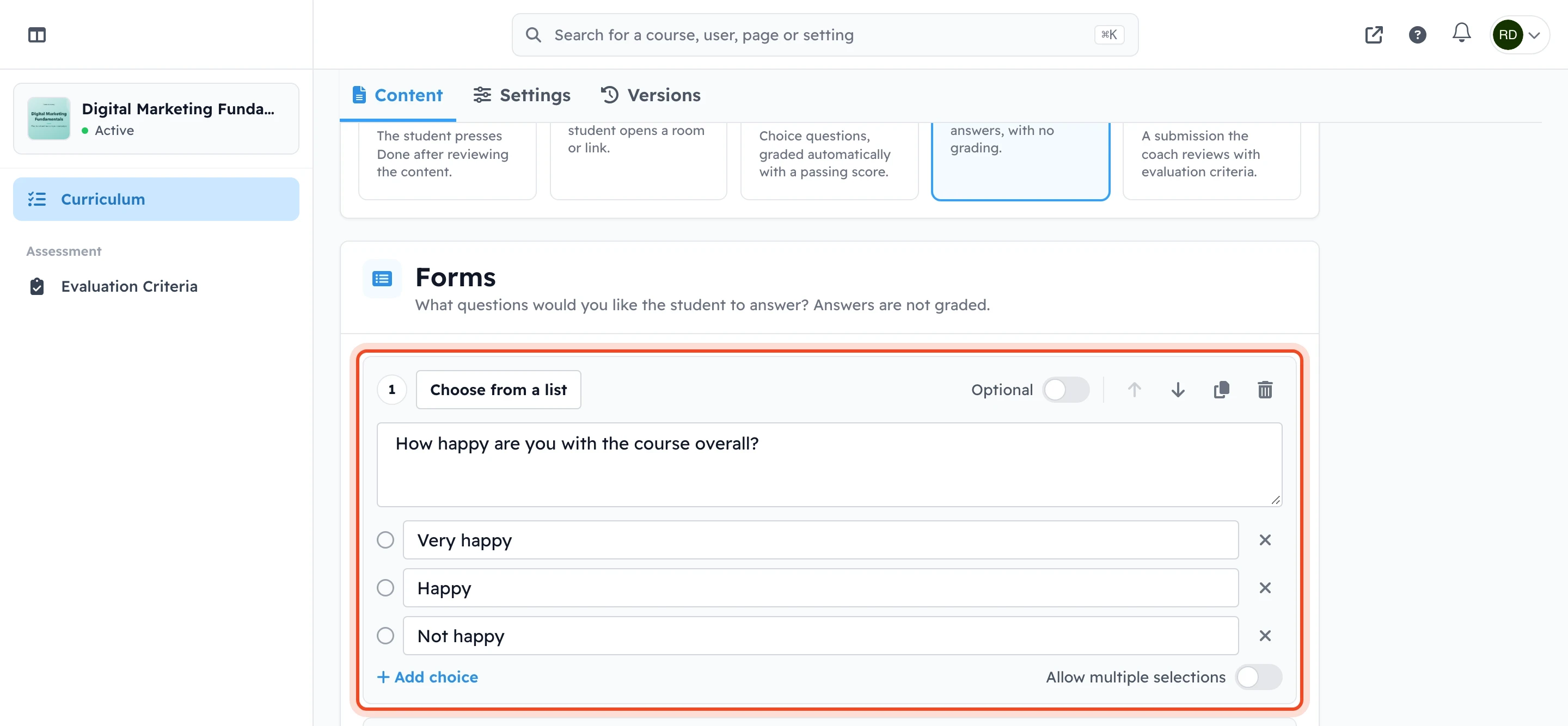
How the survey looks to students