The trainer's first sign-in to the platform
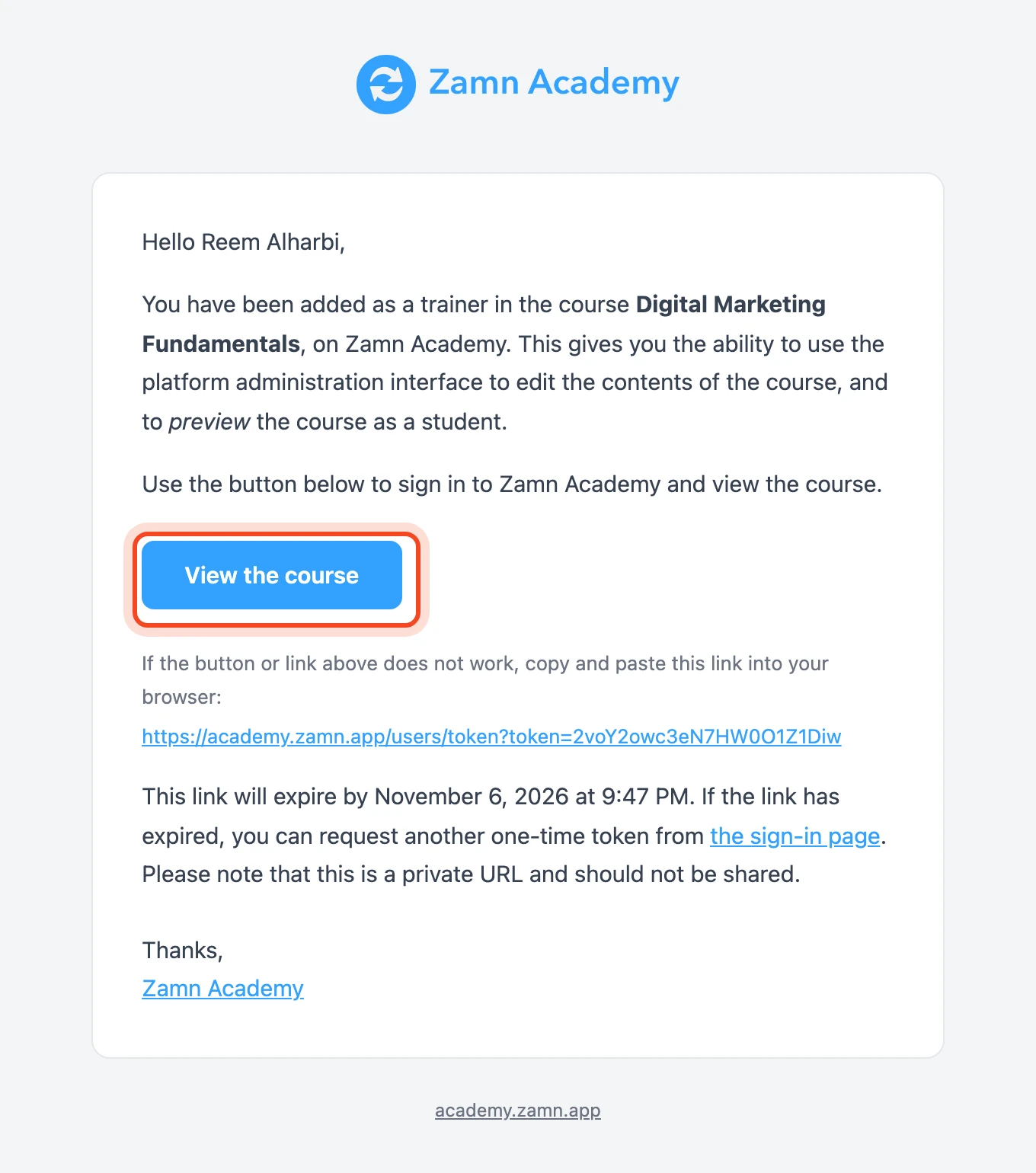
When a platform admin adds you as a trainer to a course, you get an email.
Steps for the trainer to sign in
-
Open the email and click the View the course button. The button signs you in to the platform right away and opens the Dashboard page. If you are also a platform admin, it opens your platform dashboard instead.
 Note
The link works for a limited time, written in the email. If it has expired, you can request a new link from the sign-in page.
-
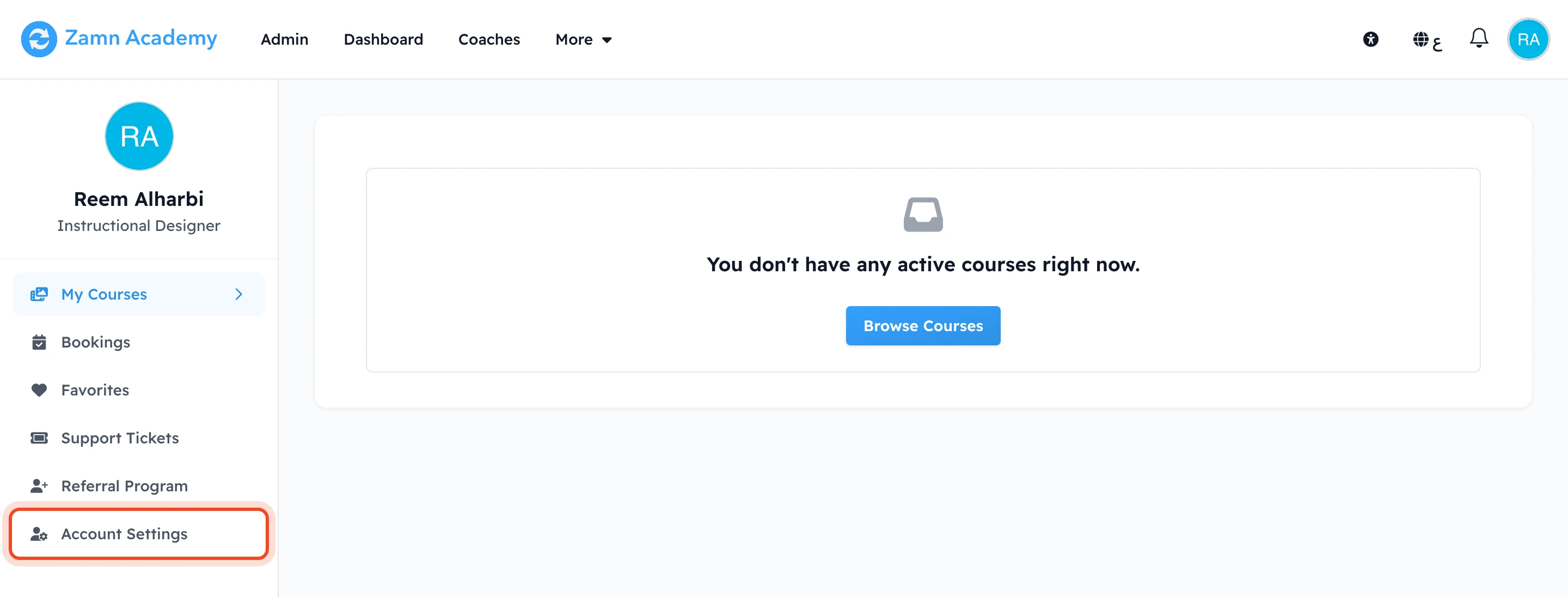
Click Dashboard at the top of the page, then click Account Settings in the side menu.
-
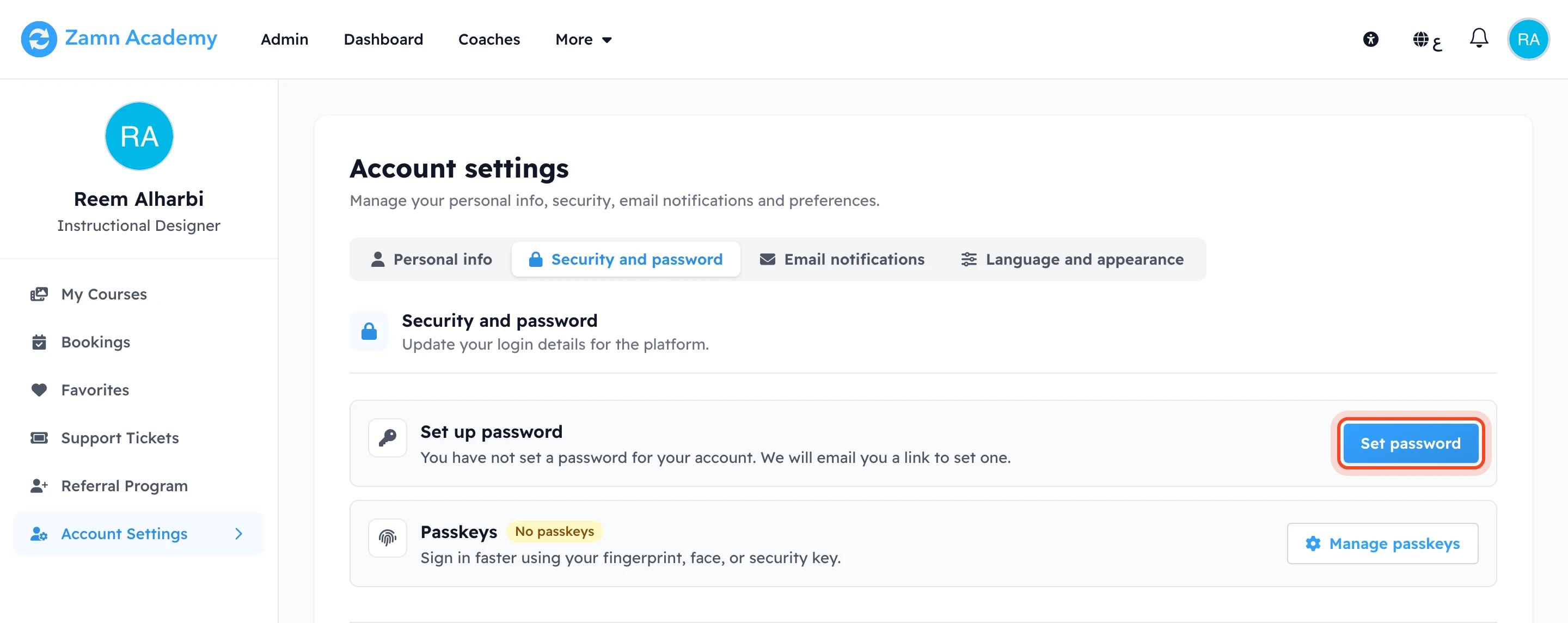
Open the Security and password tab, then click Set password. You get an email to set your password.
-
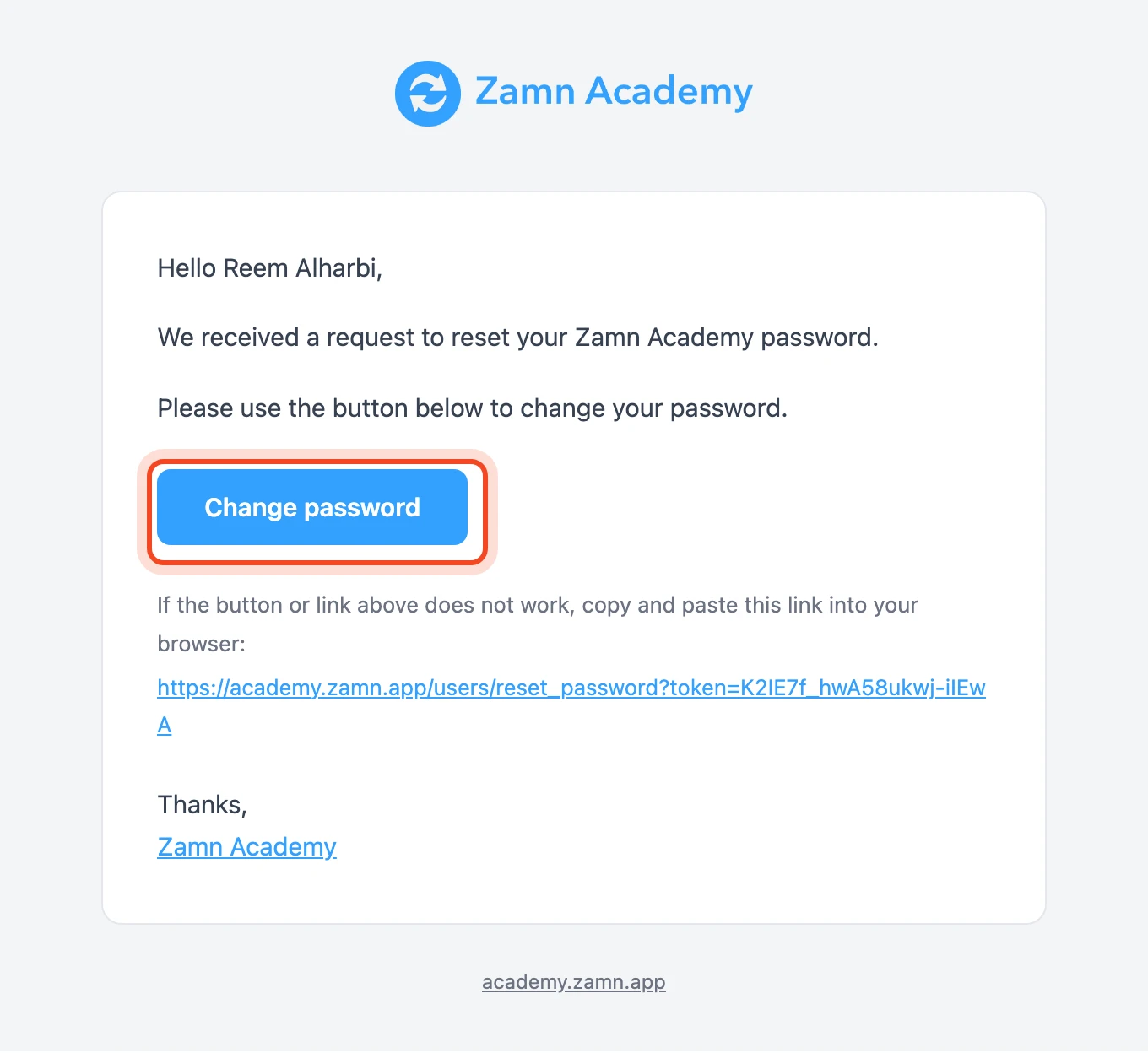
Open the new email and click the Change password button.
-
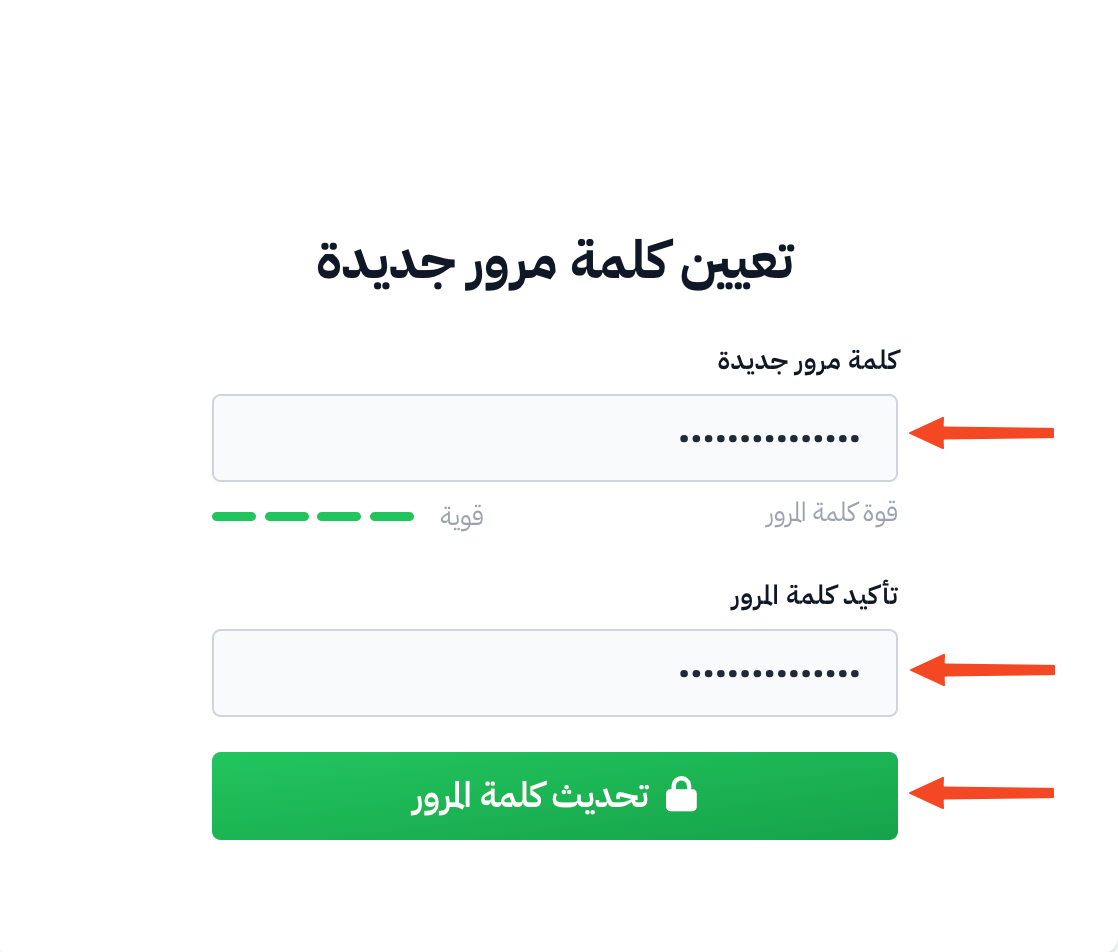
Enter a strong password (8 characters or more) in New Password, type it again in Confirm Password, then click Update Password. You then go to the Dashboard page (or to your platform dashboard if you are a platform admin).