Chat with your students
If your platform turned on chat, you can send private messages and files to the students of your courses, and reply to their messages from your dashboard.
Open your messages
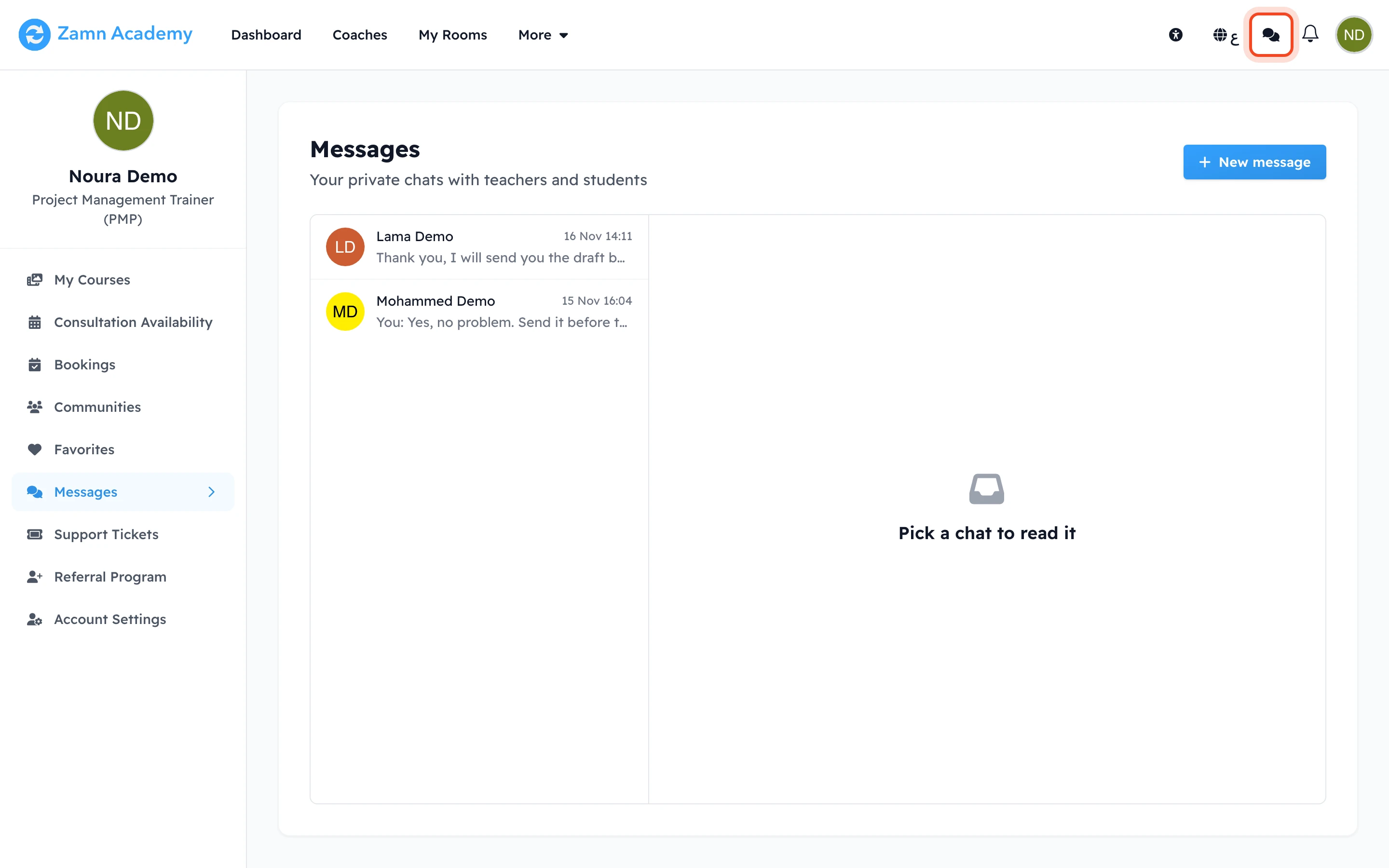
Click the chat icon at the top of the page, or open Dashboard and choose Messages from the side menu. On a phone, open the dashboard menu and choose Messages. Chats with unread messages are in bold.
Start a new chat
-
On the Messages page, click New message.
-
Under My students, click the student's name. To find a name quickly, type it in Search by name.
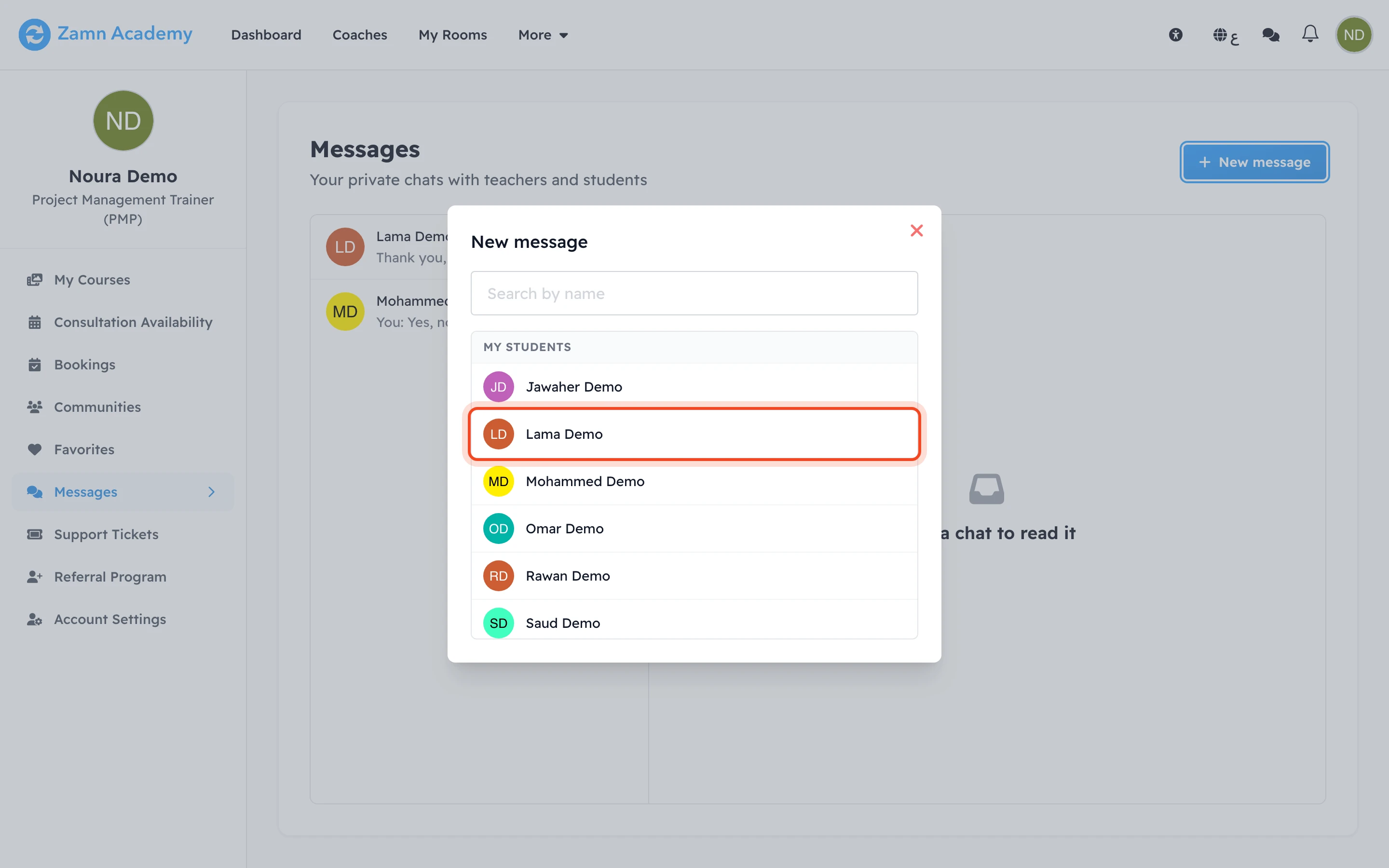
The list shows the students of the courses you teach, and the students assigned to you. If you already have a chat with the student, the same chat opens.
Reply to a message
-
Click the chat in the list to open it.
-
Type your reply in the Write a message box. To send files, click Add files. You can add up to 5 files in a message, 10 MB each: images, PDF, Word, Excel or PowerPoint.
-
Click Send. On a computer, you can also press Enter to send, and Shift+Enter to start a new line.
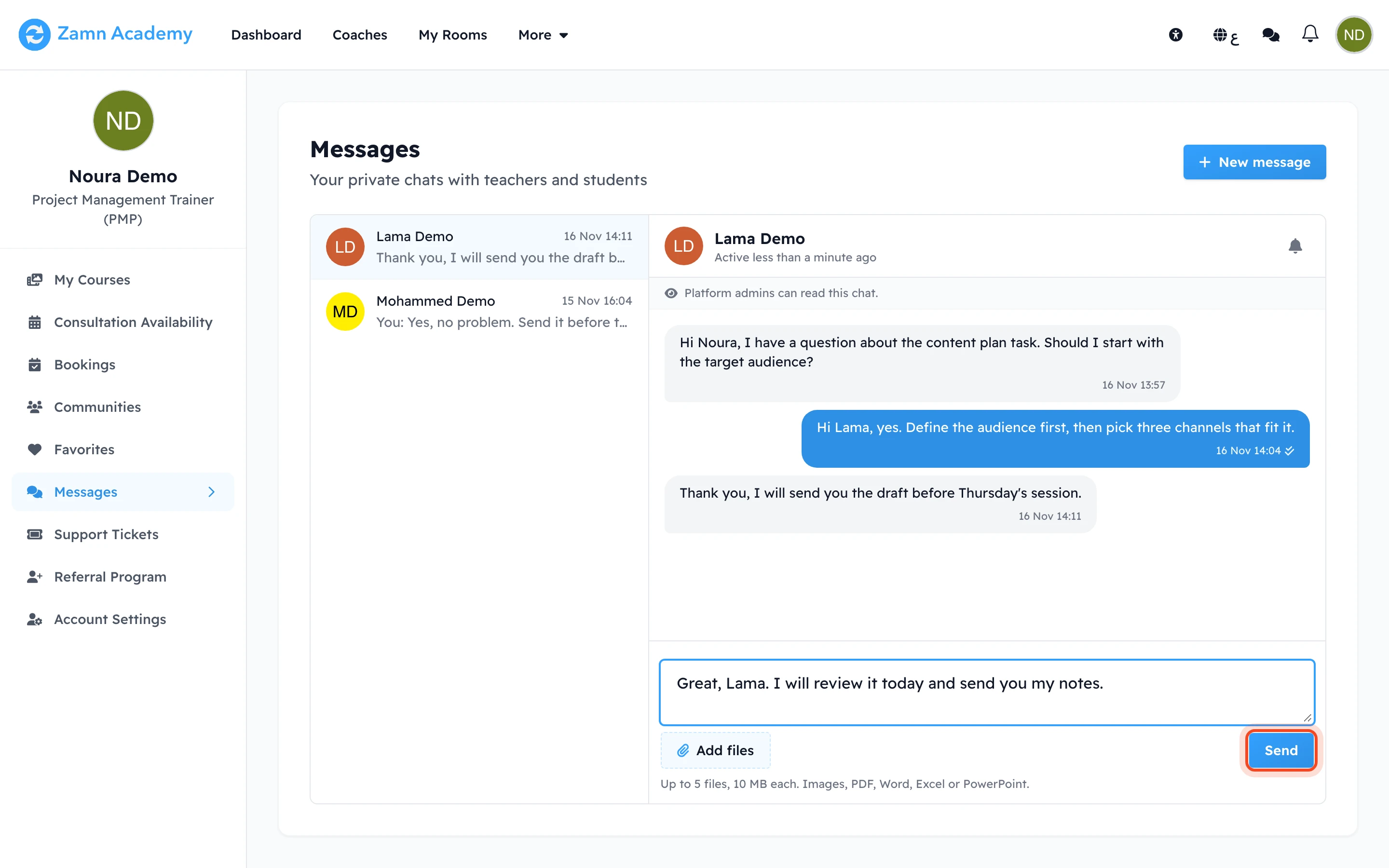
One tick next to your message means Sent, and two ticks mean Seen.
Platform admins can read all chats. You see the line Platform admins can read this chat. at the top of every chat.
Notifications
- If you turned on browser notifications, you get a notification for each new message.
- If you do not read a new message within 15 minutes, you also get an email with the subject New message from and the sender's name.
- To stop notifications for one chat, click the bell at the top of the chat (Mute this chat).