How does a coach share the course link?
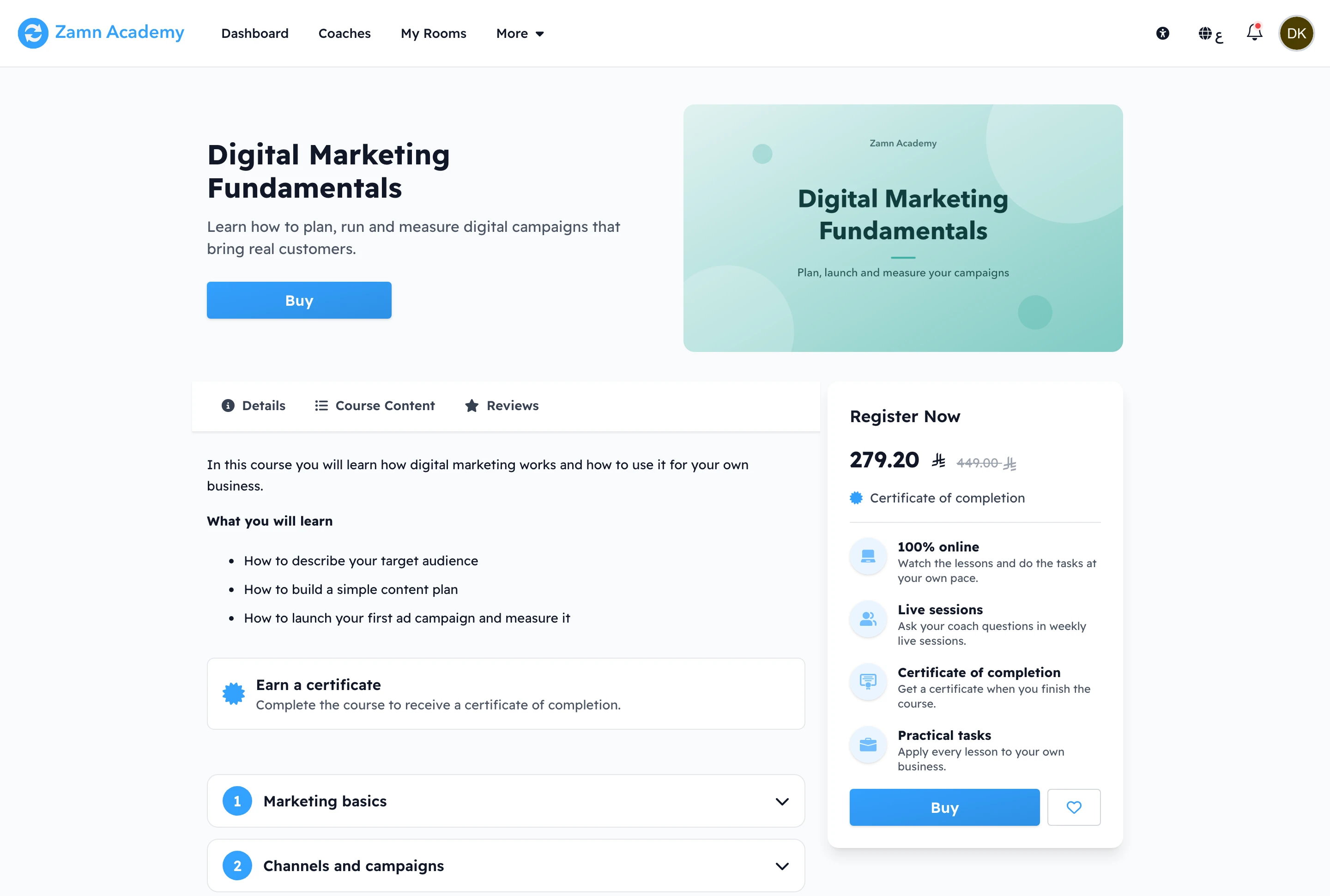
This article shows how a coach can get the link to a course page and share it with students or anyone else.
How to share the course link
-
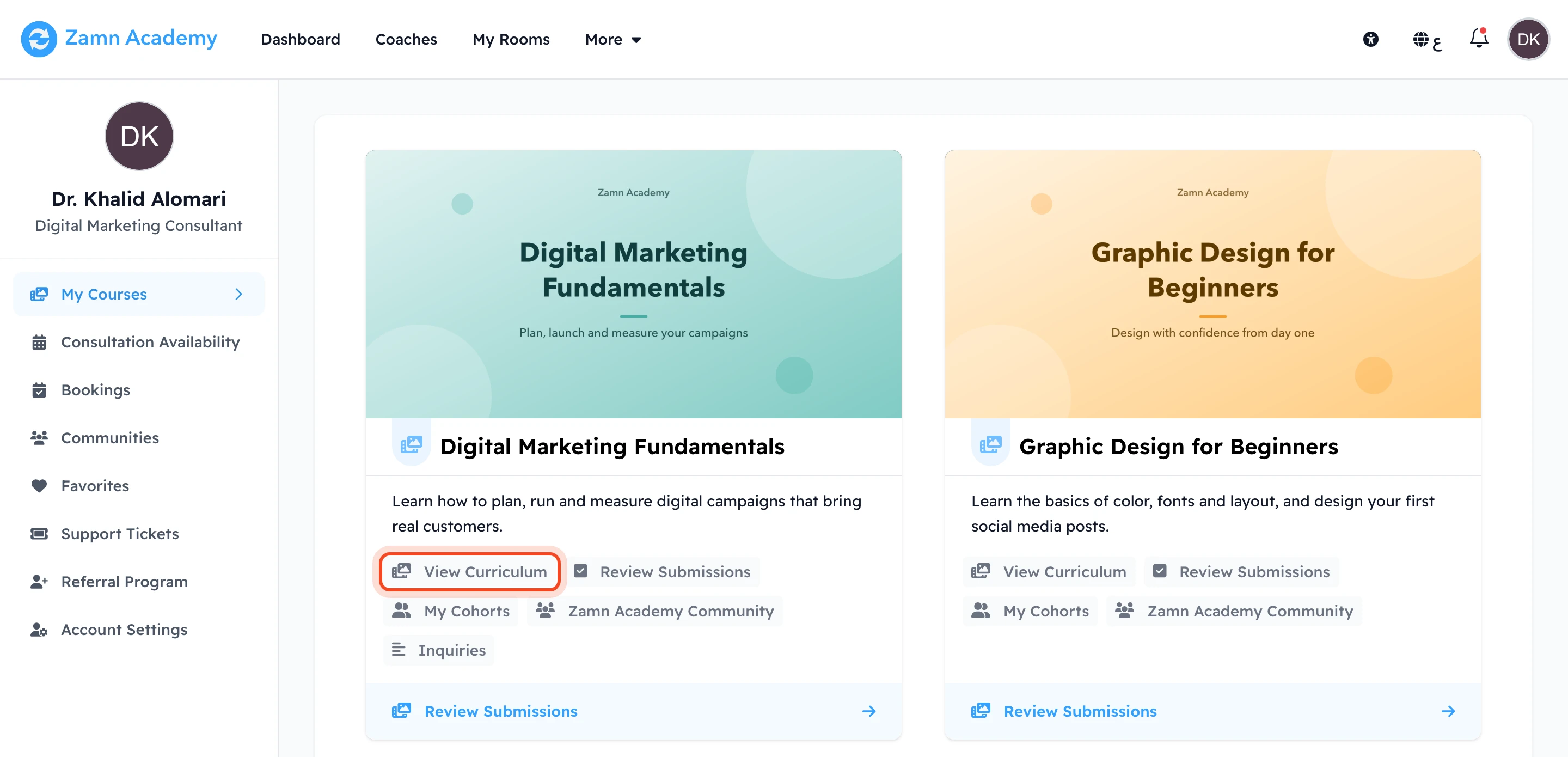
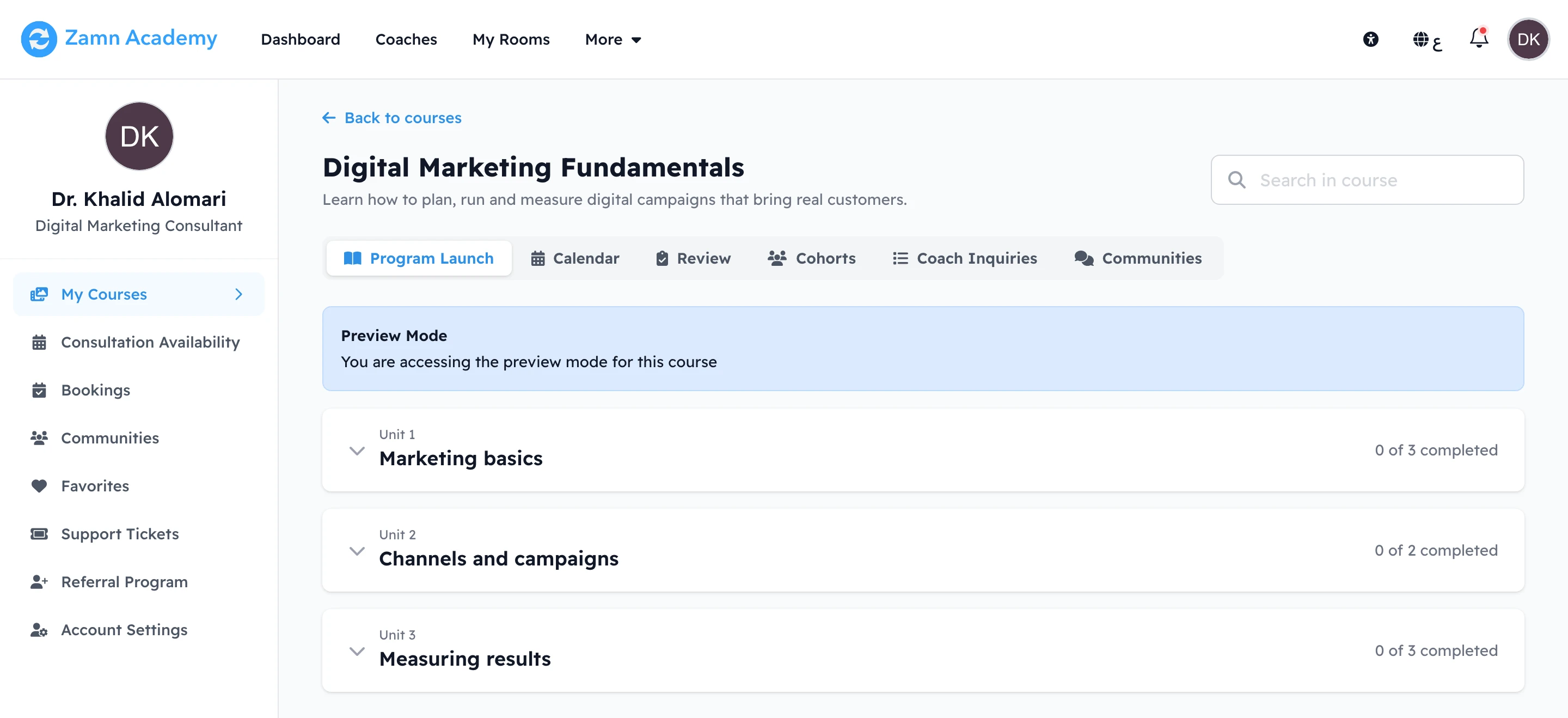
Click Dashboard in the top menu to open the My Courses page, then click View Curriculum on the card of the course you want to share.
-
In the browser address bar, delete the word curriculum from the end of the link, then press the Enter key. The course page that visitors see opens.
 Note
If you are also enrolled as a student in this course, pressing the Enter key takes you back to the same page. In this case, copy the link right after you delete the word curriculum, before you press the Enter key.
-
Copy the course link from the browser address bar, then share it.