Increase your cloud storage
This article shows how a platform owner can subscribe to a separate cloud storage plan to get more space for the platform.
How to subscribe to a storage plan
Only the platform owner can subscribe or renew a subscription.
-
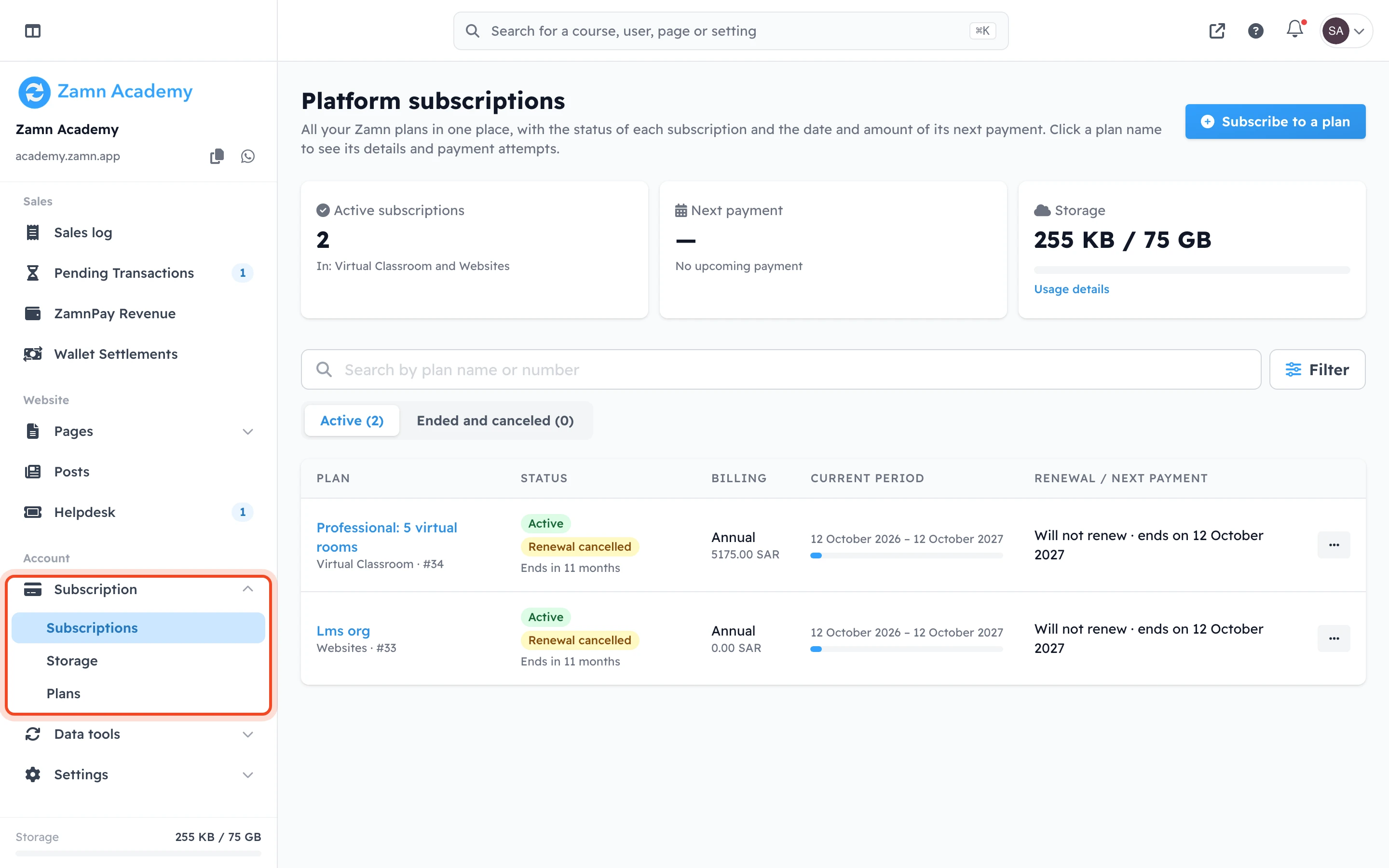
From your platform dashboard, choose Subscription.
-
Go to the Plans page.
-
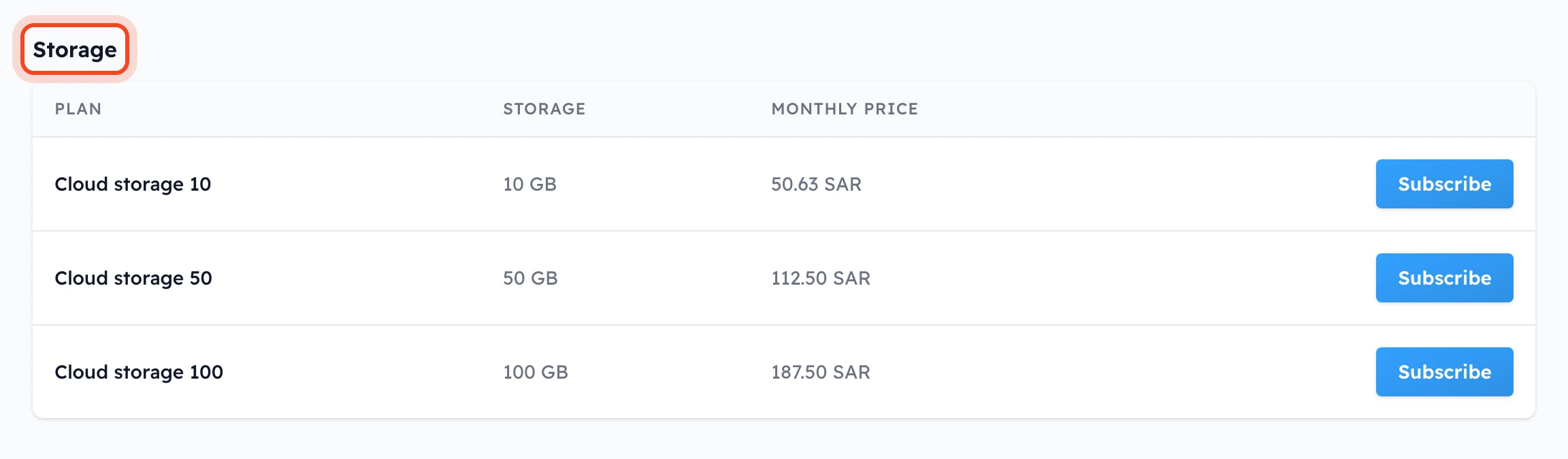
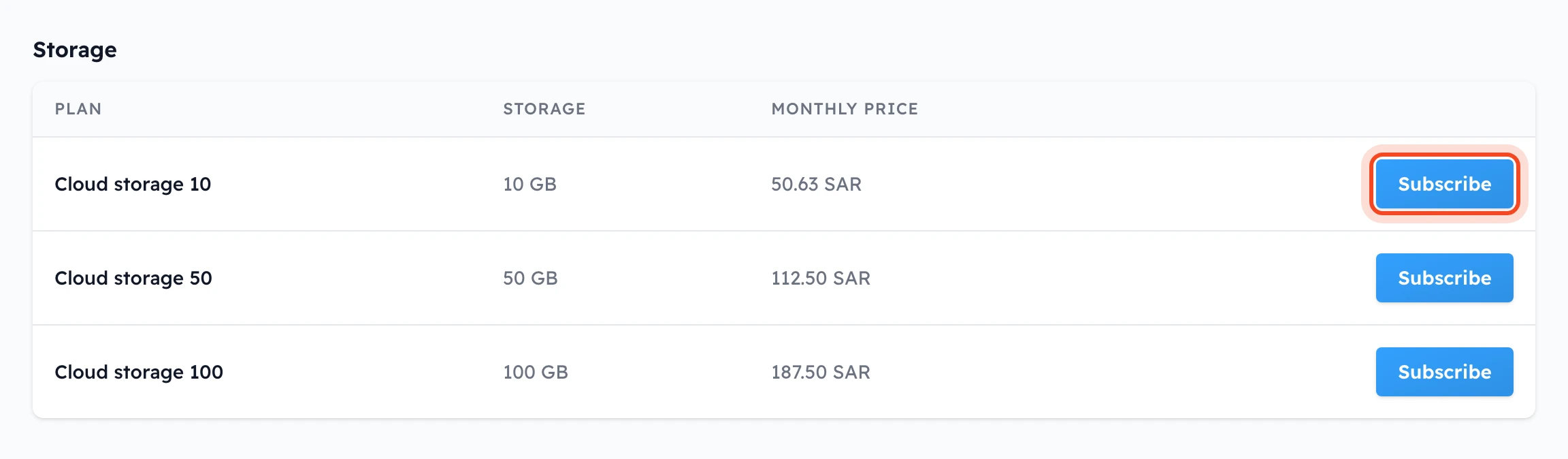
In the Storage group, click Subscribe next to the plan that fits you.
-
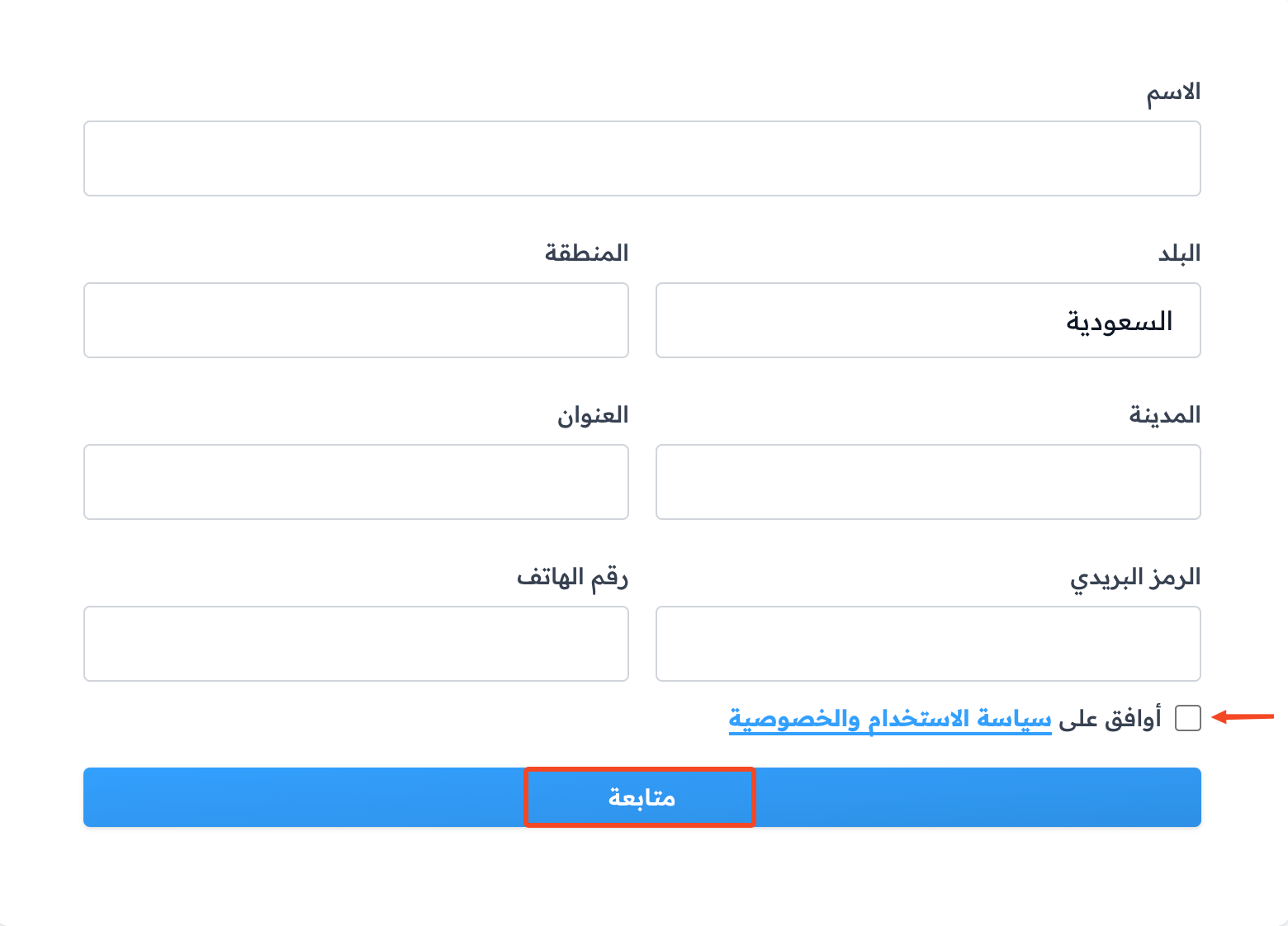
If you are outside Saudi Arabia, the Complete Your Billing Information page opens first. Enter your billing address, then click Save and Continue to Payment.
-
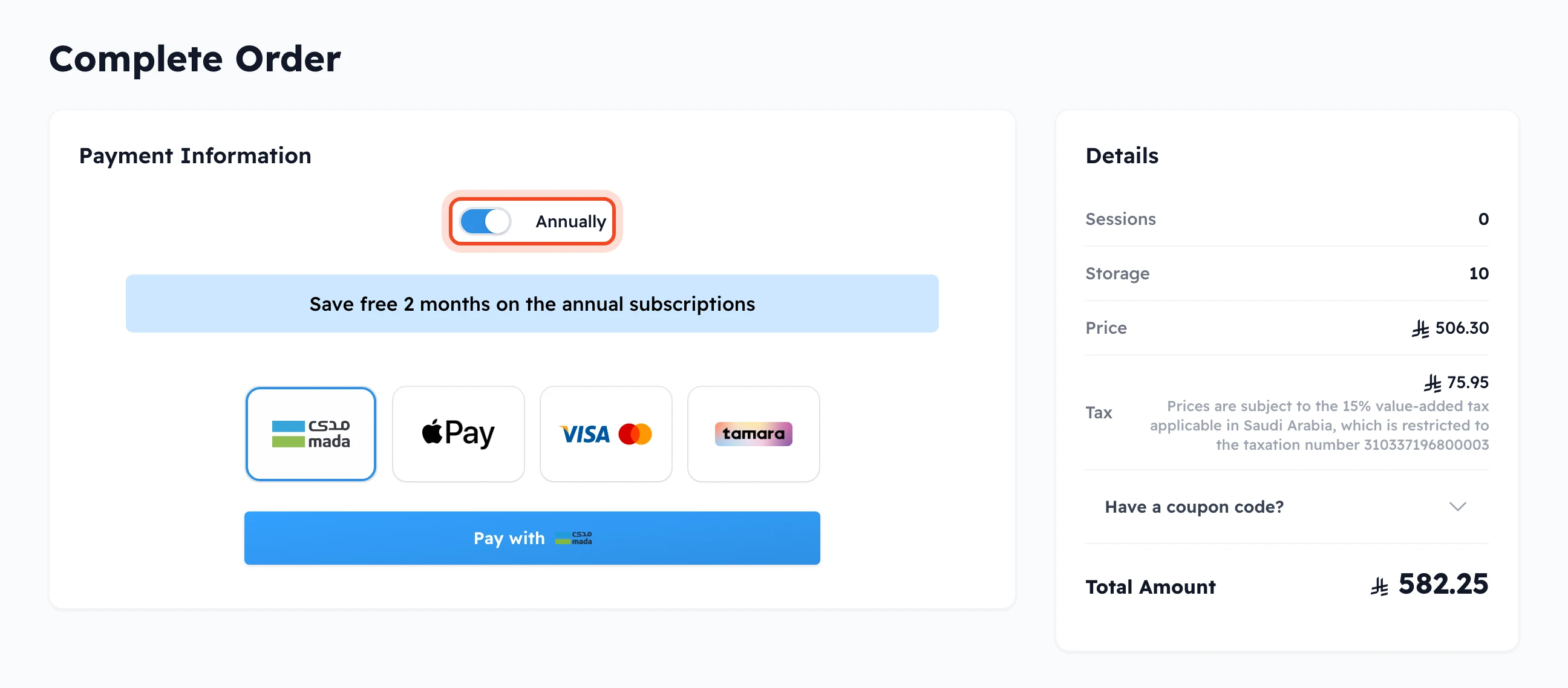
The payment page opens. The subscription is annual at first, and the Annually switch is on. To pay monthly, turn off the Annually switch.
-
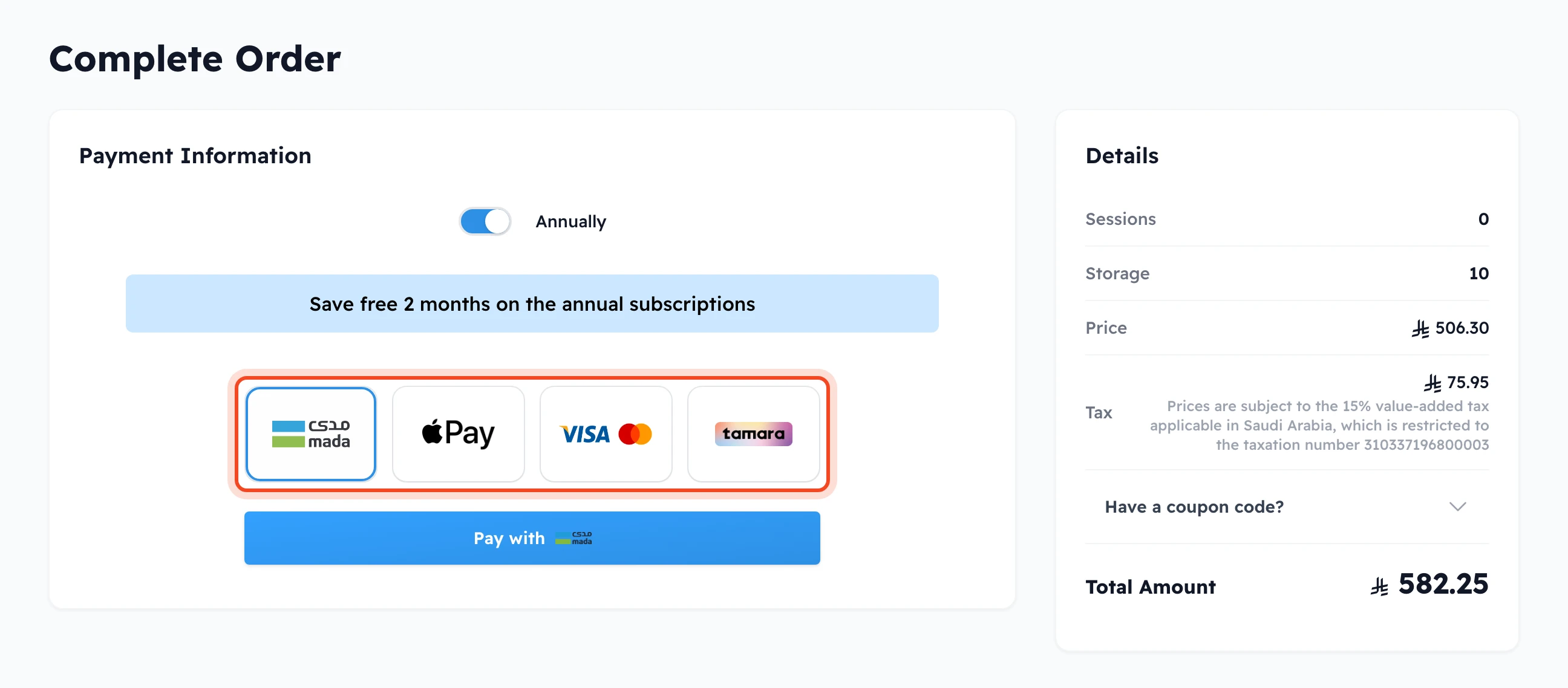
Choose a payment method from the ones shown to you. For a monthly subscription, enter your card details.
-
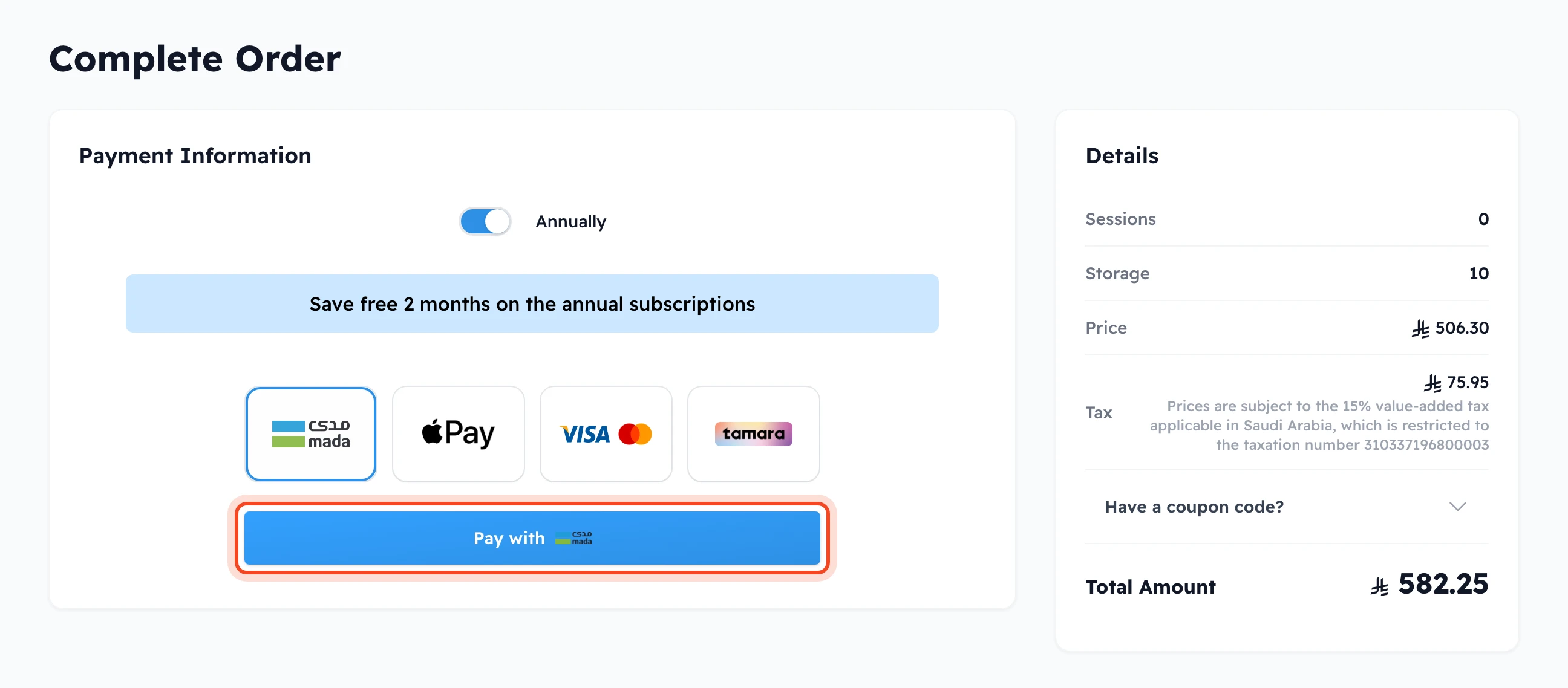
Click the pay button: Confirm Payment for a monthly subscription, or Pay with for an annual subscription (with the Tamara logo if paying with Tamara is available to you).
Zamn protects all your information. No one can see it, not even Zamn.
To see how much storage your platform uses and how much it has, open the Storage page from the Subscription menu, or click the Storage bar at the bottom of the side menu.