Subscription status
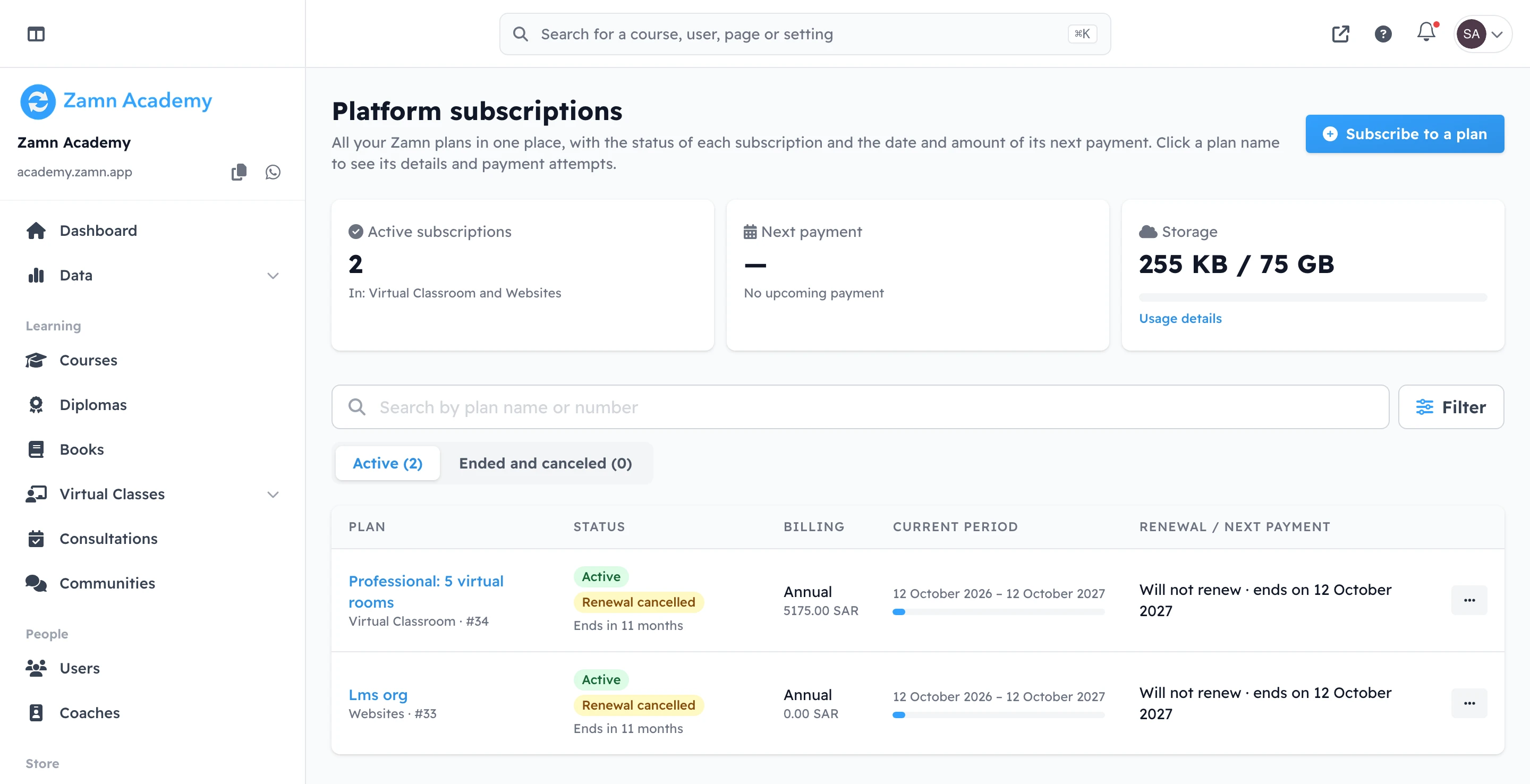
On the Platform subscriptions page you can see your platform's Zamn subscriptions, the status of each one and the date of the next payment, and view the details of each subscription.
-
From the dashboard, choose Subscription, then Subscriptions.
-
At the top of the page you see three cards: Active subscriptions (how many and of which type), Next payment (its amount and date) and Storage (how much of your storage you use, with a Usage details link).
-
The subscriptions are shown in tabs: Active, Needs action and Ended and canceled, each with the number of subscriptions in it. The Needs action tab shows only when the renewal payment of a subscription failed. You can search by plan name or number, or click Filter to show the subscriptions of one product only.
-
For each subscription the table shows:
- Status: Active, Renewal failed, Expired or Canceled. Next to an active subscription you also see Auto-renewal if it renews by itself, or Renewal cancelled if it will not renew. Under it you see how long is left (for example "Ends in 11 months").
- Billing: monthly or annual, and the price.
- Current period: the start date and the end date.
- Renewal / next payment: for example "Auto-renews on ..." or "Will not renew · ends on ...".
-
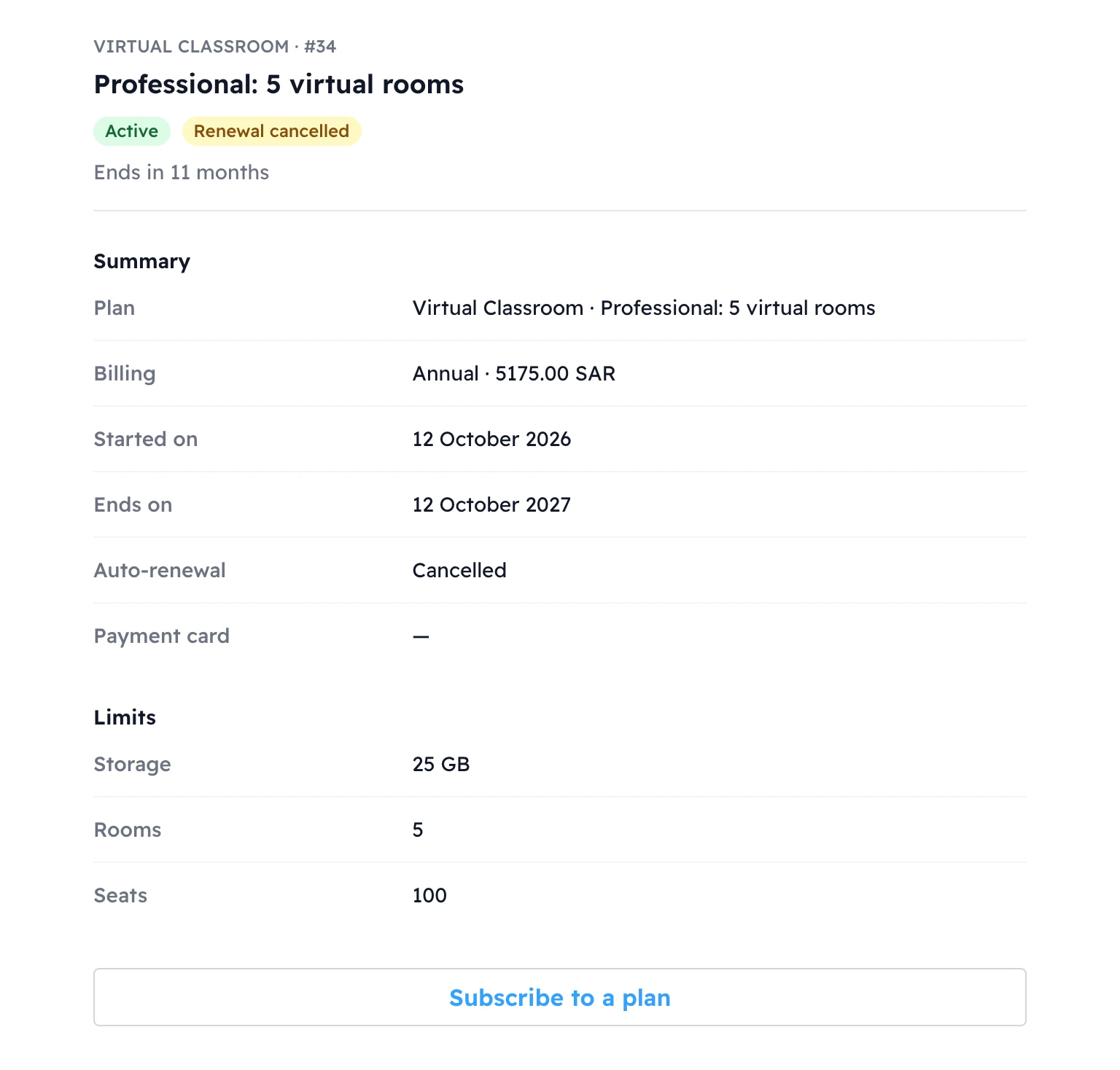
Click the plan name you want in the Plan column, or open the ⋯ menu at the end of the row and choose View details. The details open in a side panel: the Summary part (Plan, Billing, Started on, Ends on, Auto-renewal and Payment card), the Limits part (Storage, and also Rooms and Seats for all plans except storage plans) and the Payment attempts part if there are any. At the bottom of the panel you see the buttons you can use for this subscription, such as Update payment card, Subscribe to a plan or Cancel Subscription.
If you chose to downgrade to a lower Websites plan, you see "Changes to" with the name of the new plan and the date of the change under the subscription. To undo the downgrade, click Cancel plan change in the details panel or in the ⋯ menu.
If a renewal payment fails
If Zamn cannot charge the renewal, the subscription moves to the Needs action tab, and a white box with a red Renewal failed label shows at the top of the page. The box tells you how many times the payment was declined and when the next attempt is. Zamn tries up to 5 times. From the box you can:
- Click Update payment card to pay with another card. See Change or update the payment card of a subscription.
- Click Stop retries to end the subscription.
- Click View attempts and details to open the details panel.
Payment methods
If you have saved cards, the Payment methods part shows at the bottom of the page. It lists each card and the subscriptions that use it. A card whose payment was declined has the label Payment declined.