How to cancel a subscription
This article shows how a platform owner can cancel a subscription that renews by itself, so the next renewal is not charged.
-
From your platform dashboard, choose Subscription, then Subscriptions.
-
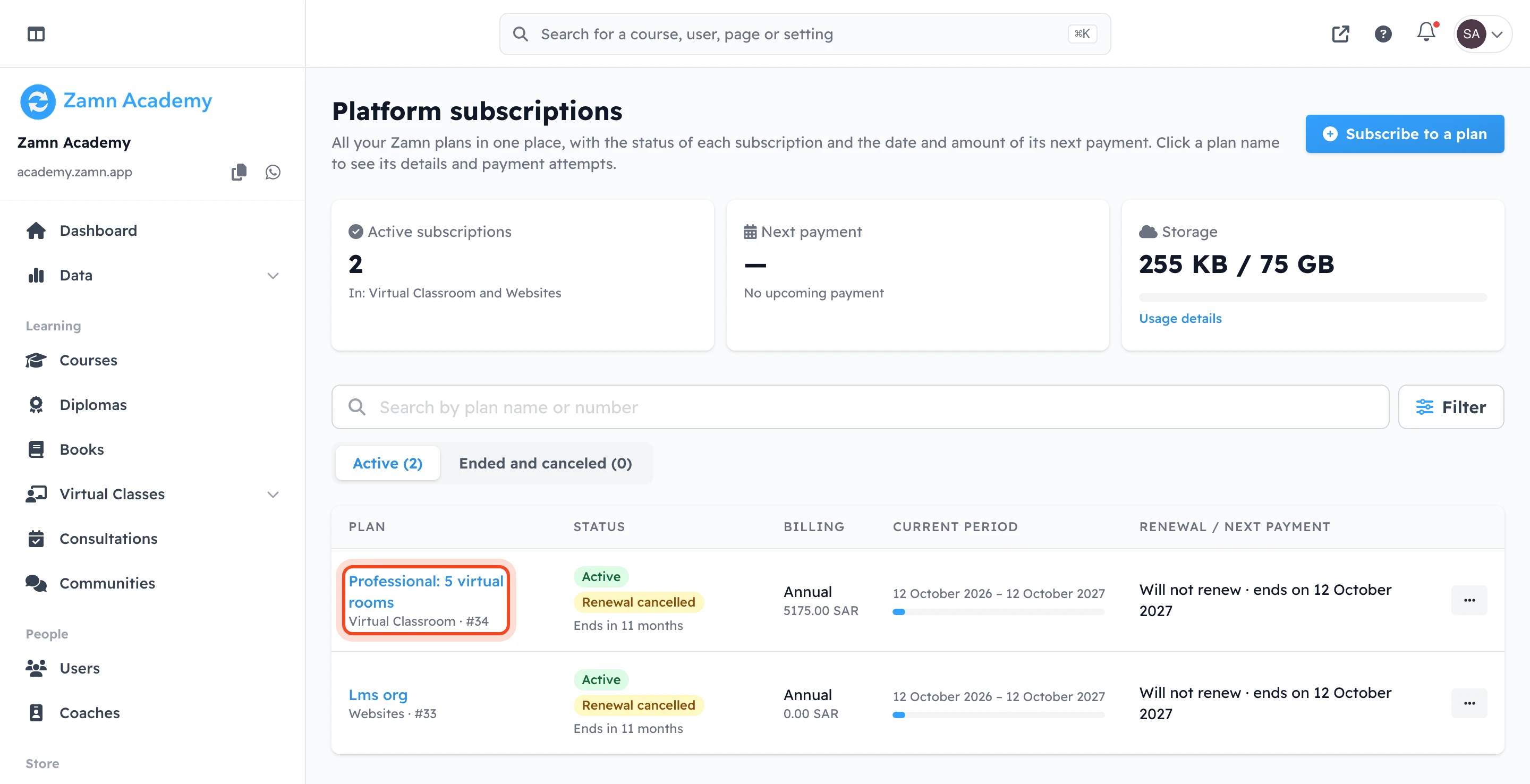
In the Active tab, click the plan name of the subscription you want to cancel. You can also open the ⋯ menu at the end of the subscription row, choose Cancel Subscription and go to step 4.
-
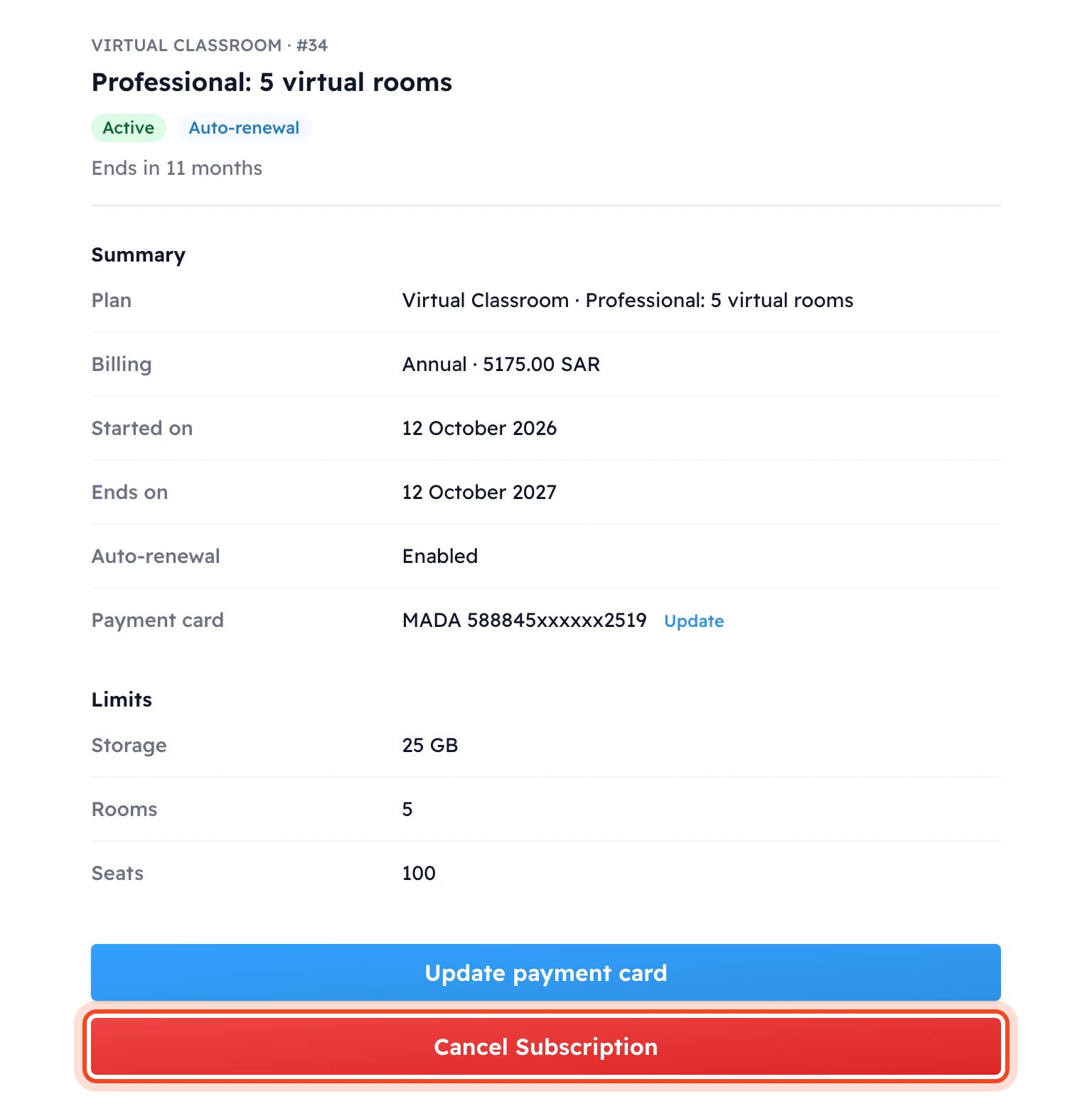
The subscription details open in a side panel. Click Cancel Subscription at the bottom of the panel.
-
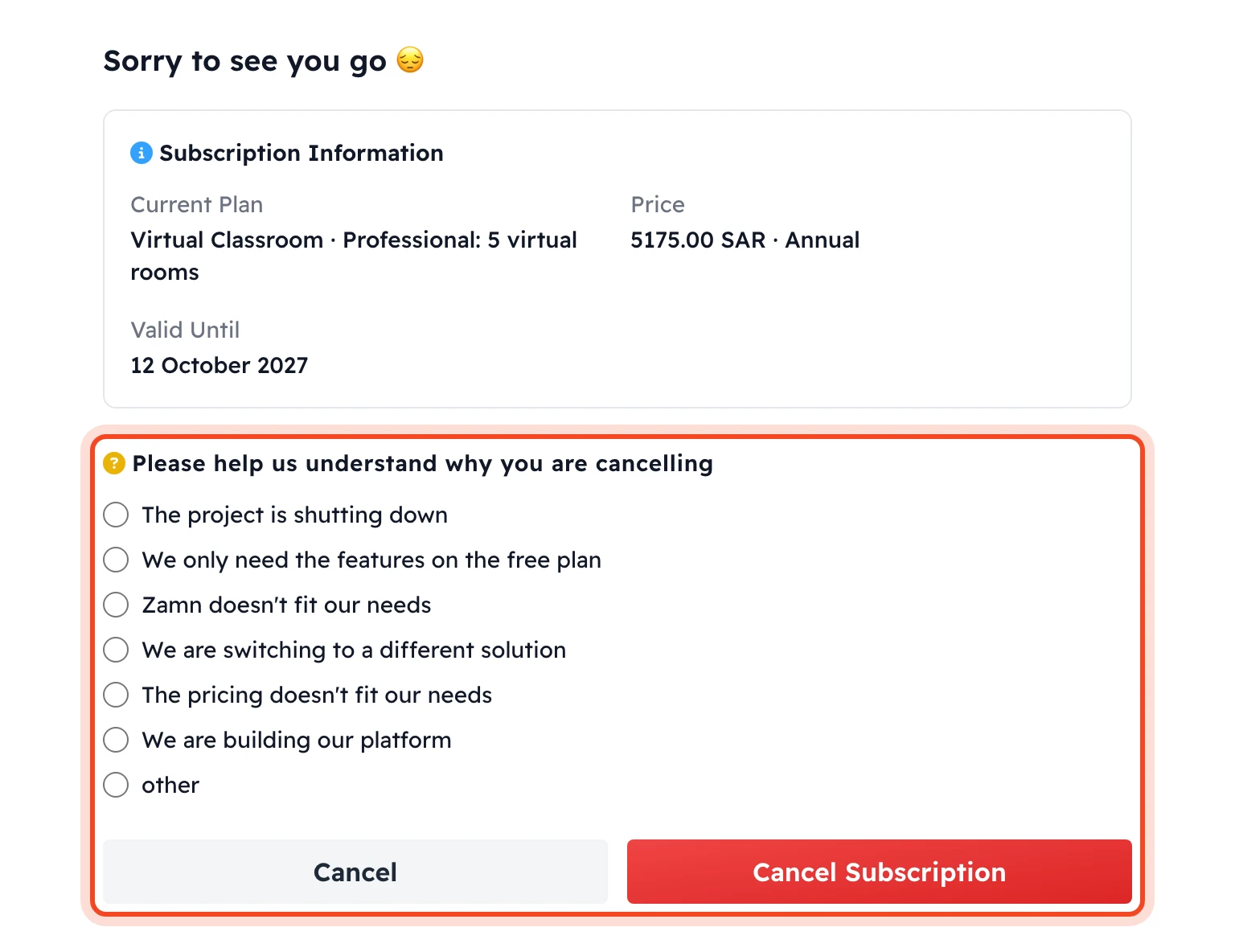
The cancel form opens in the same panel. Choose the reason for canceling, then click Cancel Subscription. If you change your mind, click Cancel to close the panel.
The Cancel Subscription button shows only for subscriptions that still renew by themselves, such as a monthly subscription.
The rest of your subscription period stays active.
If a renewal payment failed, the subscription is in the Needs action tab, and the button is named Stop retries and end the subscription (in the white box with the red Renewal failed label at the top of the page: Stop retries). In this case the subscription ends right away, because its period has already ended.
If you chose to downgrade to a lower Websites plan, canceling the subscription also cancels that downgrade. After you turn off auto-renewal, you can still upgrade your plan, but you cannot downgrade it.