Change or update the payment card of a subscription
This article shows how a platform owner can change the bank card that pays the automatic renewal of a subscription.
Update the payment card
-
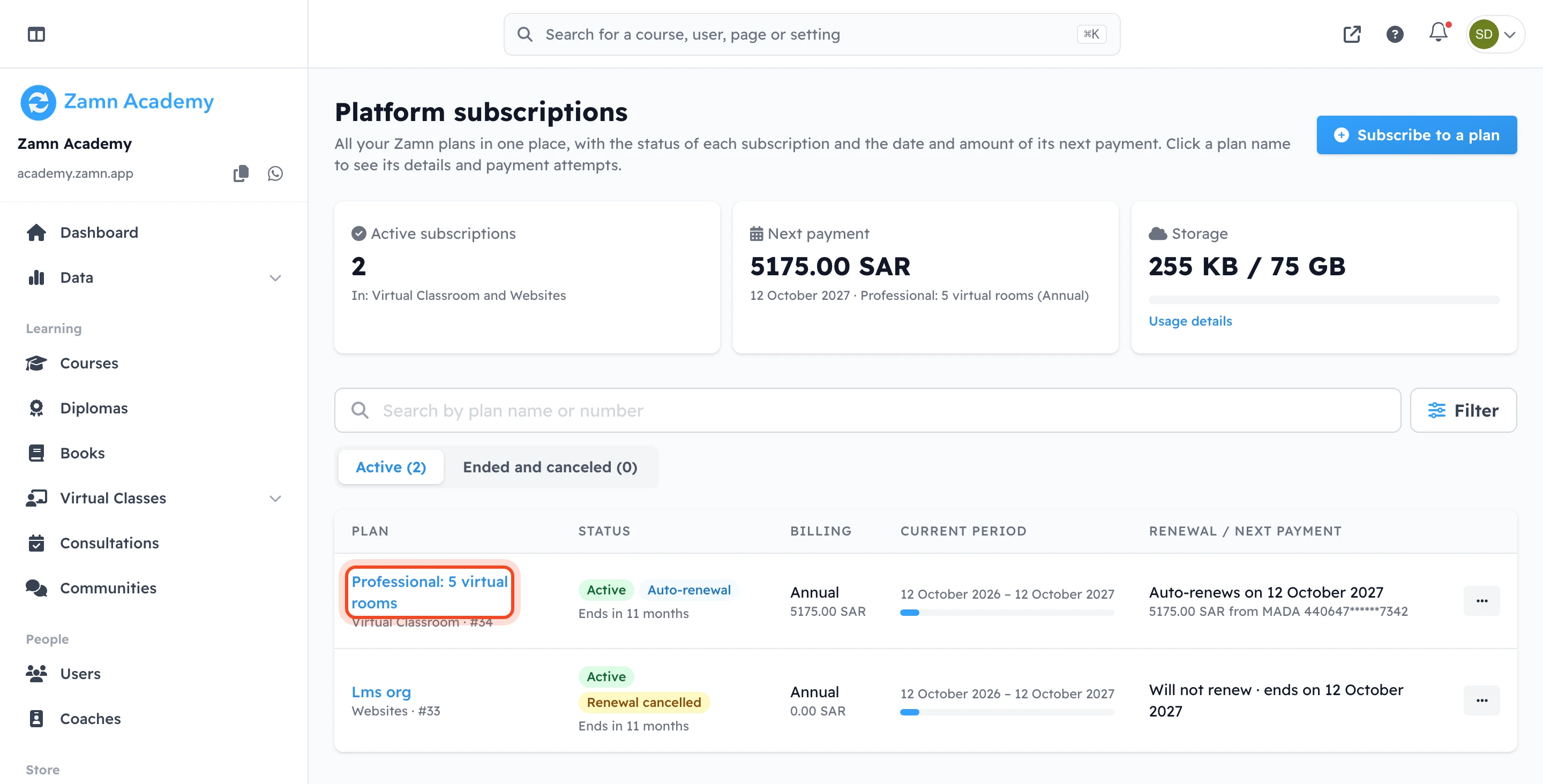
From your platform dashboard, choose Subscription, then Subscriptions.
-
In the Active tab, click the plan name of the subscription whose card you want to change.
-
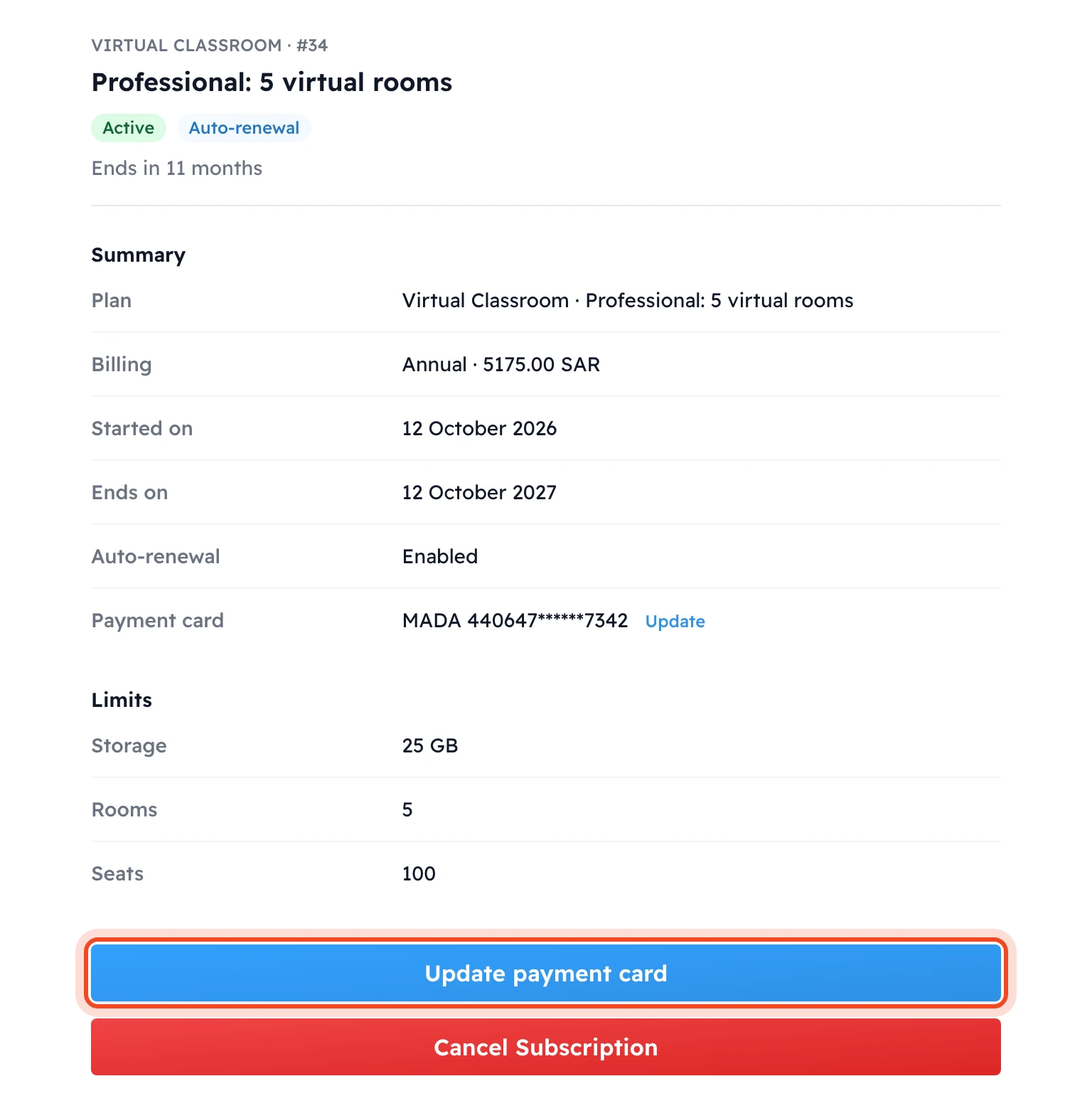
Click Update payment card at the bottom of the details panel. You can also click Update next to Payment card in the panel, or open the ⋯ menu at the end of the subscription row and choose Update payment card.
-
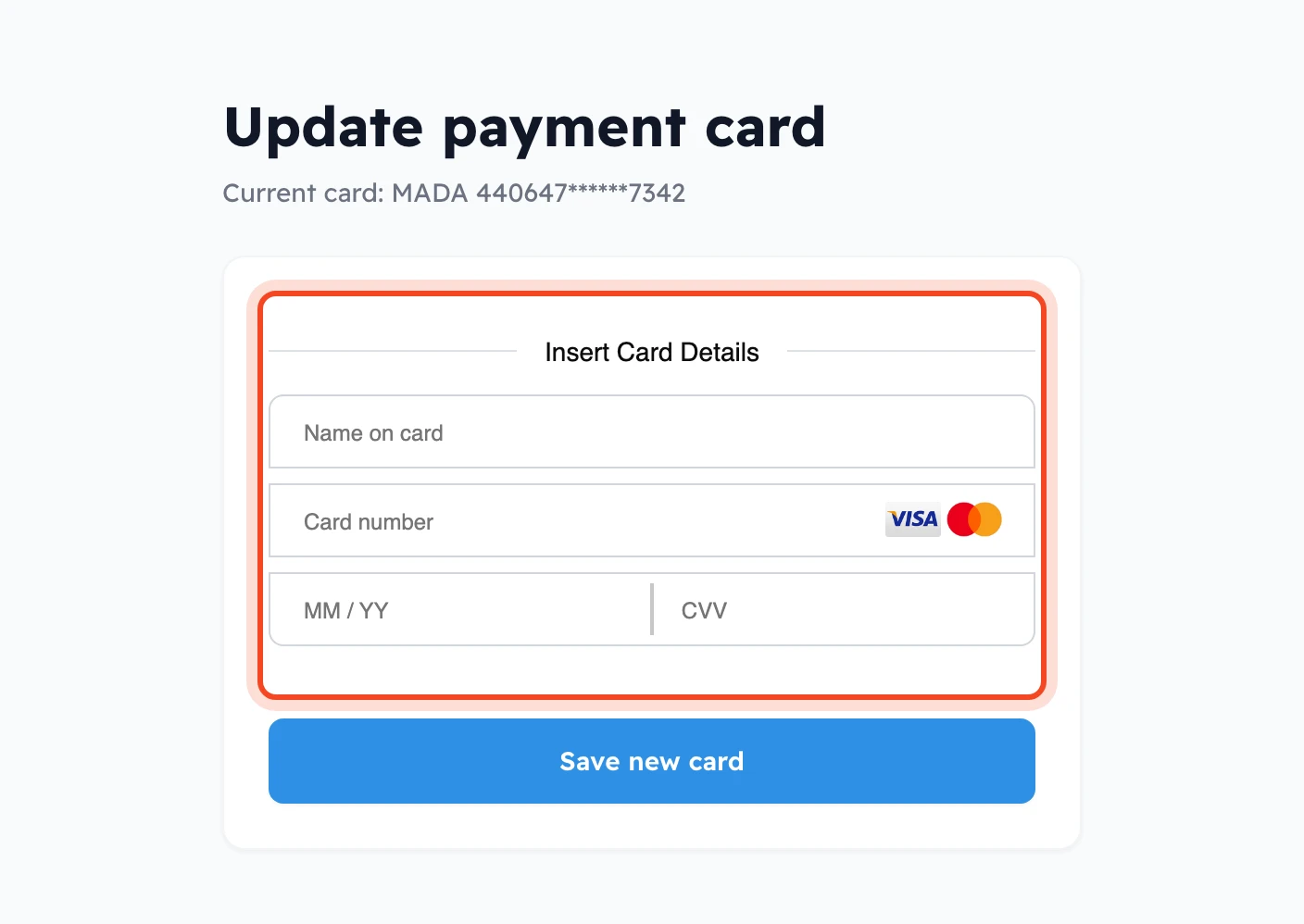
The Update payment card page opens and shows your current card. Enter the new card details.
-
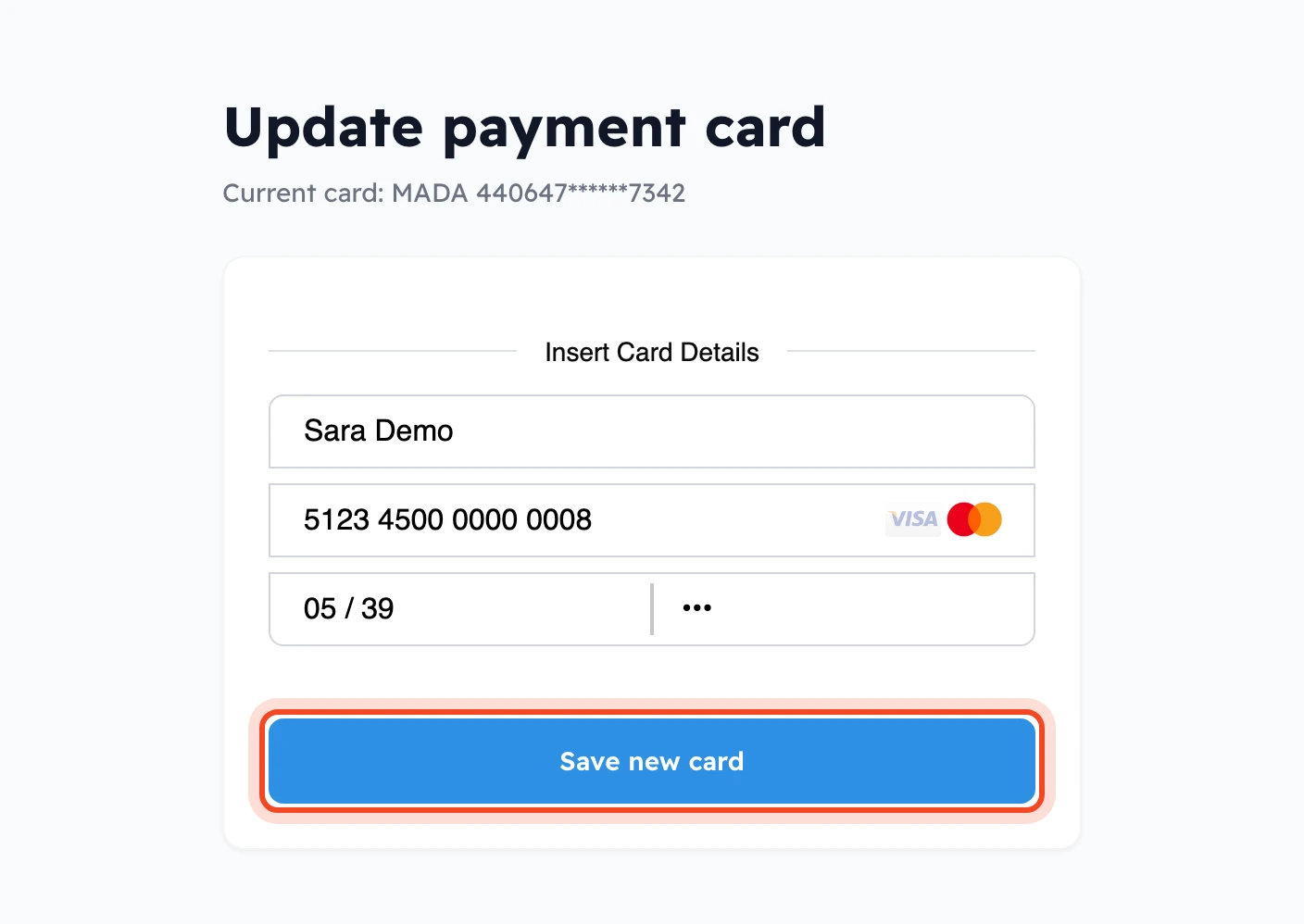
Click Save new card. If your bank asks for a verification code, enter it.
-
You go back to the subscriptions page, and a message tells you that future renewals will use the new card.
No amount is charged when you save the new card. The card is only checked.
If a renewal payment failed, the subscription moves to the Needs action tab, and a white box with a red Renewal failed label at the top of the subscriptions page shows the failed payment attempts and the Update payment card button. After you save the new card, Zamn tries to renew the subscription with it.
If you do not see the Update payment card button
The Update payment card button shows only for subscriptions that renew by themselves. If you do not see the button for a subscription that renews by itself, change the card with these steps:
- Cancel the current subscription. You can cancel at any time, and the subscription stays active until the end of the paid period.
- When the current subscription ends, create a new subscription with the new card details. It is best to do this on the end date of the old subscription, so the service keeps running without a break.
Canceling does not stop the service right away. The rest of your subscription period stays active until it ends.
The new card then becomes your payment method, and future renewals are charged to it.