Change the room subscription
If you have more than one virtual room subscription, you can choose the subscription each room uses.
Steps to change the room subscription
-
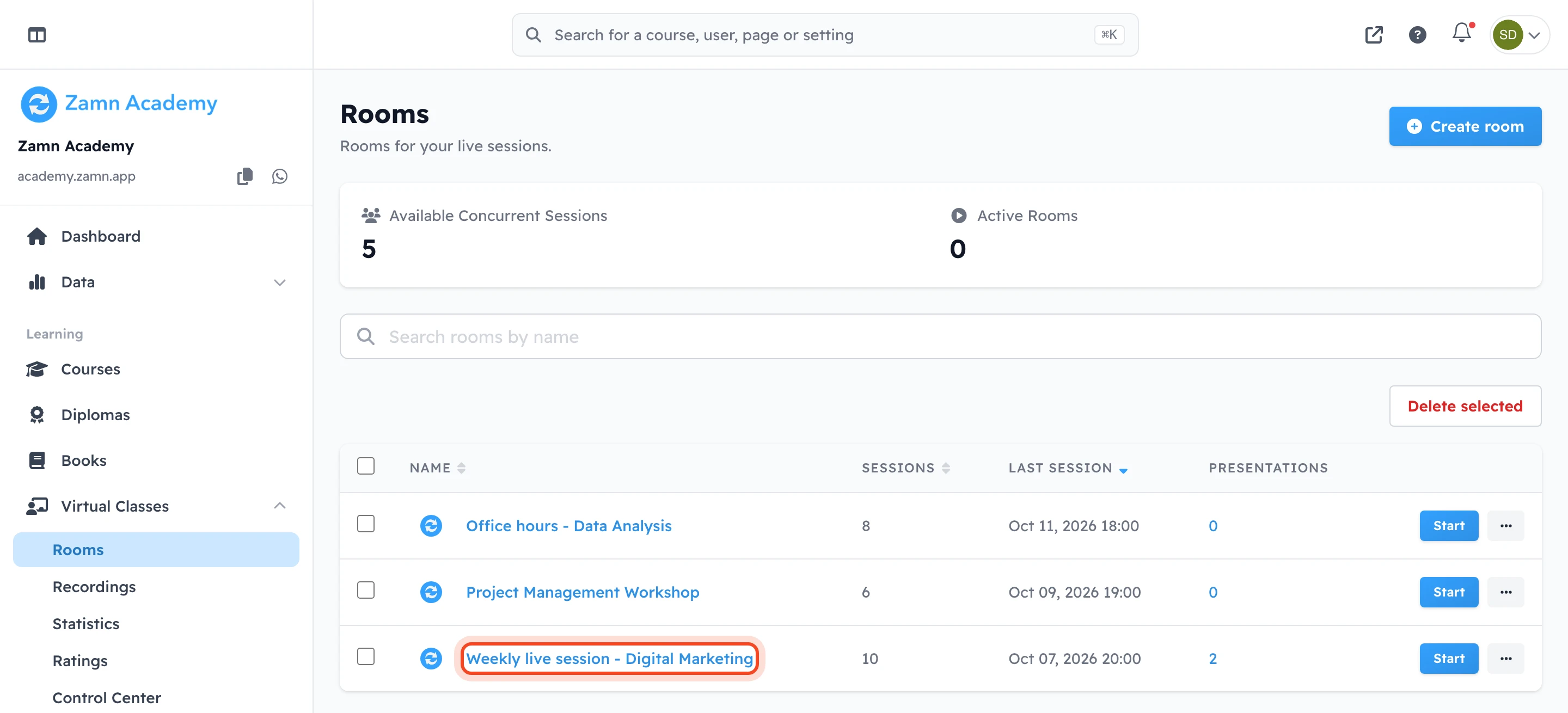
From the dashboard, click Virtual Classes, then choose Rooms.
-
Click the room name to open its page.
-
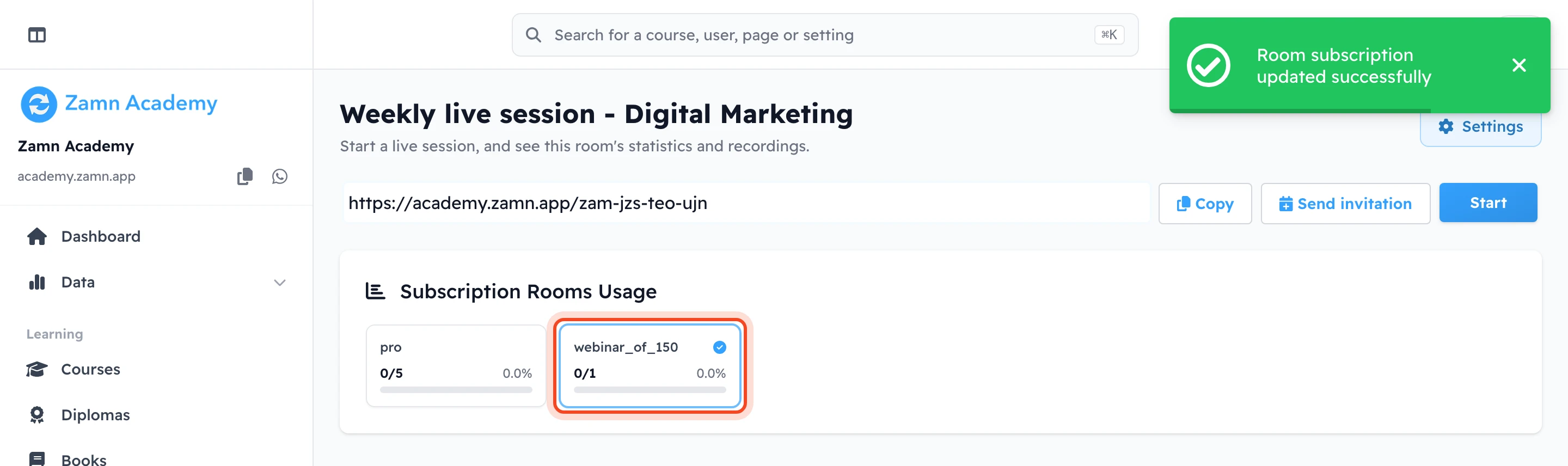
In the Subscription Rooms Usage panel, click the subscription you want the room to use. A check mark shows next to the chosen subscription, with the message Room subscription updated successfully.
You can also choose the subscription from the room's Settings, in the Subscription field, then click Update.
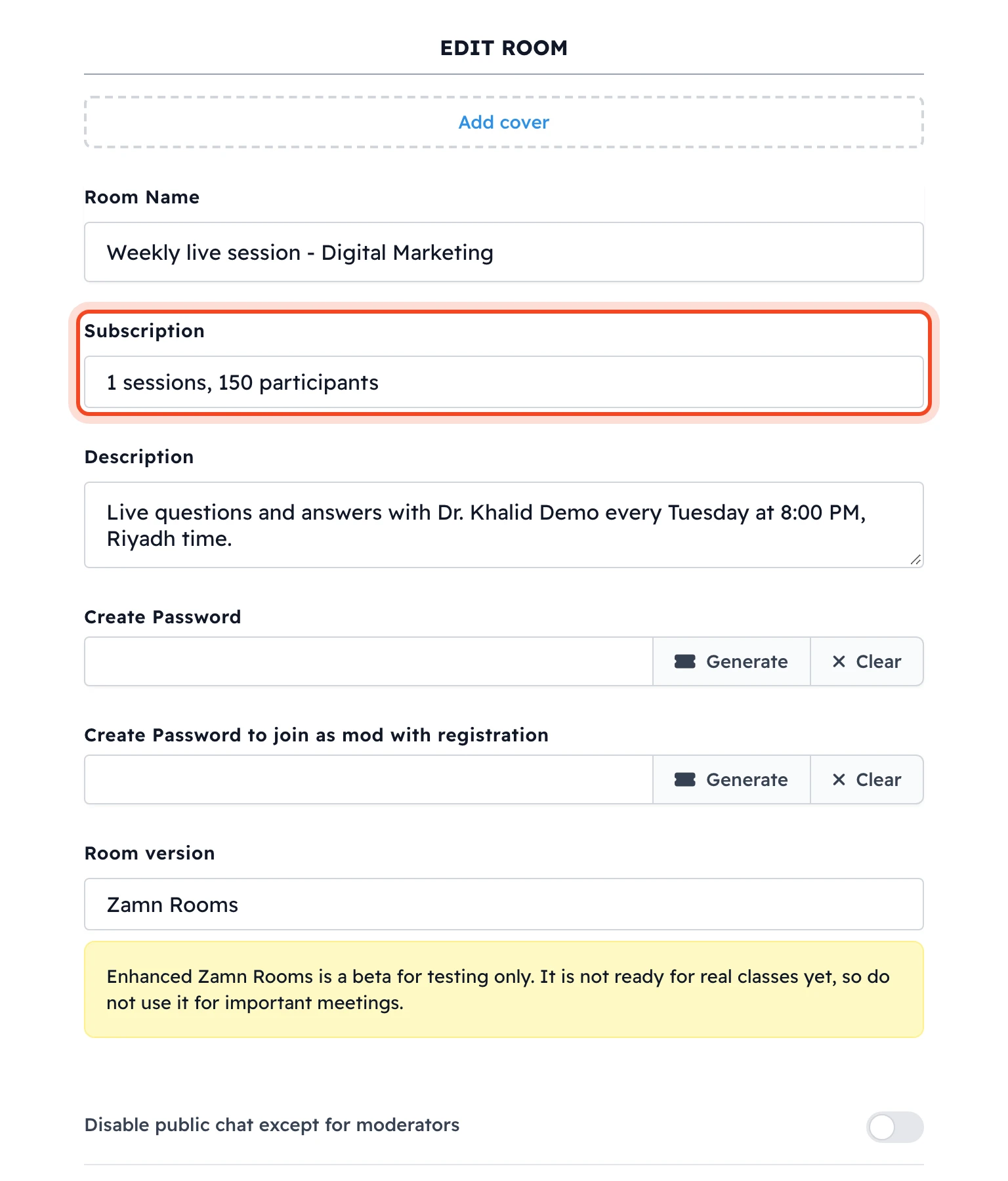
The Subscription Rooms Usage panel shows only when you have more than one virtual room subscription with different seat counts. You cannot change the subscription while the room is active.
With a virtual room plan, a room can stay open for up to 330 minutes in a row.
Only the platform admin can change the subscription. Coaches cannot do it.
If you do not link the room to the subscription you need, the room may open with the free plan seat limit (50 seats only).