Turn maintenance mode on and off
Maintenance mode lets you stop access to your platform for a short time to make updates or fixes, while keeping your site's standing in search engines.
Steps to turn on maintenance mode
-
Sign in to your platform's dashboard.

-
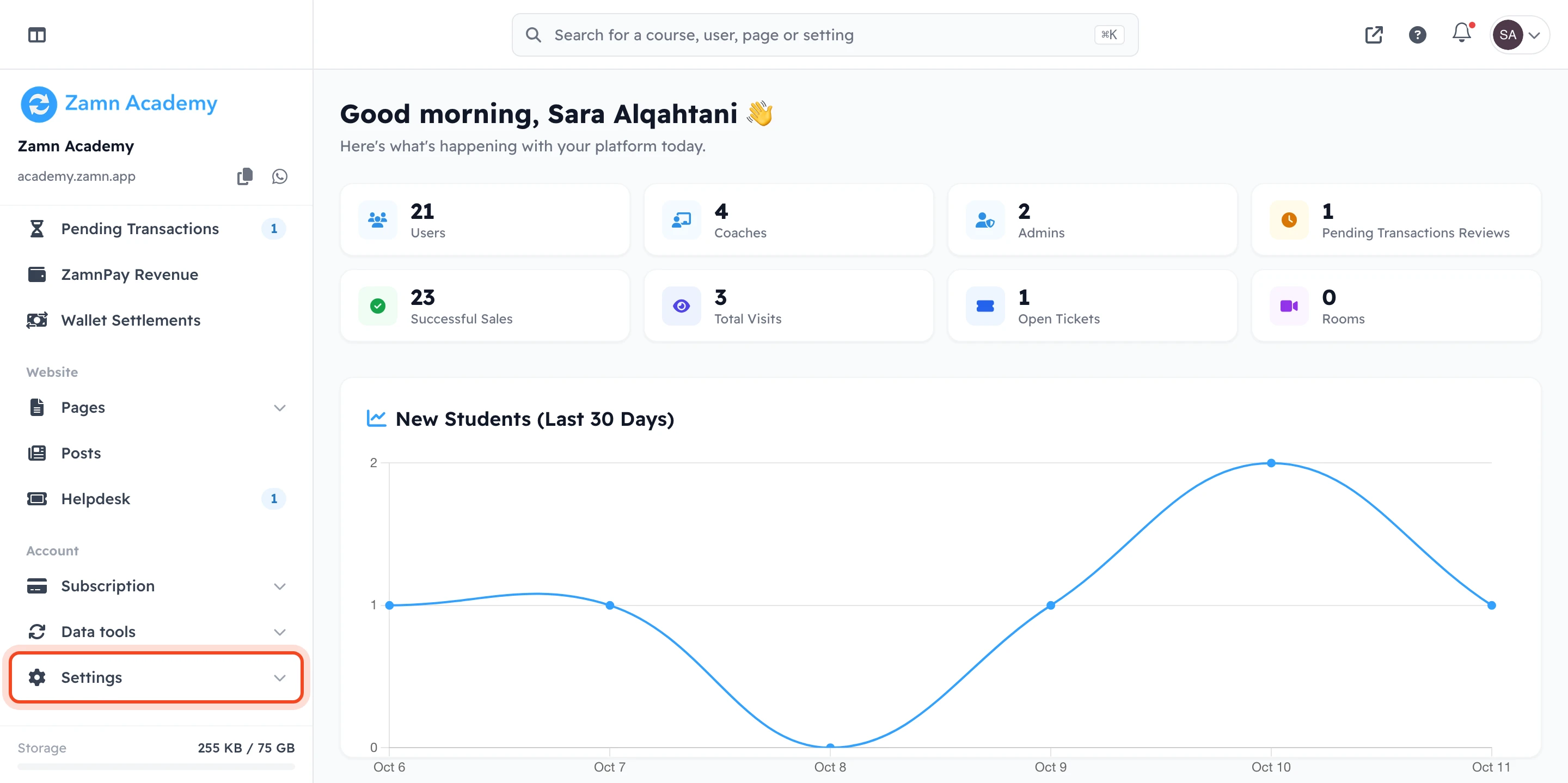
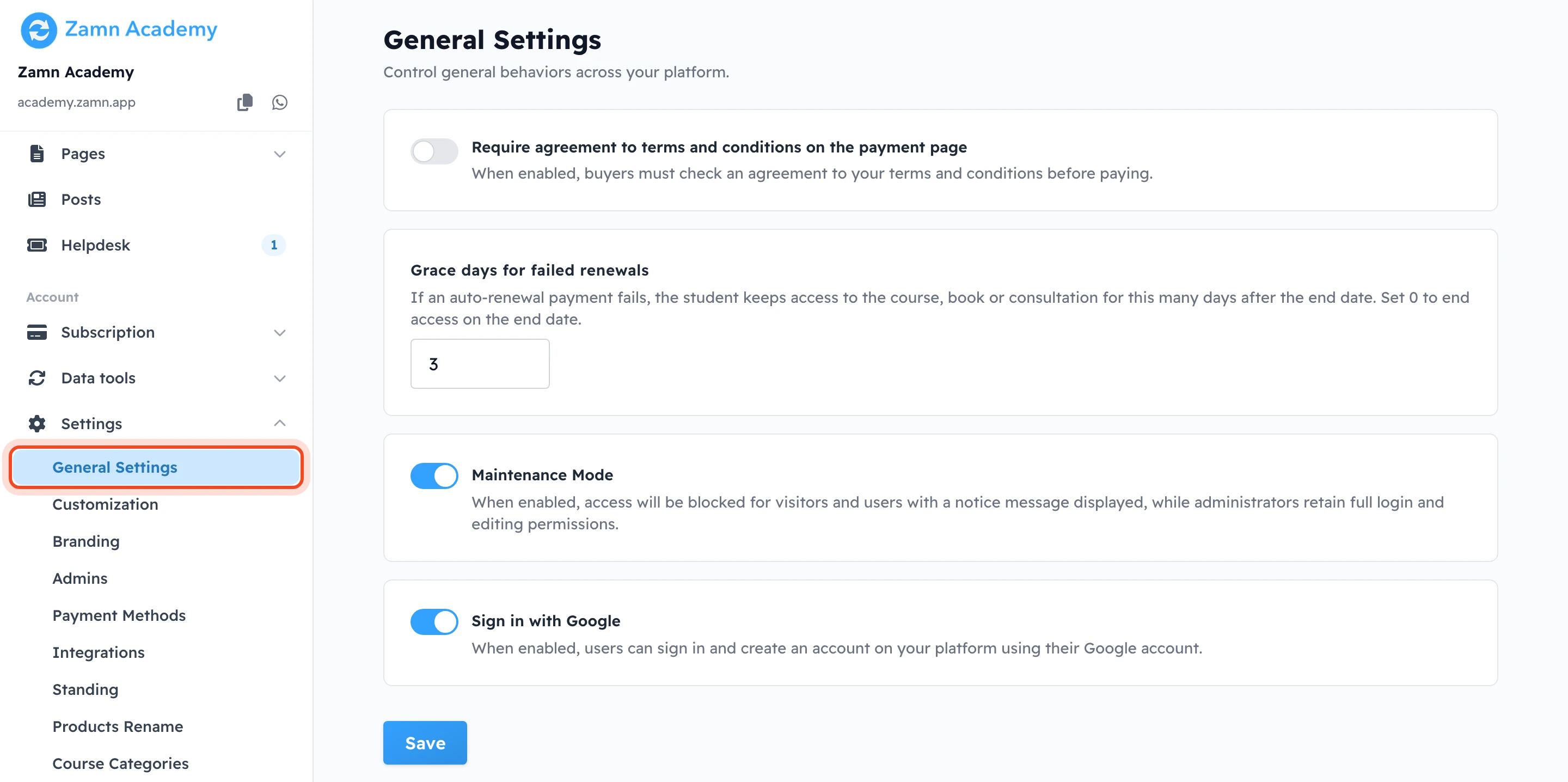
From the main menu, click Settings.
-
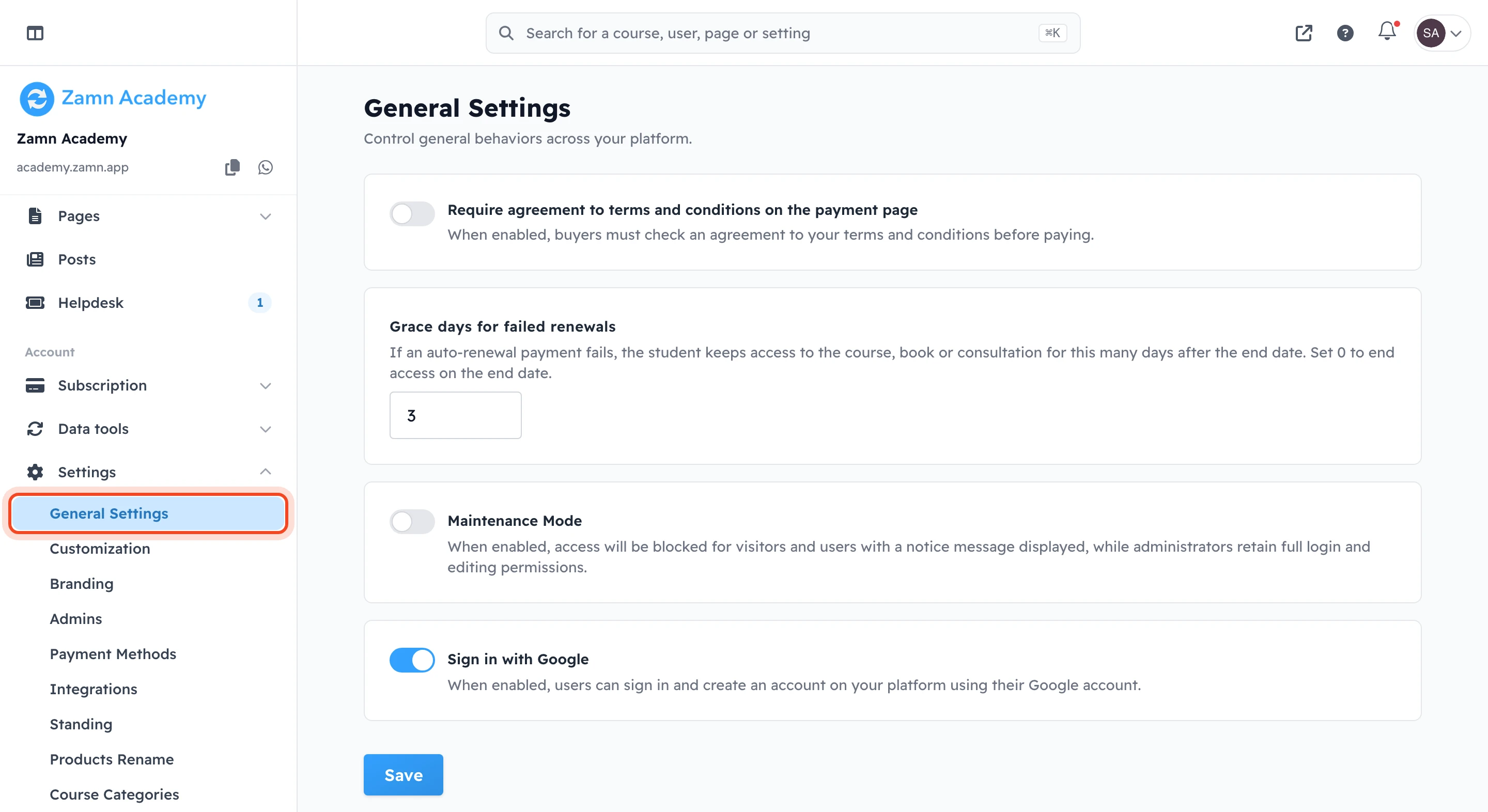
Choose General Settings.
-
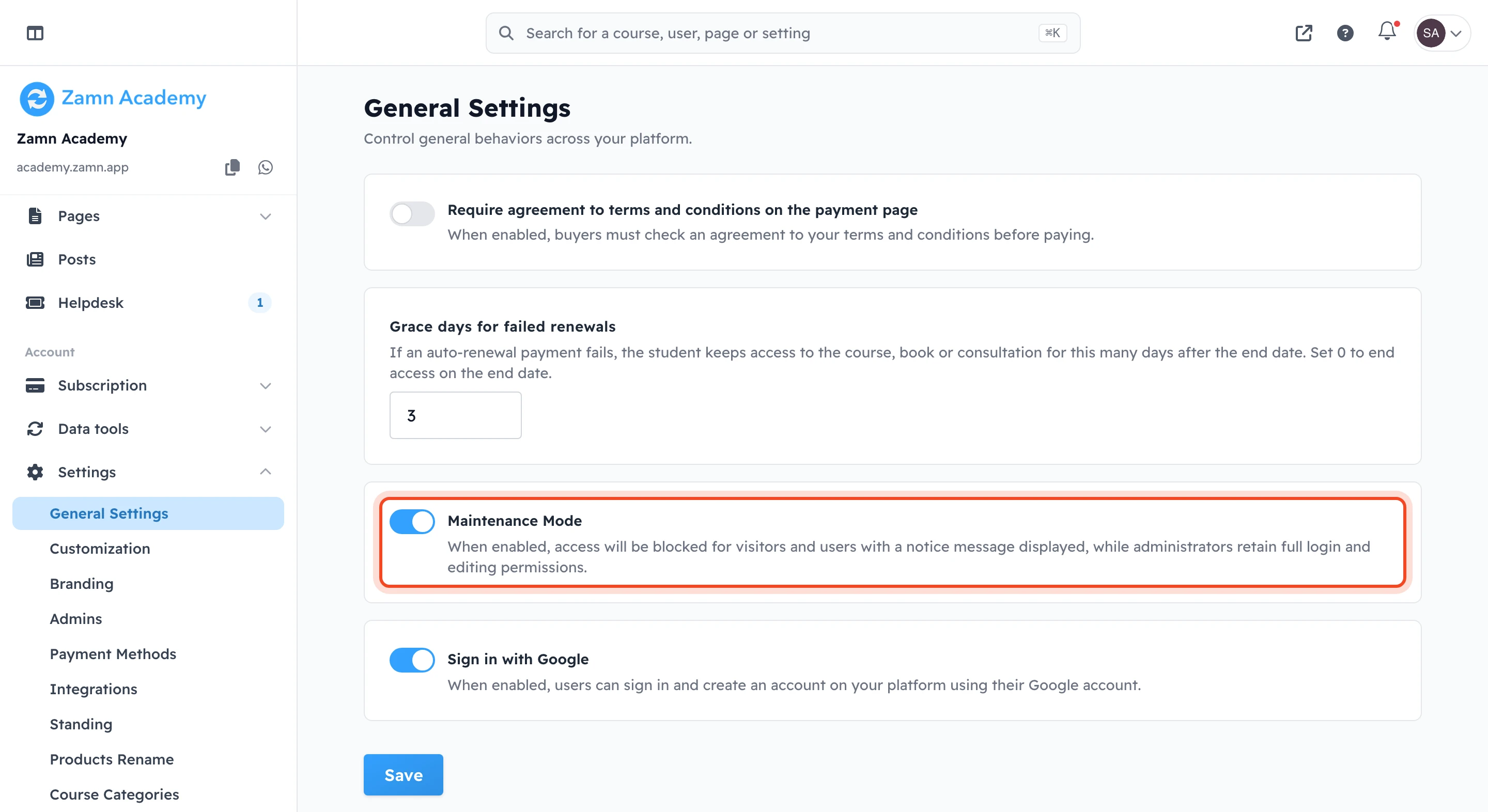
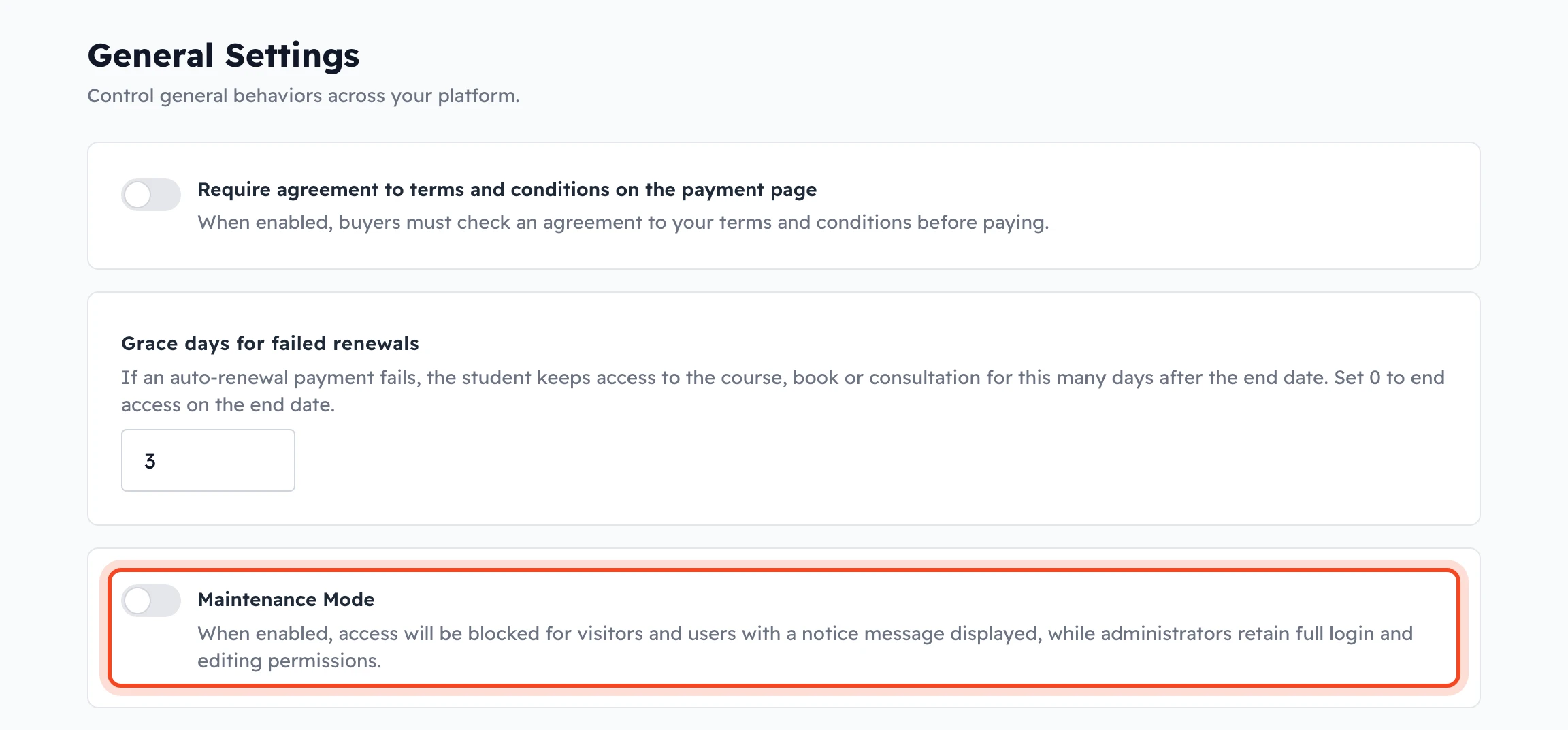
Turn on Maintenance Mode.
-
Click Save to apply the changes.
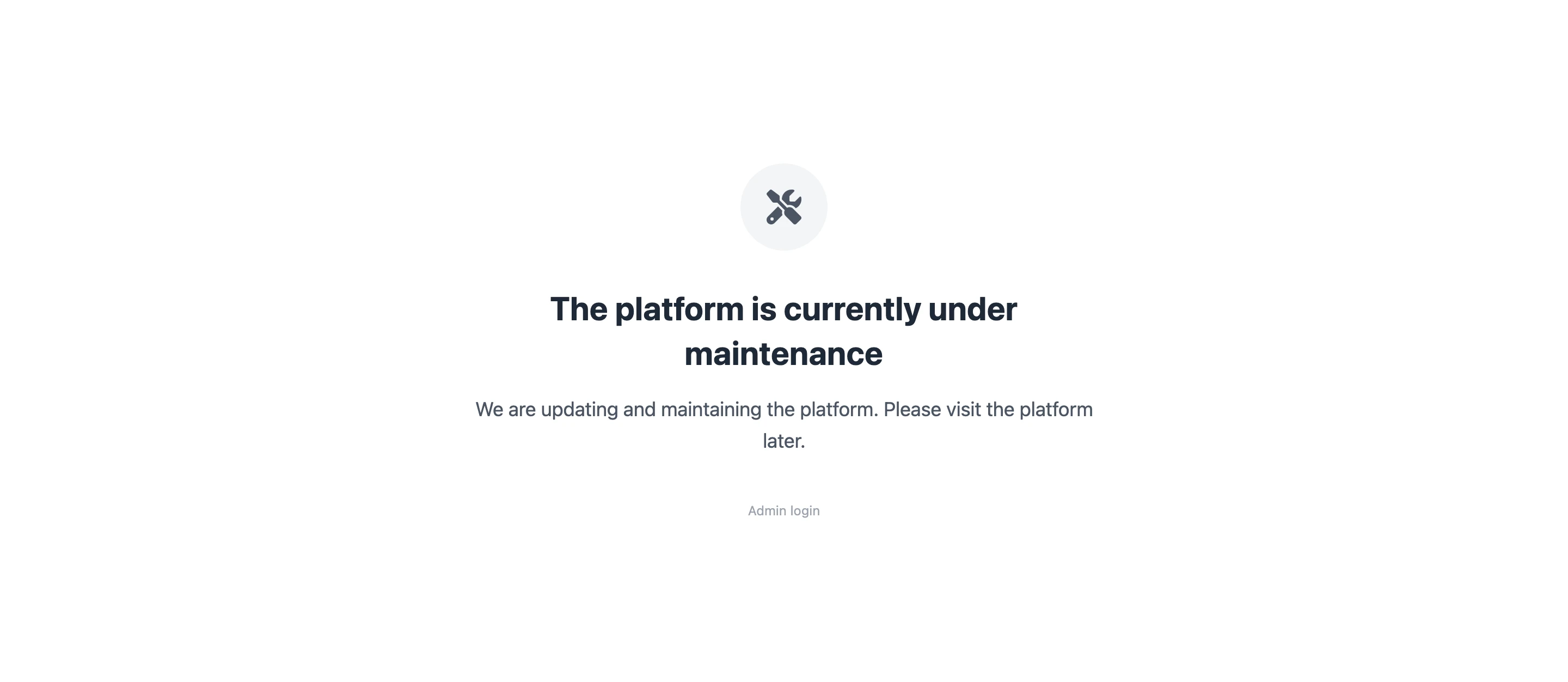
After you save, maintenance mode is on, and visitors see this page:
Note
When maintenance mode is on:
- Students cannot sign in or create new accounts. Students or coaches who are already signed in see the maintenance page on every page they open.
- Only platform admins can browse the site, in preview mode. They can sign in from the Admin login link on the maintenance page.
- This setting is search engine friendly (SEO). Pages return a "temporarily unavailable" status, which helps keep your site's ranking.
- We advise you not to keep maintenance mode on for more than two days, so your search engine ranking is not affected.
Turn off maintenance mode and open the platform again
-
From Settings, choose General Settings.
-
Turn off Maintenance Mode.
-
Click Save.
As soon as you save, the platform works again and users can reach it.
tip
While maintenance mode is on, a warning bar shows at the top of the dashboard pages. Click Activate platform in it to go straight to the General Settings page.