Export room reports
This article shows platform admins how to download the report of a virtual room session as a file.
Session reports are saved only if you have an active subscription to one of the Virtual Classroom plans, or during the free trial. If not, the Statistics page shows a message that asks you to upgrade your subscription.
Steps to export a room report
-
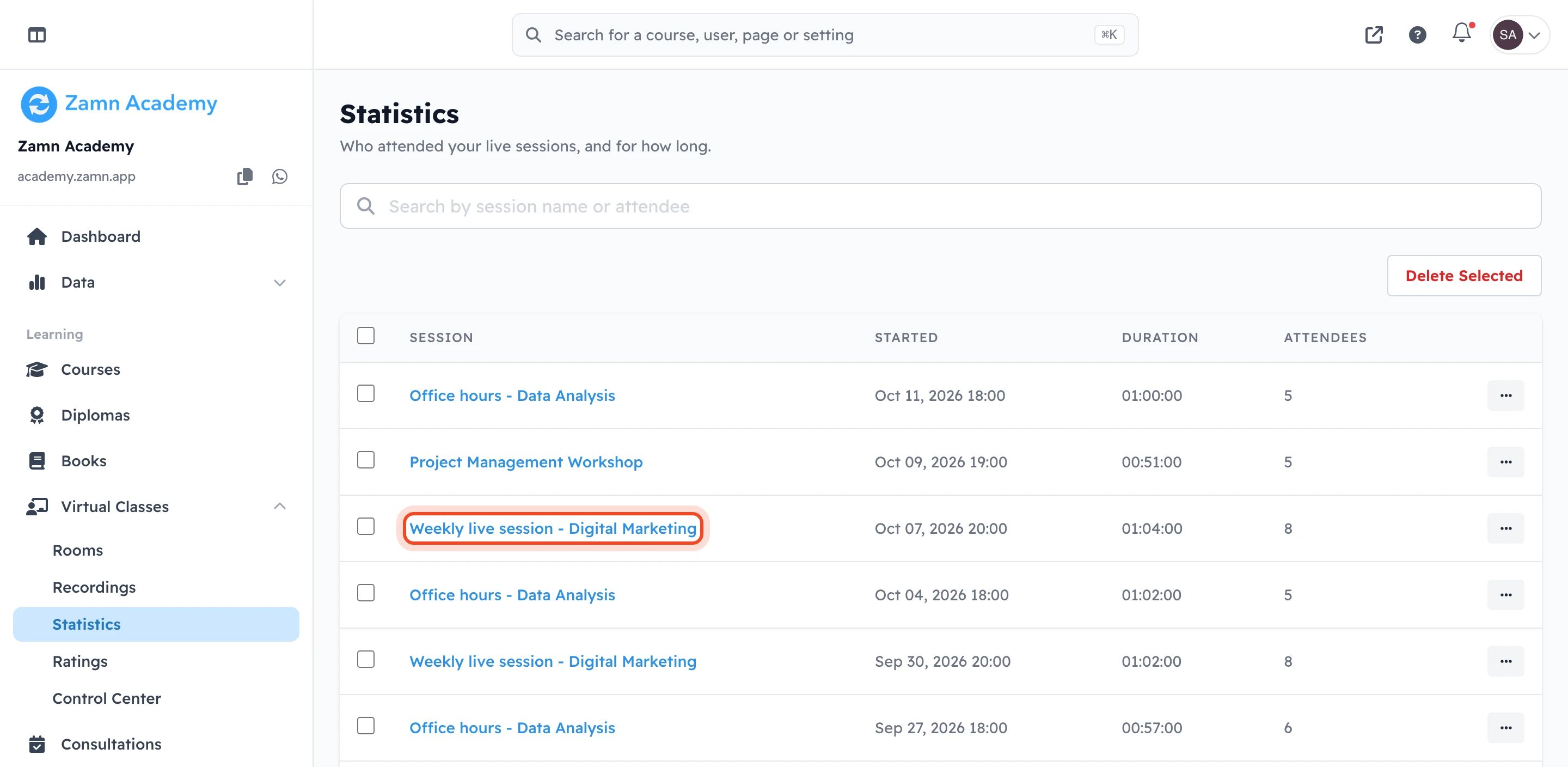
From your platform dashboard, click Virtual Classes, then choose Statistics.
-
Click the name of the room session you want to export.
-
Click the ⋯ (Actions) button at the top of the session report, then click Download CSV or Download Excel, depending on the format you want. The file starts downloading.
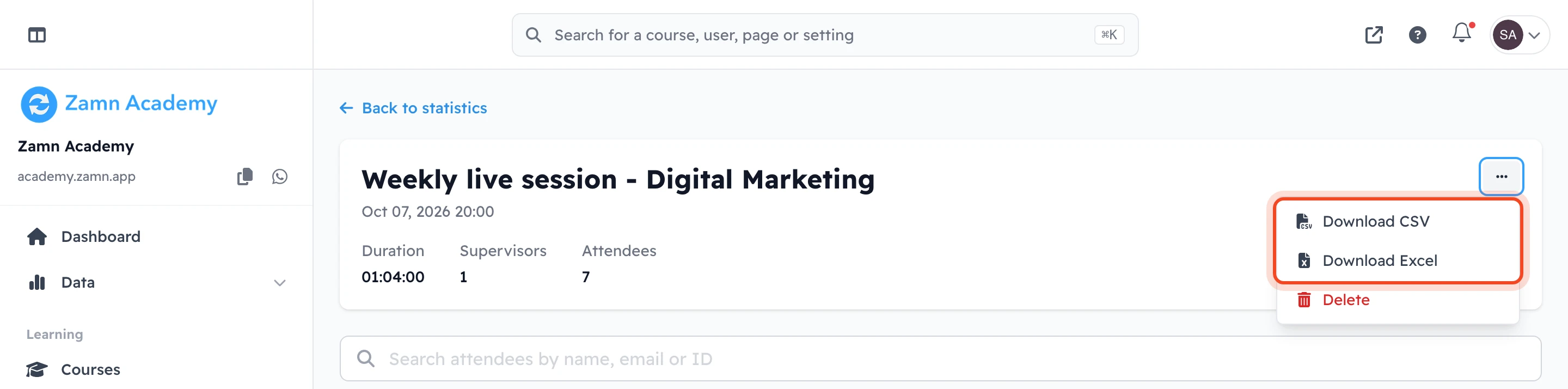
You can also download the report right from the sessions list: click ⋯ at the end of the session row.
What the file contains
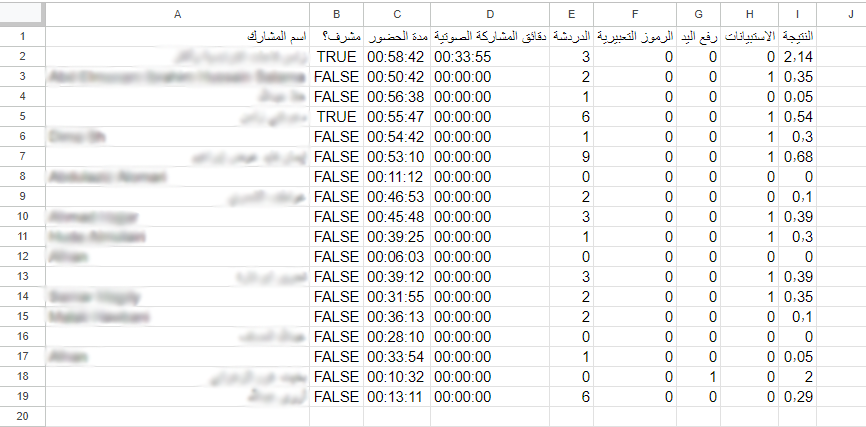
The image below shows an example of the information in the file.