Virtual class (room) session reports
Reports for virtual room sessions are saved automatically. You do not need to turn anything on. This article shows platform admins how to open a session report and download it.
Steps to open a room session report
-
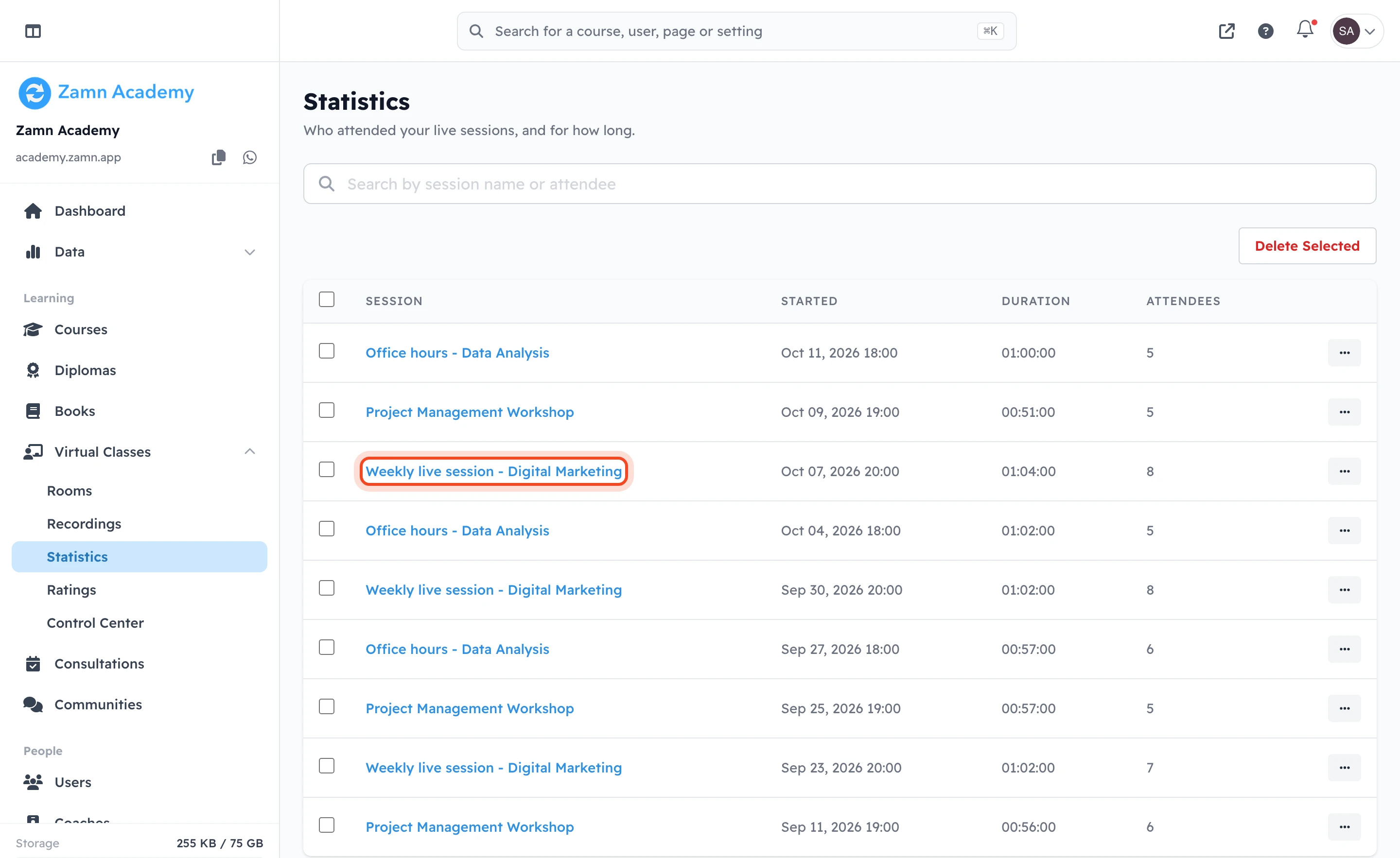
From your platform dashboard, click Virtual Classes.
-
Choose Statistics. All sessions show in a table by date, from newest to oldest.
-
Click the name of the session you want to see the report for.
What the report shows
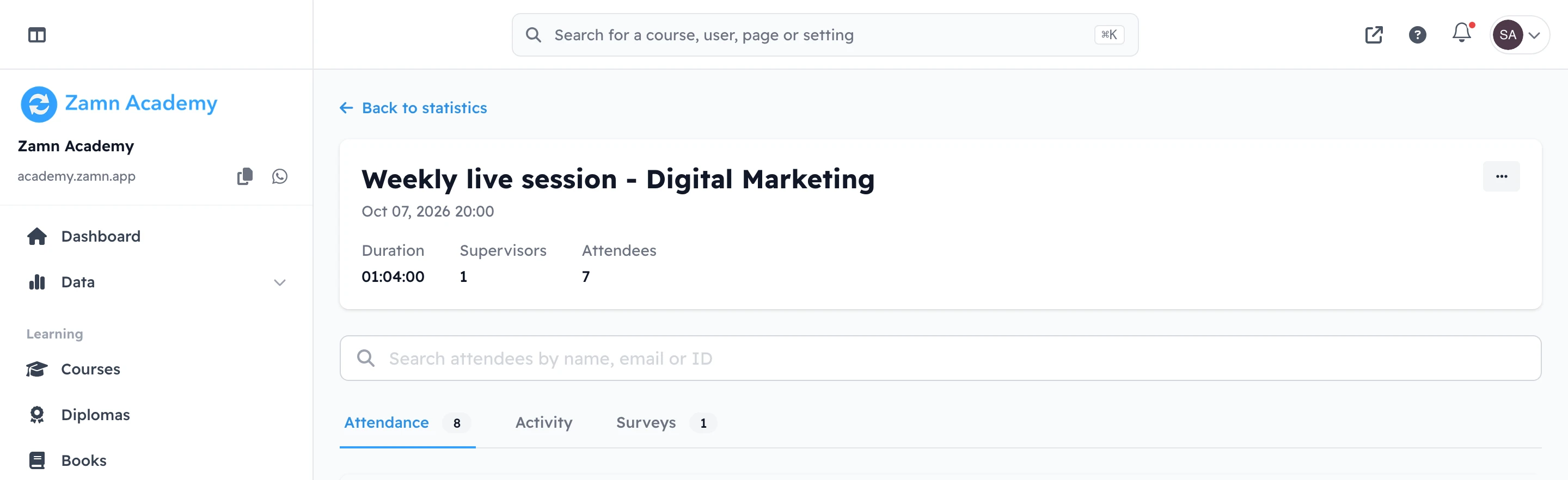
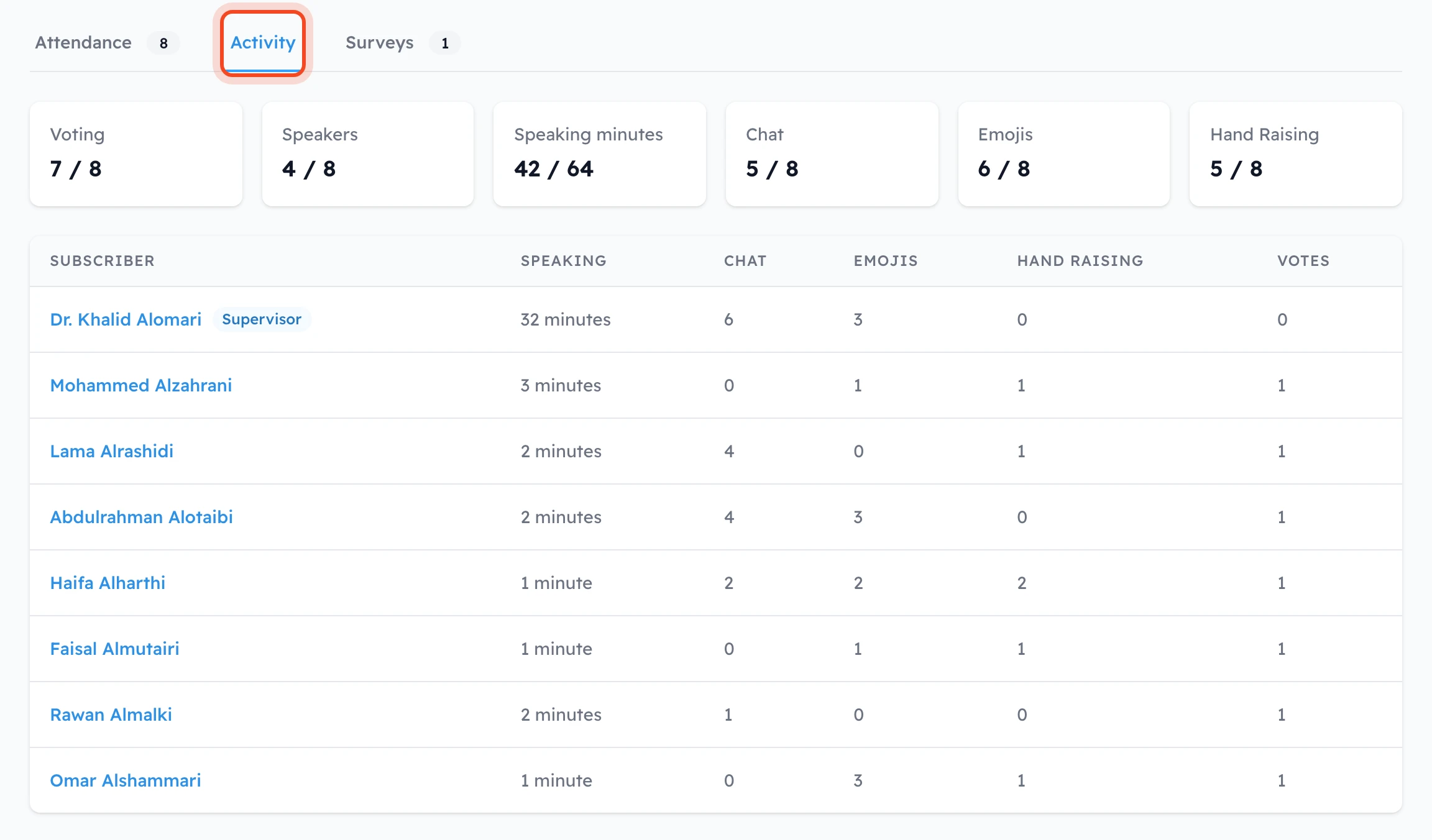
The top of the report shows a summary of the session: Duration, Supervisors and Attendees. Below it there are three tabs: Attendance, Activity and Surveys.
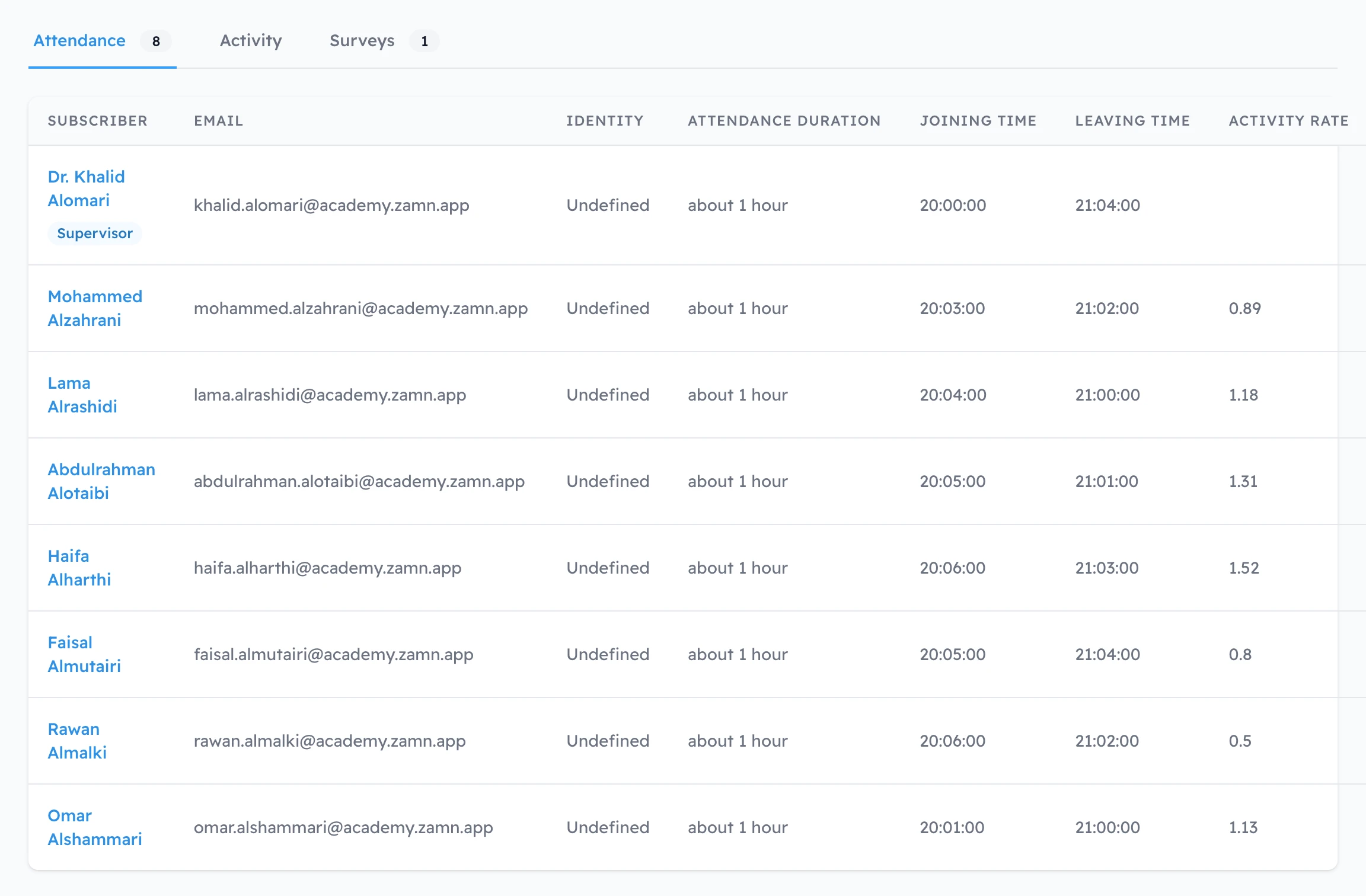
The images below show a sample of the information in the report.
Room moderators have a Supervisor label next to their name.
Click the Activity tab to see a table with each attendee's activity: speaking, chat, emojis, hand raising and votes. If the attendee has an account on your platform, click their name to open their page in the dashboard.
Download the report
-
Click the ⋯ (Actions) button at the top of the report.
-
Click Download CSV or Download Excel.
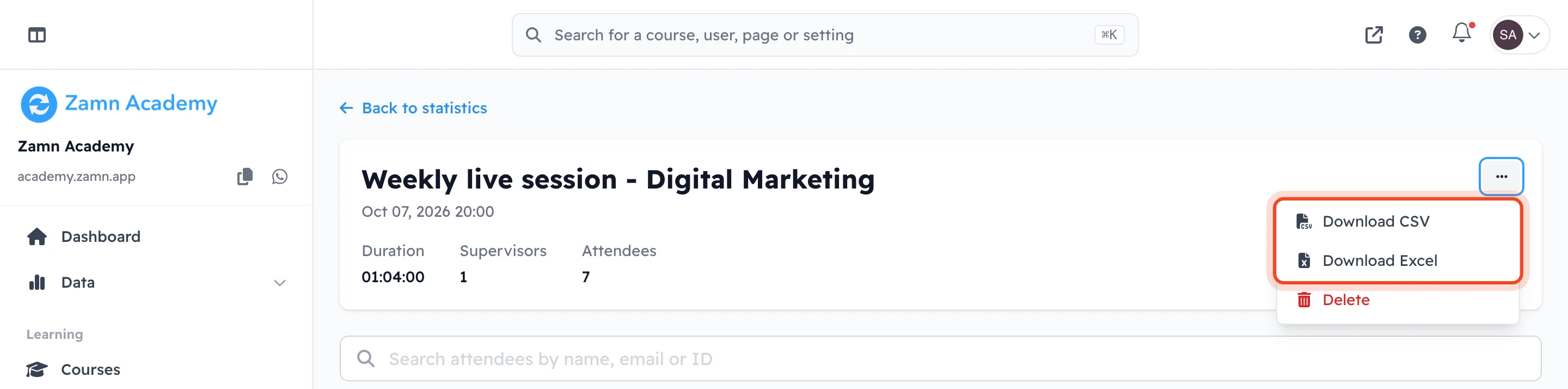
You can also download the report from the Statistics page: click ⋯ at the end of the session row, then click Download CSV or Download Excel.
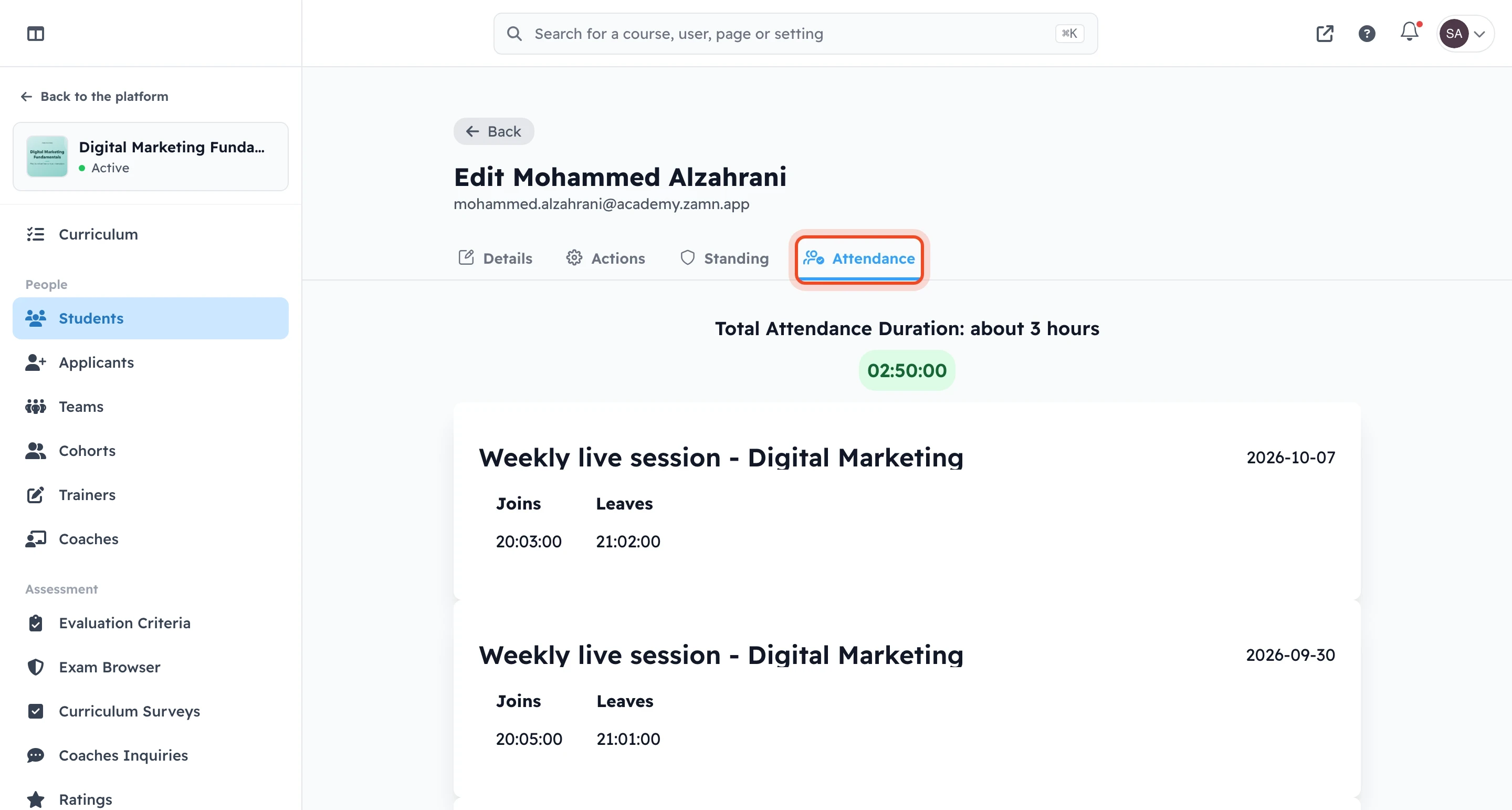
Attendance report for each student
If the room is added to the course, you can also see a detailed attendance report for each student:
-
Open the course, then choose Students.
-
Choose the student.
-
Open the Attendance tab.