Create breakout rooms (workshops) in an online room
Breakout rooms (workshops) help you split the room's attendees into small groups, each with its own room. This article shows room moderators how to create and manage breakout rooms.
Breakout rooms are only available when the room uses one of these Virtual Classroom plans: Webinar, Advanced, Professional: 5 virtual rooms or Professional Plus: 10 virtual rooms. On the Basic and Basic+ plans, on the free plan and during the free trial, the Create breakout rooms option does not show in the room.
How to create breakout rooms
-
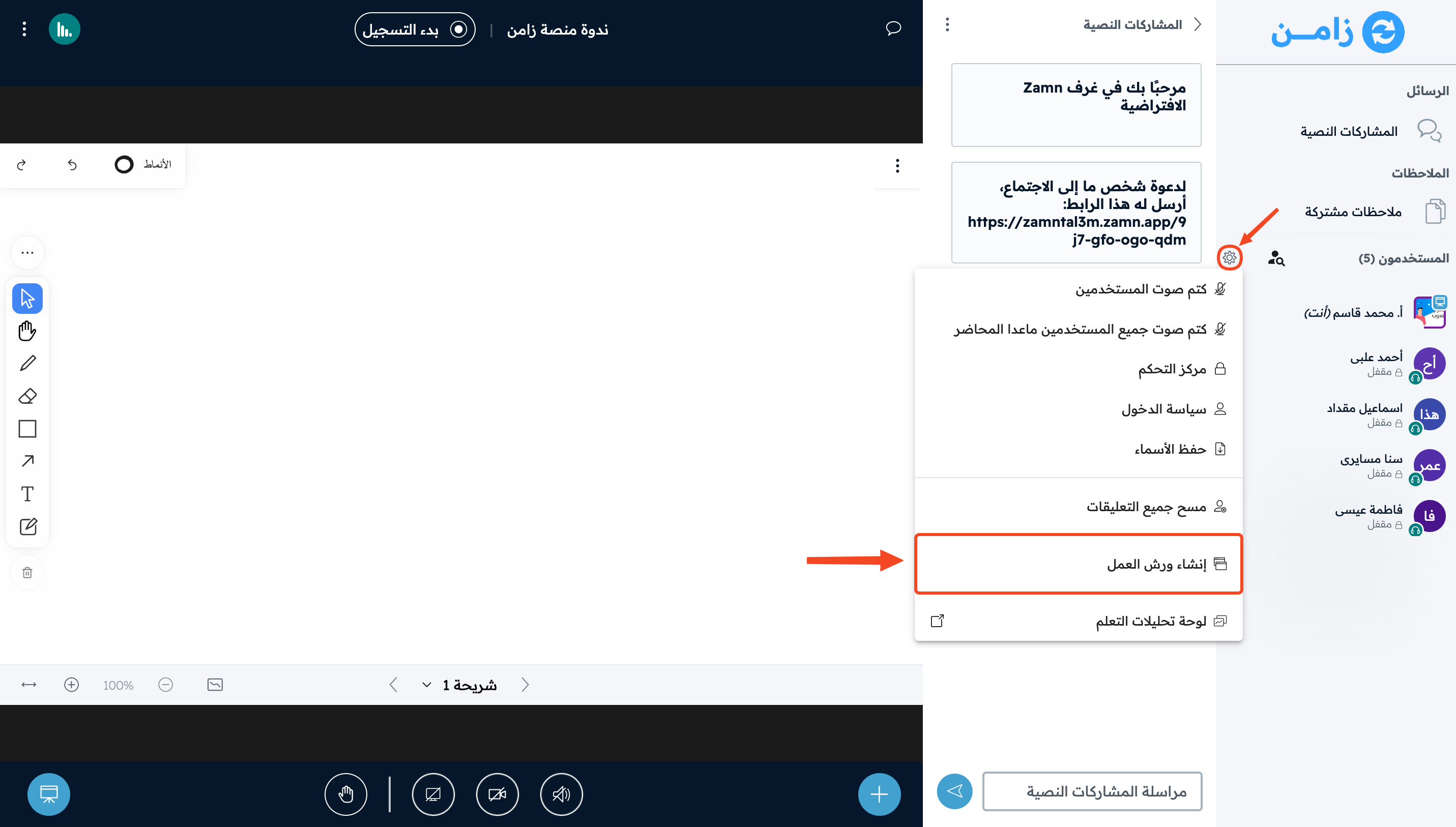
Click the settings button (the gear icon) next to Users, then choose Create breakout rooms.
-
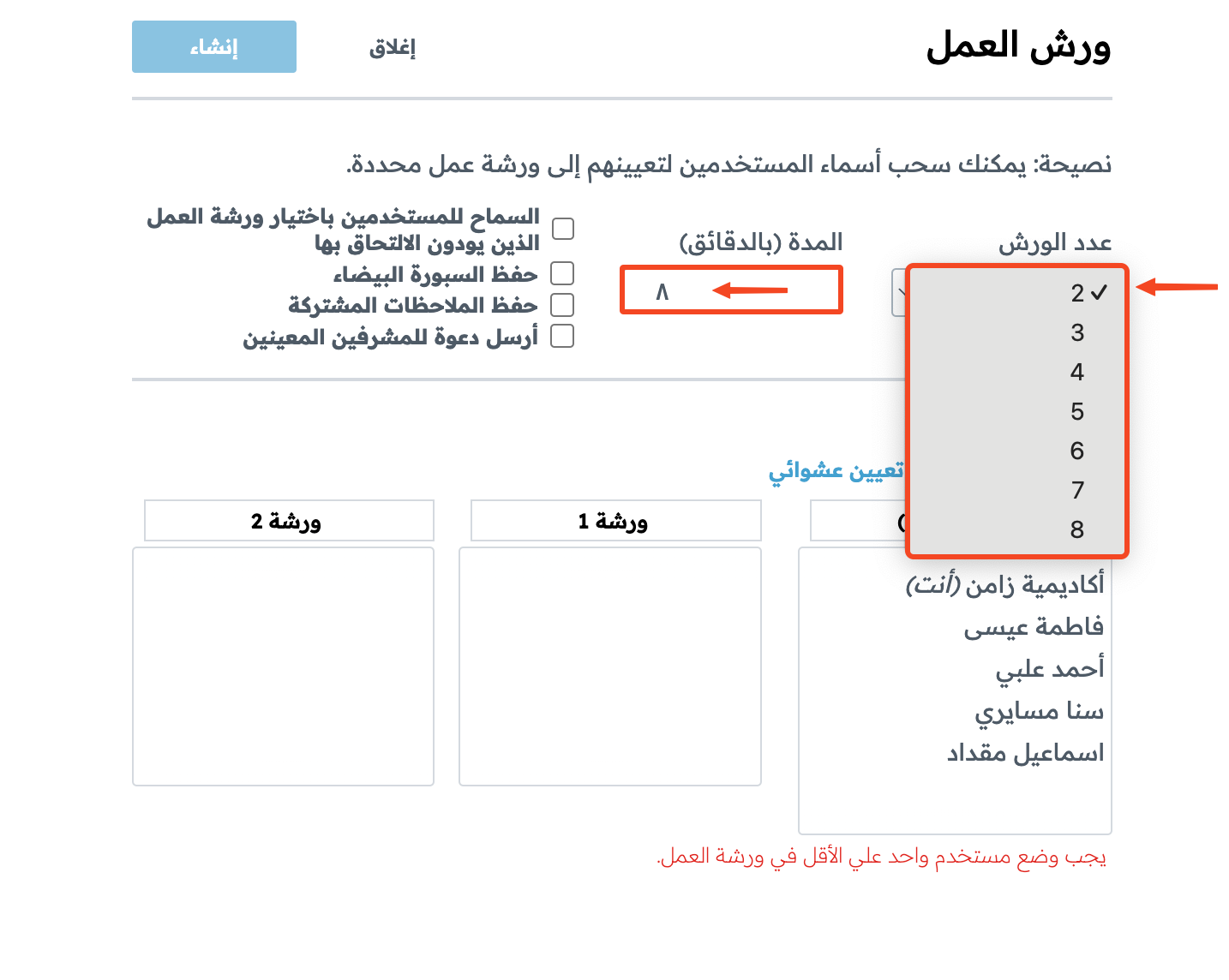
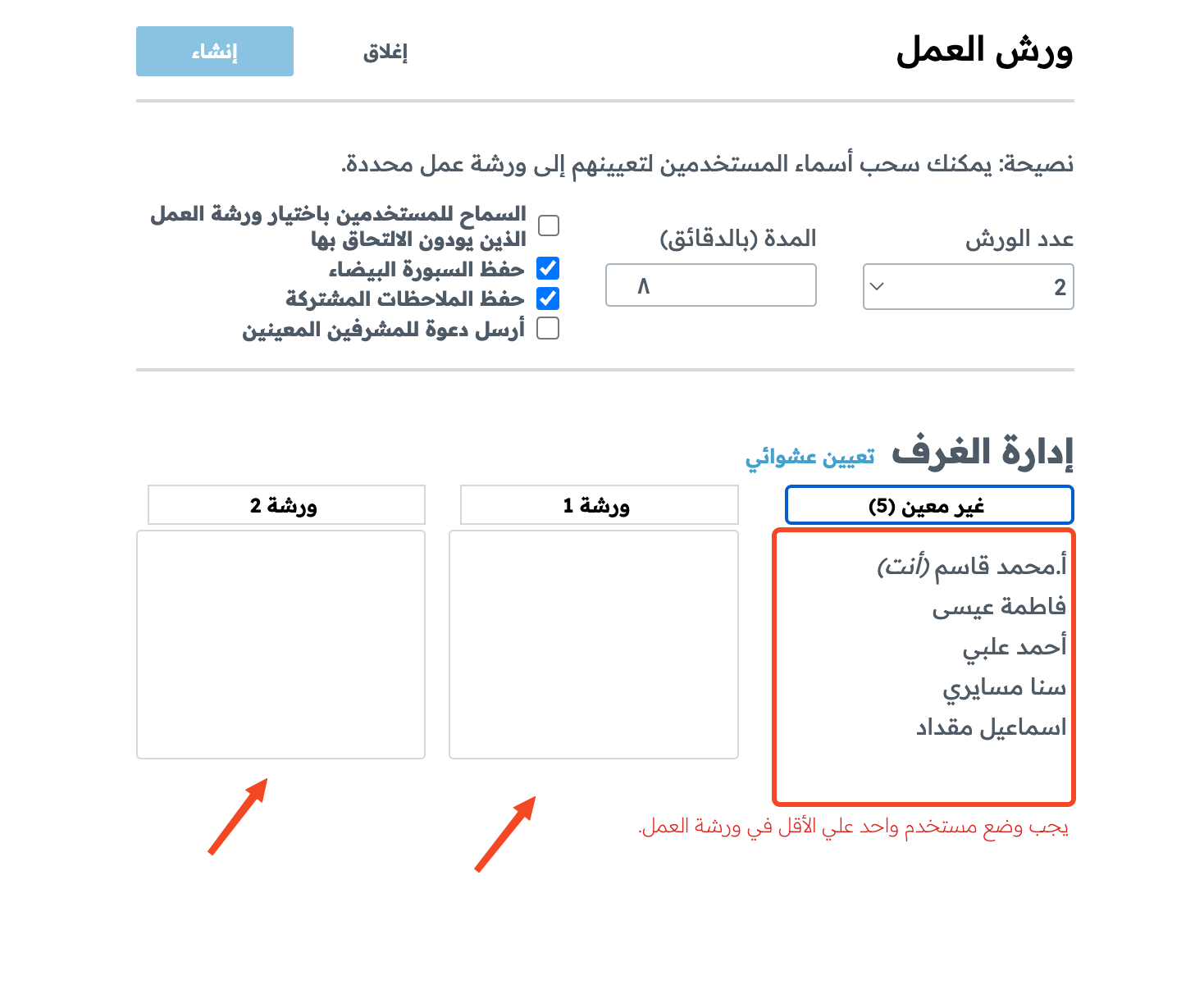
Choose the Number of rooms (at least 2, at most 8).
-
Set the Duration (minutes) (at least 5 minutes).
-
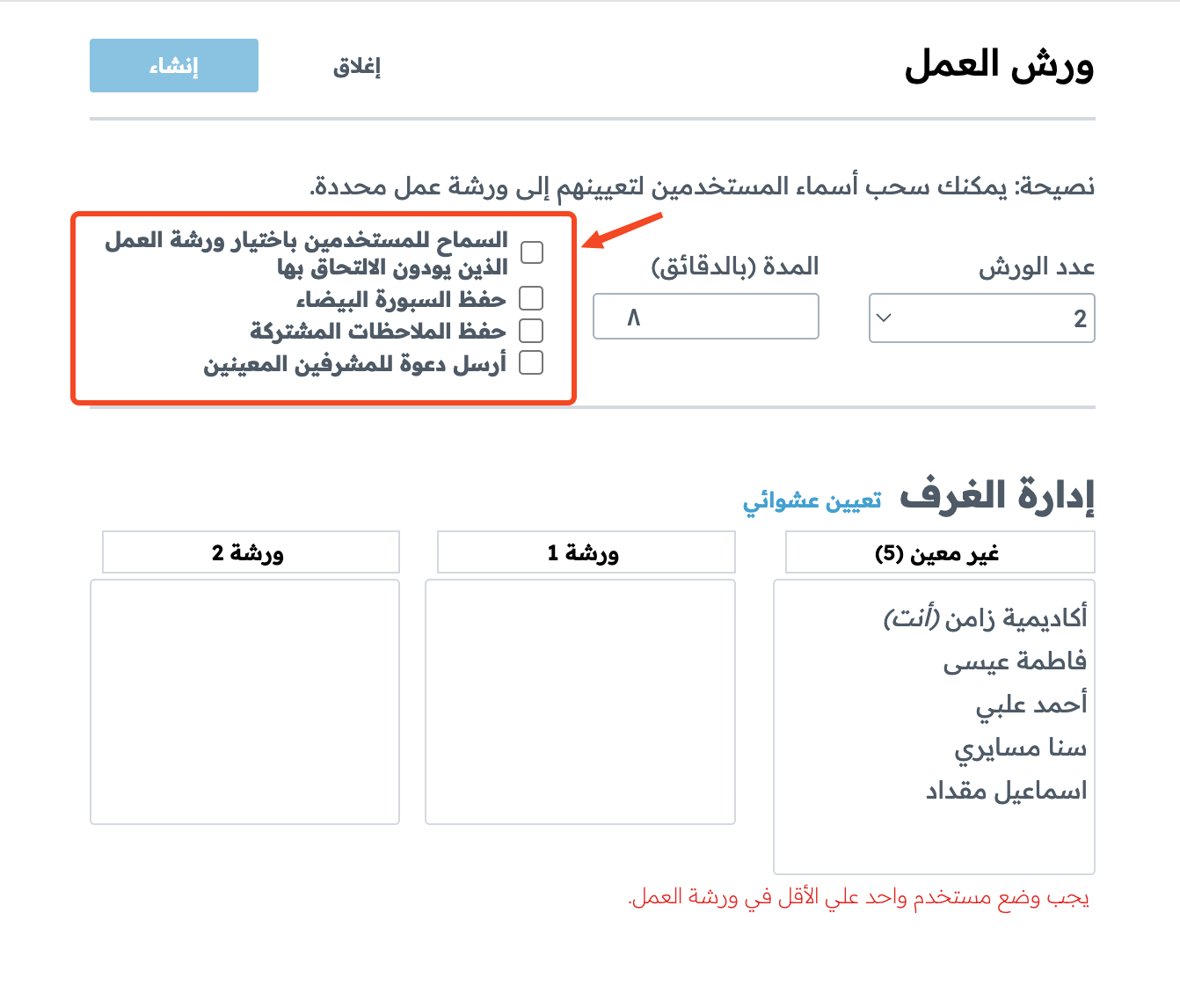
There are more settings that you can turn on if you want, or leave off.
-
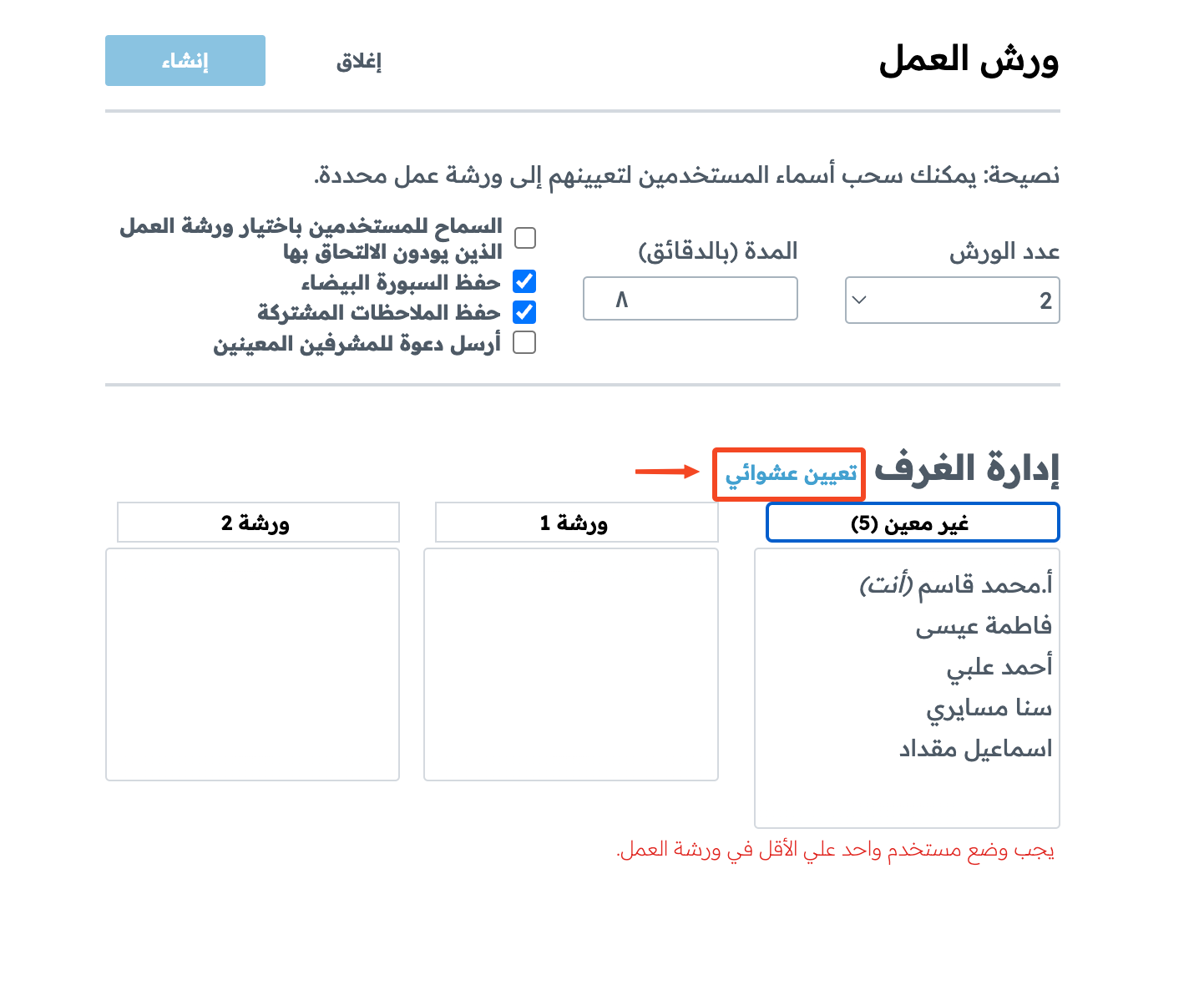
Split the attendees into breakout rooms in one of two ways:
- Click Randomly assign to split the attendees at random.
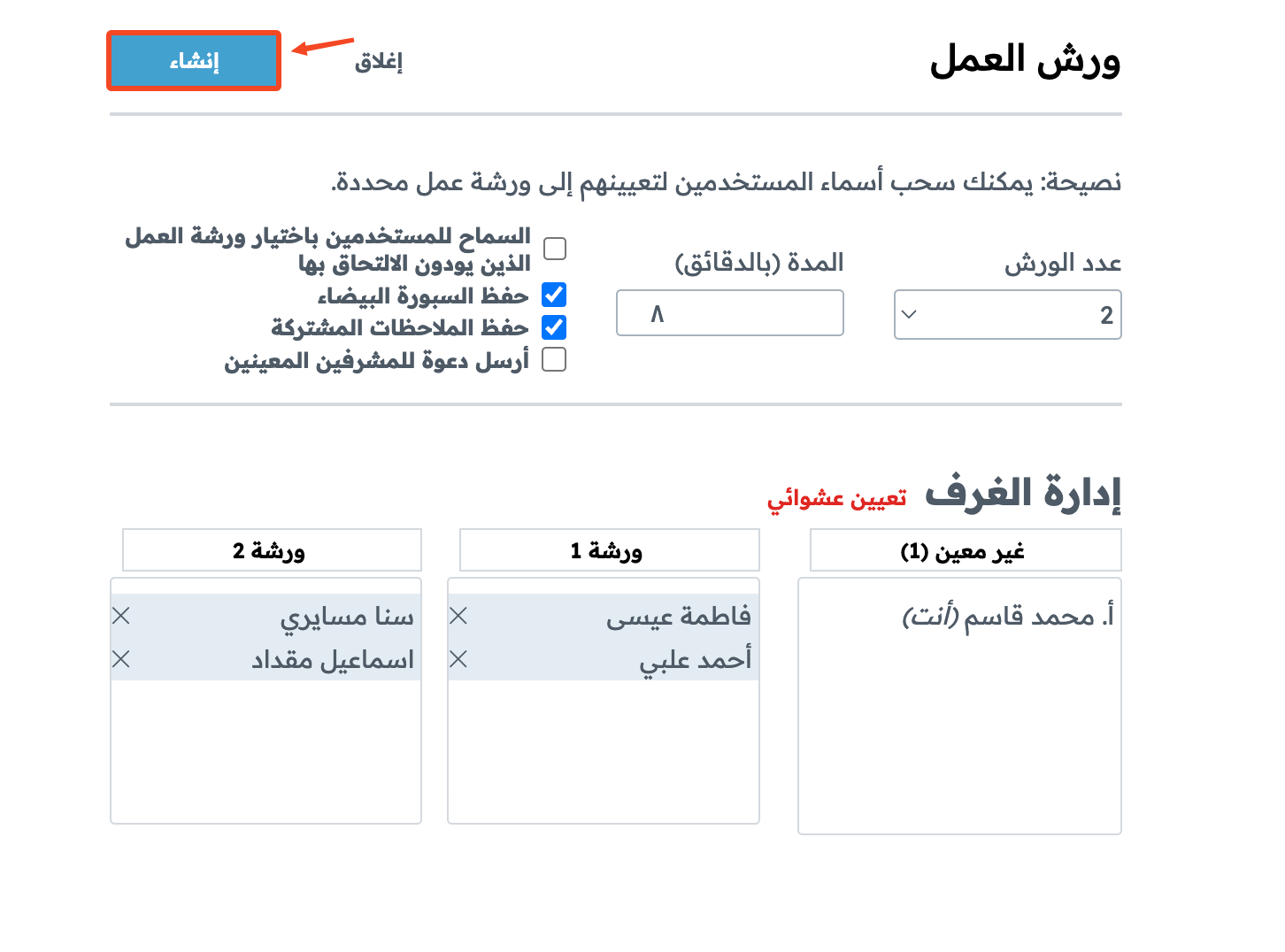
- Drag and drop names into the room you want.
-
Click Create to create the breakout rooms.
Manage breakout rooms
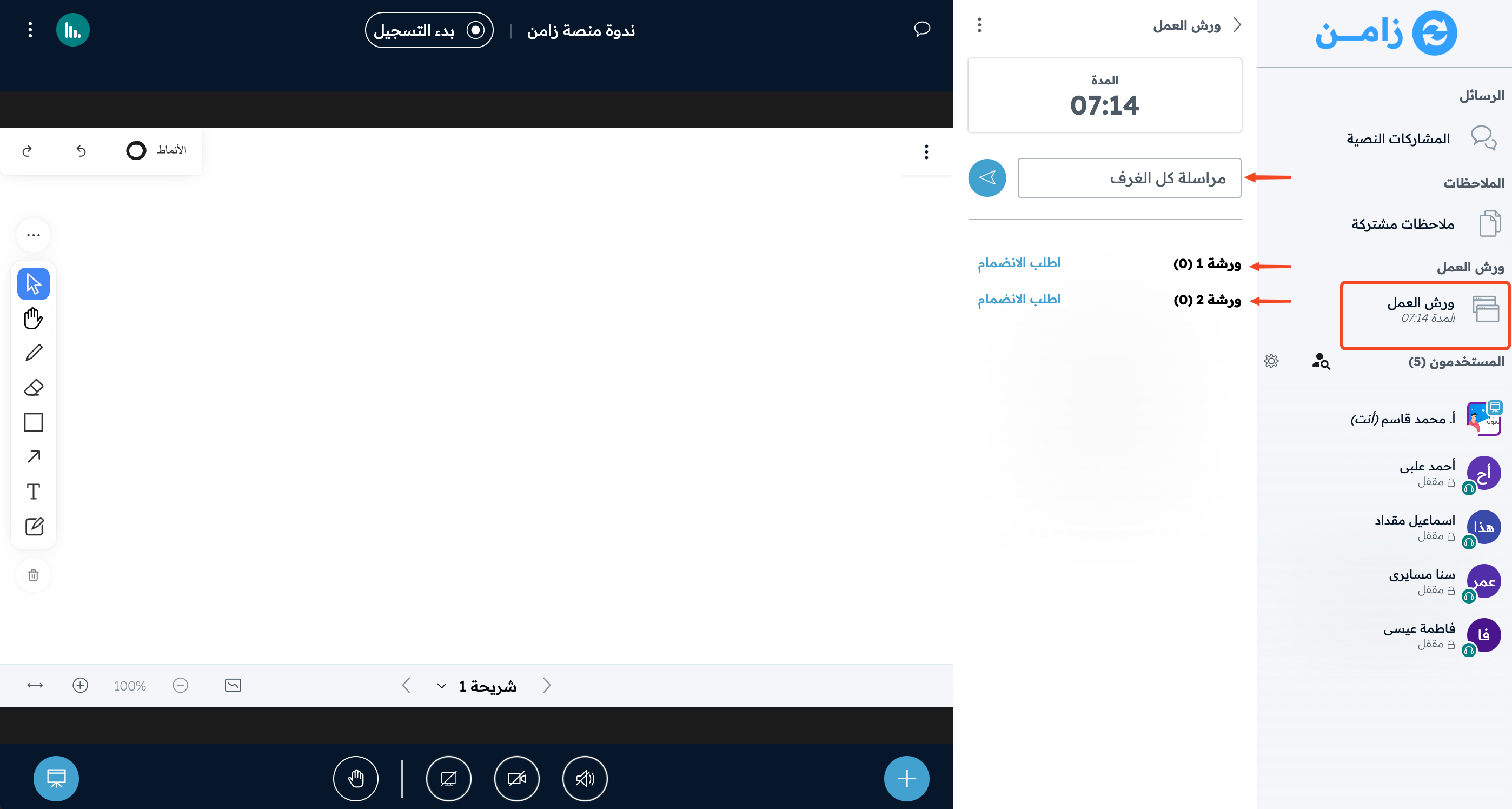
Click Breakout rooms to:
- Send a message to all breakout rooms from the Message all rooms box.
- Join a breakout room by clicking Ask to join.
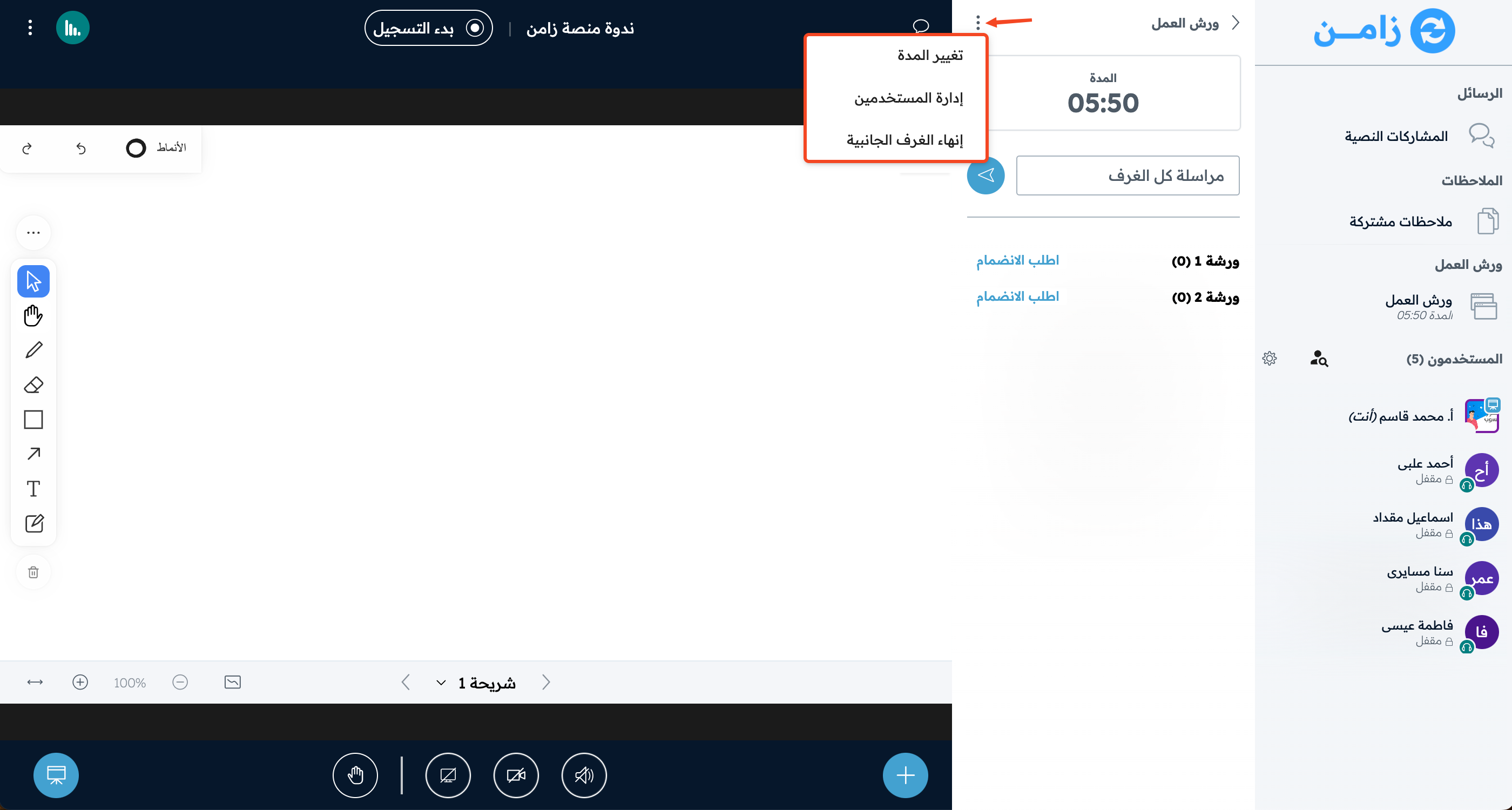
Click the three dots to:
- Change how long the breakout rooms run, with Change duration.
- Change which room each attendee is in, with Manage users.
- End all breakout rooms, with End breakout rooms.
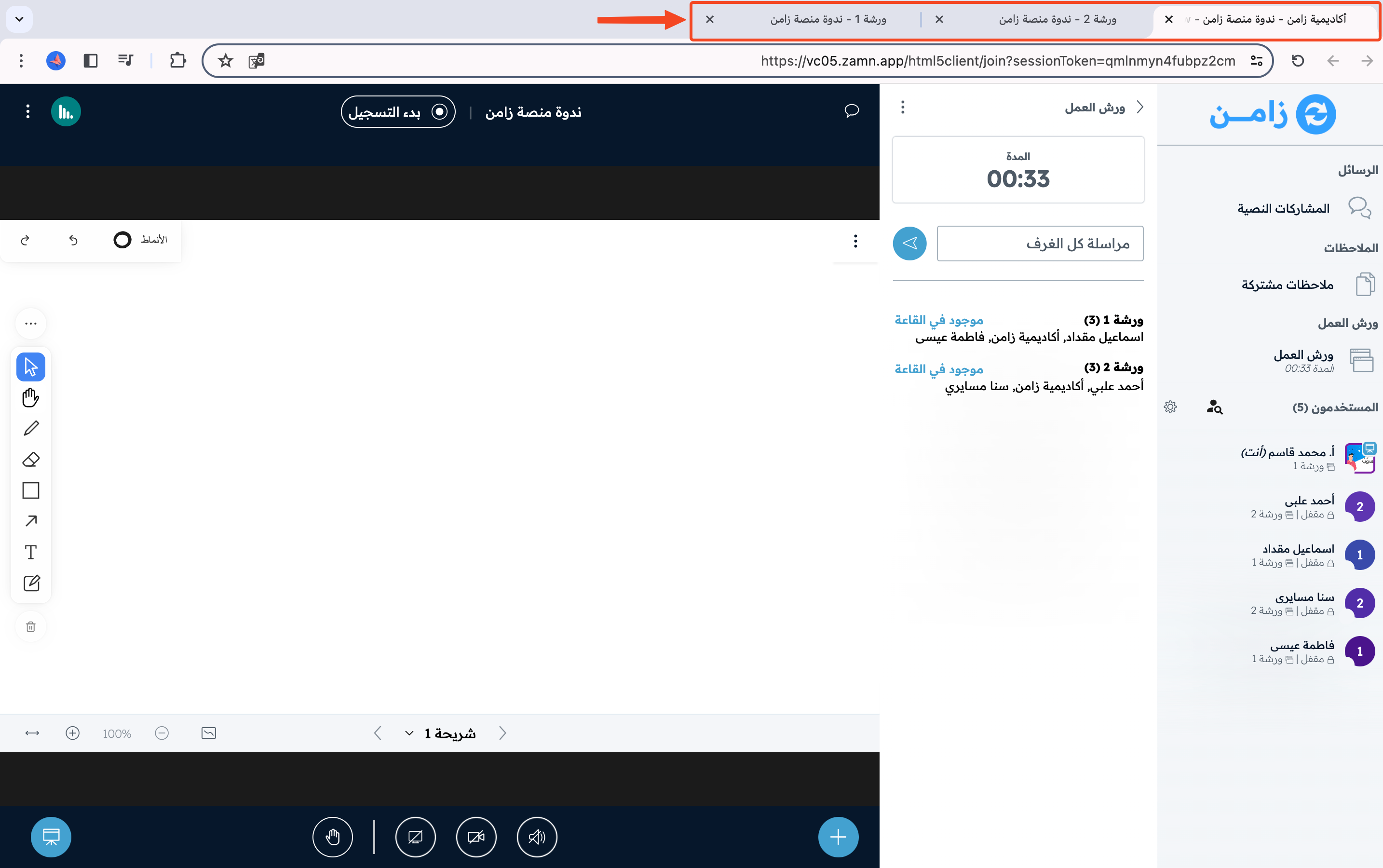
You can move between the breakout room pages using your browser tabs.
How to take and give rights
-
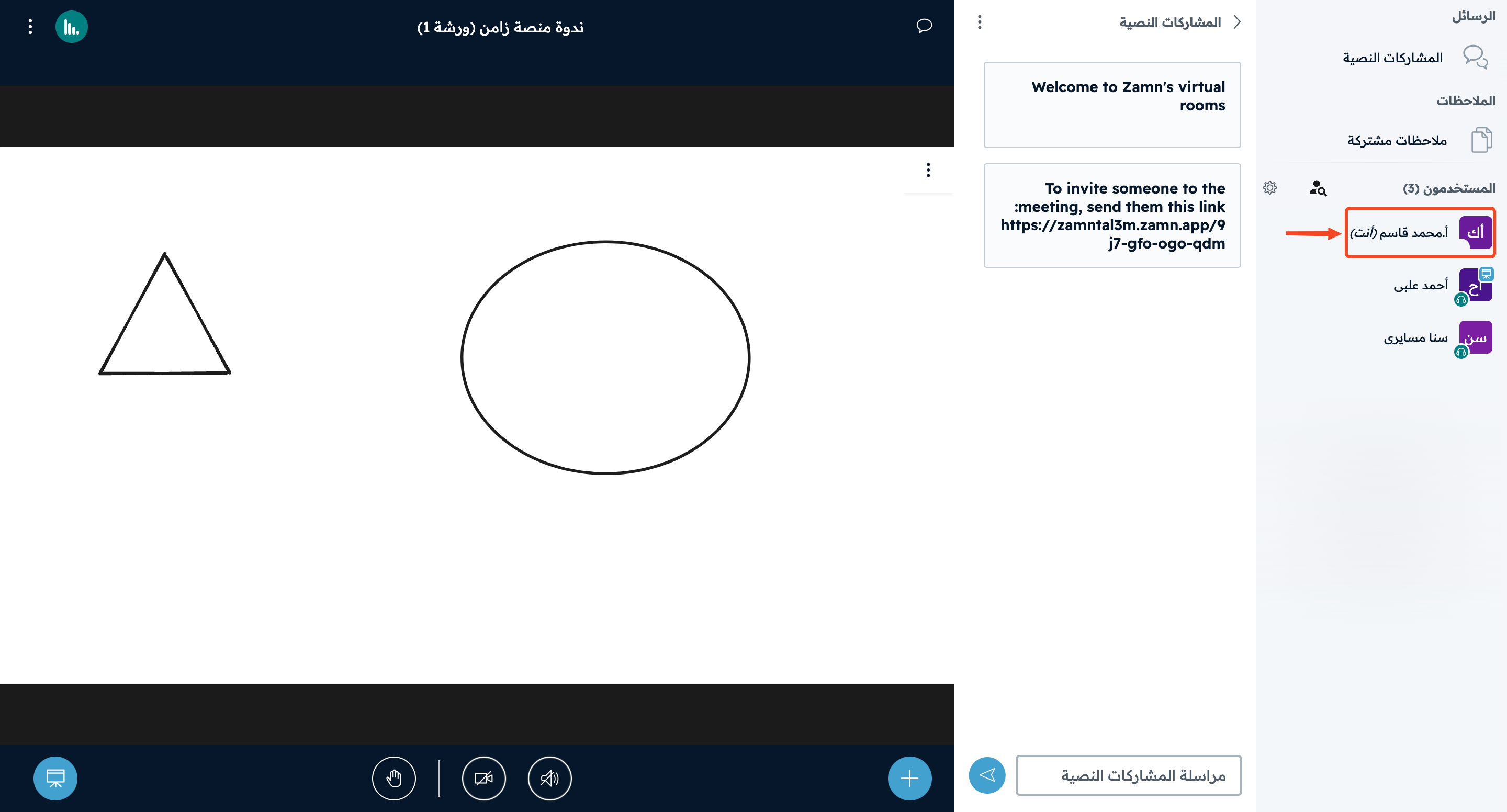
Click your account icon.
-
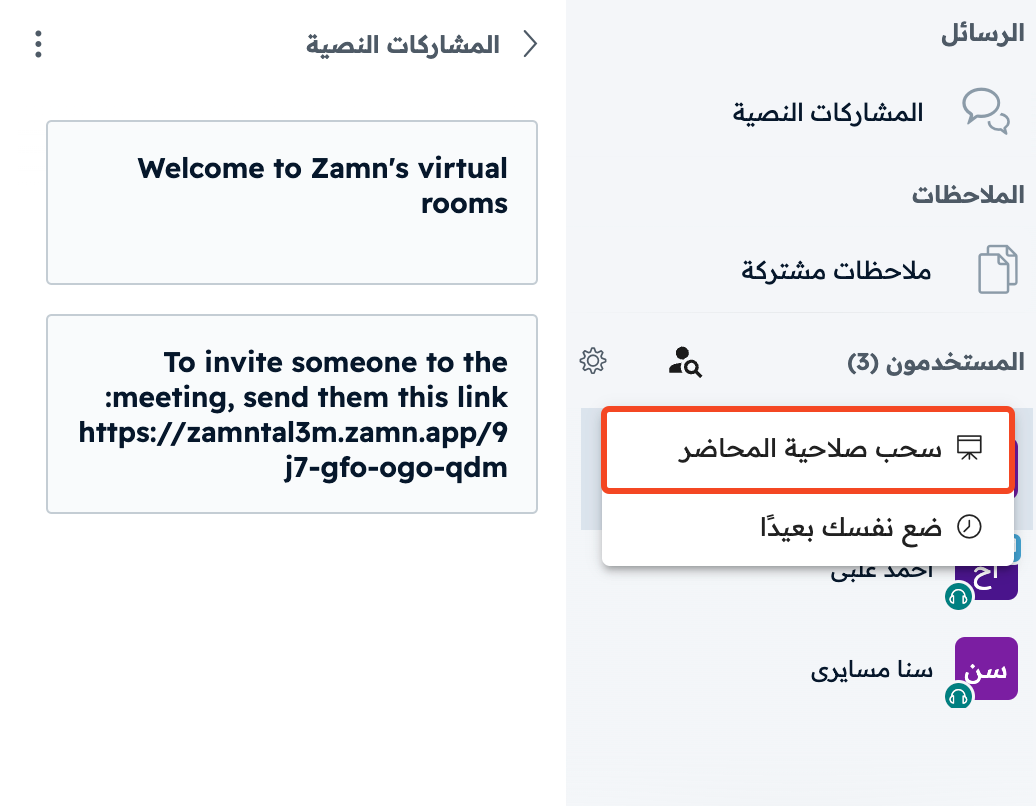
Choose Take presenter.
-
Click the trainee's account icon, then choose one of these options:
- Give whiteboard access.
- Make presenter.
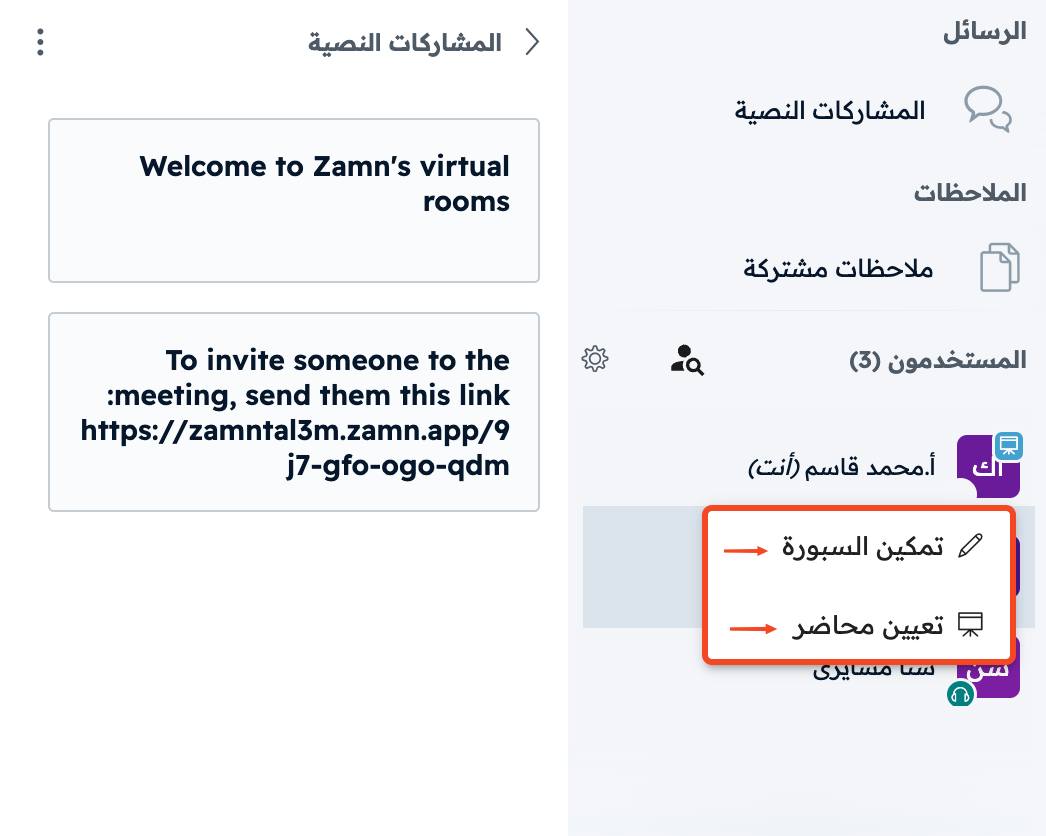
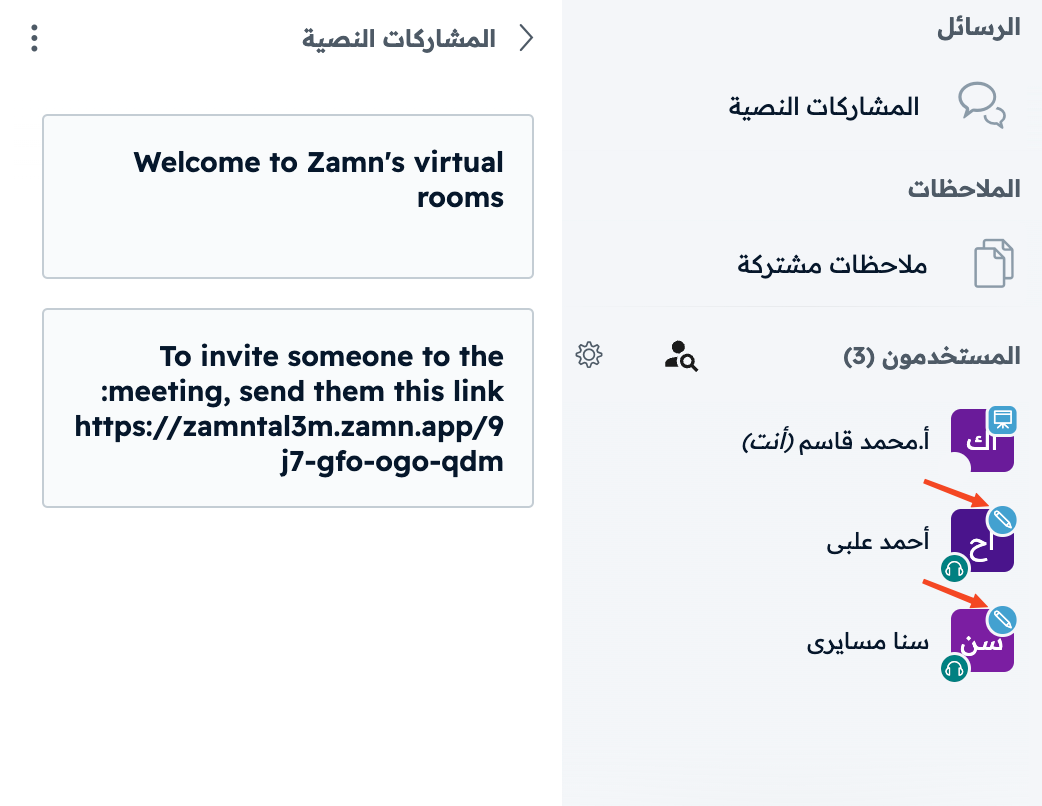
You can make only one presenter in a breakout room, but you can give whiteboard access to all attendees.