Room moderator sign-in to the platform
This article shows how a room moderator signs in to the platform and opens the rooms they moderate.
After the platform admin adds your account as a moderator of the room, they need to share their platform link with you.
Steps for the moderator to sign in to the room
After you get the platform link, follow these steps:
-
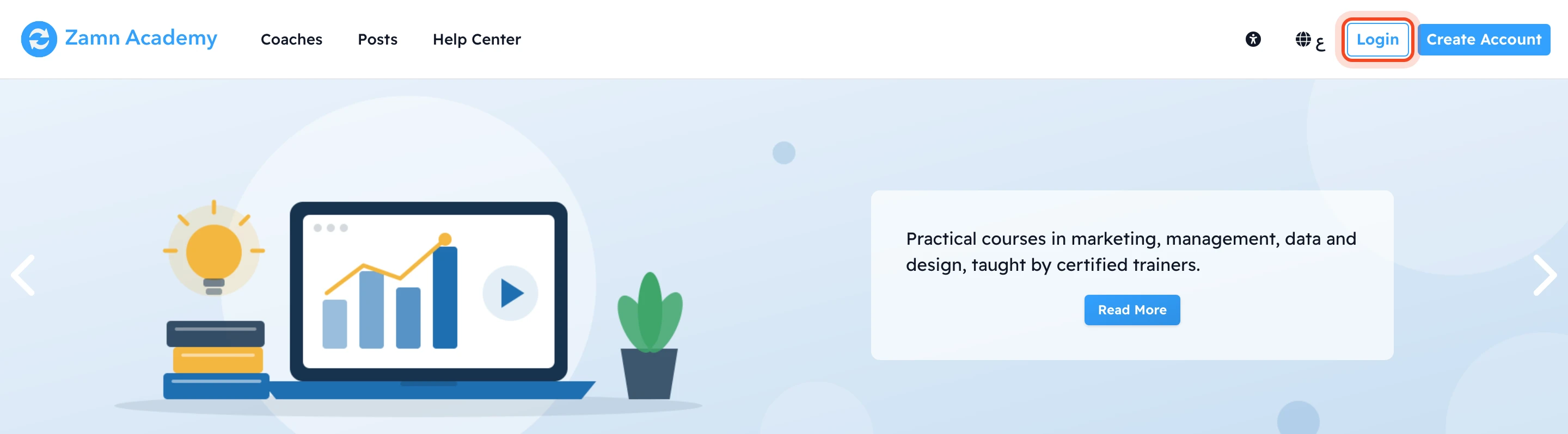
Click Login in the top bar.
-
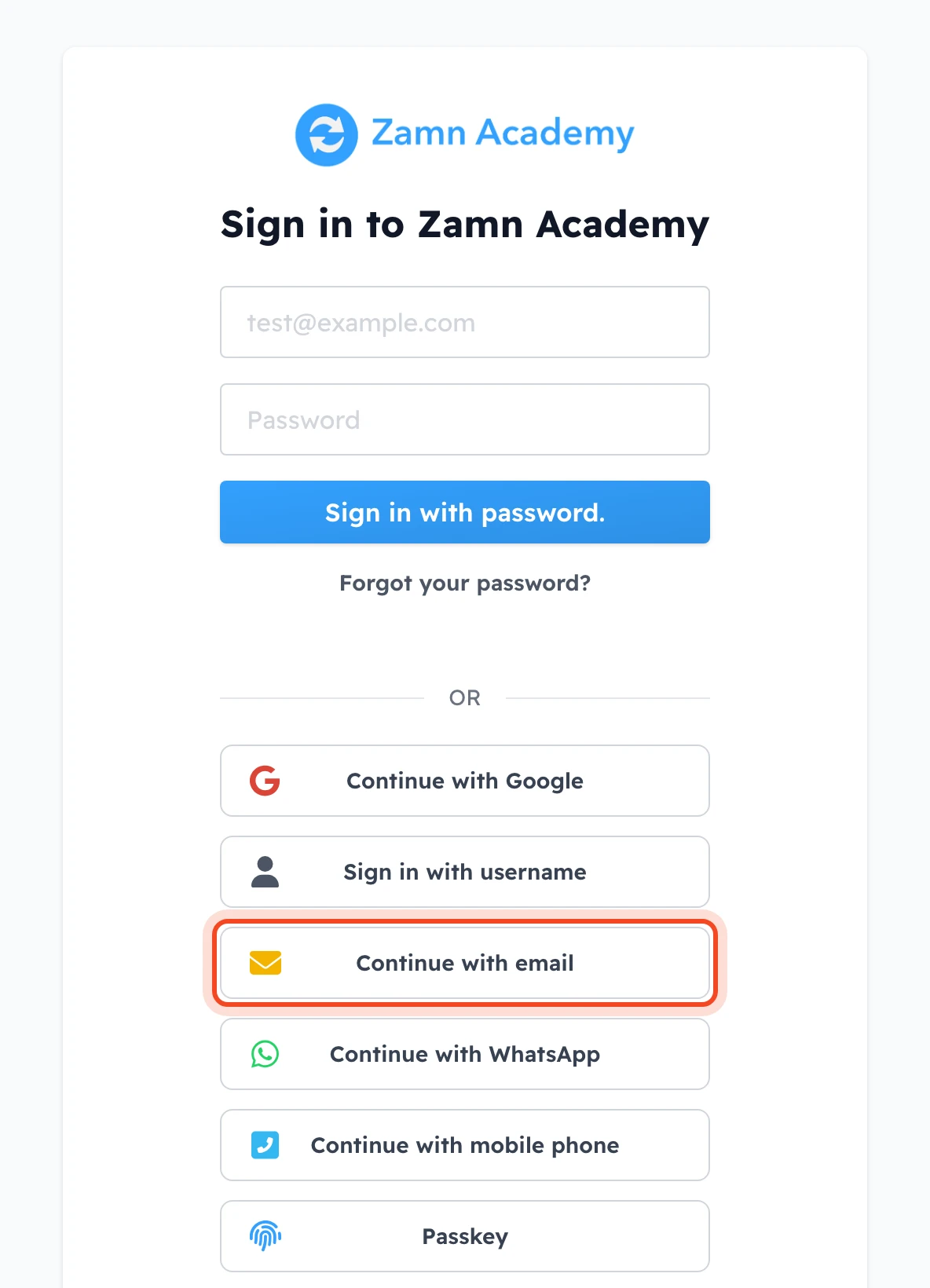
Choose Continue with email.
-
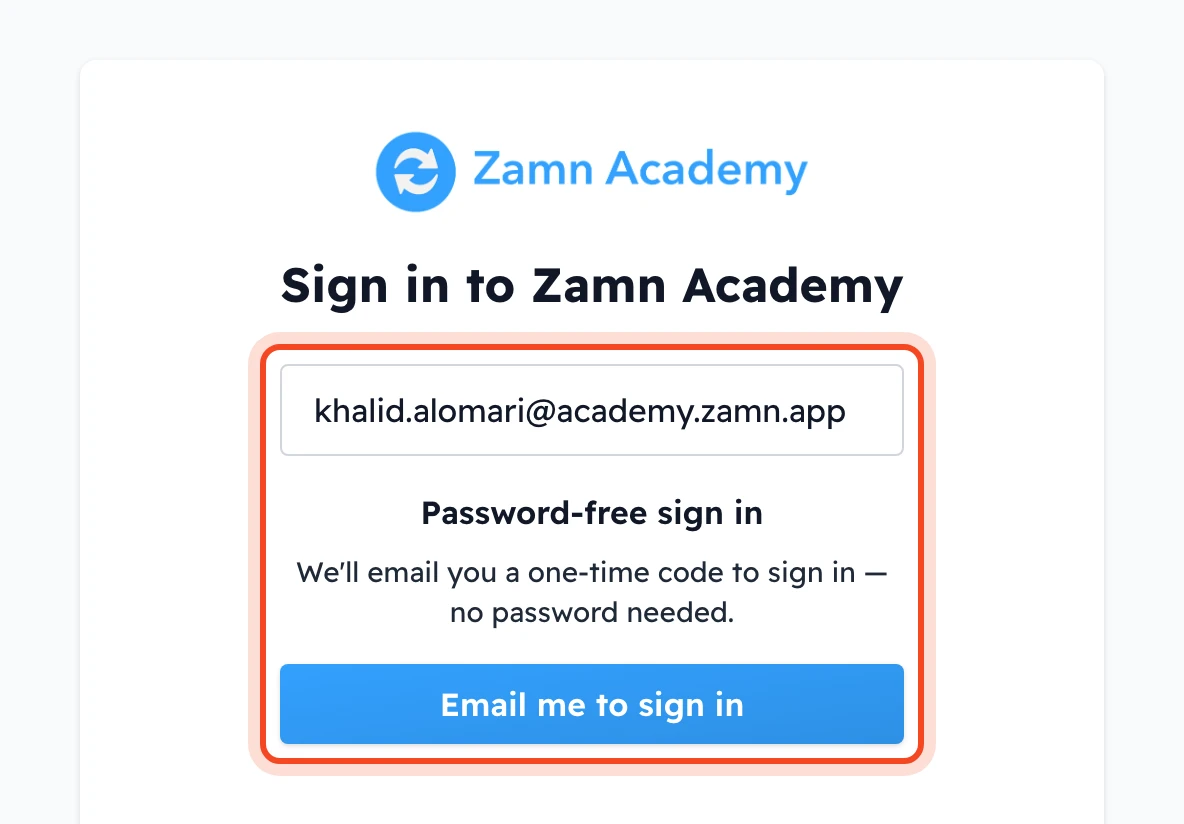
Enter your email, then click Email me to sign in.
-
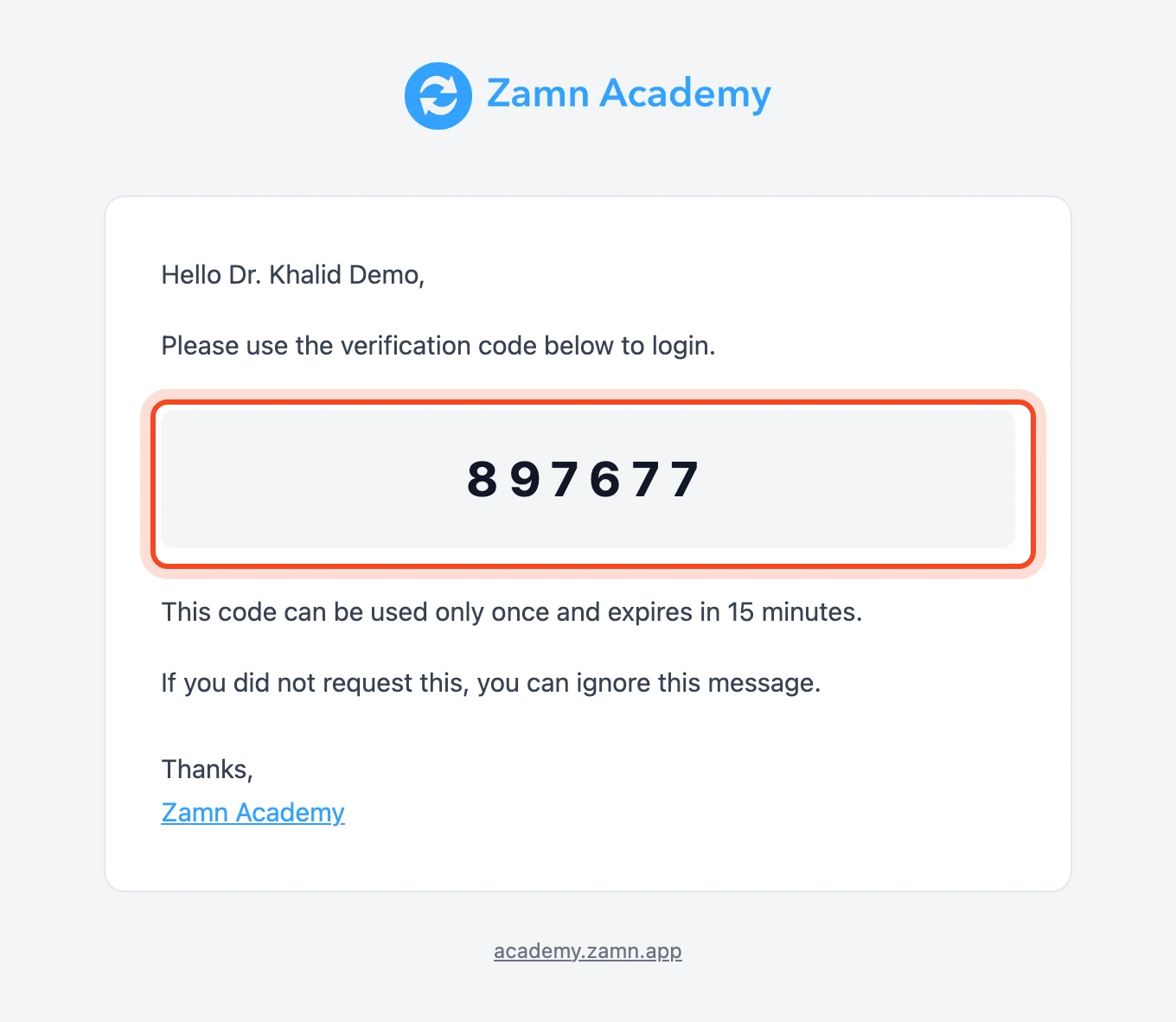
Open your email and copy the verification code from the message.
-
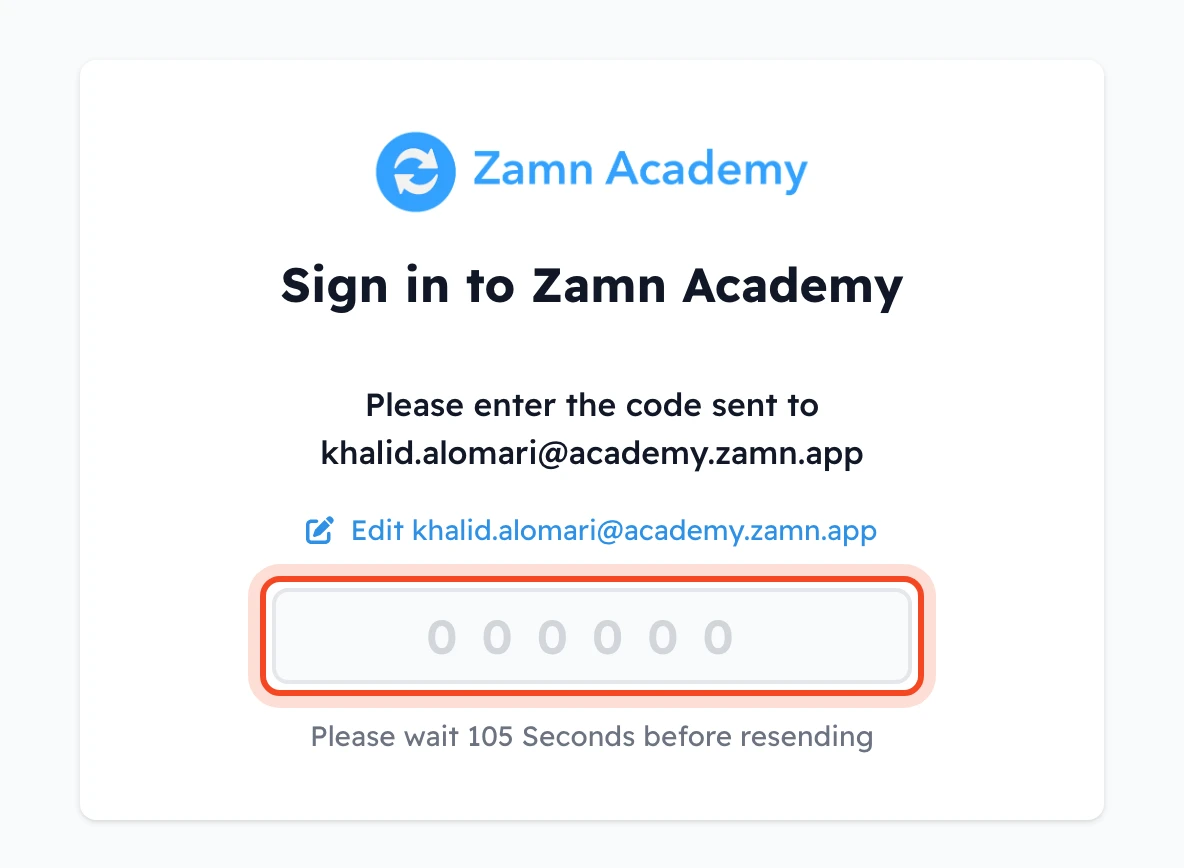
Paste the code in the box. You are signed in as soon as the 6 digits are entered. You do not need to click any button.
-
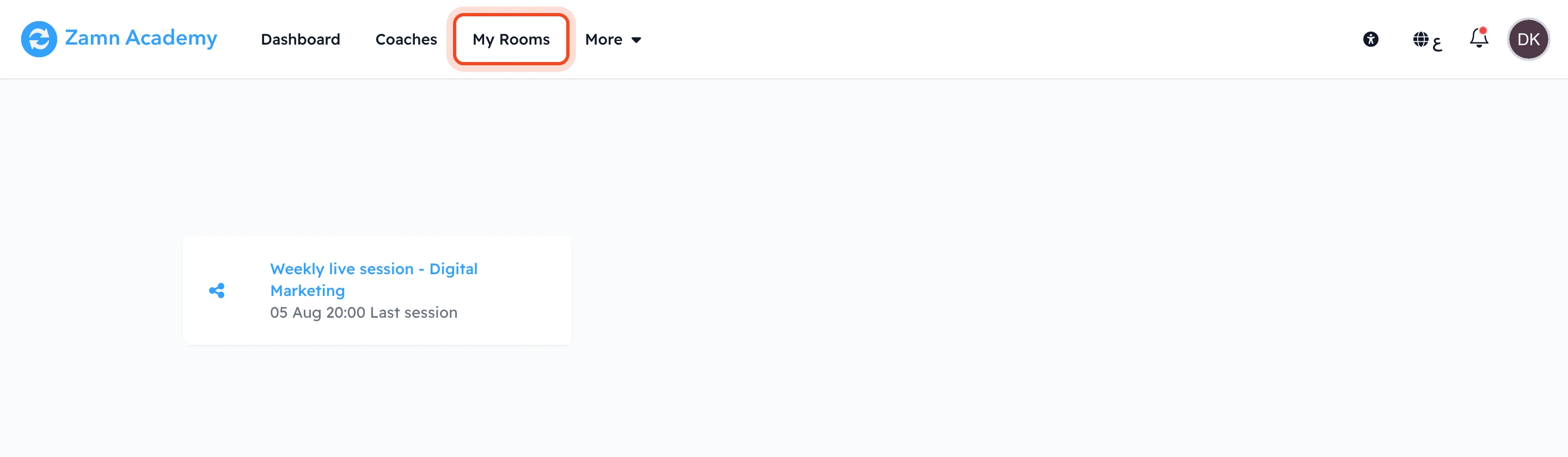
Click My Rooms in the top bar to see all the rooms you moderate.
-
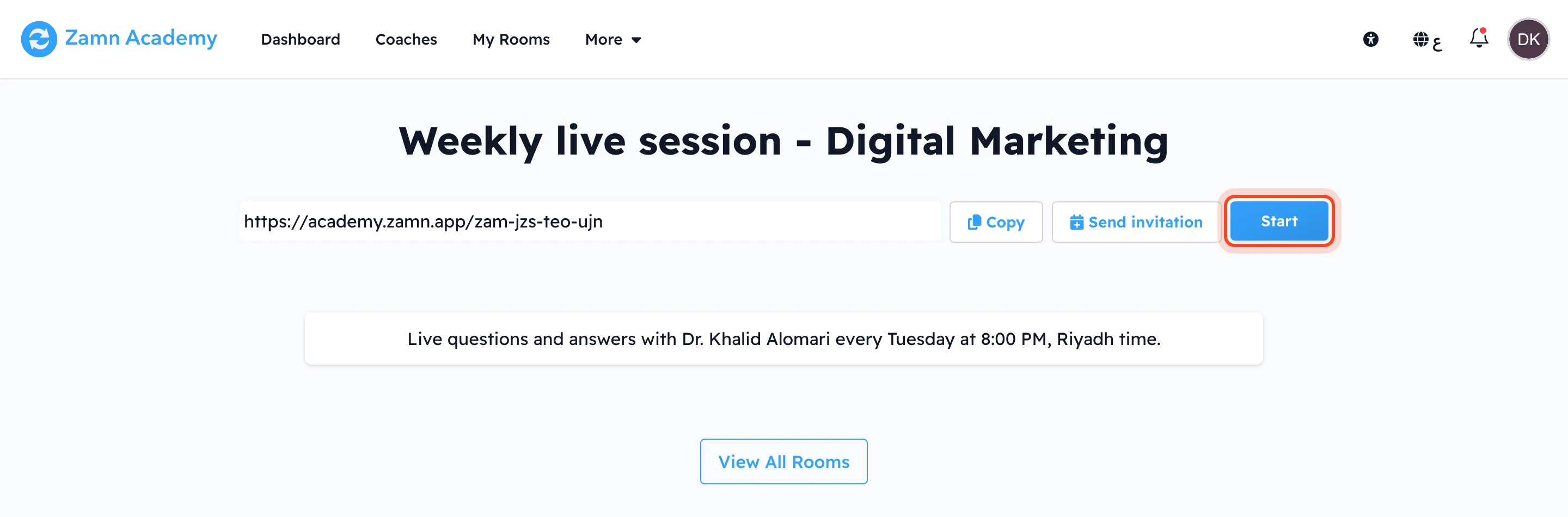
Click the room name to open its page, then click Start to open the room. If the room is already open, the button says Running. Click it to join.
If the page asks for an access code, type the room code the platform admin sent you in the Enter the room's access code field, click Enter, then click Join to open the room.
Set a password for your account
To sign in with your email and password next time:
-
Click your photo in the top bar, then choose Edit Profile. The Account settings page opens.
-
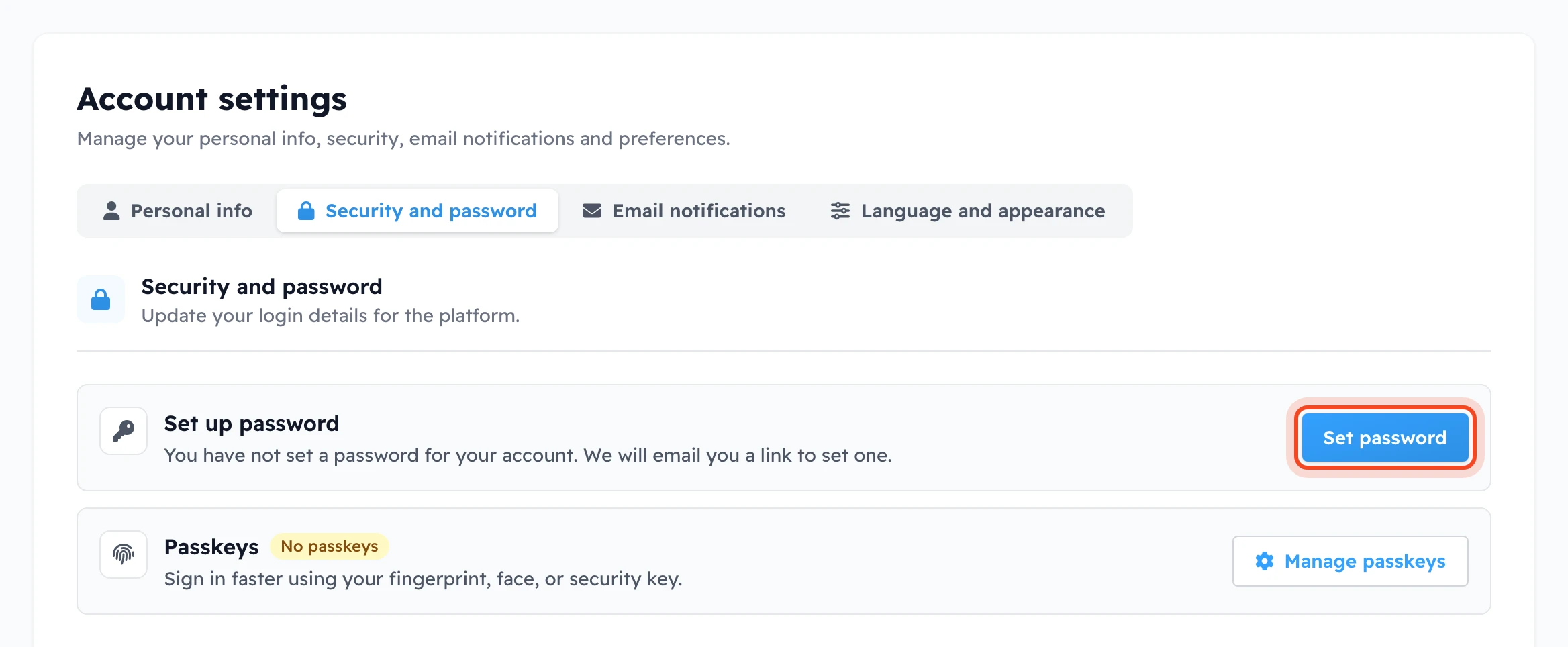
Open the Security and password tab, then click Set password.
-
You will get an email with a link to set your password.